What Is Mac Finder & How to Use It
Mac Finder: The Default File Manager
Mac Finder came with the first Macintosh computer and was completely rewritten in 2001 when Mac OS X was released. Its icon is a smiling computer screen, implying "Happy Mac."
It is named Finder because it is the default file manager that helps you locate and organize files on your Mac. Check the list below for more details about Finder's essential functions.
Mac Finder Functionality and Features
Open windows and files. Switching to the Finder allows you to view all files on the Mac by opening a window, which can be moved by dragging the title bar or expanded by dragging the edge. You can also use the buttons in the corner to close, maximize, or minimize the window.
Change the way of displaying files. In Finder windows, you can change how files are viewed and sorted using the View menu or button at the top. This lets you view files in different formats, such as a list, columns, gallery, or icons, and sort them by kind, date, or size.

Stack the files. Keep your files organized and tidy by stacking them neatly, making it easy to quickly locate and find the exact file you need.
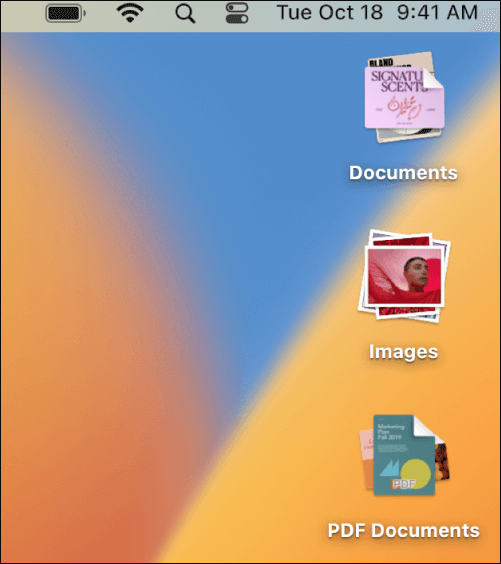
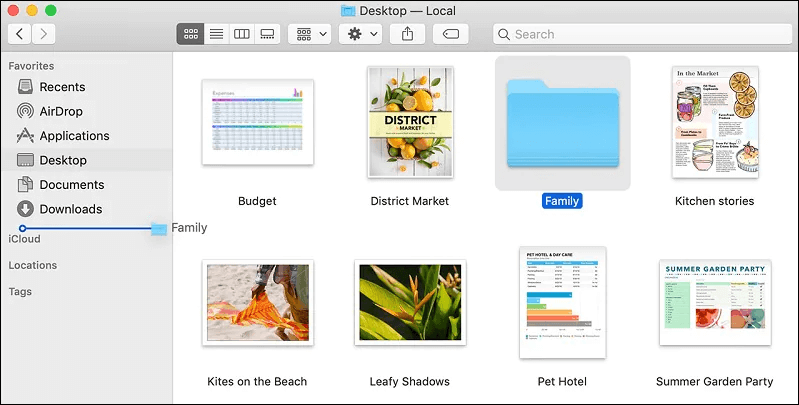
Use the Sidebar. The Finder sidebar offers quick access to frequently used folders and cloud storage services like AirDrop and iCloud Drive.
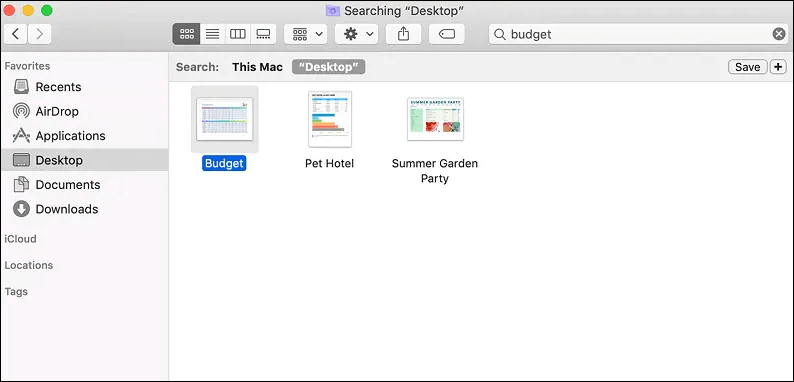
Search items. The search field in the corner of the window allows for a quick search of files, and the advanced search feature provides more specific search results.
How to Open Mac Finder
To open Mac Finder, you can click on the Finder icon located in the Dock, which is usually at the bottom of the screen. Alternatively, you can use Spotlight by pressing Command + Space and typing "Finder" to open it. If you cannot find the Finder icon in the Dock, you can also click on the Launchpad icon in the Dock and search for "Finder" to open it.
Method 1. Through the Dock
Finder is always present on the Dock. To open it, double-click on the icon, and then you can access its features.
Method 2. By Main Menu
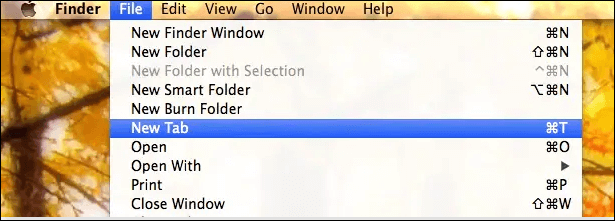
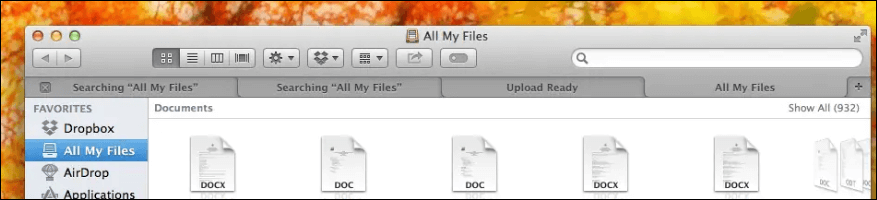
Step 1. To explore your Mac's storage, place your mouse pointer in a blank space on the desktop and click, then select "File" from the top menu and choose "New Tab". This will launch a new tab where you can navigate and explore your Mac's storage.
Step 2. A Finder window appears on the screen, displaying shortcuts on the left panel.
Method 3. Via Keyboard
You can open Mac Finder by pressing Command + N on your keyboard when you have selected the desktop.
Mac Finder Tricks and Tips
Apart from its essential functions, Mac Finder offers additional features to manage files more efficiently. With Finder, you can organize files into folders, create and edit tags, and use the "Quick Actions" feature to perform tasks like compressing files or converting file types.
Additionally, Finder allows you to use the "Tags" feature to categorize files and make them easily searchable, and the "Quick Look" feature to preview files without opening them. Finder also provides a range of customization options, including the ability to change the layout and appearance of the window, and to set up custom keyboard shortcuts for frequently used actions.
Mac Finder Shortcuts
The table below shows you the Mac keyboard shortcuts in Finder so you can quickly access some Finder features.
|
Feature |
Keyboard Shortcut |
|
Open a new Finder window |
Command + N |
|
Open a new Finder tab |
Command + T |
|
Duplicate the selected file |
Command + D |
|
Search for files or folders in Finder |
Command + F |
|
Create a new folder in the current location |
Command + Shift + N |
|
Show or hide the tab bar in Finder |
Command + Shift + T |
|
Open the Applications folder |
Command + Shift + A |
|
Open the Utilities folder |
Command + Shift + U |
|
Open the Downloads folder |
Option + Command + L |
|
Create a new Smart Folder |
Option + Command + N |
|
Empty the Trash |
Option + Command + Delete |
|
Get the icon/list/column/cover flow view |
Command + 1/2/3/4 |
Customize Sidebar in Finder
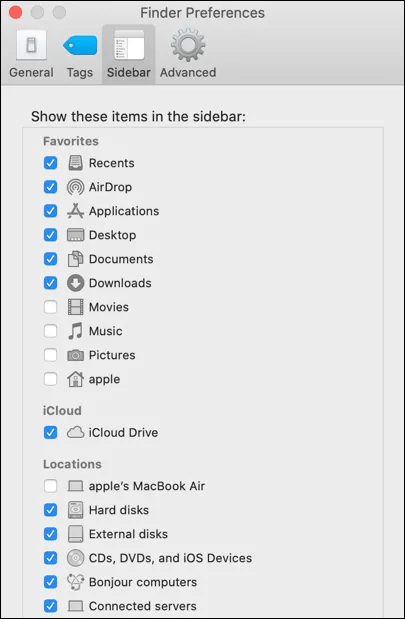
You can select what can be shown on the sidebar. Follow the steps below:
Step 1. Click "Finder" from the top menu bar.
Step 2. Go to the "Preferences" option and choose "Sidebar".
Step 3. To customize the items shown in the sidebar, simply check or uncheck the corresponding boxes next to each item. This allows you to selectively display or hide specific items, tailoring the sidebar to your preferences.
Change Default Finder Window
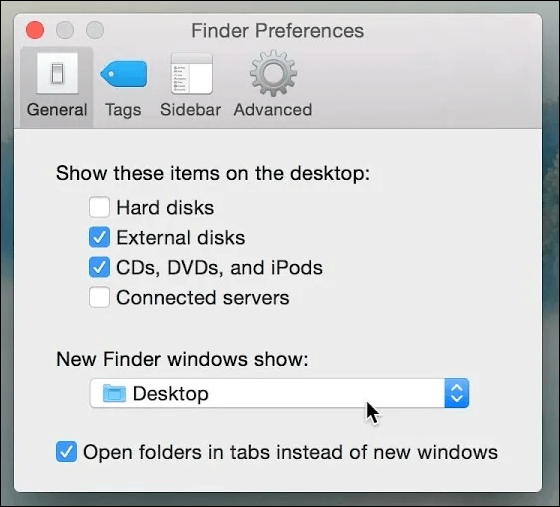
To set a folder as the default Finder window, go to the folder you want to set as default, then click on "Finder" in the top menu bar, select "Preferences", and click on the "General" tab. In the "New Finder windows show:" section, select the folder from the dropdown menu. This will set the folder as the default Finder window.
Step 1. To access the General tab in Finder Preferences, open Finder from the main menu and then navigate to Preferences, where you can select the General tab.
Step 2. In the "New Finder windows show" section, select the folder you want to be the default Finder window and click on it.
Show Hidden Files via Finder
Apple hides certain files to prevent users from accidentally damaging their operating system. This is done to protect the system from unintended changes, which could cause problems. Before making any changes to these hidden files, it is essential to understand the potential risks involved.
Step 1. Open Finder and click "Go" on the main menu bar.
Step 2. To unhide files in the folder, press the Option key. The hidden files will then appear translucent in the folder.
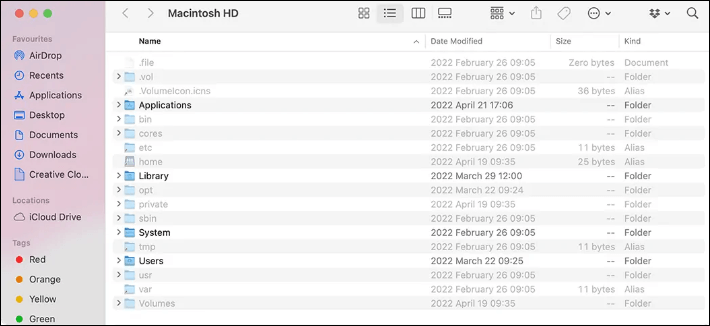
Step 3. To find a specific folder in the Library folder on a Mac, press and hold the Option key while clicking on the Library folder. This will reveal the hidden folder you are looking for.
Rename Multiple Files by Finder
You can quickly rename multiple files in Finder by selecting them all, right-clicking on one of the selected files, and choosing "Rename [x] Items" from the context menu. This will open a new window where you can enter a new name for the files, and you can also choose to add a prefix or suffix to the names. This makes the process of renaming many files much faster and more efficient than doing it one by one.
Step 1. Launch Finder, select all the files you want to rename, and then right-click on them to access the "Rename" option.
Step 2. To rename the files, click the gear icon on the top bar and select "Rename...".
Step 3. After deciding to replace, add, or format text, you need to add the name and index to each file.
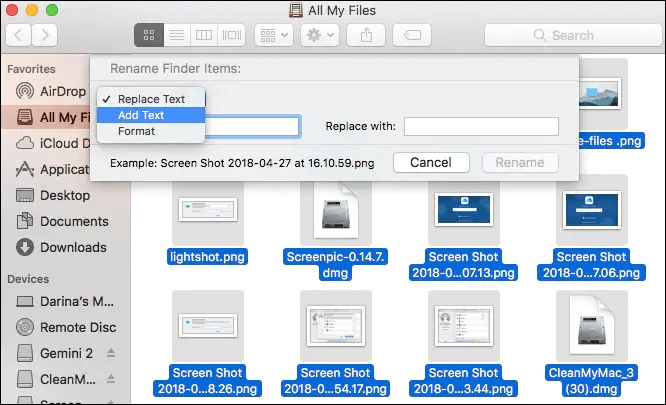
Note: To undo a rename, press Command + Z or go to "Edit" > "Undo Rename" in the menu.
Fix Mac Finder Not Working
Here are the reasons why Mac Finder is not responding:
- Short of storage space.
- Run out of memory.
- Temporary glitches appear in Finder.
- System errors.
- Interference or conflicts from other programs.
- Problematic peripherals.
The article shows you 5 solutions to help you.
Fix 1. Force Quit and Relaunch Finder
If Finder freezes, force quit it and try relaunching it to potentially resolve the issue.
Step 1. Click the Apple icon and go to "Force Quit Finder".
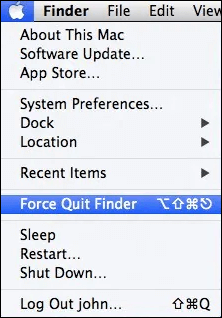
Step 2. A pop-up window will appear asking if you are sure you want to force quit Finder. Click "Yes" to force quit the Finder.
Step 3. To resolve the issue, go to the desktop, right-click on the Finder icon in the Dock, and select "Relaunch" from the menu.
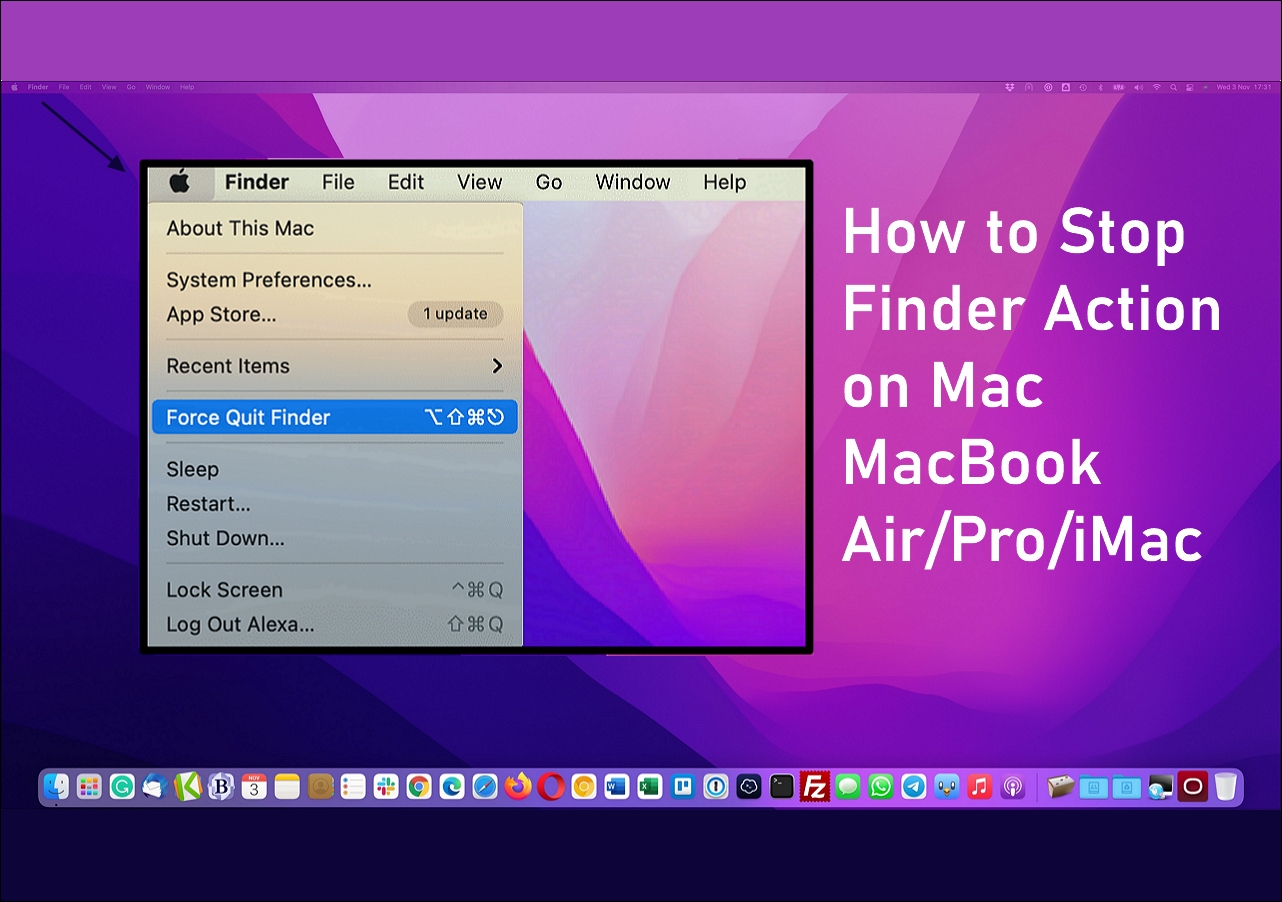
To stop Finder on Mac, you can use the "Force Quit" method, which allows you to close the Finder app immediately. To do this, press Command + Option + Esc keys, which will open the Force Quit Applications window. From there, click on "Finder" and then click on the "Relaunch" button.
To stop Finder on Mac, you can try the following methods: use the Force Quit feature, close the Finder window, restart your Mac, use the Activity Monitor, or disable the Finder from the System Preferences. You can also try to relaunch the Finder by using the Terminal command "killall -HUP Finder" or use the "killall Finder" command.
To stop the Finder action on Mac, press Command + Option + Esc keys, which will open the Force Quit Applications window. From there, select Finder and click the Force Quit button. This will terminate the Finder process and stop any ongoing actions. Alternatively, you can also use the Activity Monitor to find and quit the Finder process.
Fix 2. Restart Mac
The most straightforward solution to fix Finder not responding or being slow is to restart your Mac from the Apple menu, which is a soft restart. Alternatively, you can hard restart your MacBook or Mac to see if it resolves the issue.
Fix 3. Check and Clear Storage Space
Being short of storage space may cause Finder to freeze or not respond, so clearing storage space is necessary to resolve the issue.
Step 1. Select "About This Mac" from the Apple menu.
Step 2. To check the available space on your Mac, go to "Storage" in the About This Mac section.
Step 3. To free up storage space, click the "Manage" button to delete unnecessary files and applications.
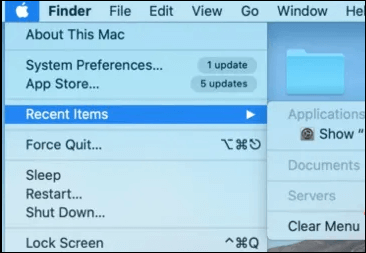
You can also clear recent items on a Mac by choosing "Recent Items" from the Apple menu and selecting "Clear Menu".
Fix 4. Uninstall Third-Party Apps
The Mac operating system may not support certain applications, which can cause the system to crash or first-party apps like Finder to become unresponsive if run on a Mac.
To troubleshoot the issue, try uninstalling recently installed third-party apps on your Mac. This may resolve the problem. Once you have uninstalled the apps, relaunch Mac Finder to see if the issue persists.
Fix 5. Update your Mac
If your Mac is running an older version of the operating system, it is possible that bugs or errors from the previous version are causing Finder to freeze. To fix this, updating your computer to the latest macOS update is the best solution.
Step 1. Go to System Preferences by clicking the Apple icon, then click Software Update.
Step 2. Click "Update Now/Restart Now" to update the version, or visit "More Info" to check if there are any updates available.
Conclusion
This post provides an introduction to Mac Finder and step-by-step instructions on how to use it, helping you better manage your files. If you encounter issues with Mac Finder not working or responding, do not worry, as solutions can be found here.
Mac Finder FAQ
Finder is a file manager and search tool that comes pre-installed with macOS. It allows users to navigate and manage files and folders on their Mac, as well as search for specific files and folders.
1. Where is the Finder on my Mac?
The Finder is a program that opens automatically when you start your Mac and can be found on the Dock. It features a menu bar at the top of the screen and a desktop area below, allowing you to access and manage your files and folders.
2. How do I find my Mac in Finder?
To access "Find My Mac", go to System Settings from the Apple menu, click on your user name at the sidebar, and then select iCloud from the right side, where you can find "Find My Mac".
3. How do you use Finder on a Mac?
To open Finder, click the Finder icon on the Dock.
4. How do I open Finder on Mac with the keyboard?
Press Command and F at the same time.
5. What is Finder in Mac equivalent in Windows?
Finder is an application on a Mac that displays all the files and folders on the device, similar to Windows Explorer (File Explorer) in Windows.
Related Articles
- How to Boot Surface from USB? [Efficient Information]
- What is Windows PE and How to Use It
- [Solved] What Happens If I Interrupt System Restore Windows 10?
- What Is Incremental Backup? Definition, Pros, and Cons
- Laptop Turns Off When Unplugged - How to Fix?
You may encounter the frustrating issue of your laptop turning off when unplugged, and it's essential to learn how to fix this problem to continue using your device correctly. This tutorial will outline 5 fixes to resolve the issue, and we'll also recommend an efficient backup tool for your files. - Solved: Screen Black But Still Running Issue
Fix a Lenovo laptop screen that is black but still running by checking display, power, graphics, and system issues.
Products
Articles & Tutorials
- Data Recovery
- Data Backup
- File Recovery
- File Backup
- System Backup and Restore
- Disk and Partition Clone
- Technical articles
- Mobile articles
- Disk Master Help
- Windows Data Recovery Tutorials
- Windows Secure Delete Tutorials
- Windows Partition Management Tutorials
- Windows File Backup and Restore Tutorials
- Windows System Backup and Restore Tutorials
- Windows Disk Backup and Restore Tutorials
- Windows Clone Tutorials