What Is System Preferences on Mac | How to Use It
What Are the System Preferences on Mac
The System Preferences on Mac is a central hub for all device settings, providing access to various computer settings and options through a user-friendly control panel. This allows users to customize settings such as speaker outputs, privacy options, display settings, and more.
The list of settings available in System Preferences are:
| General | Basic settings for the user interface and user account |
| Desktop & Screen Saver | Options for customizing the desktop and screensaver |
| Dock & Menu Bar | Settings for the Dock and menu bar |
| Mission Control | Options for managing multiple desktops and applications |
| Security & Privacy | Settings for system security and privacy preferences |
| Time Machine | Options for setting up and managing backups |
| Network | Settings for network connections and internet preferences |
| Internet Accounts | Settings for connecting to various internet accounts |
| App Store | Settings for the App Store and automatic updates |
| Sound | Settings for audio output and input |
| Keyboard | Options for customizing the keyboard |
| Mouse | Options for customizing the mouse or trackpad |
| Printers & Scanners | Settings for managing printers and scanners |
| Users & Groups | Settings for managing user accounts and login preferences |
| Accessibility | Options for accessibility settings, such as visual and hearing aids. |
- Notice:
- The options may change depending on the version of the OS.
Where to Access the System Preferences on Mac
Here are the different ways to access System Preferences on a Mac:
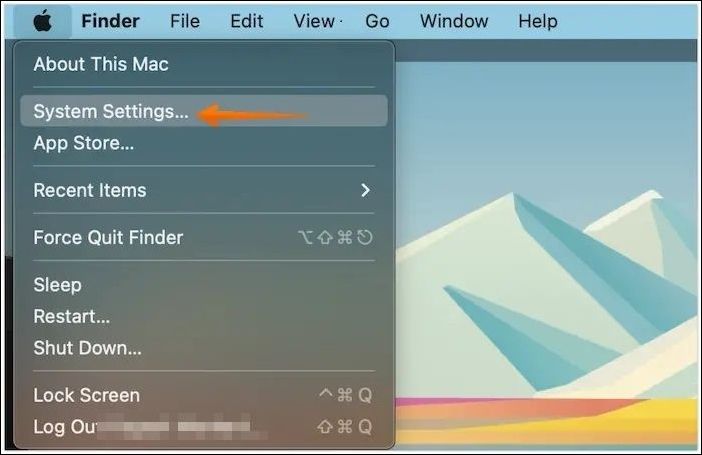
1. Find It on the Apple menu.
To open System Preferences on a Mac, select the Apple icon on the desktop, which will prompt a drop-down menu, and then choose System Preferences.
2. Access from Finder
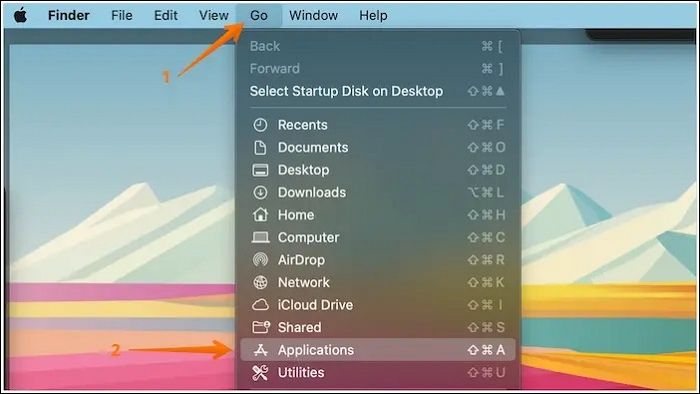
To launch System Preferences on a Mac using the Finder, open the Finder and click on "Go" in the top menu bar. A drop-down menu will appear, and from there, select "Applications". Then, find and double-click on the "System Preferences" icon to access it.
3. Access on Launchpad
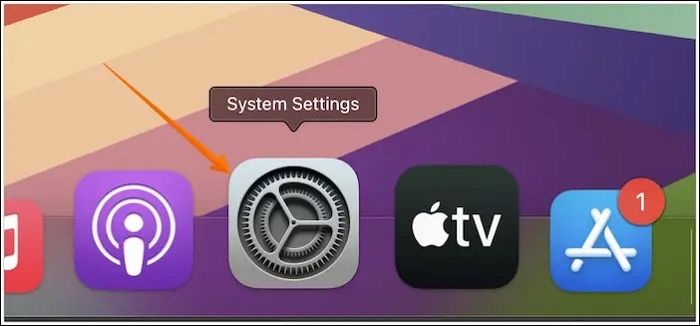
You can also access System Preferences on Mac from the Launchpad. To do this, go to the Dock and open Launchpad, then find and select System Preferences.
4. Access from Spotlight Search
You can access System Preferences on Mac by pressing the Command and Space keys simultaneously to open the Spotlight search box, typing "System Preferences", and clicking on it from the list that appears.
How to Use System Preferences Settings on a Mac
Upon opening System Preferences on Mac, you'll see numerous icons, and selecting one will take you to its corresponding pane. Alternatively, you can access a specific icon's settings by right-clicking or click-holding on the System Preferences icon on the Dock.
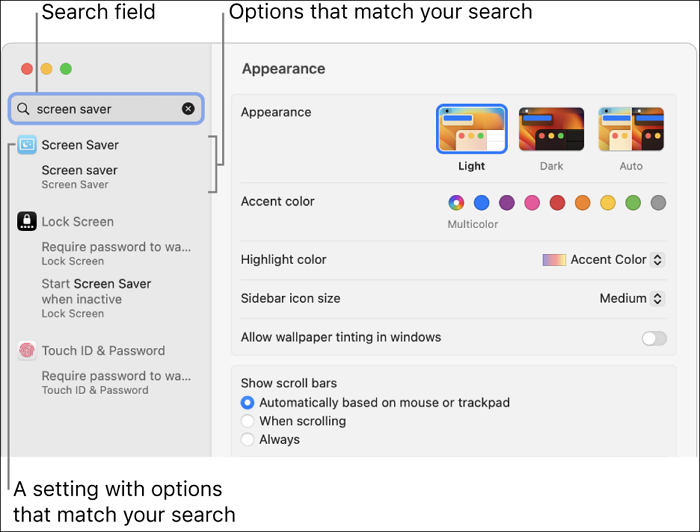
When you open System Preferences, you'll see a contextual menu at the top that shows the name of the active pane. If you're unsure what you're looking for, you can use the built-in search tool by pressing Command and F keys or clicking in the search bar and typing what you're looking for.
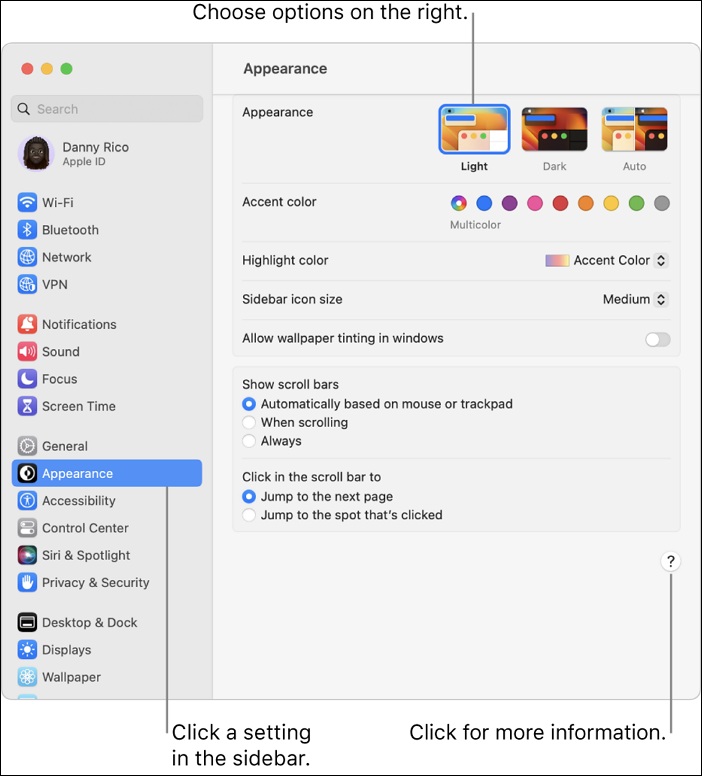
After starting to type, the filter narrows down until you find the desired item based on the search term. Relevant pages that match the search term are highlighted, and moving the cursor to the highlighted pane provides more information.
You can then click on the item for customization or hit the Return button.
Final Thoughts
The System Preferences on Mac is a central feature that allows users to change various settings. It can be accessed via the Apple menu, Dock, Spotlight search, or Finder, making it easily customizable. Users can select what they want to change on their Mac via System Preferences.
Related Articles
- [Solved] What Happens If I Interrupt System Restore Windows 10?
- A Mini USB - Things You Need to Know
- What Is WSUS? Windows Server Update Services Explained
- One PC Plays as Two: How to Dual Boot Windows 11 with Windows 10 Together
- How to Fix Raspberry Pi Not Booting [4 Efficient Solutions]
Fix Raspberry Pi not booting with simple checks for power, SD card, HDMI, boot files, and hardware. Learn causes and practical solutions. - What Is the Best Rasberry SD Card Format [Full Guide]
This article provides a comprehensive guide on formatting an SD card for use with a Raspberry Pi, ensuring it is set up for optimal performance.
Products
Articles & Tutorials
- Data Recovery
- Data Backup
- File Recovery
- File Backup
- System Backup and Restore
- Disk and Partition Clone
- Technical articles
- Mobile articles
- Disk Master Help
- Windows Data Recovery Tutorials
- Windows Secure Delete Tutorials
- Windows Partition Management Tutorials
- Windows File Backup and Restore Tutorials
- Windows System Backup and Restore Tutorials
- Windows Disk Backup and Restore Tutorials
- Windows Clone Tutorials