What Is the Best Rasberry SD Card Format [Full Guide]
The Raspberry Pi requires a specific type of SD card with a minimum capacity of 8GB, and it must be formatted to the FAT32 file system. The SD card must also have a boot partition of at least 256MB and a root partition of at least 1.5GB. The SD card can be formatted on Windows or Mac using the Raspberry Pi's official SD card formatter or a third-party tool such as Etcher.
What Format Should SD Card Be for Raspberry Pi
The Raspberry Pi Foundation created the Raspberry Pi, a credit-card-sized device that uses a conventional keyboard and mouse and connects to a computer monitor. It's a basic computing device that requires the installation of the official operating system, Raspbian, on an SD card to function.
The FAT32 file system, commonly used on flash devices, has a significant limitation: it restricts individual file sizes to 4GB, making it impossible to save files larger than this size to FAT32 partitions.
exFAT is a file system used for SD cards greater than 32GB, which are formatted in exFAT as per the SD capacity guidelines.
The Raspberry Pi's bootloader can only read from FAT file systems, not boot from them, making exFAT incompatible with the device. This is because most devices, including the Raspberry Pi, do not accept exFAT-formatted hard drives, and the bootloader is integrated into the GPU and cannot be updated. The Raspberry Pi is limited to FAT16 and FAT32 file systems, making exFAT a less compatible option.
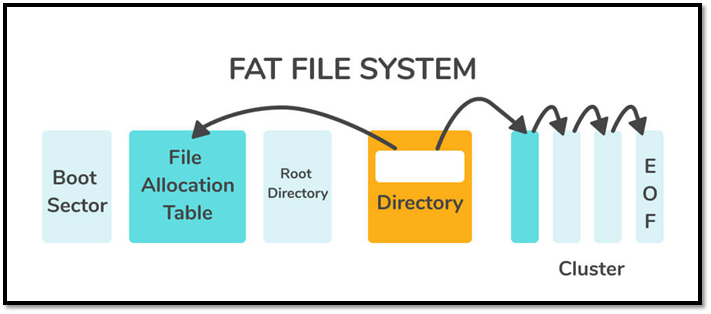
What Is FAT File System Format (FAT12, FAT16, FAT32)
Fat file system, shortened from File Allocation Table, is a file system developed by Microsoft and Caldera development group for Windows computers.
Formatting an SD card to FAT32 is a straightforward process. To do this, you can use the built-in formatting tool on your computer. Here's a brief overview of the steps:
Guide on Raspberry Pi SD Card: Format Raspberry Pi SD Card in Windows
Formatting a Raspberry Pi SD card can be done via two methods: using a third-party tool or a built-in tool. To format the SD card using a third-party tool, you can use a tool like Etcher, which allows you to create a bootable SD card by writing the Raspberry Pi OS image to the card. Alternatively, you can use the built-in tool, such as the Raspberry Pi Imager, which is a user-friendly tool that allows you to easily format the SD card and install the Raspberry Pi OS.
Method 1. Format Raspberry Pi SD Card via Qiling Disk Master
Qiling Disk Master Free is a reliable third-party partition software that can format damaged, corrupted, or inaccessible memory cards on all Windows platforms, including Windows 10, 8, 7, XP, and Vista. It can also format SD cards over 32GB to FAT32 or convert exFAT to FAT32, making them compatible with the Raspberry Pi.
It is easy to use so don't worry and download it to try.
Step 1. To format your SD card, locate it, right-click on the partition you want to format, and select "Format".
Step 2. Set a new partition label, file system, and cluster size to the selected partition.
Step 3. Click the "Proceed" to start formatting your SD card.
Step 4. Click "Yes" on the pop-up window to continue.
Here are some features of Qiling Disk Master you should know:
- Format 128GB USB FAT32
- Convert NTFS to FAT32 or vice versa
- Convert MBR to GPT for Windows 11
- Migrates Windows 11 to New SSD in one 1 Click
- To extend the C drive with another disk and fix the low disk space error, you can use the built-in Disk Management tool in Windows. First, go to the Start menu, type "Disk Management" and open it.
This tool can also run the Raspberry Pi SD card benchmark test to monitor SD card performance, making it a powerful and useful tool.
Method 2. Format Raspberry Pi SD Card via Disk Management
Disk Management is a tool in the Windows operating system that allows you to manage your disk partitions and perform complex operations on installed storage and disks, enabling you to optimize and configure your system's storage setup.
Use the instructions below to use this approach to change your SD Card to FAT32.
Step 1. To access the Disk Management tool, open the Start menu and select Run. Then, type "diskmgmt.msc" into the command box.
Step 2. To format an SD card, right-click on it and select "format."
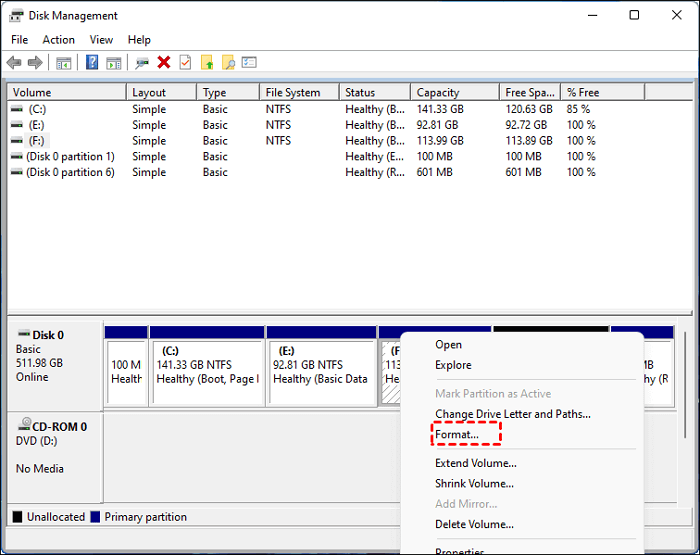
Step 3. Select "FAT32" under the file system and click OK, as shown below.
Step 4. A warning message appears, prompting you to back up important files before proceeding. If you haven't backed up any files yet, you can cancel the action to avoid potential data loss.
The Raspberry Pi can now be used with your FAT32 SD Card, and further instructions on how to do the same on a Mac are available in the next section.
Guide on Raspberry Pi SD Card: Format Raspberry Pi SD Card on Mac
To format an SD card for your Raspberry Pi in Mac, you can use the 'Diskutil' command. First, connect the SD card to your Mac and open the Terminal app. Then, type the command "diskutil list" to identify the SD card.
Step 1. To start the terminal program on your computer while also inserting the SD Card, simply insert the SD Card into your computer's SD card slot or use an SD card reader to connect it to your computer. Next, open the terminal program on your computer, which can usually be found in the Applications or Start menu, depending on your operating system.
Step 2. To get a list of all attached disks and drives, type "diskutil list" into the terminal window. This will display a list of all disks and drives attached to your system, as shown below.
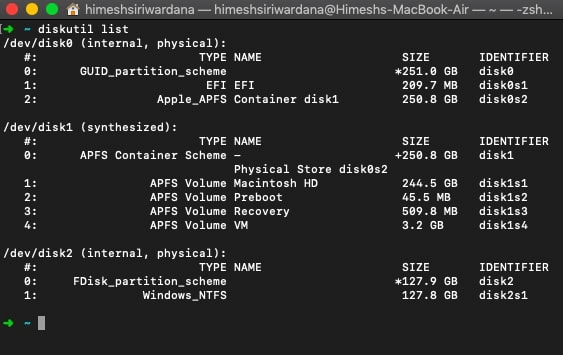
Step 3. Type `sudo diskutil eraseDisk FAT32 YOURNAME MBRFormat /dev/diskX` into the commands box, replacing `X` with the disk number from step 2, to format your disk with FAT32 file system and create a partition with the name `YOURNAME`.
The SD card can be installed on the Raspberry Pi once the installation process is complete.
Conclusion
The Raspberry Pi, a small, affordable computer, requires a specific file system for optimal performance. The best file systems for the Raspberry Pi include Raspbian, a lightweight Linux distribution, and other file systems that are compatible with the device.
Qiling Disk Master is a top-notch third-party tool that excels in formatting Raspberry Pi SD Cards. To take advantage of its superior capabilities, simply download and give it a try!
You may also like:
Moreover, if you have any queries, you can comment below.
FAQs About Raspberry Pi SD Card Format
Formatting a Raspberry Pi SD card can be a bit tricky, but it's a crucial step in preparing your microSD card for use with your Raspberry Pi. Here's a brief rundown of the process:
1. Can Raspbian read FAT32?
The Raspberry Pi's bootloader is integrated into the GPU and can only read from FAT file systems, making it necessary to format the SD card for the Raspberry Pi.
2. Can Raspberry Pi run on exFAT?
The most recent Raspberry Pi software supports exFAT by default, but if it doesn't, you can easily enable it by installing a few packages.
3. Should I format the SD card as FAT32 or exFAT?
FAT32 is more compatible than exFAT, so it's recommended to format the memory card to FAT32 if there's any uncertainty about device support for exFAT.
Related Articles
- How to Fix Windows Boot Manager Error Code 0xc0000225
- Mac Error Code 8072 Occurs? Check Here to Get Rid of It
- Can't Install macOS Sonoma? Fixed in 10 Proven Ways (2024)
- How to Solve OneDrive Sync Pending Error in Every Possible Way
- 2023 Tips| Could Not Complete Your Request Because of a Program Error Photoshop
If you're experiencing an error in Photoshop due to a program error, try the suggested solutions to resolve the issue. Additionally, consider recovering your Photoshop files to a safe location using Qiling data recovery software, which can help protect your data on Windows 11/10/8/7. - Efficient Tutorial: Create Multiple Partitions on USB Drive Using Diskpart
This article will guide you through the process of creating multiple partitions on a USB drive using Diskpart, offering a quick and easier method for creating partitions on your USB device.
Products
Articles & Tutorials
- Data Recovery
- Data Backup
- File Recovery
- File Backup
- System Backup and Restore
- Disk and Partition Clone
- Technical articles
- Mobile articles
- Disk Master Help
- Windows Data Recovery Tutorials
- Windows Secure Delete Tutorials
- Windows Partition Management Tutorials
- Windows File Backup and Restore Tutorials
- Windows System Backup and Restore Tutorials
- Windows Disk Backup and Restore Tutorials
- Windows Clone Tutorials