Efficient Tutorial: Create Multiple Partitions on USB Drive Using Diskpart
You can create multiple partitions on a USB drive using Diskpart, where various commands can be applied to partition the drive. This article will outline the Diskpart commands for creating partitions, and also mention an alternative tool called Qiling Disk Master that can be used to create multiple partitions for a USB drive.
How to Create Multiple Partitions on USB Drive Diskpart
Diskpart is a Windows built-in feature that allows you to manage different disks, including USB drives, by creating multiple partitions/volumes and fixing disk errors. It's a popular disk management utility on Windows that's readily available and free to use, making it ideal for partitioning your USB drive and maximizing its usage.
To create multiple partitions on a USB drive using Diskpart, you can use various commands to achieve different partition types, such as creating a system volume, dynamic volume, mirrored system volume, boot volume, UEFI system volume, or RAID-5 volume. The process involves using Diskpart commands to create the desired partitions on your USB drive.
Step 1. Open Command Prompt as an administrator.
Step 2. Type "diskpart" and press Enter to open Diskpart.
Step 3. To check the drives connected to your computer, type "list disk" (without quotes).
Step 4. Select the disk that you want to create multiple partitions on, which is typically disk 1.
Step 5. Be cautious, as this command will completely erase all data on the disk, including any operating systems, programs, and files. It's a destructive process that cannot be undone. Are you sure you want to proceed?
Step 6. To create a new partition, type "create partition primary size=10000" and change 10000 to the size you want for the partition.
Step 7. To confirm if the system has created a new partition, type "list partition" to check the available partitions.
Step 8. Select the partition you've just created by typing "select partition 1" and format it using the "format fs=fat32 label-'software'" command. You've successfully created the first partition and formatted it. Next, you can create another partition using the "create partition primary" command and format it using the "format fs=fat32 label-'data'" command. You've successfully created and formatted the second partition.
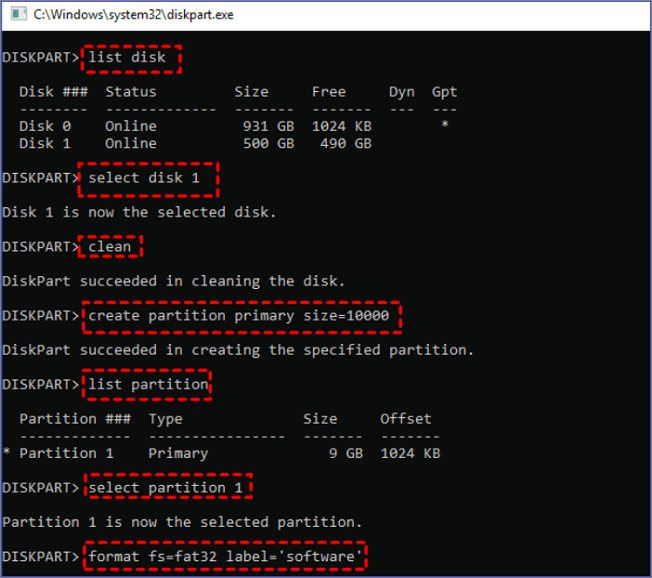
Step 9. To create a second partition, repeat Steps 6 to 8 To create a new partition on your system, you can use the `fdisk` command. First, run `fdisk /dev/sda` (replace `/dev/sda` with the actual device name of your hard drive) to enter the fdisk utility. Then, type `n` to create a new partition. Next, choose the partition type (e."list partition".
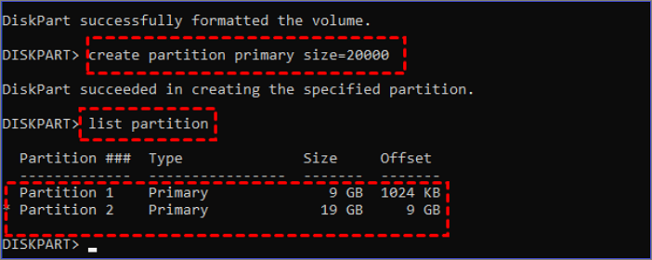
Diskpart allows you to create multiple partitions on a USB drive using simple commands. Ensure you've labeled all the new partitions correctly for easier identification, as this will come in handy when using alternative tools to create partitions on your USB drive.
Alternative to How to Create Multiple Partitions on USB Drive Diskpart
Although Diskpart is reliable in creating multiple partitions on a USB drive, it requires a lot of time and effort. A quicker alternative is using a third-party tool like Qiling Disk Master, which is convenient and saves time.
Qiling Disk Master is a tool that allows users to create multiple partitions, adjust disk space, merge partitions, format partitions, extend system partitions, and more. Its main features include these functions.
- Merge partitions on USB drive
- Create partitions on USB drive
- Convert a partition from primary to logical and vice versa.
- This allows you to set a partition as "active" to prevent boot failures, ensuring a smooth boot process.
- You can initialize a disk to MBR (Master Boot Record) or GPT (GUID Partition Table) if it's unallocated, allowing you to prepare it for use.
- Check for the health state of a disk partition and fix bad sectors.
- Clean up the existing partitions on a USB drive, SSD, or hard drive.
- To prevent accidental deletion or data spying, you can hide or unhide a partition. Hiding a partition makes it invisible to the operating system and other software, while un-hiding it makes it visible again.
To enjoy the features of Qiling Disk Master, download and install a trial version on your computer. You can also follow the steps below to learn how to create multiple partitions using this software.
Step 1. Launch Qiling Disk Master, right-click on the unallocated space on your hard drive or external storage device, and select "Create" from the context menu.
Step 2. Adjust the partition size, file system, label, etc.
Step 3. Click the "Proceed" button to create the new partition.
Watch the following video tutorial to learn how to create a partition in different file systems, including NTFS, FAT, or EXT.
Conclusion
Diskpart has various commands that aid in creating multiple partitions for your USB drive, allowing you to create different partitions such as a system volume, dynamic volume, mirrored system volume, boot volume, UEFI system volume, and RAID-5 volume, all using the Windows built-in utility.
To create multiple partitions on a USB drive, you can use Diskpart in the Command Prompt, but typing specific commands can be time-consuming. Alternatively, you can use Qiling Disk Master, a user-friendly tool that allows you to create multiple partitions, resize existing ones, merge, and fix disk errors with ease.
FAQs About How to Create Multiple Partitions on USB Drive Diskpart
You can read through the following questions to learn more about creating multiple partitions on a USB drive.
1. Can a USB drive have multiple partitions?
You can create multiple partitions on a USB drive, which is useful for storing many files, allowing you to separate files into groups for easier access.
2. How do I put multiple operating systems on one USB?
To download and install WinSetupFromUSB on your computer, you can follow these steps. First, you'll need to download the software from a reliable source, such as the official website. Once the download is complete, run the installer and follow the prompts to complete the installation. After that, you can launch the software and select your USB drive from the dropdown menu.
After selecting the desired OS, browse to the volume for that OS and WinSetupFromUSB will install it on your USB drive. This process should be repeated for each of the other operating systems you want to include in your multiboot USB.
3. How many partitions can a USB have?
You can create up to four primary partitions on a USB drive using MBR, but if you need more, you can convert it to GPT, which allows up to 128 primary partitions depending on the drive's storage capacity.
Related Articles
- Fix Error 1327 Invalid Drive When Installing Programs Windows 10
- Upgrade from Monterey to Ventura | Detailed Information
- All You Need to Know about GTA V File Location
- How to Open RAR Files on Windows
If you're having trouble opening RAR files on Windows 10, this post shows you four ways to extract and open them, including both free and paid options. - How to Fix Windows 11 KB5026446 Update Error Efficiently
The Windows 11 KB5026446 update error may occur when the network connection is unstable or there's not enough disk space on the target hard drive. However, with the guidance provided, you can resolve this issue and update Windows 11 KB5026446 smoothly. - Windows 11 Keeps Crashing - All Methods to Fix
Fix Windows 11 keeps crashing with practical troubleshooting tips for drivers, system files, updates, hardware, and startup problems.
Products
Articles & Tutorials
- Data Recovery
- Data Backup
- File Recovery
- File Backup
- System Backup and Restore
- Disk and Partition Clone
- Technical articles
- Mobile articles
- Disk Master Help
- Windows Data Recovery Tutorials
- Windows Secure Delete Tutorials
- Windows Partition Management Tutorials
- Windows File Backup and Restore Tutorials
- Windows System Backup and Restore Tutorials
- Windows Disk Backup and Restore Tutorials
- Windows Clone Tutorials