How to Merge Partitions on USB Drive in Windows 10/11 [2022 New Solutions] - Qiling
If you want to merge partitions on your USB drive for more efficient management, there are effective ways to do so. You can merge partitions on USB using various methods, such as using built-in tools like Disk Management or Disk Utility, or third-party software like Qiling Partition Master. These tools allow you to merge adjacent partitions, resize partitions, and even convert between different file systems, making it easier to manage your USB drive and free up space. By merging partitions, you can combine adjacent partitions into a single one, reducing clutter and making it simpler to organize your files and data.
Do USB Drives Have Partitions
You don't need to partition a new USB drive if you only use it to store and move files. However, you may need to partition it when you require separate storage areas for different types of data, such as documents, pictures, or videos, or when you want to create a bootable USB drive to install an operating system or run a specific program. In these cases, partitioning allows you to organize and manage your files more efficiently.
- Create bootable USB drives
- Encrypt a part of your USB flash drive
- Change the file system types of USB flash drives
- Organize the storage volume of a USB flash drive
If you no longer need many partitions on your USB drive, you can merge them to simplify your drive's structure.
You can merge partitions on a USB drive to get more free usable storage and efficient management of your partitions, as multiple partitions on a USB drive may make it difficult to find a specific file, and each partition might be too small to store large files. To merge partitions on a USB drive, you can use disk management tools, such as Disk Management in Windows or Disk Utility in macOS, to resize and merge the partitions. This provides more free space and make it easier to manage your files.
How Do I Merge Partitions on USB Drive
To merge partitions on a USB drive using Windows built-in tools and a third-party tool, you can use three methods. Firstly, you can use the built-in Disk Management tool to merge partitions by deleting the existing partitions and creating a single new partition.
To merge partitions on a USB drive using Qiling Partition Master, first, download and install the software. Then, launch the program and select the USB drive from the list of available devices. Next, select the partitions you want to merge and click on the "Merge" button.
To merge partitions on a USB drive using Disk Management, follow these steps: Open Disk Management by right-clicking on the Start menu and selecting Disk Management. Identify the partitions you want to merge, select them, and right-click to delete them. Then, right-click on the unallocated space and select New Simple Volume.
To merge partitions on a USB drive using Diskpart, follow these steps: Open Command Prompt as Administrator, type 'diskpart', and press Enter. At the Diskpart prompt, type 'list disk' and press Enter to view a list of all disks, including the USB drive. Note the number of the USB drive and type 'select disk #', replacing '#' with the number of the USB drive, and press Enter.
If you're unsure which method to choose, there's a table that provides information on the three methods. The table shows that Qiling Partition Master has a low operation difficulty and is easy to use.
| Features | Qiling Partition Master | Disk Management | Diskpart |
|---|---|---|---|
| Data Security | Safe | Relatively safe | Apt to suffer data loss |
| Operation Difficulty | Easy | Medium | Difficult |
| Suitable user | All users | All users | Users with computer knowledge |
| Data Loss | No | Yes | Yes |
Since Disk Management and Diskpart require deleting a partition before merging two partitions, you may risk losing data. To avoid this, back up your data or use Qiling Partition Master Free, which can merge partitions without deleting them.
If your USB drive is too small, you can merge the partitions to make more space. The easiest way to do this is to use the built-in tool in Windows, called Disk Management.
Way 1. Merge Partitions on USB Drive with Qiling Partition Master [Without Data Loss]
Qiling Partition Master is a disk management utility that supports almost every version of Windows, including Windows XP to Windows 11. It is also user-friendly and suitable for all users, making it easy to merge partitions on a USB drive with a clear interface and simple steps.
To merge partitions on your USB drive, download Qiling Partition Master and follow these steps. First, launch the software and select the USB drive.
Step 1: Select the target partition
Right-Select the partition you want to add space to and click "Merge" instead of clicking on it and then selecting "Add".
Step 2: Select a neighbor partition to merge
To merge partitions, select one partition next to the former selected partition to merge. This will combine the two partitions into a single, larger partition, potentially increasing the available storage space.
Step 3: Execute operation to merge partitions
1. Click the "Proceed" button to merge the partition.
2. The program will merge space and add files from the second partition to the first partition.
Qiling Partition Master allows you to merge your partitions on a USB drive after resizing them, but it also has other useful features as a professional disk management tool in Windows.
Features of Qiling Partition Master:
- Format USB to boot
- Hide or unhide partitions on USB drives
- Delete or create partitions on USB drives
- Merge partitions to solve the "C drive full" issue
If you want to manage your disk, USB, or other external hard drives effectively, consider downloading this app to try it out.
Way 2. Merge Partitions on USB Drive with Disk Management [With Data Loss]
Disk Management is a Windows built-in utility that allows users to manage and configure their computer's disk storage, including creating, formatting, and deleting partitions, as well as extending or shrinking existing partitions. It also enables users to merge partitions on a USB drive, but it's essential to note that this process can potentially erase data on the USB drive, so users should exercise caution and back up their data before proceeding.
- Notice:
-
1. The Disk Management utility in Windows can only be utilized to manage a USB drive if the operating system is running at least Windows 10 version 1803.
2. If you have multiple partitions, you'll need to delete each partition individually and then create a new one to replace them.
To merge partitions on a USB drive using Disk Management, first, open the Disk Management tool by searching for it in the Start menu. Then, select the USB drive that you want to merge partitions on and click on the 'Extend' option to extend the existing partition to fill the remaining free space.
Step 1. To create and format hard disk partitions, you can launch the Disk Management tool by searching for "Create and format hard disk partitions" or by opening the Control Panel and navigating to System and Security > Administrative Tools > Computer Management, then clicking on Disk Management.
Step 2. To merge two partitions, right-click the partition you want to merge with the other partition and select the "Delete Volume" option.
Step 3. To merge two adjacent partitions, confirm your deletion, and then right-click on the partition you want to merge. Choose the "Extend Volume" option from the context menu. This will allow you to combine the free space from the adjacent partition with the current partition, effectively merging them into one larger partition.
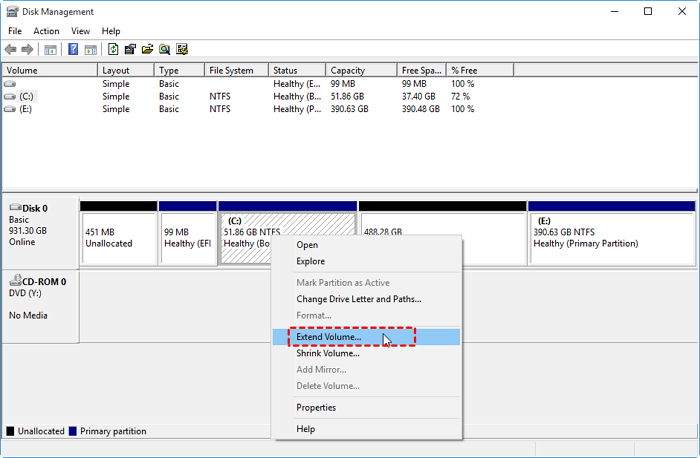
Step 4. You can finish merging the targeted partitions by following the "Extend Volume Wizard."
If your Windows version is older than Windows 10 1803 or your USB drive doesn't have enough unallocated space, the Extend Volume option may be grayed out. In this case, you can use Qiling Partition Master to resolve the issue.
If you're running low on space on your USB drive, you can merge partitions on it using a command-line tool like Diskpart, which is specifically designed for computing professionals. This process allows you to combine the free space from one partition with another, effectively increasing the overall storage capacity of your USB drive.
Way 3. Merge Partitions on USB Drive with Diskpart [With Data Loss]
Using Diskpart to manage your disk partition can be effective, but it requires extreme caution. A single incorrect command or letter can lead to data loss, making it a high-risk option.
Now, follow these steps to try Diskpart commands.
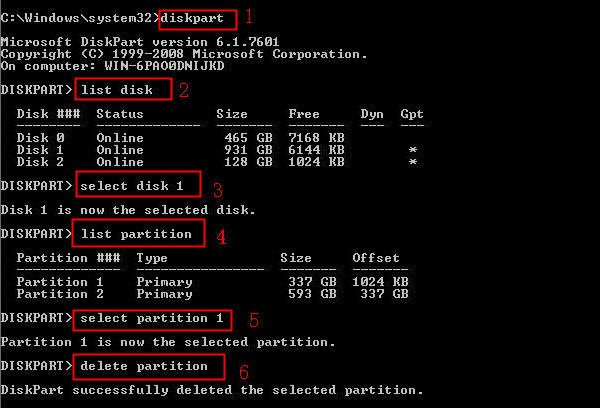
Step 1. Click the search icon and type: Command Prompt
Step 2. Select the USB drive partition you want to merge and confirm that the selected partition is correct before continuing.
- diskpart
- list disk
- select disk 1
- list partition
- select partition 1
- delete partition
Please replace "1" with the correct number, or you may suffer data loss. Be careful when you type the commands.
Step 3. The command to merge the partition with the unallocated space is: extend.
Sometimes, you may receive error messages like Diskpart failed to extend the volume. You can try to convert FAT32 to NTFS to help with this issue or use Qiling Partition Master to avoid this error.
Conclusion
This article provides three methods to merge partitions on a USB drive and compares them in detail, also offering step-by-step guidance on how to perform the merge. Qiling Partition Master stands out as a time-saving option that can efficiently merge, resize, delete, create, and extend partitions, making it a convenient choice for users with further questions.
FAQs About How to Merge Partitions on USB Drive
This paragraph shows three questions and answers. If you are interested or want to learn more, continue to read.
1. Can you delete a partition on the USB drive?
Yes, you can. Use the following command, and you can delete a partition on the USB drive:
- list disk
- select disk 1
- list partition
- select partition 1
- delete partition
Remember to replace 1 with the correct number.
2. How do I merge unallocated space on a USB?
If you're running Windows 10 1803 or later, you can use Disk Management to merge unallocated space on a USB drive. For older versions, such as Windows 10 1803 and earlier, you may need to use a third-party tool like Qiling Partition Master to help with the process.
3. How do I fix a USB drive with multiple partitions?
When you have two or more partitions on your USB drive, you can merge or delete the extra partitions after backing up your data. This is done to free up space and make your USB drive easier to use.
Related Articles
- How-to: Create USB Bootable Partition Manager to Manage Partitions Safely
- How to Format to FAT32 in Windows 11 (4 Useful Methods)
- [Fixed] Can't Save Files to USB Flash Drive
- How Do I Use DiskPart to Delete All Partitions in Windows? Your 2022 Guide Is Here
- 4 Ways to Fix PNY 128 GB Flash Drive Write Protected
PNY 128 GB flash drive write protection is a common issue that can be frustrating for many computer users. Fortunately, there are four effective ways to resolve this problem, which will be discussed in this article to help you regain access to your write-protected flash drive. - Best PNY USB Flash Drive Format Tool Free Download👍
If you're looking for a PNY USB flash drive format tool, you'll find four reliable free format tools in this post. Follow the detailed guide to format your PNY USB flash drive.
Products
Articles & Tutorials
- Data Recovery
- Data Backup
- File Recovery
- File Backup
- System Backup and Restore
- Disk and Partition Clone
- Technical articles
- Mobile articles
- Disk Master Help
- Windows Data Recovery Tutorials
- Windows Secure Delete Tutorials
- Windows Partition Management Tutorials
- Windows File Backup and Restore Tutorials
- Windows System Backup and Restore Tutorials
- Windows Disk Backup and Restore Tutorials
- Windows Clone Tutorials