Fix Error 1327 Invalid Drive When Installing Programs Windows 10
This article provides a solution to error 1327 invalid drive, which occurs when installing or uninstalling programs in Windows. By reading this article, you will learn how to fix the error message and successfully remove it. The article presents five methods to resolve the issue, providing a comprehensive guide to resolving error 1327 invalid drive.
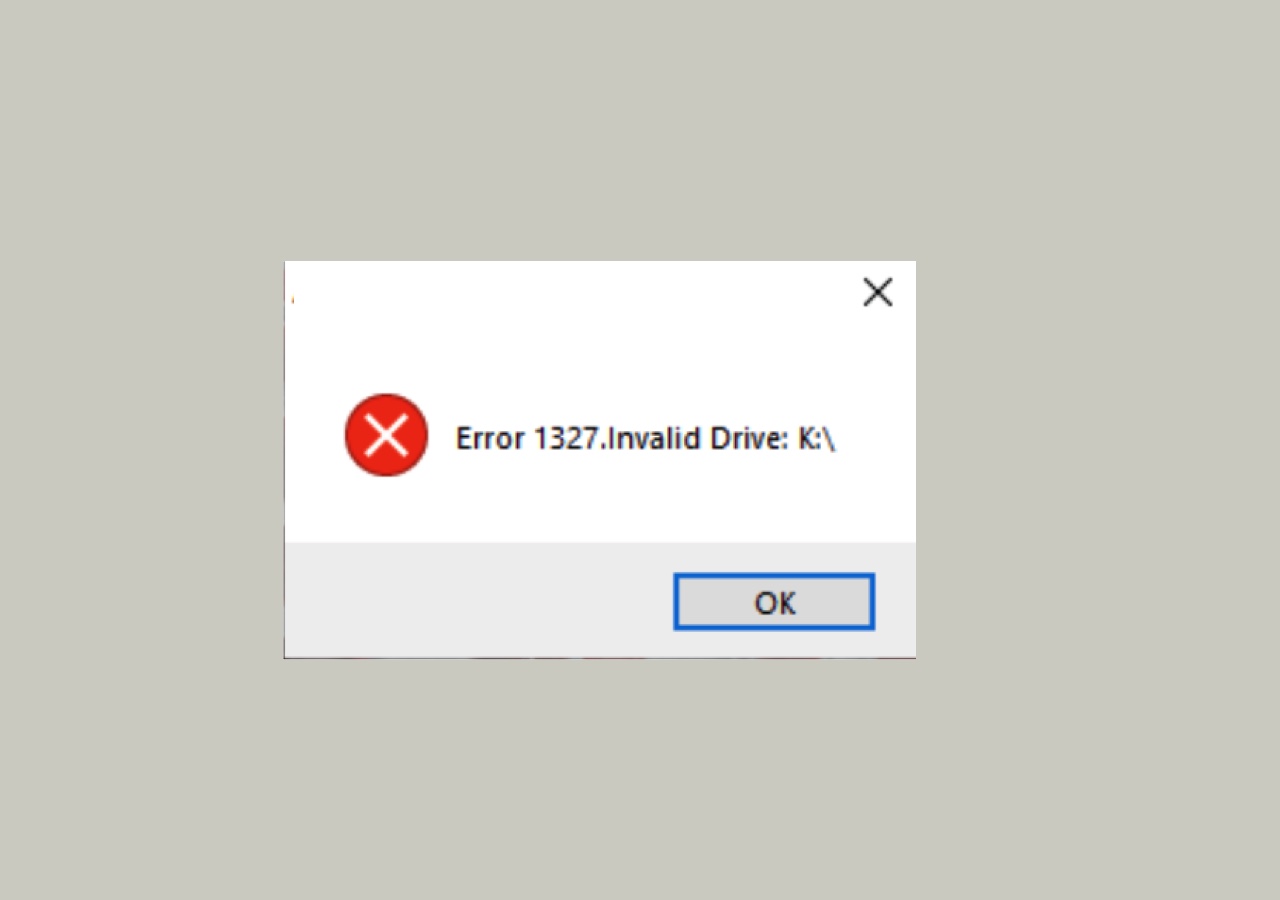
What is Error 1327 Invalid Drive
Error 1327: Invalid Drive [Drive Letter] The error alert appears when the installer tries to finish the installation on a drive that Windows doesn't recognize or is not configured correctly, usually the system drive.
The main reasons for an invalid drive error during program installation or uninstallation include incorrect drive letter assignments, corrupted system files, or issues with the Windows registry. Additionally, problems with the drive itself, such as a faulty hard drive or a drive that is not properly formatted, can also cause this error.
- The destination drive is a network drive and has not been mapped yet.
- The drive letter for the hard drive does not exist.
- To resolve the issue, you can try running the System File Checker (SFC) tool to scan and replace any corrupted system files. Additionally, you can use the Registry Editor to manually edit the registry keys related to the temporary drive. You can also try running a full system restore to a point before the issue occurred, or reinstalling the operating system if the issue persists.
The error 1327 "invalid drive" is commonly associated with Microsoft Office installation, but can also occur with other apps like Camtasia, Adobe, Acrobat, Photoshop Elements, CS3, and Autodesk. The following methods to fix this issue are applicable to any application that displays this error message.
How to Fix Invalid Drive Error 1327 on Windows
Now that you know the main culprits of Error 1327 Invalid Drive, you can follow the guidelines below to fix this invalid drive issue on Windows. To resolve this issue, ensure that the drive letter is correct and not in use by another program, check for any malware or viruses that may be causing the issue, and verify that the drive is properly formatted and not corrupted. Additionally, ensure that the system is running the latest Windows updates and that the drive is not being used by a third-party application.
How to fix error 1327 invalid drive on Windows 10:
- Method 1. Map the unmapped network drive
- Method 2. Redirect installation to valid system drive
- Method 3. Modify the System Registry
Method 1. Fixing error 1327 invalid drive - Map the unmapped network drive
To resolve the issue of not being able to install a program on a specific drive due to lack of permission, especially on a network drive, you can map the network drive. This involves giving the drive a letter designation, allowing you to access it as if it were a local drive, and thereby gaining the necessary permissions to install the program.
Step 1. Press the Windows key + R key shortcut to open the Run prompt.
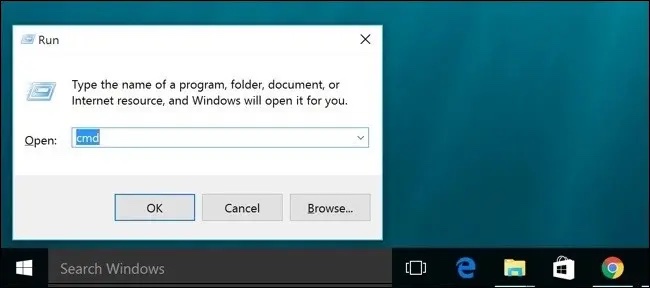
Step 2. Type "cmd"(no quotes) in the dialog box and press Ctrl + Shift + Enter to open Command Prompt as an administrator.
Step 3. When you see the UAC window, click Yes.
Step 4. To resolve the Error 1327, type "net use X: \\server\share" (no quotes) in the Command Prompt and hit Enter to map the drive.
- Notice:
- The drive letter that encountered the Error 1327 Invalid Drive is the "X" drive. When you encounter the Error 1327 Invalid Drive, it means that the Windows operating system cannot verify the drive letter "X" that is referenced in the path "\\server/share" where you're trying to access a shared file. This is likely due to the fact that the "X" drive is not a valid drive letter on your system, or it may be a drive that is not accessible.
Step 5. Wait for the command to process, exit the Command Prompt, and restart your Windows PC.
If the error 1327 invalid drive message still occurs, you can try using a different drive letter to install the software, or install the software on a different drive altogether. For example, if you're trying to install the software on a network drive, try installing it on a local drive like C: or D:.
Method 2. Redirect installation to valid system drive to fix error 1327
If Microsoft Office forces the installation on the drive F, which may not exist on your PC, you can try to remove the alert by replacing the path of the invalid drive with the valid system drive using the SUBST command.
Here are the steps to fix error 1327 invalid drive in Windows 10: Ensure the drive letter is correct, check if the drive is connected and properly configured, run the Windows Update to ensure the system is up-to-date, check for any corrupted system files using the System File Checker, and if the issue persists, try reinstalling the application or software that is causing the error.
Step 1. Press the Windows key + R to open the Run prompt.
Step 2. To open Command Prompt as an administrator, simply type "cmd"(no quotes) in the dialog box and press Ctrl + Shift + Enter on your keyboard. This will open the Command Prompt with elevated privileges, allowing you to run commands that require administrative access.
Step 3. The UAC window will appear, asking for permission to continue with the installation. Click Yes to proceed.
Step 4. To substitute drive X with drive C, type "subst X: C:\" (no quotes) and press Enter.
- Notice:
- Replace the letter "X" with the problematic drive. Drive C is usually the system drive, or you can use any existing drive as a substitute path. For example, if the problematic drive is your D drive, you would replace "X" with "D".
Step 5. To troubleshoot an issue where installation or uninstallation of a program in Windows is not working, try closing the Command Prompt and restarting your PC. This simple step can sometimes resolve the problem and allow the installation or uninstallation process to complete successfully.
Method 3. Modify the System Registry
If you're still getting the error 1327 invalid drive number after mapping a network drive and substituting the path of a non-existent hard disk, it's possible that the System Registry needs to be updated.
Here is how to do it with the Registry Editor:
Step 1. Press the Windows + R key shortcut to open the Run prompt.
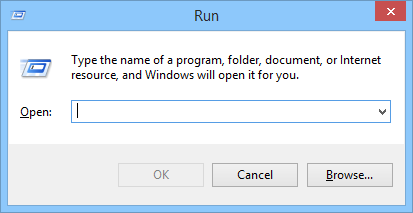
Step 2. To open the Registry Editor, type "regedit" (no quotes) in the dialog box and press Enter.
Step 3. When you see the UAC window, click Yes to allow administrative access.
Step 4. To start, right-click the "Computer" from the left-hand pane and choose "Export" to back up the registry before making any changes.
Step 5. Navigate or search for the following path and press Enter:
HKEY_CURRENT_USER\Software\Microsoft\Office\
- Notice:
- The error 1327 installation warning typically occurs when a user attempts to install Microsoft Office on a Windows system that does not have the correct permissions or access rights. To resolve this issue, you can try running the installation as an administrator, or modify the permissions of the user account to allow installation. If the issue persists, you may need to reinstall the operating system or seek further technical assistance.
Step 6. Expand the subfolder named with the current software installation version.
Step 7. To check the entries in the Delivery folder, select the folder and view the contents on the right-hand pane.
Step 8. Double-click LocalCacheDrive to open the Edit String box.
Step 9. In the Value Data box, enter your system drive, which is usually the C drive.
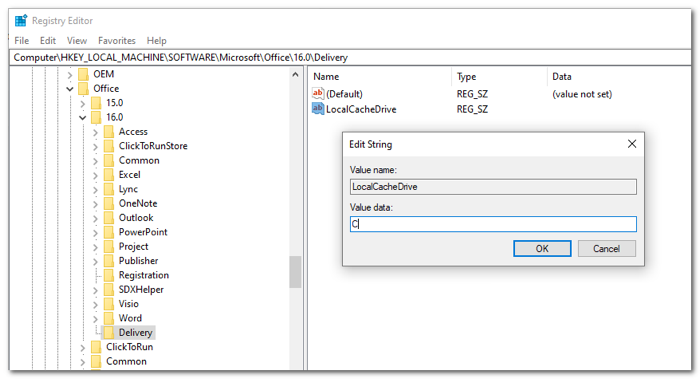
Step 10. To apply the changes, click OK and restart your PC. This will ensure the new settings are implemented.
Final Words
Error 1327 Invalid Drive To resolve the "error 1327 invalid drive Windows 10" issue, you can try blocking the installation or uninstallation of programs on Windows by using the built-in Windows feature, Windows Defender Firewall, or by disabling the Windows Installer service. Additionally, you can try running the Windows Installer Cleanup tool to remove any corrupted or damaged Windows Installer components. If none of these methods work, you can try reinstalling the Windows Installer service or seeking further assistance from Microsoft support.
If you're experiencing issues with the message being seen again, you can try updating your drivers or using a third-party software installer to complete the operation.
Related Articles
- What Does Wipe Cache Partition Mean and How to Wipe the Cache Partition
- How to Fix "Disk 1 Removable No Media" Error [2023 Detailed Guide]
- [Fixed] The File Is Corrupted and Cannot Be Opened in Excel/Word
- Is It Safe to Buy a Used SSD or Not [Full Guide 2023]
Do you want a used SSD for your PC/laptop/PS4/PS5/Steam Deck/Xbox? However, is it safe to buy a used SSD, or is it a bad idea to buy a used SSD? You will find a correct answer in this article which teaches you to buy a nice used SSD. - How Do I Password Protect My Files and Folders [All You Should Know]
Learn how to password protect files and folders in Windows. Use encryption, built-in tools, or file protection software to keep private data secure. - How to Fix PC Randomly Turns Off
Random PC shutdowns can be caused by either software or hardware issues, such as overheating, driver problems, faulty cooling fans, malware, or battery issues. To resolve these problems, we can follow some simple steps to troubleshoot and rectify the issues.
Products
Articles & Tutorials
- Data Recovery
- Data Backup
- File Recovery
- File Backup
- System Backup and Restore
- Disk and Partition Clone
- Technical articles
- Mobile articles
- Disk Master Help
- Windows Data Recovery Tutorials
- Windows Secure Delete Tutorials
- Windows Partition Management Tutorials
- Windows File Backup and Restore Tutorials
- Windows System Backup and Restore Tutorials
- Windows Disk Backup and Restore Tutorials
- Windows Clone Tutorials