How to Fix PC Randomly Turns Off
Windows users often experience their PC shutting down randomly, which can be caused by software or hardware issues, or a combination of both. These unexpected shutdowns can be frustrating and disrupt workflow, potentially leading to lost work if they persist. To identify and resolve the issue, it's essential to investigate the underlying reasons, which may include overheating, outdated drivers, malware, or other system problems. By addressing these potential causes, users can take steps to prevent their PC from shutting down randomly and ensure a stable and productive computing experience.
The random breakdowns of PCs can be attributed to various factors, including overheating, outdated drivers, and malware infections. To identify these issues, users can monitor their system's temperature, check for driver updates, and run virus scans.
Here are the 6 most commons reasons for the abrupt breakdown of computers.
- Overheating Issues
- Rectify the Hardware Issues
- Driver Issues
- Disable Fast Startup
- Malware and Virus Problems
- Check for battery, charger, or Power Supply Issues
Solution 1. Check the Computer for Overheating
Computers' processors can overheat when used extensively, prompting them to shut down as a precautionary measure. This is a safety feature implemented by developers to protect the software and hardware components from damage.
Major overheating is the primary reason why most PCs shut down abruptly. This issue can be caused by various factors, including prolonged use of the computer for tasks like video editing or high-graphics gaming, which can overburden the processor. Laptops are particularly susceptible to overheating problems, more so than desktops, making them a common culprit behind sudden shutdowns.
Your PC may be overheating due to a variety of reasons, including dust buildup in the CPU cooler, GPU, or case fans, which can block airflow and prevent heat from being dissipated. Additionally, a malfunctioning or clogged heat sink can also cause overheating, as can a malfunctioning or clogged heat pipe.
- Dust, dirt, hair, and debris can clog the system's air passages, hindering the airflow inside the system.
- Cooling fan problems.
- PC overuse or carelessness
- Dried out thermal paste between the CPU and heat sink.
Dust and Dirt
People often neglect to clean their PCs, resulting in a buildup of dust, dirt, hair, and food particles on the devices. These particles clog the gaps between components, hindering air circulation and creating a breeding ground for germs that can cause major airflow issues around the device.
Regularly clean your devices, especially PCs, and avoid eating near them to prevent dust and dirt buildup that can cause problems.
A faulty cooling fan or a power supply unit (PSU) fan
To prevent overheating, PCs require proper cooling systems, including fans, to dissipate heat and protect the device. If the cooling fans malfunction, it can lead to further overheating issues.
If your fans keep making noise, they must be broken, and if they have dirt or dust on them, they will stop working properly. Replace or clean them if you observe any such issues.
PC overuse or carelessness
It's crucial to keep your PC cool to prevent damage from overheating, which can cause the computer to shut down to protect itself and its components.
In both cases, the system is being pushed beyond its normal operating parameters, leading to overheating issues.
Here are some tips to avoid these instances:
- Work in a properly ventilated area.
- Avoid direct sunlight on your PC.
- Do not keep your computer in hot/humid places and zones.
- If you are using a laptop, use a cooling pad.
- Elevate your laptop if the cooling fans are under the device body.
Replace the Thermal Paste
If the thermal paste between the heat sink and CPU is dried out, it can cause overheating. Simply remove the old paste and apply a new coat to ensure proper heat dissipation.
To learn more about applying thermal paste, check out this website. It provides information on the process and best practices for ensuring effective heat transfer and optimal performance.
Solution 2. Rectify the Hardware Issues
A PC shutting down abruptly due to faulty hardware can be difficult to diagnose. The Device Manager can be used to identify the problematic device and generate error codes to help troubleshoot the issue. This can provide a clue about the root cause of the problem.
To access the Device Manager on a Windows 10 computer, you can press the Windows key + X and select Device Manager from the menu, or type "Device Manager" in the search bar on the taskbar and click on the result.
Start -> Control Panel -> Performance and Maintenance -> System -> Hardware tab -> Device Manager
You can also use
Win + X -> Device Manager
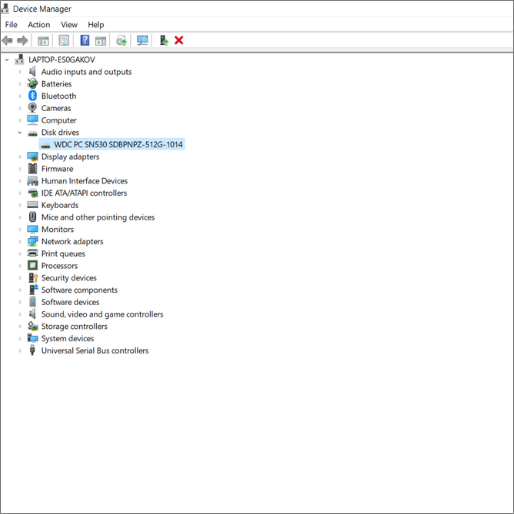
If you're still experiencing issues after running the Device Manager, check the newly installed hardware components like graphic cards, RAM, etc. for any potential conflicts or problems. This may help resolve the issue.
Solution 3. Drivers
Drivers are responsible for hardware performance, and outdated or faulty drivers can cause PC shutdowns, but updating them can resolve the issue.
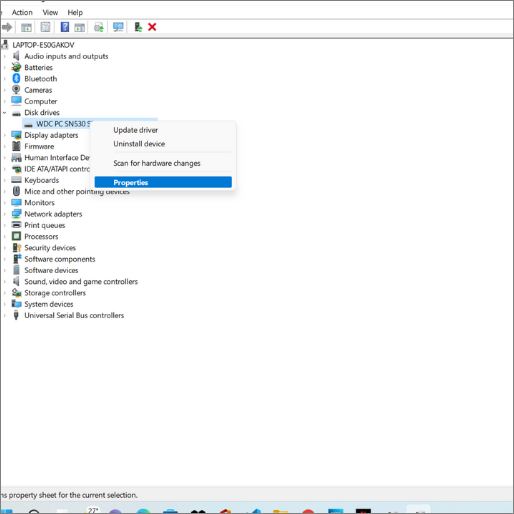
To identify and update faulty drivers, open the Device Manager by following the steps mentioned in solution 2, and then check for outdated drivers. In the Device Manager, you can update the drivers for any devices that are listed as faulty or outdated. Follow the same steps as in solution 2 to update the drivers.
- Win + X -> Device Manager -> Expand the device entries ->Find the problematic driver.
- Update the faulty driver.
Solution 4. Disable Fast Startup
The fast startup helps in booting your laptop quickly, but unfortunately, it can cause random turn-offs. You can turn off this feature if you are constantly facing such shutdowns. Follow the steps below to disable it and verify your PC performance.
Step 1. To change the view mode of the control panel to large icons, follow these steps: Launch the control panel. In the control panel, click on the "View by" dropdown menu located at the top right corner of the window. From the dropdown menu, select "Large icons" to change the view mode of the control panel to display larger icons.
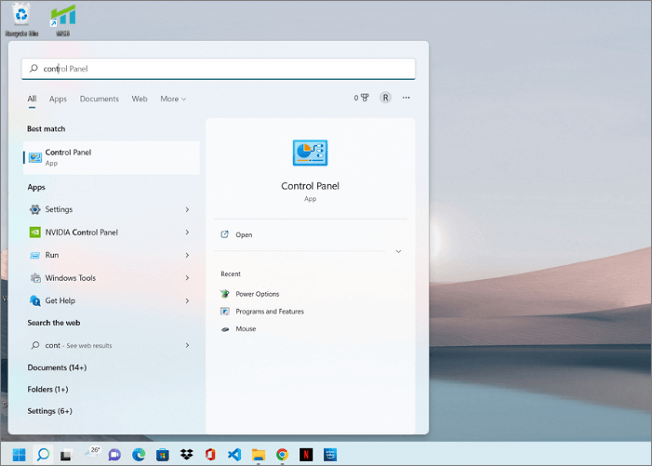
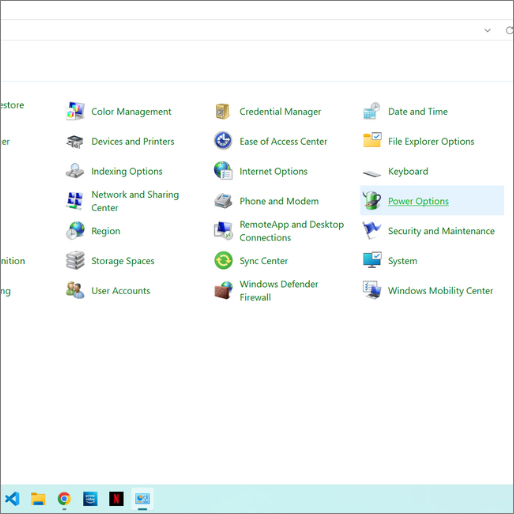
Step 2. Open the Power Options and click on the "Choose what the power buttons do" option.
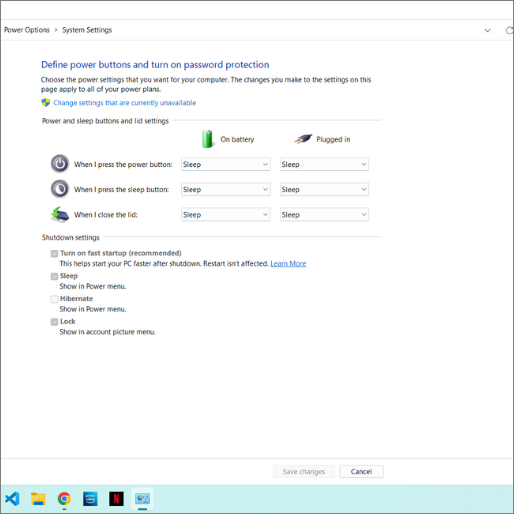
Step 3. Disable the "Turn on fast startup (recommended)"-> Save the changes.
Solution 5. Malware and Virus Problems
Malware and viruses can cause PC breakdowns. To address this, run a system check using Windows Defender or a trusted third-party antivirus software for security checks.
If your computer is acting strangely, such as executing abnormal commands or shutting down randomly, it may be a sign that a virus or malware is present, causing malfunctions.
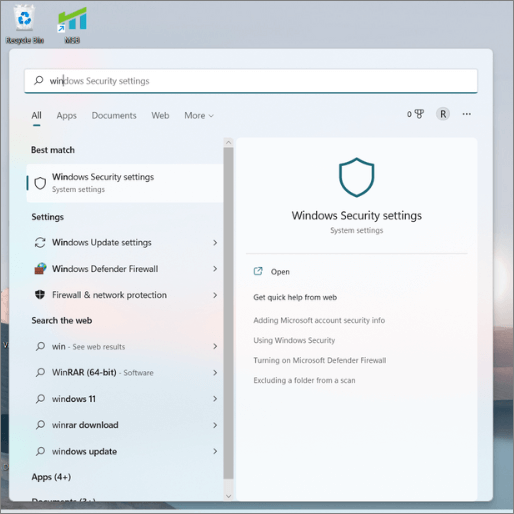
Step 1. Open the Windows Security app on your PC.
Step 2. Navigate to the Virus and Threat Protection section.
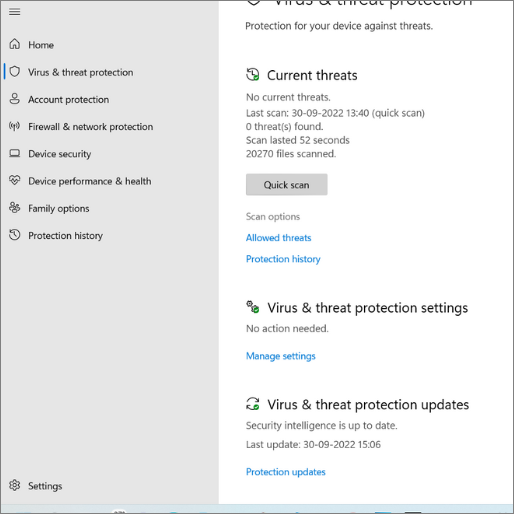
Step 3. Select the Scan Options.
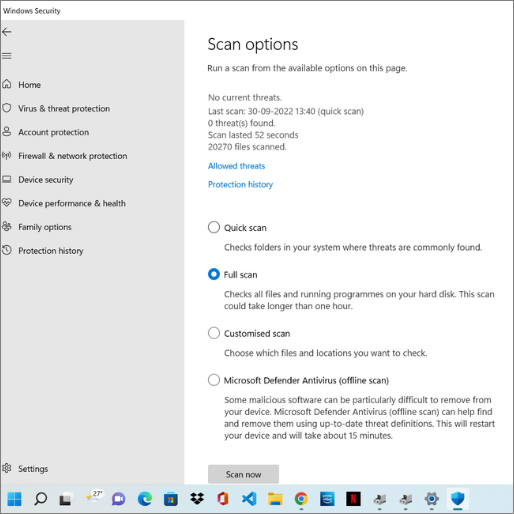
Step 4. Check the Full Scan Option and click "Scan now".
You can get a piece of detailed knowledge about the ways to protect your PC from malware and viruses beforehand. Learn the cautions you need to follow too from Microsoft itself.
Solution 6. Check for Battery, Charger, or Power Supply Issues
If your laptop is old, it may experience battery issues, and the type of apps and programs you run can also contribute to the problem. Replacing the old battery with a new one can help meet your laptop's requirements.
Charger and Power Supply problems can cause random breakdowns, which may be due to a damaged surge protector or power plug. Additionally, using a charger with a lower voltage source than recommended can also lead to breakdowns.
Final Verdict
If your PC is shutting down randomly, this article aims to provide solutions to the problem. We've listed 6 possible fixes to address the issue, and by following these steps, you should be able to resolve the random shutdowns. Additionally, you may also want to consider updating your BIOS, checking for software issues, or exploring other potential causes.
If the problem persists, contact customer services to resolve the issue.
If you're looking for a way to make your life easier and more enjoyable, consider implementing some simple yet effective habits into your daily routine. By prioritizing self-care, setting realistic goals, and practicing mindfulness, you can reduce stress and increase productivity.
Related Articles
- Fix USB Flash Drive Not Working on Windows 10/7
- Mac Format SSD: How to Format SSD on Mac [Step-by-Step Guide]
- How to Factory Reset Mac Without Keyboard? Keyboard Not Working
- [Step-by-step Guide] How to Reset Only C Drive in Windows 10 Safely
- Website Builder Software | Web Design Software
Create your own website in minutes without coding using website builder software. It's the best way to create a website quickly and easily, with no technical expertise required. - What Does FPS Mean in Games and How to Increase FPS?
Have you heard about FPS from your fellow gamers? Are you getting a decent FPS? If you are curious, then learn what dows FPS means, how to increase FPS, and how much it should be for the best gaming experience
Products
Articles & Tutorials
- Data Recovery
- Data Backup
- File Recovery
- File Backup
- System Backup and Restore
- Disk and Partition Clone
- Technical articles
- Mobile articles
- Disk Master Help
- Windows Data Recovery Tutorials
- Windows Secure Delete Tutorials
- Windows Partition Management Tutorials
- Windows File Backup and Restore Tutorials
- Windows System Backup and Restore Tutorials
- Windows Disk Backup and Restore Tutorials
- Windows Clone Tutorials