[Step-by-step Guide] How to Reset Only C Drive in Windows 10 Safely
Windows' primary partition is the C Drive. So, how to reset only C drive in Windows 10?
In the past, computers featured floppy disks as a prominent component, taking up drive letters A or B. As a result, the primary partition for Windows installation became the C drive.
C drive has been the primary partition for Windows installation on millions of computers since its inception. However, it can sometimes experience issues, such as running low on space or encountering errors due to corrupted files or drivers. These problems can hinder the smooth functioning of the operating system and require troubleshooting to resolve.
In this article, we will explore the necessity of resetting the C Drive only and whether it is safe to do so. We will discuss what you need to do before resetting the C drive, and provide guidance on how to reset only the C drive in Windows 10 or other Microsoft operating systems.
Why Do You Need to Reset C Drive in Windows 10
There are times when Windows 10 or any Windows PC runs into many issues, which can be resolved by resetting the C Drive to boost performance and resolve productivity or gaming-related problems.
- Inability to install specific software or game.
- Poor performance, stuttering, or slow processing of a game or software, often resulting in a frustrating user experience.
- Slowed down the computer because of not much storage.
- Slowed computer because of lack of C Drive space.
- Wish to free up space to install more software.
- To reset Windows settings to fix underlying issues.
- To boost the performance of the computer without losing settings or data.
Users who want to reset only the C Drive in Windows 10 may face some losses, including losing installed programs, files, and settings, as a C Drive reset is similar to a full system reset, which reinstalls Windows and removes all installed programs, files, and settings. However, if they still want to proceed, they can do so by going to Settings > Update & Security > Recovery, selecting the "Reset this PC" option, and choosing to keep their personal files and settings. This process will reset the C Drive, but keep their personal files and settings intact, such as their user account, desktop background, and installed applications.
- Loss of third-party software, games, or any utilities.
- Reset settings or configurations.
- Lost drivers and their software.
- Loss of other software-related data.
To create a backup, you can use an external hard drive or cloud storage services like Google Drive, Dropbox, or OneDrive. This will allow you to store your data in a separate location, making it easier to access and recover in case of a system failure or data loss.
Preparation for Resetting C Drive on Windows PC
Before wiping and resetting your C Drive, it's essential to create a backup of your critical data, as the process will erase all information stored on the drive.
To ensure a smooth Windows 10 reset, it's recommended to back up your C drive before proceeding. You can utilize professional backup software, such as Qiling Backup, which is a reliable disk cloning software, to create a backup of your C drive. This precautionary measure will help safeguard your important files and data during the reset process.
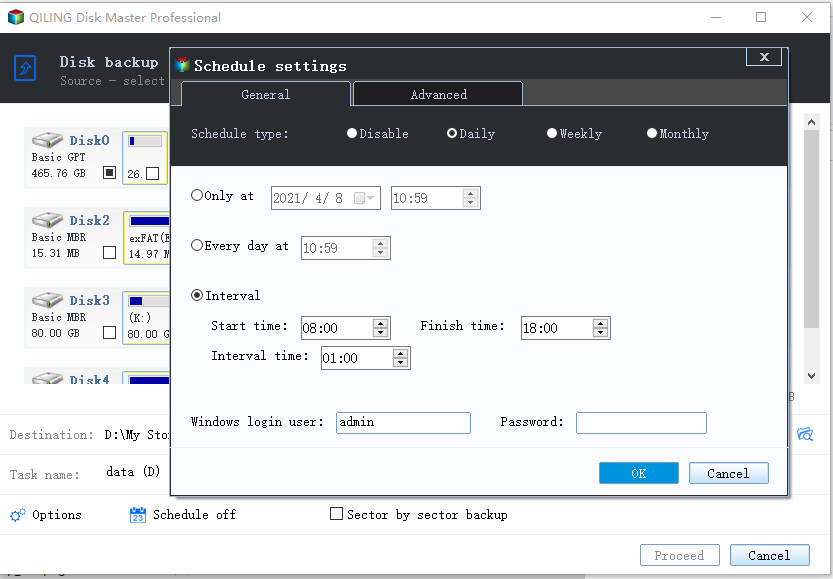
Qiling Backup Home is an all-in-one backup software for Windows that allows you to back up your system, disk, partition, and more, with features like automatic and scheduled backups, and even cloning your C drive to an SSD. It also offers 250GB of free cloud storage.
To conduct a disk backup, follow these steps. First, ensure that you have enough space on an external drive or another internal drive to hold the contents of the drive you want to back up.
Step 1. Start with selecting the Disk backup button.
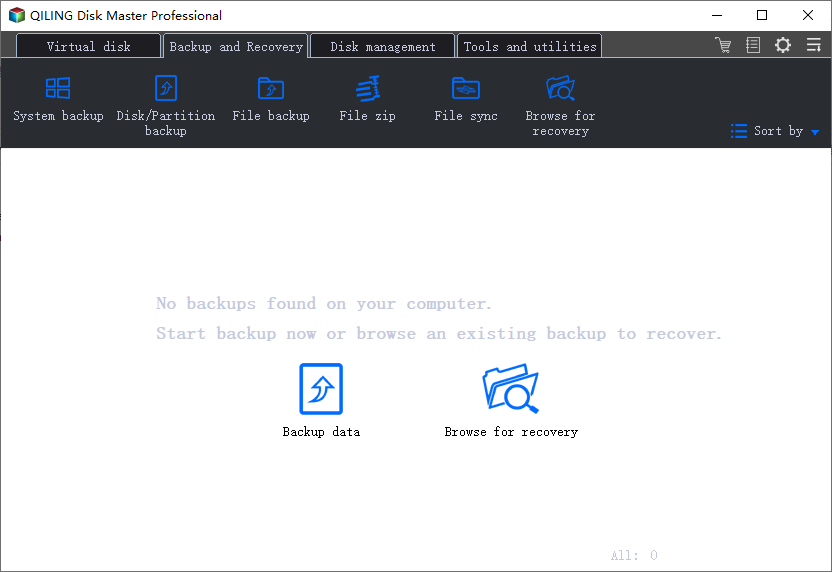
Step 2. You can back up a whole disk or a certain partition. Choose the one you need.
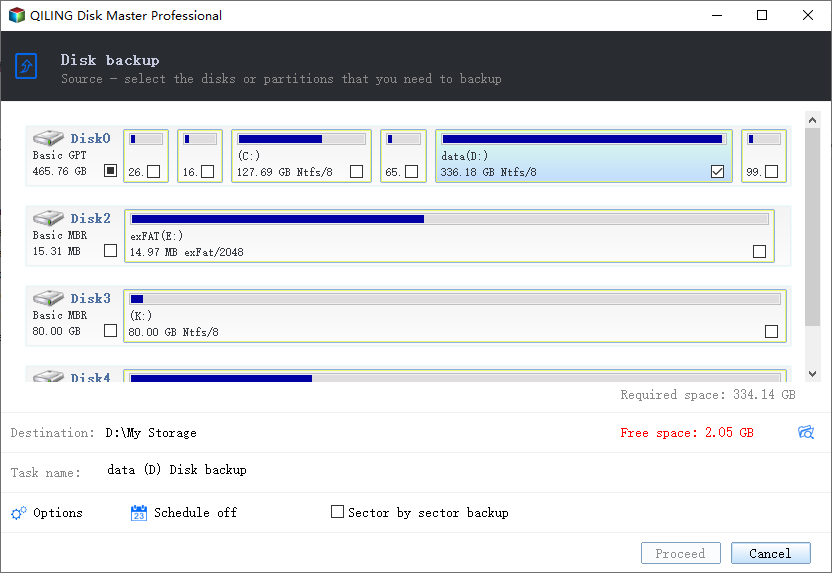
Step 3. Select the destination where you want to save the backup.
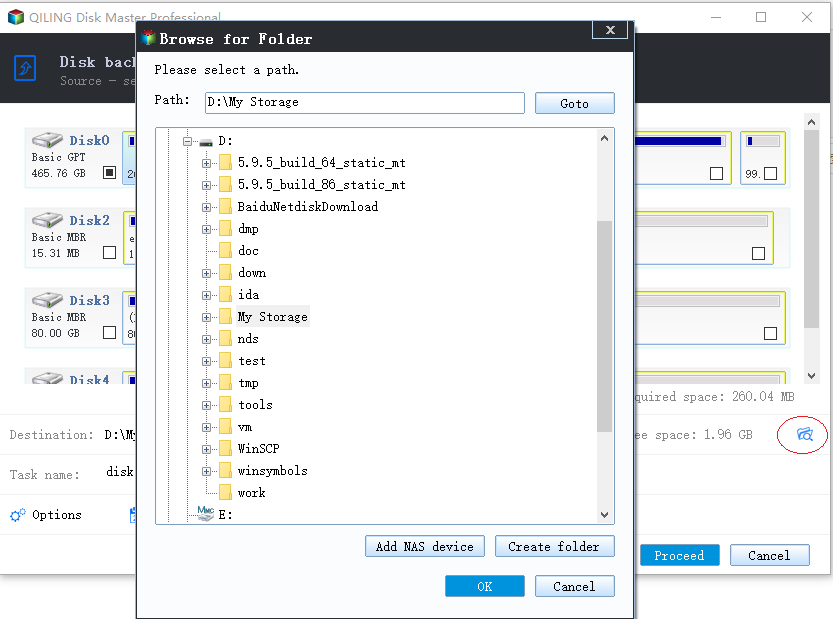
Step 4. For disk/partition backup, you can choose to save the backup to a local drive or a network-attached storage (NAS) device.
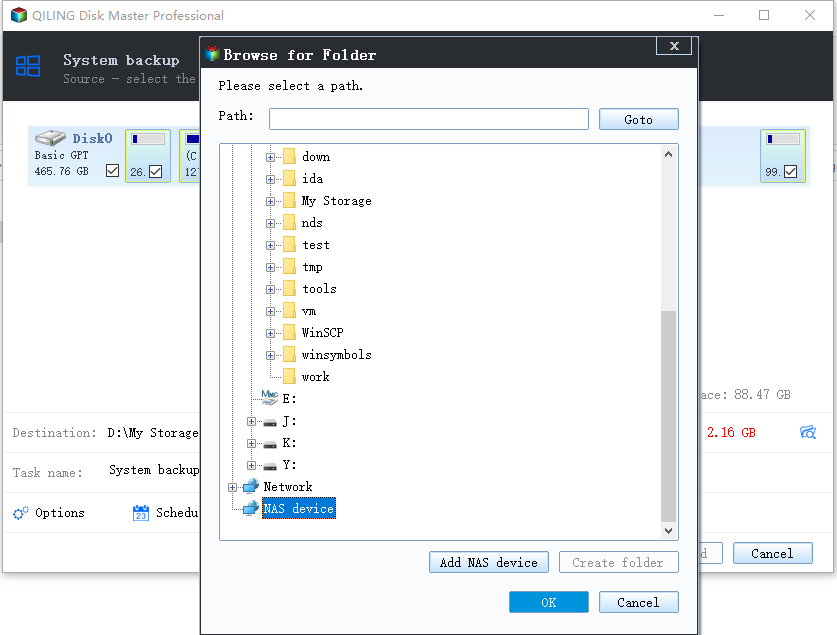
Step 5. After the backup process is completed, the task will be displayed at the left. Clicking the "Advanced" button of the task allows further management, including recovering the backup, creating an incremental backup, and more.
2 Ways to Wipe C Drive on Windows 10 Computer
Before proceeding, create a backup of your data and other essential files, as the following steps will completely wipe out your C Drive. There are two viable ways to reset your C Drive only.
To wipe C Drive on Windows 10, you have two options. Firstly, you can use the built-in Disk Cleanup tool, which will remove temporary files, system files, and other items you don't need, freeing up space on your C Drive.
| Workable Solutions | Step-by-step Troubleshooting |
|---|---|
| Solution 1. Resetting C Drive by Resetting this PC in Windows 10 | The first is with the help of the in-built resetting system...Full steps |
| Solution 2. Wiping The Only C Drive via Diskpart | This section will tell you how you can Wipe the C drive...Full steps |
Solution 1. Resetting C Drive by Resetting this PC in Windows 10
To reset Windows 10 using the built-in system, go to Settings, then Update & Security, and finally Recovery. From there, select "Reset this PC" and follow the instructions to complete the process, which will remove configuration and third-party tools, but keep your personal files and apps intact.
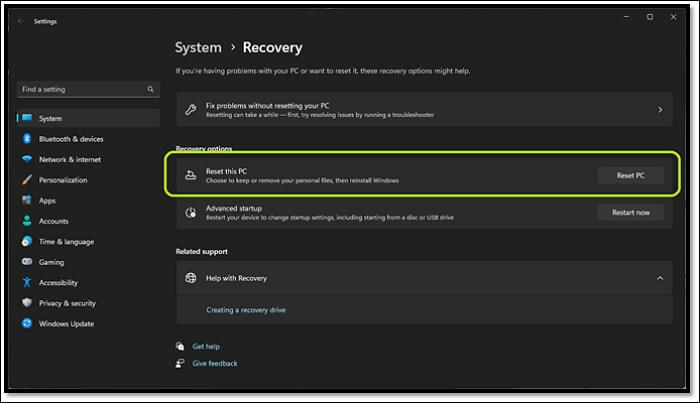
· Head into System Settings.
· Go into Recovery.
· Find and click on the Reset this PC option.
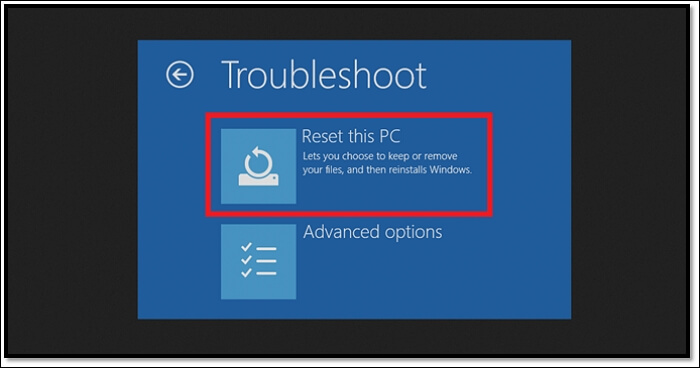
· This will open Troubleshoot options.
· From there, click on the Reset this PC option once again.
· Click on the "Change what to save under" dropdown menu and select "Only the drive where Windows is installed" from the options.
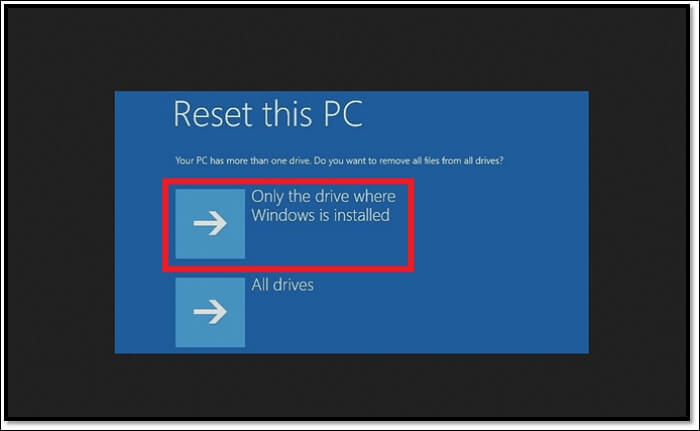
· In the next option, click on "Just remove my files."
· Or you can pick Fully clean the drive.
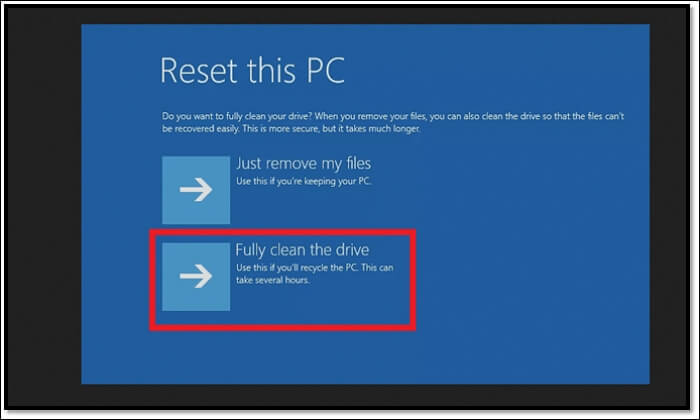
· Choose the option more suitable for you.
· Wait for it to finish.
· Done.
This process will result in your PC restarting once or twice. It's crucial to note that choosing the first option will only delete your files, but selecting the second option will reinstall Windows and completely reset the C drive.
Solution 2. Wiping The Only C Drive via Diskpart
This section will guide you through wiping the C drive using Diskpart. Please note that this operation will delete everything on your C Drive, so it's crucial to have a bootable USB ready and back up your important files before proceeding.
Here's what you'll do:
· Restart your computer.
· Press F8 on your keyboard when the Windows logo appears.
· Head into the Advanced Options and click on Command Prompt.
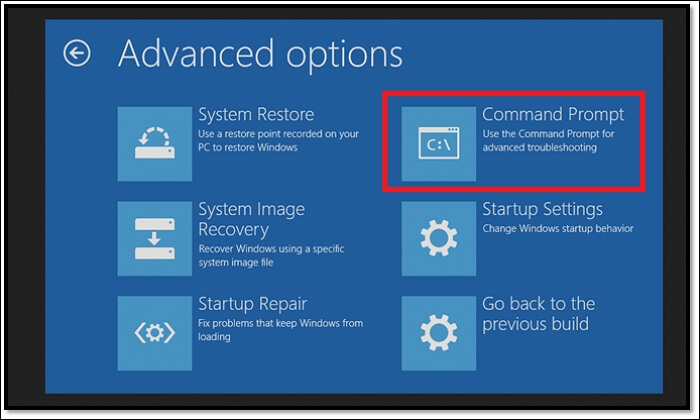
· Type Diskpart and press enter in the command prompt.
· Type List disk and press enter again.
· The command "Type Disk 2 and enter" is likely a reference to a command line interface, possibly in a Windows environment. In this context, "Type Disk 2" would be asking the user to enter the drive letter of their C drive, which is typically labeled as "C:" in Windows.
· Type Clean all and press enter.
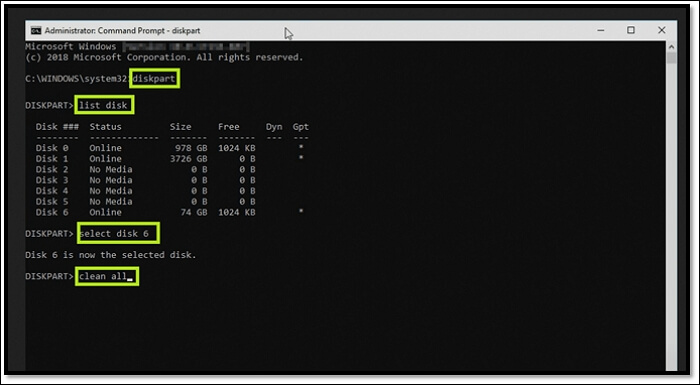
· Wait for it to finish.
· Done.
To clarify, you should only clear up the drive that has the C drive on it, not any other drives, as the Disk 6 part refers to the number of drives where C Drive is located.
To safely remove a hard drive, it's recommended to disconnect all other SATA or Hard Disk Drives from the PC beforehand. This ensures a smooth process. Additionally, creating a backup is crucial before proceeding, as this method will completely erase all data on the drive.
Final Thoughts
To wipe your C Drive only and erase all data, you can use one of two main methods. However, it's essential to understand that committing to this operation will completely erase everything on your C Drive, so proceed with caution.
Before proceeding, it's crucial to create a C drive backup using a tool like Qiling Backup, and have a bootable USB ready to install a new Windows, as the Diskpart method may require a fresh installation.
To wipe the C Drive on your Windows 10 PC, first, create a Windows 10 installation media on a USB drive or CD/DVD. Then, boot your PC from the installation media and select the language, time and currency format, and keyboard layout.
FAQs
1: Can I reset the C drive only?
You can reset your C Drive by choosing the right option when resetting your PC, allowing you to reset Windows without losing any data on your C Drive. This can be done in two ways, but it's essential to pick the correct method to avoid losing important files. By selecting the appropriate option, you can reset your PC and start fresh with Windows, while keeping your C Drive intact and preserving all your data.
2: Does resetting the PC remove partitions?
Resetting your PC using the built-in settings only removes or wipes data from the C drive, and does not affect other drives. However, if you use the Diskpart command to reset your PC, it will erase all data on all drives, including the C drive. So, if you're looking to start fresh with a clean slate, using the Diskpart command is the way to go.
3: Does Windows 11 reset to wipe all drives?
To wipe a Windows 11 user's C Drive only, they can use the same methods described in the article, but be careful not to accidentally remove all drives if using the Diskpart method. This method requires careful execution to avoid deleting all drives, so it's essential to reset only the C drive partition using Diskpart to avoid data loss.
4: Why C drive is full but no files?
It's possible that the issue is caused by a virus or another underlying error, or it could be due to a large hidden file. Wiping the C Drive using the methods in this article may be able to resolve the problem.
Related Articles
- How to Uninstall Dell Backup and Recovery on Windows 10 [Full Guide]
- How To Change Startup Programs on Windows 10? [Updated 2022]
- How to Solve Webcam Freeze Up in Windows 10 Error?
- Fixed: CPU Isn't Supported | CPU Isn't Compatible with Windows 10/8.1/8
- Laptop vs. Desktop: Which Is Better for You? [Comparative Analysis]
Laptop vs. Desktop: which is better for you? Compare cost, portability, performance, storage, and screen size to find the right computer for gaming, work, or personal use. - League of Legends Account Recovery: How to Get Riot Account Back
Lost access to your League of Legends account? Learn how to recover your Riot account without email, password, or username. Also restore lost game replays and highlights with Qiling data recovery software.
Products
Articles & Tutorials
- Data Recovery
- Data Backup
- File Recovery
- File Backup
- System Backup and Restore
- Disk and Partition Clone
- Technical articles
- Mobile articles
- Disk Master Help
- Windows Data Recovery Tutorials
- Windows Secure Delete Tutorials
- Windows Partition Management Tutorials
- Windows File Backup and Restore Tutorials
- Windows System Backup and Restore Tutorials
- Windows Disk Backup and Restore Tutorials
- Windows Clone Tutorials