How to Uninstall Dell Backup and Recovery on Windows 10 [Full Guide]
Dell Backup and Recovery is a software that allows users to create and restore backups, but it is no longer supported by Dell.
Dell computers manufactured and shipped with Windows 10 after April 2016 should not download the Dell Backup and Recovery software on their computers.
If you recently upgraded to Windows 10 from a previous version, you can download the software from Dell's official website.
Here's how to uninstall Dell Backup and Recovery from your Windows 10 PC: You can uninstall it from your Windows 10 PC since Dell has discontinued offering support.
Dell Backup and Recovery on Windows 10
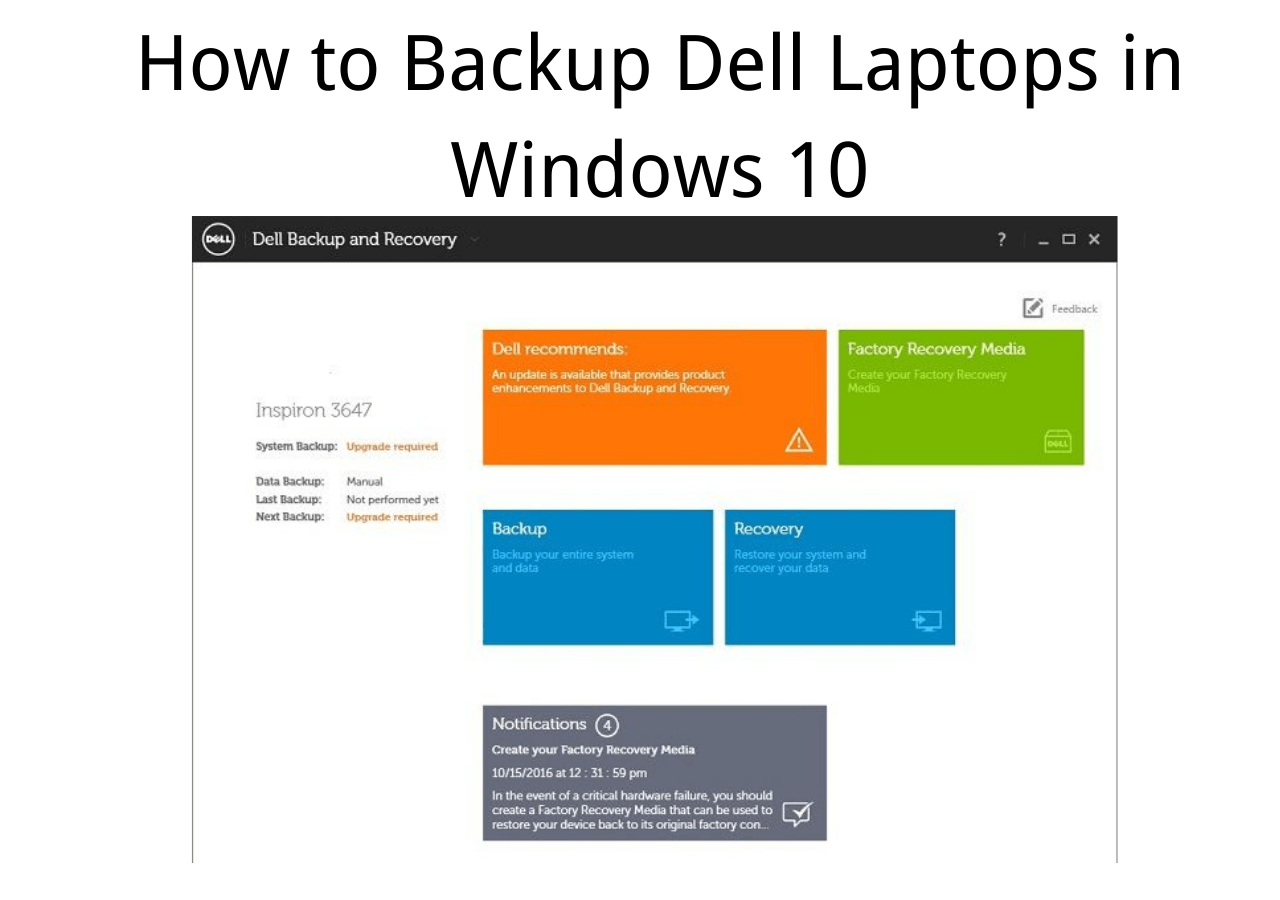
Dell Backup and Recovery is a program that allows users to create a backup of their computer and recover the backup quickly, and it was pre-installed on Dell Windows 7 and Windows 8 PCs and laptops.
Dell Backup and Recovery is no longer supported and was not pre-installed on Dell computers made after April 14, 2016.
The program was initially available in both paid and free versions, allowing users to upgrade from the basic to the premium version.
Dell Backup and Recovery (DBaR) Version 1.9 is available for users who upgrade to Windows 10 from Windows 7 or 8, ensuring the application remains compatible. However, if your Dell computer came with Windows 10 pre-installed, there's no need to download this version.
For computers that came pre-To back up and restore a computer running Windows 10, users should utilize the Windows Settings feature. This built-in functionality allows users to create backups of their system, files, and applications, and to restore their computer to a previous state in case of a problem or system failure.
Apart from Dell Backup and Recovery, there are other methods to backup data. If you're interested in learning more about these alternatives, you can read the article below.

How to Backup Dell Laptops in Windows 10 [Ultimate Guide]
Losing all your data in a split second while dealing with issues on your Dell laptop is an extremely frustrating experience.
How to Uninstall Dell Backup and Recovery on Windows 10
Here's how to uninstall Dell Backup and Recovery on Windows 10: Go to the Start menu, type "Control Panel" and open it, then click on "Programs and Features" (or "Add or Remove Programs" in older versions of Windows), find Dell Backup and Recovery in the list, select it, and click "Uninstall" to remove it from your system. Alternatively, you can also use the Windows Settings app to uninstall it, by going to "Settings" > "Apps" > "Apps & features" and searching for Dell Backup and Recovery, then selecting it and clicking "Uninstall".
- Method 1. Uninstall Dell Backup and Recovery Windows on 10 using Control Panel
- Method 2. Uninstall Dell Backup and Recovery using System Restore
Method 1. Uninstall Dell Backup and Recovery Windows on 10 using Control Panel
Step 1. Click the "Start" button and search for the "Control Panel."
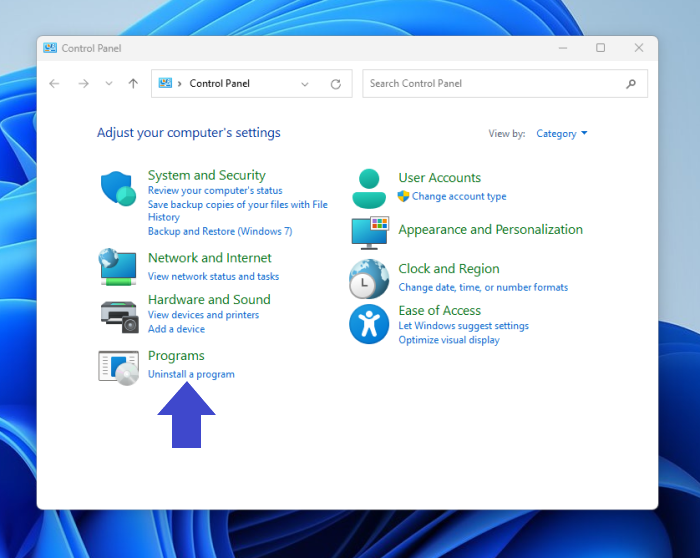
Step 2. Now select "Uninstall a program" under "Programs."
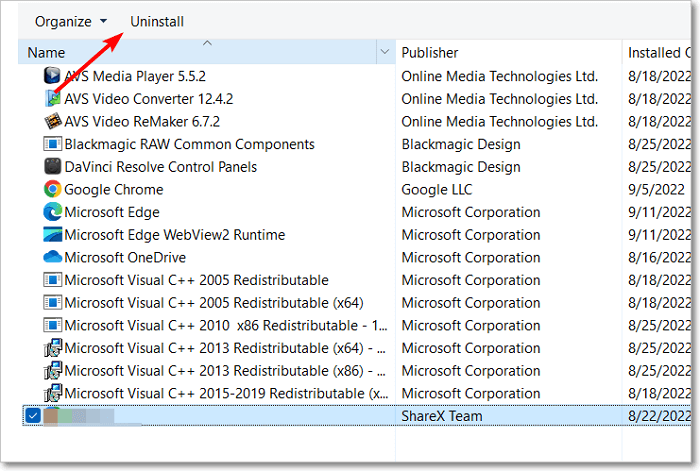
Step 3. To uninstall the Dell Backup and Recovery program, locate the program in your computer's list of installed programs, then click the "Uninstall" button next to it. This will initiate the uninstallation process, and the program will be removed from your computer once it is complete.
Step 4. To uninstall Dell Backup and Recovery, open the Dell Backup and Recovery uninstallation window, complete the uninstallation process, and click "OK" to finalize the removal of the software.
Step 5. Uninstall the program, click "OK" after completion, and restart your computer.
Method 2. Uninstall Dell Backup and Recovery using System Restore
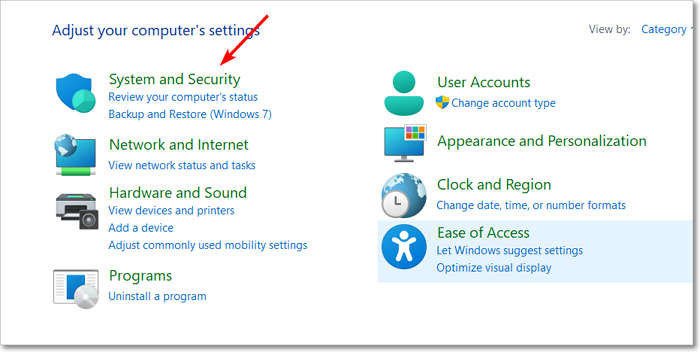
Step 1. Open the "Control Panel" and select "System and Security."
Step 2. Select "System," and then the "Settings" window will open.
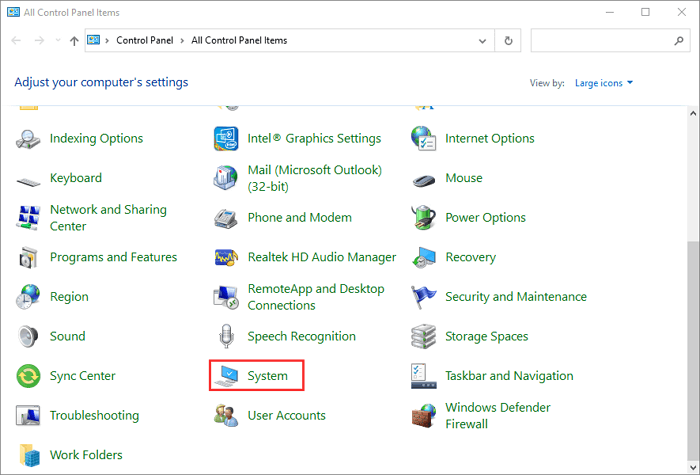
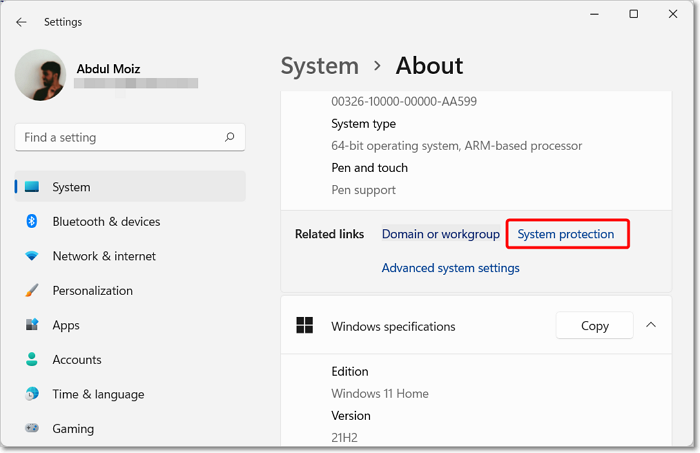
Step 3. To restore your computer to a previous state, click on "System protection" in the System Properties window, then click on "System Restore". From there, select "Choose a different restore point" to choose a specific point in time to restore your computer to.
Step 4. You can choose a backup version by selecting the date and time of the backup in the backup software, or by selecting a specific backup point in the software. The backup software will then restore your computer to the state it was in at that point in time.
Step 5. To confirm your restore point, click "Finish" in the "Confirm your restore point" window, and select "Yes" in the pop-up window that opens.
The Epilogue
Since Dell discontinued providing updates or support to its Dell Backup and Recovery program, users can uninstall the software and instead use Windows' built-in backup and recovery solutions.
We hope this article has helped you successfully uninstall Dell Backup and Recovery from your Windows 10 or earlier version of Windows PC.
Frequently Asked Questions
1. Where are Dell backups stored?
Dell creates a secure location on the hard drive to store backups, with a default storage space of 25% that can be set to a maximum of 30% by the user.
2. What is a Dell recovery disk?
Users can quickly restore their computer to working condition in case of a failure or use it to restore their lost data.
Dell provides a simple way for users to create bootable recovery media on a flash drive.
Related Articles
- What Is the Best GoPro SD Card Format? [Best Choice and Tutorial Guide]
- Fix macOS Sierra 10.12.1 Update Stuck or Fail to Download Error
- [Solved] Windows 10 Fails to Shut Down
- [Fixed] The File Is Corrupted and Cannot Be Opened in Excel/Word
- Can't Read From the Source File or Disk? Find Your Solutions Here
If you're experiencing the 'can't read from the source file or disk' error while opening or copying a file, it's a solvable issue that won't harm your file. This error can be resolved using various solutions, which are discussed in the article below. - How to Fix Can't Type in Command Prompt [6 Working Ways on Windows 11/10]
Fix cannot type in Command Prompt on Windows. Learn why CMD stops accepting input and how to repair keyboard, system, and console issues.
Products
Articles & Tutorials
- Data Recovery
- Data Backup
- File Recovery
- File Backup
- System Backup and Restore
- Disk and Partition Clone
- Technical articles
- Mobile articles
- Disk Master Help
- Windows Data Recovery Tutorials
- Windows Secure Delete Tutorials
- Windows Partition Management Tutorials
- Windows File Backup and Restore Tutorials
- Windows System Backup and Restore Tutorials
- Windows Disk Backup and Restore Tutorials
- Windows Clone Tutorials