How to Fix Can't Type in Command Prompt [6 Working Ways on Windows 11/10]
The Command Prompt, or CMD, is a powerful tool in Windows that allows direct interaction with the system kernel and running of system commands. However, if you're unable to type in Command Prompt due to an error, you're left with limited functionality. This issue, known as "Can't type in Command Prompt," prevents users from executing commands, rendering the tool less useful.
This article delves into the details of the error, exploring its causes and providing solutions. By the end of this discussion, readers will gain a deeper understanding of the issue and be equipped with common fixes to resolve it.
Why Can't Type in Command Prompt
The "can't type in Command Prompt" error can occur due to various reasons, such as a malfunctioning keyboard, incorrect keyboard settings, outdated keyboard drivers, or conflicts with other software or hardware. Additionally, issues with the Command Prompt itself, such as corrupted settings or incorrect configuration, can also cause this error. Furthermore, problems with the Windows operating system, such as a corrupted registry or outdated system files, can also lead to this error.
- Improper Keyboard Connection: Improper keyboard connection can be caused by a faulty driver, a defective cable, or Bluetooth issues.
- Administrator Privileges: Using a standard account instead of an administrator account can cause issues, such as being unable to type in the Command Prompt.
- Temporary Glitches and Bugs: The more the system is used, the more likely it is to develop bugs and glitches.
- Corrupt User Profile or System Files: If your user profile has been corrupted, it may be causing the issue with your device. To resolve this, you can try resetting your user profile to its default settings. This can usually be done through the Settings app, and it may resolve the issue.
- Antiviruses and Third-Party Programs: The issue of the antivirus software installed on a system causing problems is a common complaint among users.
How to Fix Can't Type in Command Prompt Error
If you're experiencing the can't type in Command Prompt issue, don't panic - it's easily fixable. We've identified the top 5 solutions to resolve this error, which can be found in the article.
Method 1. Quick Fix: Try Command Prompt Alternative
Method 2. Perform A Simple Restart
Method 3. Check the Keyboard's Connection Cable
Method 4. Run CMD as Administrator
Method 5. Restart PC in Safe Mode
Method 6. Switch to the Legacy Console Mode
To help you out, we have provided a detailed walkthrough for each method below:
Method 1. Quick Fix: Try Command Prompt Alternative
If you're looking for a reliable alternative to the Command Prompt, consider using Qiling Disk Master. This tool offers a range of features to manage hard disks, including checking disk health, repairing file systems, and creating partitions, making it an excellent replacement for CMD. It's also fast, easy to use, and powerful.
Your system's hard disks are prone to wear and tear, which can lead to issues like bad sectors. These bad sectors can cause problems like the command prompt (CMD) not working properly. However, you can repair them using the "Check File System" function of Qiling Disk Master.
Using the "Check File System" feature in Qiling Disk Master is straightforward due to its user-friendly interface. Simply follow the instructions:
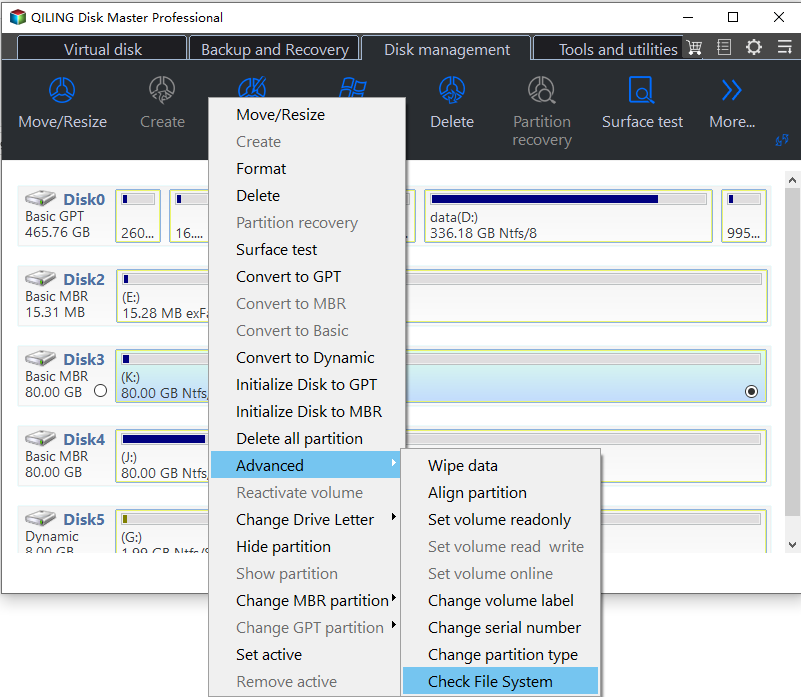
Step 1. To check the file system on a partition using Open Qiling Disk Master, locate the disk, right-click the partition you want to check, and choose "Advanced" > "Check File System".
Step 2. In the Check File System window, select the "Fix the error on the disk" option and click "Start".
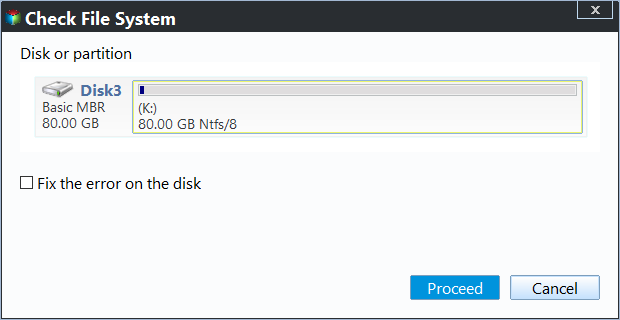
Step 3. The software will start checking your partition file system on your disk. Once it's done, click "Finish".
Key Features of Qiling Disk Master
Qiling Disk Master is a powerful tool that can replace the command prompt, providing a user-friendly interface for all command-line operations. It simplifies the process of using the command line and offers advanced features, such as the ability to run commands, manage files and folders, and more, all within a single interface.
- Check hard drive health
- Delete OEM partitions
- Merge non-adjacent partitions
- Format SSD with Windows on it
- Clone larger HDD to smaller SSD
- Format the hard drive to exFAT/FAT32/EXT2
- Test disk speed, including maximum speed performance
Download this tool, and you can enjoy its conveniences on your computer and hard drives!
Method 2. Perform A Simple Restart
If the keyboard isn't working in the command prompt, try restarting your PC or performing a simple restart for your CMD. If that doesn't work, there are other fixes to try.
Method 3. Check the Keyboard's Connection Cable
Check if the keyboard connected to your computer is properly established, as an improper connection can cause the can't type in Command Prompt error. If using a wired keyboard, unplug and re-plug the wire, and if the issue persists, try using a new keyboard or connecting it to a different port.
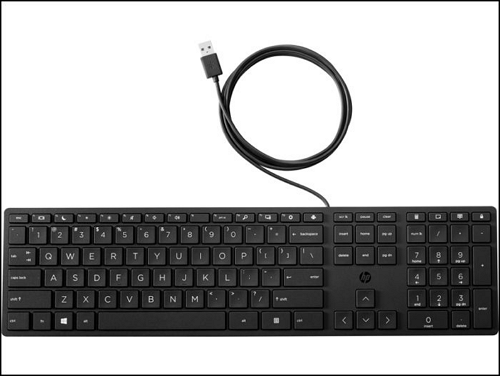
To resolve issues with a wireless keyboard, turn off Bluetooth, wait a few moments, then turn it back on and reconnect the keyboard. Additionally, check the keyboard driver and update it if it's outdated.
Method 4. Run CMD as Administrator
If you're experiencing issues with typing in the Command Prompt, there are a few potential causes to consider. One possible solution is to ensure you have administrator privileges, as a lack of them can prevent you from typing in the Command Prompt. To resolve this, you can try running the Command Prompt as an administrator, which can be done by following a series of steps on your PC to run CMD as an administrator.
Step 1: To open Command Prompt on a desktop, search for "Command Prompt" using the search bar, and then click "Run as administrator" from the available options.
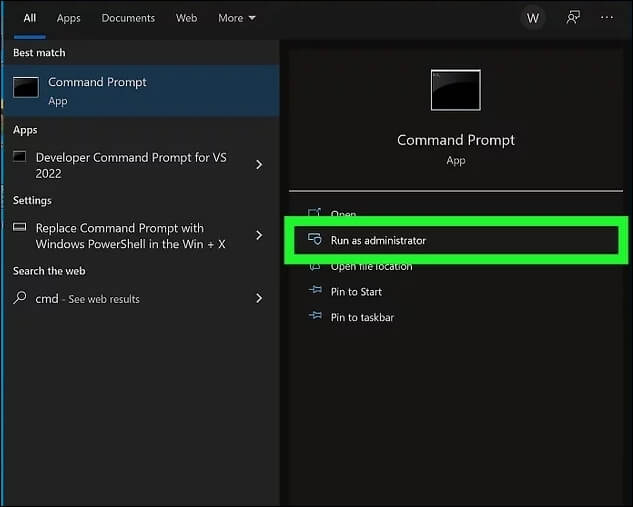
Step 2: A Windows prompt will appear, asking if you want to allow this program to make changes to your device. Select "Yes" and the Command Prompt will successfully open with administrator privileges.
Method 5. Restart PC in Safe Mode
If your PC is experiencing issues, and there are no glitches or administrator privileges involved, the problem is likely caused by a third-party program. However, it can be challenging to identify which program is responsible for the issue. The best way to troubleshoot is to restart your PC in Safe Mode, which allows you to isolate the problem and find the culprit. To do this, follow these steps: restart your PC and immediately start tapping the F8 key to access the Safe Mode boot options. Select Safe Mode and let your PC boot up.
Step 1: To restart your PC in safe mode, open the "Settings" on your PC, click on "Updates & Security," select "Recovery" from the left sidebar, and tap "Restart Now" in "Advanced Startup."
Step 2: A blue screen will appear on your computer, prompting you to click the "Troubleshoot" option, followed by accessing the "Advanced Options" from the next screen.
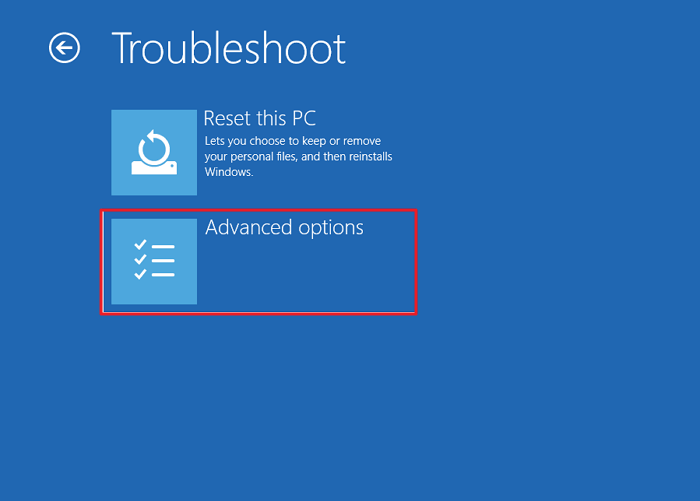
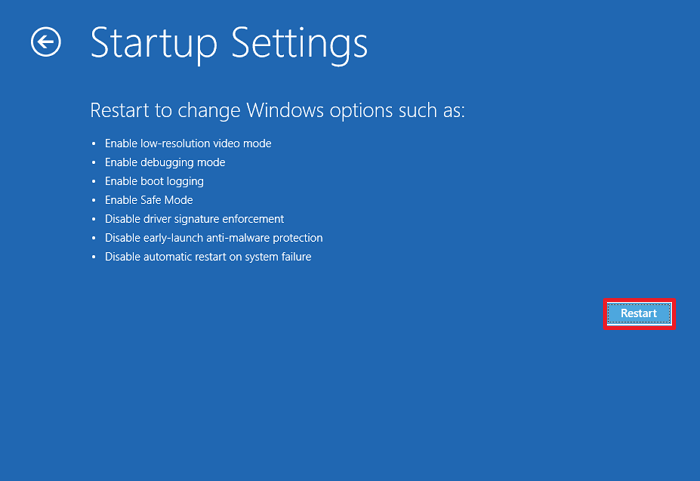
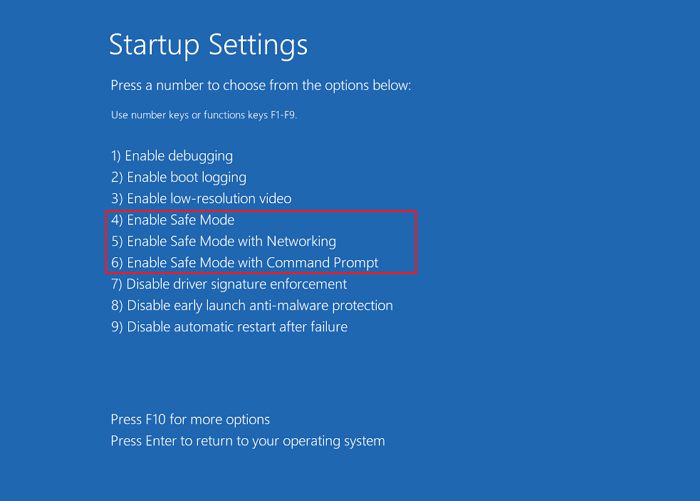
Step 3: To access Safe Mode, click on "Startup Settings" from the "Advanced Options" and press "Restart" to reboot the computer. After it restarts, press the "F4" or "4" key to enable Safe Mode.
Step 4: After resolving the issue, hold the "Shift" key, click "Restart," and follow the on-screen instructions to boot out of Safe Mode. To enable Safe Mode with Command Prompt, press "F6" or "6" after the BIOS screen. This will allow you to troubleshoot and resolve the issue.
Method 6. Switch to the Legacy Console Mode
A) Add a brief explanation of what the registry tweak is
Step 1: To open Command Prompt as administrator on Windows, press the "Windows + R" keys to open the Run function, then type "cmd" and press "Ctrl + Shift + Enter".
Step 2: To switch the Command Prompt (CMD) to legacy mode, click the black icon in the top left corner and select "Properties" from the menu. In the "Options" window, check the box next to "Use legacy console" and click "OK." This will switch the CMD to legacy mode.
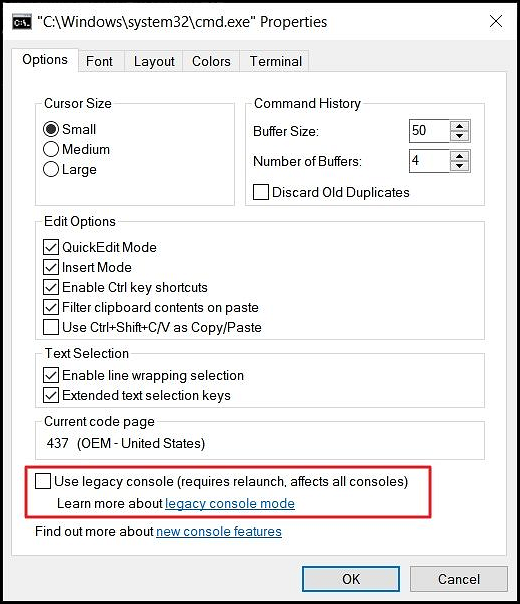
If you're experiencing issues with the command prompt, such as being unable to type, the above method may be helpful. If you're facing other problems, like the command prompt not working, click the following link for specific solutions.

Fixed: Command Prompt Not Working in Windows 11/10
To resolve the issue where the CMD command is not working after updating to Windows 10, try running the Command Prompt as an administrator, check for corrupted system files using the System File Checker (SFC), and ensure that the Command Prompt is not blocked by your antivirus software. Additionally, you can try to reset the Command Prompt settings to their default values and check for any updates for the Command Prompt. If none of these solutions work, you may need to reinstall Windows 10.
Conclusion
Not being able to use the Command Prompt can be a problem, especially if you manage your computer's hard disks that way. However, the "can't type in Command Prompt" issue is easily solvable. If you're tired of using CMD, Qiling Disk Master is a great alternative, allowing you to quickly resolve all hard disk issues.
FAQs About Can't Type in Command Prompt
Here are some frequently asked questions about not being able to type in Command Prompt, along with their answers:
1. How to repair CMD in Windows 10?
If you're experiencing issues with the Command Prompt in Windows, you can resolve the problem by following these simple steps. First, type "cmd" in the Windows search bar and press Enter to open the Command Prompt.
Step 1: To access the Command Prompt, click the "Start" button on your computer, navigate to "Windows System," right-click on Command Prompt, and select "More" from the menu.
Step 2: Now, click "Run as administrator" and press "Yes" on the system prompt to launch the CMD as administrator, which will resolve the issue with the command prompt.
2. Why are CMD commands not working?
If you're unable to type commands on CMD, it could be due to a faulty keyboard, corrupt system files, or lack of required permissions. To resolve the issue, you can try restarting your computer, checking for corrupted system files, or running a keyboard troubleshooter. If the problem persists, you may need to reinstall your operating system or seek further assistance.
3. How to reactivate CMD?
To reactive CMD on your device, go to your device's settings, click on "Apps" or "Application Manager", search for Command Prompt or Command Line, and click on it. Then, click on the "Storage" or "Storage & Cache" option, click on "Clear Storage" or "Clear Data", confirm, and wait for the process to complete.
Step 1: To access the Properties of the Command Prompt, you need to first run it as an administrator on your computer. This can be done by searching for "Command Prompt" in the Start menu, right-clicking on it, and selecting "Run as administrator." Once it's open, you can click on the black icon in the top corner of the window, which typically features a small icon and your username, and select "Properties" from the context menu. This will open the Properties window for the Command Prompt, where you can make any necessary adjustments or settings.
Step 2: To reactivate the old Command Prompt (CMD), check the "Use legacy console" box and press "OK" in the Windows Terminal settings. This will revert the terminal to its classic version.
4. How to fix when the command doesn't respond?
If the command line does not respond, you can try the following to fix it:
- Shut down the activity or reboot the device.
- Disable anti-virus software.
- Use the command prompt in safe mode.
- Log in with a different account.
Related Articles
- How to Remove Bing from Chrome
- How to Solve 'Can't Delete Partition on SD Card' [100% Working Solutions]
If you're experiencing issues with deleting a partition on your SD card in Windows, this article can help. It explains why Disk Management may not allow you to delete the partition on your SD card and provides solutions to make space available on your SD card. - Can't End Task Access Denied (Cuauses & Solutions)👍
Fix cannot end task access denied in Windows Task Manager. Learn why processes refuse to close and how to stop stubborn apps safely. - [5 Quick Fixes] Samsung Data Migration Not Working
Samsung data migration not working may be caused by various issues, but can be easily fixed and analyzed with simple solutions, and an alternative method is available to transfer old hard drive data onto a new Samsung SSD. - How to Fix Samsung SSD Clone Failed [2023 Full Guide]
Do you know why Samsung SSD Clone Failed? this guide will help you figure out the reasons and give you full guide to fix this error.
Products
Articles & Tutorials
- Data Recovery
- Data Backup
- File Recovery
- File Backup
- System Backup and Restore
- Disk and Partition Clone
- Technical articles
- Mobile articles
- Disk Master Help
- Windows Data Recovery Tutorials
- Windows Secure Delete Tutorials
- Windows Partition Management Tutorials
- Windows File Backup and Restore Tutorials
- Windows System Backup and Restore Tutorials
- Windows Disk Backup and Restore Tutorials
- Windows Clone Tutorials