How to Fix 'Can't Delete Partition on SD Card'
SD cards are a great solution to increase storage space on devices. When using them on a Windows system, Disk Management can handle their partitions. However, specific issues may prevent Disk Management from deleting the partition on the SD card.
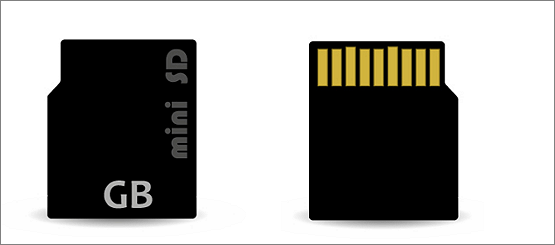
Facing issues with deleting a partition on your SD card? This article addresses the problem, covering the top reasons behind it and providing quick fixes.
Why Can't Delete Partition on SD Card
SD card partitions allow for a logical division of the total card memory, but using Disk Management to remove a partition on an SD card can be challenging due to several reasons, including.
- SD card corruption: The disk management may fail to delete a partition if it's corrupted, possibly due to mishandling of the SD card, corrupted data, or bad sectors.
- Locked error: A locked SD card can prevent access to new files and potentially modify or delete existing data on the card.
- Write protection: The SD card may be write-protected when inserted with an adapter or card reader, allowing users to view and read files but preventing any modifications or operations.
If your SD card is damaged or write-protected, you can either reinsert the SD card or get a new one. If it's write-protected, you can remove the protection using Qiling Disk Master, which will provide a direct solution.
To remove write protection from a USB drive, you can try the following methods.

To remove write protection from an SD card and format it successfully, first, check if the card is write-protected by looking for a small switch on the side of the card or in the SD card reader. If it's on, toggle it off.
When you encounter the 'The disk is write protected' error while trying to format a write-protected SD card, don't worry. To resolve this issue, you need to remove the write protection from the SD card using one of the 6 methods provided, which will then allow you to format the card.
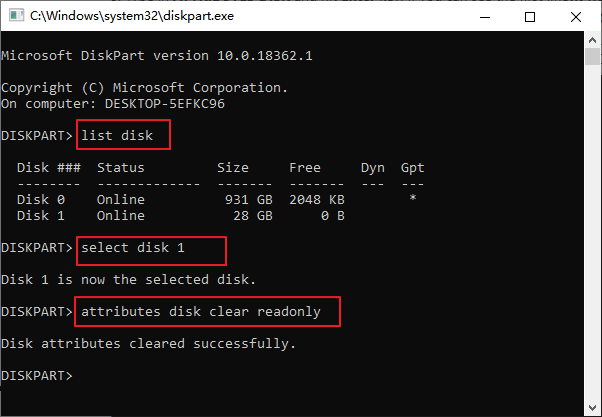
After removing the write protection, let's look at the specific steps to resolve the "can't delete the partition on SD card" issue.
How to Fix Can't Delete Partition on SD Card Successfully
After going through the top reasons for disk management being unable to delete the partition on the SD card, it comes down to quick solutions for the same. The top two methods to fix can't delete the partition on an SD card are to use disk management tools, such as Disk Management in Windows or Disk Utility in macOS, to delete the partition, or to use a third-party software, like Qiling Partition Master or MiniTool Partition Wizard, to delete the partition and manage the SD card.
To delete a partition on an SD card using Qiling Disk Master, first, download and install the software. Then, connect the SD card to your computer. Open Qiling Disk Master and select the SD card from the list of available disks.
To delete a partition on your SD card using Diskpart, start by opening Command Prompt as an administrator. Then, type `diskpart` and press Enter. Next, type `list disk` and press Enter to view a list of disks connected to your computer, including the SD card.
If you're experiencing the "can't delete the partition on an SD card" error, there are two possible solutions. Firstly, you can try using the built-in disk management tool in your computer to delete the partition.
| Comparison | Qiling Disk Master | Diskpart |
|---|---|---|
| Operation Difficulty | Easy | Difficult |
| Interface | Simple | Complex |
| Suitable Users | All | Experts |
Based on the comparison, Qiling Disk Master outperforms Diskpart in solving the "can't delete the partition on an SD card" error, thanks to its user-friendly interface, straightforward operations, and high security levels, making it a more effective solution.
- Notice:
- Users need to backup their essential data on the SD card before proceeding, as the two methods will delete the partition and may cause data loss.
Way 1. Use Qiling Disk Master to Delete Partition on SD card
Qiling Disk Master is the all-A free partition manager is the best choice to solve the problem of not being able to delete a partition on an SD card. This is particularly useful for specific users who need to manage their SD card partitions. The partition manager can help resolve issues such as being unable to delete a partition, making it a valuable tool for those who need to free up space on their SD card.
- It is an easy-to-use tool with quick steps only.
- It provides detailed features for efficient partition management for internal disks or devices.
- It is compatible with different Windows versions.
- The SD card recovery tool can repair and restore the corrupted SD card, and also remove the write protection that may be preventing it from being used. This can help recover lost data and get the card working again.
Let's take a look at the steps:
Step 1. Launch Qiling Disk Master, and click "Partition Manager".
Before deleting any partition on your disk, make sure to back up any important data to prevent loss.
Step 2. Select to delete partition or delete all partitions on hard drive.
- Delete single partition: To delete a partition, right-click on it and select "Delete".
- Delete all partitions: Right-click a hard drive that you want to delete all partitions, and select "Delete All".
Step 3. Click "Yes" to confirm the deletion.
Step 4. Click "Execute xx Task" and then click "Apply" to save the change.
0:00 - 0:26 Delete single volumes; 0:27 - 0:53 Delete all partitions.
Qiling Disk Master is a software that allows users to delete partitions on their SD cards with ease, supporting all Windows versions and suitable for both beginners and professionals. It offers a user-friendly interface and can be used quickly, with its main benefit being the simplicity of deleting partitions with just a few clicks.
- Delete NTFS partition
- Delete OEM partition
- Resize, extend, and merge partitions
- Create partition from unallocated space
If you're experiencing issues with disk partition, you can utilize Qiling Disk Master to resolve them.
Way 2. Use Diskpart to Delete Partition on SD card
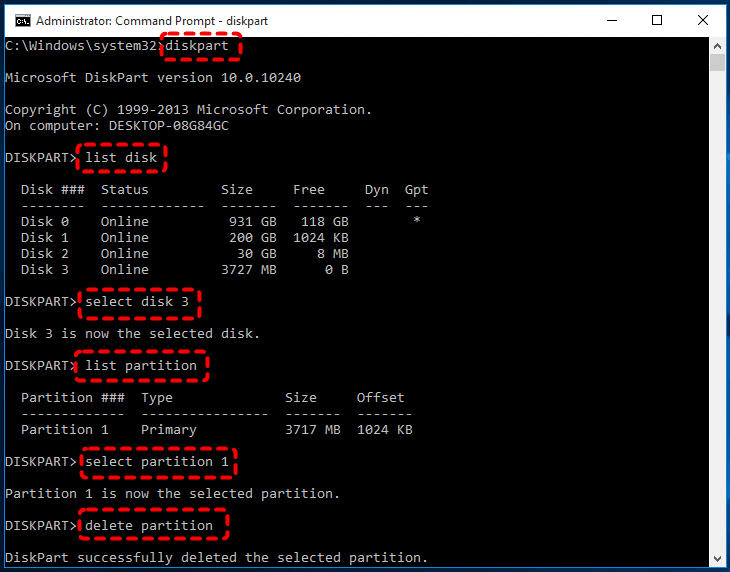
The Diskpart command is a command line utility in Windows that can manage disk partitions from internal and external devices, including SD cards. To use Diskpart to delete a partition on an SD card, follow these quick steps:
Step 1. To access the Diskpart command line tool, go to the "Start" menu and type "diskpart" in the search box.
Step 2. Type "list disk" in the disk part prompt.
Step 3. To delete a partition from a specific disk, you would type "select disk n," where n is the number of the disk where the partition needs to be deleted.
Step 4. Type "list partition" and hit Enter.
Step 5. Input "select partition n" and hit Enter.
Step 6. Type "delete" partition and hit Enter.
Conclusion
It's clear that readers understand the issue of not being able to delete a partition on an SD card. The top reasons for wanting to delete the partition are easily identifiable, and it's also clear why disk management can't accomplish this task.
Fixing the issue of being unable to delete a partition on an SD card using Qiling Disk Master or Diskpart can be achieved through two main methods. The detailed steps provided for these methods are helpful in resolving the problem, making it accessible to beginners.
FAQ of Can't Delete Partition on SD Card
After reviewing the topic of can't delete partition on SD card, you may have questions. Some common ones include: What are the possible causes of this issue? How to identify the problem?
1. How do I delete partitions on my SD card?
To delete partitions on your SD card, follow these quick steps: First, insert the SD card into your computer or a card reader. Next, open the Disk Management tool on your computer.
Step 1. Go to "Windows Disk Management" from the "Start" menu.
Step 2. Locate the SD card and its partition in the disk management menu.
Step 3. Right-click on the partition, look to delete, and select the "Delete Volume" option.
2. Why I can't delete anything from my SD card?
Some users may encounter an issue where they are unable to delete files from their SD cards, which can be caused by the SD cards being write-protected, preventing any writing, formatting, or deletion of data.
3. How do I delete a partition that won't delete?
If you're unable to delete a partition, first determine the reason. If it's due to write protection, remove it and then use Qiling Disk Master or Diskpart. To delete a partition using Diskpart, follow these quick steps:
Step 1. Open "cmd" and run as an administrator.
Step 2. Type "diskpart" and press enter.
Step 3. Type "list disk" and press enter.
Step 4. Type "select disk" and press enter.
Step 5. Type "list partition" and press enter.
Step 6. Type "select partition" and press enter.
Step 7. Type "delete partition override" and press enter.
Related Articles
- Working on Updates 100% Complete Don't Turn Off Your Computer [6 Fixes]
- How to Change Network Names on Windows
- 3 Steps: How to Fix PCL XL Error in Printer Windows 10/11
- Can I Use My SD Card as RAM on Android and Windows?
You can use your SD card as RAM on both Android and Windows devices, but it's not a straightforward process. This article explains how to do it correctly, providing a step-by-step guide on how to utilize your SD card as a makeshift RAM to improve your device's performance. - How to Reset PS5 Without Losing Data [2 Tested Methods]
Reset PS5 without losing data by choosing the right reset option, backing up game saves, and protecting PlayStation 5 data. - Resolve Outlook Cannot Connect to Server
There are several reasons why Outlook cannot connect to the server. This article explains the causes and shows how to fix the Outlook connection error.
Products
Articles & Tutorials
- Data Recovery
- Data Backup
- File Recovery
- File Backup
- System Backup and Restore
- Disk and Partition Clone
- Technical articles
- Mobile articles
- Disk Master Help
- Windows Data Recovery Tutorials
- Windows Secure Delete Tutorials
- Windows Partition Management Tutorials
- Windows File Backup and Restore Tutorials
- Windows System Backup and Restore Tutorials
- Windows Disk Backup and Restore Tutorials
- Windows Clone Tutorials