How to Create Partition from Unallocated Space in Windows 10
Unallocated space on a computer refers to the physical space that has not yet been allocated by the operating system. This space can be used to create partitions, allowing the operating system to write files and data. To make better use of the disk, creating a partition from unallocated space can be a useful step, especially on Windows 10.
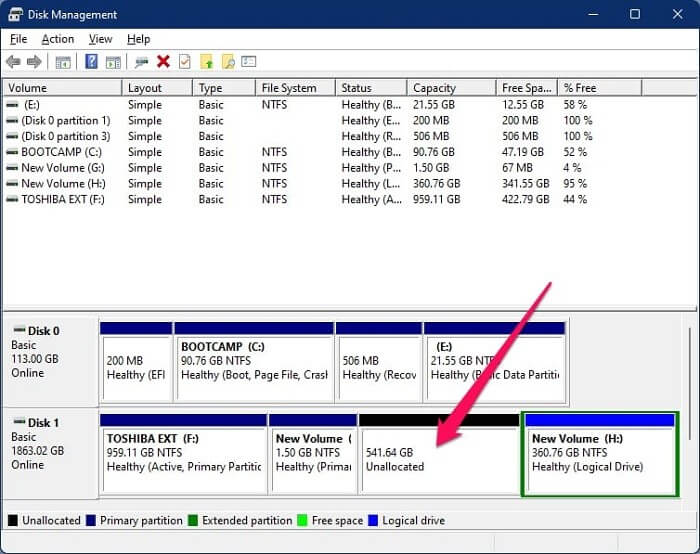
If you need to learn how to create a partition from unallocated space, this article will guide you through three easy methods, allowing you to choose the most suitable one based on your specific needs.
You May Also Like:
How to Create Partition from Unallocated Space
You can create a partition from unallocated space using one of three methods. There are two built-in tools in Windows, as well as a third-party tool, that can help you achieve this. You can choose the method that best suits your needs to create a partition from the unallocated space.
1. Qiling Disk Master is an easy-to-use tool that is suitable for all users, providing a simple and intuitive interface for managing and manipulating disk images and virtual disks.
2. Disk Management – Many steps and suitable for experienced users
3. Diskpart command – Difficult to operate and require computer knowledge
If you're not tech-savvy, Qiling Disk Master Free is the best option. It has a user-friendly interface and can create partitions from unallocated space safely and efficiently.
Method 1. Create Partition from Unallocated Space – Qiling Disk Master
Qiling Disk Master is an all-Disk Manager is a user-friendly tool that supports all Windows users, allowing them to easily create partitions from unallocated space in just three steps. By downloading and using this tool, users can experience the convenience and security it brings.
Step 1. Launch Qiling Disk Master, right-click on the unallocated space on your hard drive or external storage device on the main window and select "Create".
Step 2. To create a new partition, you'll need to adjust its size, file system, label, and other settings. This involves specifying the desired partition size, selecting a suitable file system (such as FAT, NTFS, or ext4) based on your requirements, and assigning a label to the partition. This process allows you to customize the new partition to meet your specific needs.
Step 3. Click on the "Proceed" button to create a new partition.
Qiling Disk Master makes it easy to create partitions, offering other powerful features as a professional partitioning tool, bringing benefits such as efficient partition management and data protection.
- Format unallocated disk
- Fix low disk space error
- Make unallocated space contiguous
- Merge non-adjacent partitions Windows 10
- Resize, delete, move, and extend NTFS or FAT32 partitions
If you have any disk-related problems, you can turn to Qiling Disk Master for help.
Method 2. Create Partition from Unallocated Space – Disk Management
Disk Management is a utility provided by Windows that allows users to manage disks, including creating, formatting, extending, deleting, and shrinking partitions. With Disk Management, users can create partitions from unallocated space on Windows 10 by using the "New Simple Volume" feature. This utility provides a range of options for managing disk space, making it a useful tool for users who need to optimize their disk configuration.
Step 1. Press "Windows+R" and input "diskmgmt.msc."
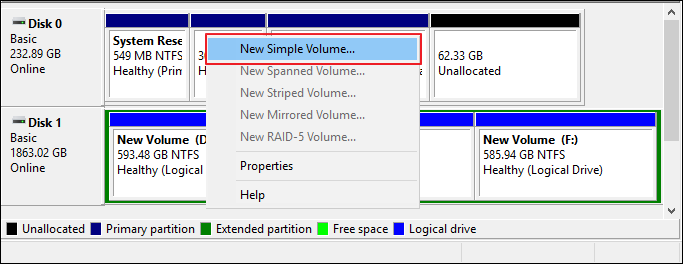
Step 2. Right-click the unallocated space you want to use and select "New Simple Volume."
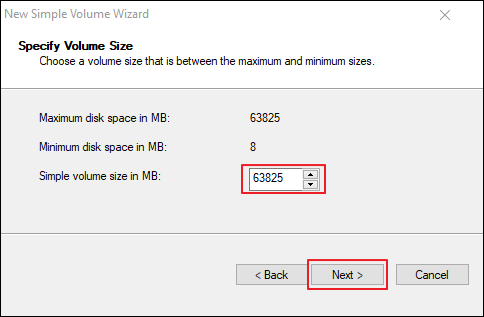
Step 3. Set the size of the new partition and click "Next."
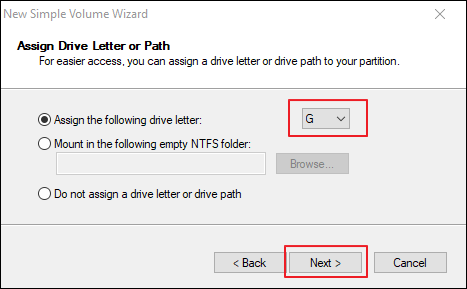
Step 4. To change the drive letter of a partition, select the desired drive letter from the list and click "Next" to proceed with the drive letter change.
Step 5. Select the correct file system format and perform a quick format.
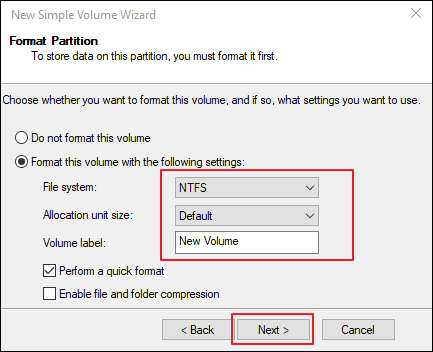
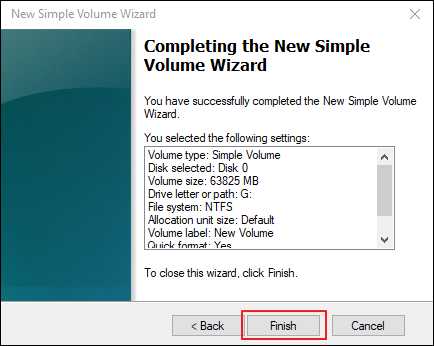
Step 6. To complete the task of creating a partition from unallocated space, click "Finish".
- Notice:
- If you're unable to select "New Simple Volume" when creating a new partition with Disk Management, it's likely because you're trying to use a 3TB hard drive without converting the Master Boot Record (MBR) to a GUID Partition Table (GPT). This can be resolved by following the steps outlined in the provided link to convert MBR to GPT.
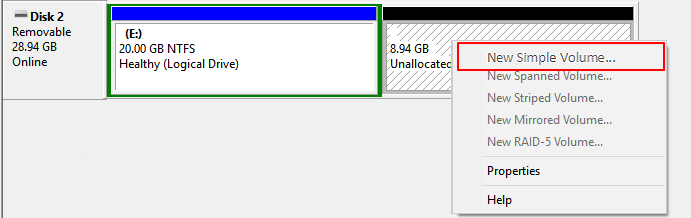
To fix the "New Simple Volume Greyed Out" error in Windows Disk Management, you can try running the built-in Check Disk (chkdsk) utility to identify and repair any disk errors. Additionally, check the disk for any hardware issues by running a disk check in the Disk Management console.
When trying to create a new partition in Disk Management, you may encounter a greyed out "New Simple Volume" option, preventing you from selecting it. This can be frustrating, but don't worry, there are solutions to this issue. You can try to resolve the problem by checking the disk's status, ensuring it's not being used by another process, or by running a disk check to identify and fix any errors.
Method 3. Create Partition from Unallocated Space – Diskpart
To create a partition from unallocated space using the Diskpart command, first, open the Command Prompt as an administrator. Then, type "diskpart" and press Enter. Next, type "list disk" and press Enter to see a list of all disks on your computer. Note the disk number of the disk that contains the unallocated space. Then, type "select disk #", replacing # with the disk number, and press Enter. After that, type "list partition" and press Enter to see a list of all partitions on the selected disk.
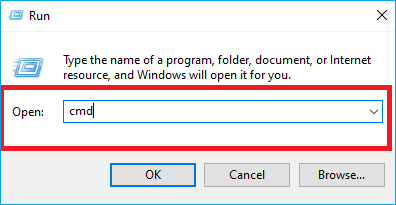
Step 1. Press "Windows+R" and input "cmd."
Step 2. Type "diskpart" and hit "Enter."
Step 3. Input the following commands and hit "Enter" after each command.
list disk – see all the disks
select disk 1 – choose the unallocated space
create partition primary size=20480 – set the proper size of the new partition
assign letter=H – change "H" to a new letter you like
format fs=nfts quick – replace "ntfs" with another suitable format
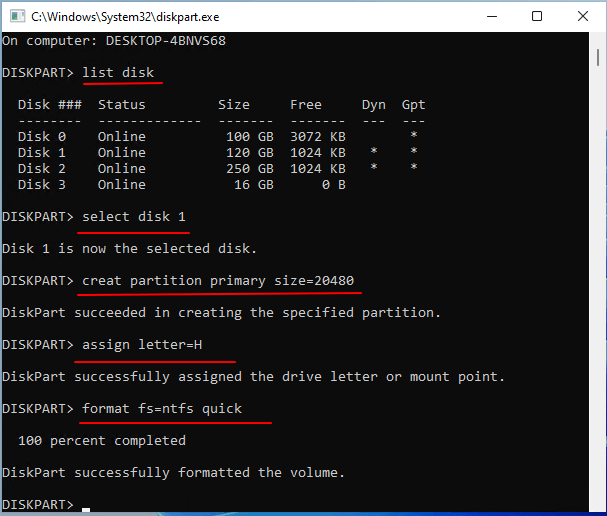
Step 4. Then, type "exit" to finish creating a partition from unallocated space.
- Notice:
- Diskpart is a complex tool, but it's very useful. You can also use Diskpart to delete all partitions or merge partitions.
Conclusion
If you need to create a partition from unallocated space, there are three methods to consider. For those comfortable with computer settings, using Diskpart is a viable option. However, for others, using Disk Management can be a bit more complicated. A more user-friendly alternative is Qiling Disk Master, which is suitable for all levels of users and offers additional features to manage your disk and partitions effectively.
The next part shows you some frequently asked questions about unallocated space.
FAQs of Creating Partition from Unallocated Space
If you have some other questions about today's topic, please check out these questions below. Here are three questions that people often ask. I hope they can help you.
1. Does unallocated space count as a partition?
The unallocated space on a computer is an area that is not currently being used by any partition. This means it's not being utilized for storing data or programs, and therefore cannot be accessed or used until a partition is created to occupy it. To utilize this space, one can either create a new partition or extend an existing partition to include the unallocated space. This would allow the computer to use the previously unutilized space for data storage or program execution.
2. How do I add unallocated space to the C drive partition?
You can add unallocated space to the C drive partition by extending the unallocated space. You can use Disk Management to complete the task, but you should ensure that the unallocated space is on the right side of the targeted volume. And then follow the steps below.
Step 1. Open Disk Management by inputting "diskmgmt.msc".
Step 2. Right-click the C drive and choose "Extend Volume."
Step 3. Follow the settings and click "Finish."
3. Cannot create a partition from unallocated space?
If you're having trouble creating partitions from unallocated space, there could be several reasons. Firstly, if you have external drives connected, try removing them as they might be taking up space. You can also check the drive size and format to ensure it's not already in use. Additionally, if the drive is using the Master Boot Record (MBR) system, you might need to convert it to the GUID Partition Table (GPT) system, which allows for more partitions to be created.
Related Articles
- How to Transfer OEM Windows 10 to A New PC [Easy & Quick]
- Can I Check and Optimize SSD Performance in Windows 11? Yes, Sure
- How to Unlock Computer Without Password | 2024 Top Ways💡
- How to Burn Windows 11 ISO to USB - 2 Efficient Ways
- How to Format A USB Drive That Doesn't Show Up
If your USB drive doesn't show up, you can try formatting it using one of the three solutions provided in this guide. These solutions offer a way to format an unrecognized USB drive, allowing you to make it usable again. - How to Format EFI System Partition as FAT32? Your Guide Here 2023
There are ways to change the EFI partition to a FAT32 file system, but many users face the challenge of formatting
Products
Articles & Tutorials
- Data Recovery
- Data Backup
- File Recovery
- File Backup
- System Backup and Restore
- Disk and Partition Clone
- Technical articles
- Mobile articles
- Disk Master Help
- Windows Data Recovery Tutorials
- Windows Secure Delete Tutorials
- Windows Partition Management Tutorials
- Windows File Backup and Restore Tutorials
- Windows System Backup and Restore Tutorials
- Windows Disk Backup and Restore Tutorials
- Windows Clone Tutorials