How to Make Unallocated Space Contiguous [Step-by-Step Guide]
Unallocated space refers to the unused area on a disk that has not been assigned to a partition. This space can be used by programs to write data to the disk, and it's common to have multiple unallocated spaces on a disk. To manage the lack of disk space, making unallocated space contiguous can be an effective way. This article will provide two ways to help you understand how to make unallocated space contiguous.

You may also like:
To manage unallocated space, you can click the button below to access detailed information on how to utilize this feature effectively. This will provide you with a comprehensive understanding of how to allocate and manage unallocated space within your system.
Can I Make Unallocated Space Contiguous in Disk Management
To utilize the unallocated space more efficiently, we need to make non-contiguous spaces contiguous, but the Disk Management tool is unable to assist us in this process.
Disk Management is a Windows tool that allows users to resize partitions without losing data. However, it has a limitation when trying to make unallocated space contiguous, as it cannot move or merge unallocated space into adjacent or non-adjacent partitions on the right.
When trying to extend the C drive, the unallocated space can only be added to the D drive, as the extended volume can only add unallocated space to the left contiguous partition. Conversely, shrinking the volume can only generate unallocated space on the right side.
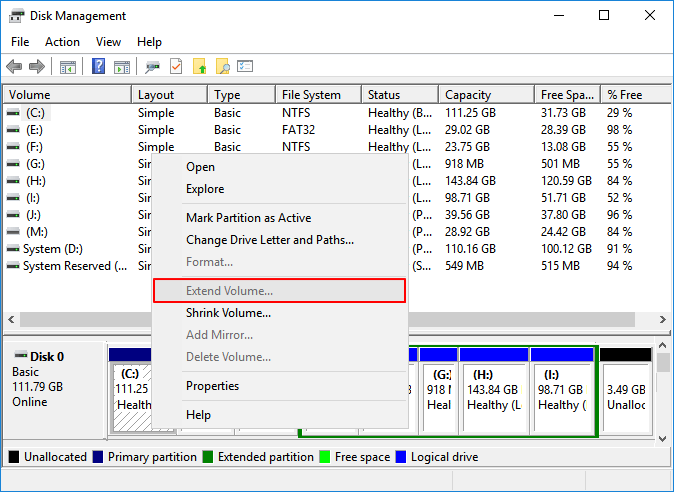
- Notice:
- If the extended volume option is grayed out, it may be due to a variety of reasons such as the system not being able to detect the extended volume or the driver not being installed correctly. You can try reinstalling the driver or updating the system to see if it resolves the issue. If the problem persists, you can try searching online for specific solutions related to your device or system.
If you're experiencing issues with extending a volume in Windows, it's likely due to the disk being full or the volume being the system volume. To resolve this, try deleting unnecessary files or expanding the volume to a larger disk. If the issue persists, you can try using the built-in Disk Management tool to extend the volume.
When the "Extend Volume" option is greyed out in Disk Management, it's usually because the volume you're trying to extend is already at its maximum size or there's no unallocated space available to add to it. This can be frustrating, especially if you're trying to expand your C drive. Fortunately, there are alternative solutions to consider, such as using a third-party partition manager or disk imaging software to resize or move partitions. Additionally, you can try using the built-in Windows feature, "Disk Cleanup" to free up space on your C drive and then try extending the volume again. If none of these solutions work, you may need to consider using a more advanced tool or seeking professional help.
You can't make unallocated space contiguous using Disk Management. However, a professional third-party partition manager can help you achieve this.
How to Make Unallocated Space Contiguous
To make unallocated space contiguous, we can't rely on Disk Management. Instead, I recommend using Qiling Disk Master, a powerful tool with a user-friendly interface that can easily make unallocated space contiguous. Its simple steps make it easy to use, and it's a great alternative to the limitations of Windows tools.
Step 1. Select the partition next to the unallocated space, select "Resize/Move".

Step 2. Drag the mouse on the partition to the left or right to move the unallocated space.

To move the unallocated space to the desired location, repeat Step 1 and 2. This will allow you to place the unallocated space where you want it, giving you more flexibility and control over your disk layout.
Step 3. Click "Proceed" to execute the operations and add the unallocated space to the target partition.

What Else Can Qiling Disk Master Do?
With Qiling Disk Master, you can make unallocated space contiguous by following a few simple steps. This tool is a helpful assistant for disk management and supports various Windows versions, including Windows 11, 10, 8, 7, and XP. It can also help resolve other issues related to disk partitioning, making it a useful utility for managing your computer's storage.
- Add unallocated space to the D drive
- Convert unallocated space to free space
- Convert MBR to GPT without losing data
- Create/delete/move/merge partitions
Bonus Tip: How to Use Unallocated Space Contiguous
After we make non-The unallocated space in a computer is an area of the hard drive that has not been assigned to a specific partition or file system. This space is usually adjacent to an existing partition and can be used to expand the size of that partition or to create a new partition. There are two common scenarios where this unallocated space is utilized:
1. Use the unallocated space to extend the C drive
2. Create a new partition on the unallocated space
We already know that Disk Management has some limitations, but Qiling Disk Master can easily use the unallocated space to extend the C drive. Let's take a look at how it works to use the unallocated space to extend the partition.
Use Unallocated Space to Extend C drive
Qiling Disk Master can directly extend C drive with non-adjacent unallocated space by utilizing its "Move Partition" function, making the process of making unallocated space contiguous to the C drive very easy. This involves specific steps that can be taken to achieve the desired outcome.
Step 1: Free up unallocated space for C drive.
If there is no free space on the system disk, go to Partition Manager, right-click on a partition next to the C: drive and select "Resize/Move" to create unallocated space.
To resize the partition, drag the left panel of the partition to the right to shrink it, leaving unallocated space behind the system C: drive. Then, click "OK" to confirm the changes.
Step 2: Increase C drive space.
1. Right-click on C: drive and select "Resize/Move".
2. To add space to the C: drive, drag the system partition end into the unallocated space. This will merge the two and increase the size of the C: drive.
Step 3: Keep all changes to extend C: drive.
Click the "Proceed" to keep all changes so to extend the system C: drive.
Create a New Partition on Unallocated Space
In order to make the unallocated space contiguous, you can use a disk management tool to merge the fragmented unallocated space into a larger contiguous block, allowing you to create a new partition in that space. This process can be achieved using a tool like Qiling Disk Master, which simplifies the steps involved in creating partitions. By doing so, you can utilize the unallocated space to store data, effectively increasing the available storage capacity.
Step 1. Launch Qiling Disk Master. On the main window, right-click on the unallocated space on your hard drive or external storage device and select "Create".
Step 2. To create a new partition, you can adjust the partition size, file system (such as ext4, xfs, or btrfs), label, and other settings as needed.
Step 3. Click on the "Proceed" button to create a new partition.
Watch this video tutorial to learn how to create a partition in various file systems, including NTFS, FAT, or EXT.
Conclusion
To make unallocated space contiguous to the C drive, we can't rely on Windows' built-in Disk Management tool. However, with Qiling Disk Master, we can achieve different needs for unallocated space, making it possible to meet our specific requirements.
To make the most of your unallocated space, simply use a reliable tool like Qiling Disk Master to create new partitions. In just three easy steps, you can make the unallocated space contiguous, allowing you to use it wisely and get the most out of your storage.
FAQs About How to Make Unallocated Space Contiguous
This section addresses three frequently asked questions and answers about unallocated space. If you're interested, please read on to learn more.
1. How do I make unallocated space usable?
To make unallocated space available, you can use Qiling Disk Master or Disk Management to either create a new partition on unallocated space or expand an existing partition using the available unallocated space.
Step 1. To open the Disk Management window, press the "Windows+R" keys to open the Run window, and then type "diskmgmt.msc" and press Enter.
Step 2. To create a new partition on an unallocated space, right-click on the unallocated space and select "New Simple Volume."
Step 3. Follow the prompts to set the drive number, file system, and other settings.
2. Why do I have two unallocated spaces?
If your hard disk is larger than 2 TB and initialized to MBR, it may be divided into two unallocated spaces, requiring a conversion to GPT to merge unallocated space larger than 2 TB.
3. Can you remove the unallocated partition?
Since unallocated space doesn't belong to any partition, you can't delete it directly. However, you can create a new partition on the unallocated space or merge it with an existing partition, effectively removing the unallocated space. This approach allows you to utilize the unallocated space for storage purposes.
Related Articles
- SanDisk Format Solution: Format SanDisk to The Best Performance on Your Own
- Full Guide on USB Benchmark and Check Your USB Speed
- Format Tool for SD Card | Free Download 2023 Best Memory/SD Format Tool
- How to Format Bootable Pendrive/USB Flash Drive to Normal [3 Solutions]
- How to Make Unallocated Space Contiguous to Extend Partition?
This article will tell how to make unallocated space contiguous to system partition or other partitions, then you can extend volume successfully. - How to Move Unallocated Space to C Drive without Deleting Partition?
When you want to allocate disk space to C drive, read this article. Here we introduce how to move allocated space to C drive without formatting or deleting any other partitions step by step.
Products
Articles & Tutorials
- Data Recovery
- Data Backup
- File Recovery
- File Backup
- System Backup and Restore
- Disk and Partition Clone
- Technical articles
- Mobile articles
- Disk Master Help
- Windows Data Recovery Tutorials
- Windows Secure Delete Tutorials
- Windows Partition Management Tutorials
- Windows File Backup and Restore Tutorials
- Windows System Backup and Restore Tutorials
- Windows Disk Backup and Restore Tutorials
- Windows Clone Tutorials