SanDisk Format Solution: Format SanDisk to The Best Performance on Your Own
- Key Takeaways:
-
Are you looking for a complete SanDisk format solution? Here is a quick guide that you can follow:
The best format for your SanDisk storage devices depends on the type of device and the intended use. For example, if you're using a SanDisk flash drive for transferring files between computers, a FAT32 or exFAT format is recommended. If you're using a SanDisk SSD or external hard drive for storing and transferring large files, a NTFS or HFS+ format may be more suitable. - To ensure the security and integrity of your data, it's recommended to back up all essential content on your SanDisk storage devices. This can be done by connecting the devices to a computer, using the SanDisk software to transfer files, or by using cloud services like SanDisk's own cloud storage. Regularly backing up your data will help protect it from loss or corruption due to hardware failure, software issues, or other unforeseen events.
- To achieve optimal performance with your SanDisk device, follow the recommended solutions. First, format the device to the best performance by selecting the "Quick Format" option. This will erase all data on the device and prepare it for optimal use.
You can find complete format solutions for SanDisk devices on this page, including guides for formatting SanDisk SD cards, USB flash drives, and internal or external HDDs/SSDs. Follow the respective guide to format your device to the desired format with success. Let's get started.
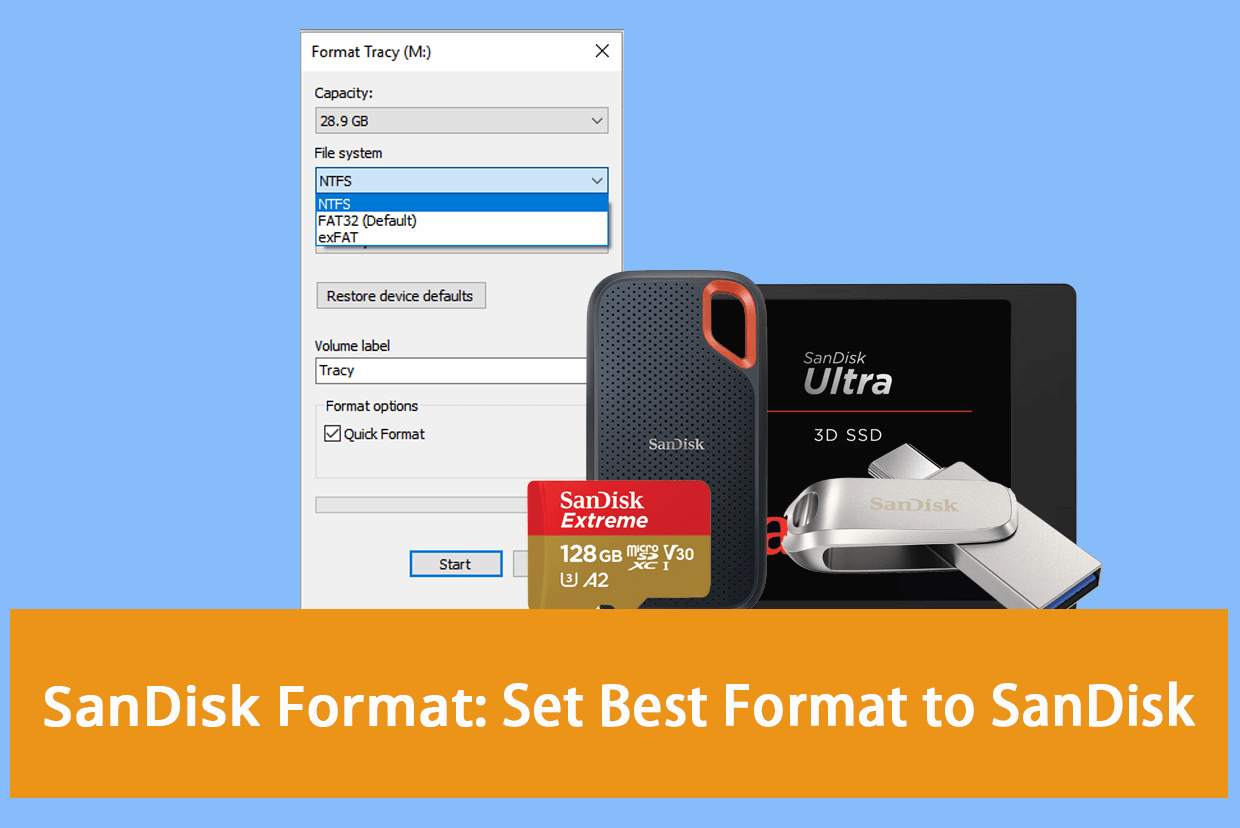
What Format Does SanDisk Use
SanDisk is a brand for flash memory products, including memory cards, USB drives, and solid-state drives, manufactured and marketed by Western Digital, which acquired the original company, SanDisk Corporation, in 2016.
SanDisk was founded in 1988 and has since provided thousands of storage devices to users worldwide, serving in data storage, file transfer, and data security protection. The Western Digital site offers various SanDisk storage devices, including options such as microSD cards, USB flash drives, and external hard drives.
- Solid State Drives (SSD)
- Hard Drives (HDD)
- USB Flash Drives
- Memory Cards
- Data Center Storage
- Network Attached Storage (NAS)
- Embedded Flash
- Accessories, etc.
SanDisk storage devices typically use the FAT32 file system format for Windows and other operating systems, and the NTFS file system format for Windows operating systems. They may also use the exFAT file system format for Mac and other platforms, and the HFS+ file system format for Mac operating systems. The specific file system format used may vary depending on the device model and the operating system being used.
| Format | Usages |
|---|---|
| NTFS |
|
| FAT32 |
|
| exFAT |
|
| EXT2/3/4 |
|
| APFS |
|
| Mac OS Extended - HFS/HFS Plus/HFS+ |
|
You May Also Like:
If you are still not clear about which format should your SanDisk storage devices use, follow the next part and get the answer quickly. SanDisk storage devices are designed to be compatible with multiple formats, including FAT32, exFAT, and NTFS.
What Is the Best Format for SanDisk SD Card, USB, External and Internal Hard Drives
If you're unsure about the best format for your current storage devices, don't worry - it's a common question! The format you need depends on the type of device and its intended use. For example, if you're formatting a hard drive or solid-state drive (SSD) for a computer, you'll likely want to use a standard file system like NTFS, HFS+, or APFS.
- Is SanDisk FAT32 or NTFS?
- Is SanDisk Micro SD FA32?
- SanDisk external hard drives are typically formatted with exFAT, which is a more modern and efficient file system. However, if you need to use the drive on older operating systems or devices that don't support exFAT, FAT32 might be a better option.
The format used by SanDisk depends on the platform and storage capacity of the device. The table below can help determine the best format for your SanDisk storage devices.
| Platforms | USB/External Hard Drives | SD Cards | Hard Drives | SSDs |
|---|---|---|---|---|
| Windows OS |
|
|
|
|
| macOS |
|
|
|
|
| Android | / |
|
/ | / |
| Camera | / |
|
/ | / |
| PS3/4/5 |
|
/ | / | / |
To set the best format for your SanDisk USB drive or SD card, follow the next part of this guide. By doing so, you'll be able to resolve the issue instantly and get your device up and running smoothly.
SanDisk Format Solution: Format SanDisk Devices to The Best Performance
To format your SanDisk storage device with the best file system format, you'll need to use a professional disk format tool. This will help you set the device up with the desired file system, making it easy to use and manage. With the right tool, you can quickly and efficiently format your SanDisk device and get it ready for use.
- Important
- Formatting a SanDisk device will completely erase all existing data on the device. Before proceeding, it's essential to back up any important data to a secure location to avoid losing it. This includes data stored on USB drives, SD cards, hard disk drives, and solid-state drives. If your device has been used for a while, it's especially crucial to transfer your data to a safe location before formatting the device.
Once all files are backed up, proceed to the guide for formatting the SanDisk device.
Guide 1: Format SanDisk on Windows
Formatting SanDisk devices is a straightforward process that can be completed on both Windows and Mac computers. On Windows, you can format SanDisk devices by right-clicking on the device in File Explorer, selecting "Format," and following the prompts. On Mac, you can format SanDisk devices by opening Disk Utility, selecting the device, and clicking "Erase." If you need help with formatting SanDisk devices on Linux, you can refer to a separate guide for assistance.
For Windows users, here are some SanDisk formatting tips to help you format your device quickly and easily. By following these tips, you can set the most suitable format for your device in no time.
Tip 1. Format SanDisk with Third-Party Reliable Formatting Tool
Work to: To format a SanDisk SD card, USB, external or internal HDD/SSD on Windows 10, simply connect the device to your computer, right-click on it in File Explorer, select "Format" and choose the file system and allocation unit size. Alternatively, you can use the built-in Disk Management tool to format the device.
For most Windows users, the easiest way to format a storage device is by using a third-party and reliable formatting tool like Qiling Disk Master Professional, which has a Format feature that can be used for formatting storage devices for different purposes.
Let's get started with the SanDisk device formatting process here:
Step 1. Right-click the hard drive partition and choose the "Format" option.
Step 2. Set the Partition label, File system, and Cluster size in the new window for the partition.
Step 3. Click the "Proceed" button to start formatting the hard drive partition.
Step 4. You can see a warning window, click "Yes" to continue.
What Else Can Qiling Disk Master Do for You?
This tool allows you to manage and set up your storage devices in a flexible way, including
- Convert disk to MBR/GPT, Dynamic/Basic, convert the partition to NTFS/FAT32.
- To format a hard drive from BIOS, you'll need to access the BIOS settings by pressing a specific key (usually F2, F12, or Del) as the system boots up. Once in the BIOS, navigate to the storage or drive options and select the drive you want to format.
- Merge partitions, extend, shrink, format, and erase disk drives.
- Clone disk, upgrade, and migrate OS to HDD/SSD.
- Check disk, and fix file system errors.
Tip 2. Format SanDisk Devices Using File Explorer
Work to: Format SanDisk SD card, external and internal hard drive partitions, and SSD volumes.
For Windows users, another workaround is to try using File Explorer to perform a quick format on the SanDisk device. This can be done by following these steps:
Step 1. Connect your SanDisk Device to your PC.
Step 2. Press Windows + E to open File Explorer.
Step 3. To format the SanDisk storage device, locate the device, right-click on it, and select the "Format" option from the context menu.
Step 4. To set a new file system format to your SanDisk devices, select the desired format (NTFS, FAT32, or exFAT), check the box for "Perform Quick Format", and click "Start".
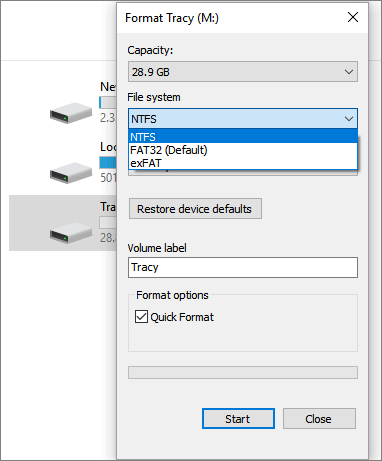
Step 5. Once the File Explorer completes formatting your SanDisk Device, click "OK" to close the formatting utility.
If you forgot to back up your data in SanDisk devices, you can seek help from Deep Data Recovery, a reliable SanDisk recovery solution, to retrieve your lost data.
Free SanDisk Recovery Software Recovers Lost Sandisk Data
If you're looking to recover lost data from a SanDisk device, consider using professional data recovery software specifically designed for SanDisk. This software can help rescue your data.
Experienced Windows users can also use Disk Management or DiskPart to format and set the desired file system to their SanDisk devices.
Guide 2: Format SanDisk on Mac
Work to: To format a SanDisk USB, SD card, internal or external HDD/SSD on a Mac, follow these steps:
To format a SanDisk storage device on a Mac using Disk Utility, follow these steps:
Step 1. Connect the SanDisk storage devices to Mac.
Step 2. To open Disk Utility, go to Applications, click on Utilities, and then double-click on Disk Utility.
Step 3. Select your SanDisk device on the left pane, and click "Erase" at the top menu.
Step 4. To format your SanDisk storage device, select the desired format (such as APFS, Mac OS Extended, or MS-DOS (FAT)) and click "Erase" to confirm the format.
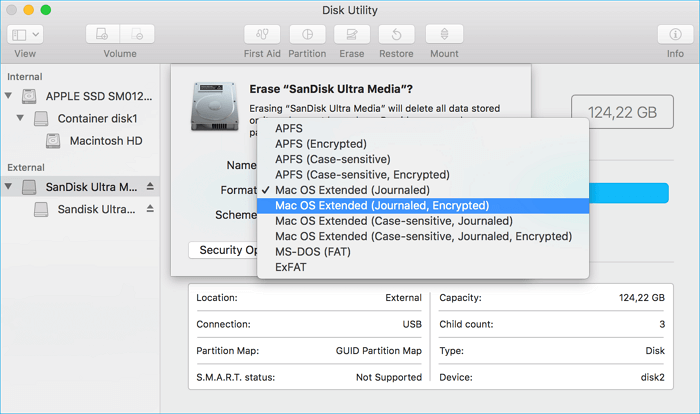
Experienced Mac users may recommend Terminal as an alternative tool to format a SanDisk disk or USB drive on Mac, with a detailed guide available at the link for those who need it.
Conclusion
This page lists common file system formats available on most platforms, providing an informative table to help SanDisk users choose the best format for their storage devices.
- On Windows, you can use NTFS for the disk.
- On Mac, you can use APFS or HFS on HDD/SSD.
- On Android, FAT32 is recommended.
- On Cameras, FAT32 or exFAT, is perfect for data storage.
- To set a SanDisk device for both Mac and PC, FAT32 is a good option, or exFAT can also work well on both platforms.
For both Windows and Mac users, formatting SanDisk devices for optimal performance can be achieved through simple methods. For Windows beginners, using Qiling Disk Master is a recommended solution to set the desired format for SanDisk devices, which can also be applied for formatting storage devices for Mac and PC, as well as for Android devices, making it a reliable SanDisk format tool for Android, including formatting SanDisk SD cards for internal or external Android storage usage.
Mac users can quickly set the best format for their SanDisk devices using Disk Utility, a built-in tool.
FAQs About SanDisk Format
Some of you may still have new questions on SanDisk format solutions, but you can find answers to them below by referring to the questions.
1. Is there a Sandisk format tool for fixing write-protected errors?
If your SanDisk device reports a write-protected error, you can try these solutions to help resolve the issue. The formatting tool can't directly resolve the write protection issue, but you can try other solutions to help.
- Unlock the SanDisk device with its physical switch.
- Clear read-only state with CMD command.
- Remove write protection using Registry.
- Format SanDisk after removing the write protection state.
The SanDisk Write Protected error occurs when the device is set to read-only mode, preventing any new data from being written. To resolve this, try the following steps: First, ensure the device is not set to read-only mode by checking the device's settings. If it is, toggle the setting to allow writing. If this doesn't work, try formatting the device. This will erase all data on the device, so be sure to back up any important files before proceeding.
2. How do I format my SanDisk SD Card or USB drive?
On Windows computer:
- Connect SanDisk SD card or USB to PC.
- To format the SanDisk SD card/USB, open File Explorer, locate the device, right-click on it, and select the "Format" option.
- Set the new file system to SanDisk SD card or USB, and click "Start".
- Click "OK" to finish the formatting process.
On Mac computer:
- Connect SanDisk SD card or USB to Mac.
- Go to Application, click "Utilities" and "Disk Utility".
- Select SanDisk SD card or USB on the left pane, and click "Erase" on the top menu.
- To set a new format for the SanDisk USB/SD card, click on the card in the list, then click on the "Format" button, and select the desired format (e.g.
3. What to do if a SanDisk SD Card won't format?
Here are some tips to help you fix the issue of failing to format a SanDisk SD card: Check the card for physical damage, ensure it's properly inserted into the card reader or computer, try formatting the card in a different mode (e.g., Quick Format), and if none of these solutions work, consider using a third-party formatting tool or seeking assistance from the manufacturer's support team.
- Change or switch the SD card adapter and reconnect it to your PC.
- To secure your PC and SD Card, scan and remove any existing malware or viruses using top-rated antivirus software. This will help protect your device from further threats and ensure your data remains safe and secure.
- Run a check disk on your computer to scan and fix any internal errors on your SD card. This can help resolve issues such as corrupted files, incorrect file sizes, and other problems that may be causing your SD card to malfunction.
- If your SanDisk SD card is read-only or locked, you can remove the write protection by following these steps: Access the SD card properties, and uncheck the box that says "Read-only" or "Write protection" if available. If the option is not available, you may need to use a third-party software or a card reader with a write protection switch to override the lock.
- To format the SD card, open File Explorer or use a reliable SD card formatter tool like Qiling Disk Master. This will prepare the card for use with your device.
Related Articles
- How to Run PS5 SSD Speed Test [100% Working Solutions]
- How to Make C Drive Bigger Windows 7/10| Assigning More Space to C Drive
- How to Delete EFI (System) Partition in Windows 11/10/8/7 [2 Ways]
- DiskPart Format: How to Format Hard Drive Using DiskPart [Free]
- How to Move Windows 10 Recovery Partition without Data Loss?
If Windows 10 Recovery partition is in the way of extending C: partition, you can move recovery partition in Windows 10 safely with a free tool. - Windows 10 Not Detecting USB (Fixed with 5 Free Ways)
Do you want to know why Windows 10 not detecting USB and how to fix it? You can refer to this post to find the answer.
Products
Articles & Tutorials
- Data Recovery
- Data Backup
- File Recovery
- File Backup
- System Backup and Restore
- Disk and Partition Clone
- Technical articles
- Mobile articles
- Disk Master Help
- Windows Data Recovery Tutorials
- Windows Secure Delete Tutorials
- Windows Partition Management Tutorials
- Windows File Backup and Restore Tutorials
- Windows System Backup and Restore Tutorials
- Windows Disk Backup and Restore Tutorials
- Windows Clone Tutorials