What Does Check Disk Actually Do and How to Run Check Disk (CHKDSK) in Windows [Beginners' Guide]
Check Disk, also known as CHKDSK, is a utility that not only checks disk health by repairing hard disk partition errors but also allows you to check disk usage and test disk speed. This guide will walk you through running the Check Disk command to check disk health, test hard disk speed, and check disk usage on your Windows computer, providing troubleshooting solutions to fix Check Disk errors along the way.
In this article, you'll learn:
- What Is Check Disk
- Is There Any Free Check Disk Tools - Recommendation
- Check Disk, also known as Chkdsk, is a built-in utility in Windows that scans and fixes errors on a hard drive or solid-state drive. It checks for bad sectors, file system errors, and disk errors, and can repair or replace damaged files and folders.
- To run CHKDSK & Check Disk (ScanDisk) in Windows 10, open the Command Prompt as Administrator, type "chkdsk" followed by the drive letter (e.g.
- CHKDSK, SFC, and DISM are three essential Windows commands that help maintain and repair your system. CHKDSK (Check Disk) scans your hard drive for errors and bad sectors, while SFC (System File Checker) verifies the integrity of Windows system files and replaces any corrupted ones.
- Troubleshooting: Fix Two Common Disk Check Errors on Your Own
What Is Check Disk
Tags: chkdsk, disk check tool, disk utility
Check disk, also known as Windows Check Disk, is a system tool powered by Microsoft that verifies the file system integrity of volumes and fixes logical file system errors in Windows, OS/2, and DOS operating systems.
Is There Any Free Check Disk Tools - Recommendation
There are two free check disk tools available for Windows users to scan their hard disk drives, SSDs, external drives, and even SD cards:
CHKDSK
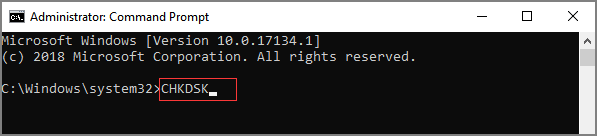
When searching for a disk testing tool online, search engines like Google and Bing will display a list of options, with CHKDSK or CHKDSK utility often at the top of the list.
CHKDSK is a command tool that uses DiskPart to convey command syntax orders to the operating system, which then processes and executes the check disk operations on target disk volumes.
ScanDisk
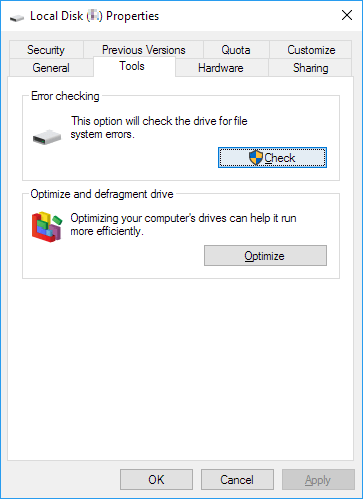
Microsoft ScanDisk, also known as Check Disk, is a diagnostic utility program that checks and repairs file system errors on a disk drive, according to Wikipedia.
Differences Between: CHKDSK & ScanDisk
The CHKDSK and Check Disk utility (ScanDisk) are two disk check tools with some key differences. A comparison table highlights the overall information about these tools, covering their main characteristics and features.
Here are the details:
| Differences | CHKDSK | ScanDisk (Check Disk) |
|---|---|---|
| Initial Release | 1980 | 1993 |
| Developers |
|
Microsoft |
| Type | Command Tool | Utility Software |
| Operating System |
|
|
| Pricing | Free | Free |
Note thatSanDisk was introduced in 1993 as a tool to replace CHKDSK, making it easier for Windows users to check and fix disk and partition problems.
What Does Check Disk Actually Do and When To Use Check Disk
Besides fixing file system errors, chkdsk and diskpart can also perform various other tasks. Chkdsk can scan for bad sectors on a hard drive, identify and remove disk errors, and also run a quick or full scan to identify potential issues. Diskpart, on the other hand, can create, delete, or modify disk partitions, and also format a disk. As for when to apply these tools, it's recommended to run chkdsk regularly, ideally every 1-3 months, to maintain your computer's overall health.
What Can Check Disk Tool Do for You? Benefits of Check Disk
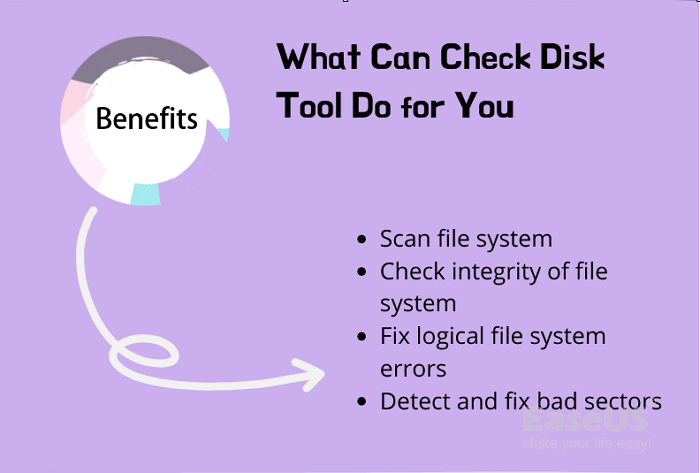
Running the Check Disk tool, also known as CHKDSK and ScanDisk, provides several benefits. This tool checks disk health, ensuring that your disk is functioning properly and identifying any issues that may be causing problems with your computer. By running CHKDSK, you can enjoy benefits such as identifying and fixing disk errors, recovering lost data, and preventing data loss due to disk failures.
- Scan the file system on a disk (NTFS, FAT32).
- Verify the integrity of the file system, including checking file system metadata.
- Fix any logical file system errors it finds.
- To detect bad sectors on a target disk due to physical damage, you can use the built-in Windows utility called `chkdsk`. Here's how to do it: Open Command Prompt as an administrator, type `chkdsk /r` followed by the drive letter of the target disk (e.
When to Use Check Disk Tool - CHKDSK or ScanDisk
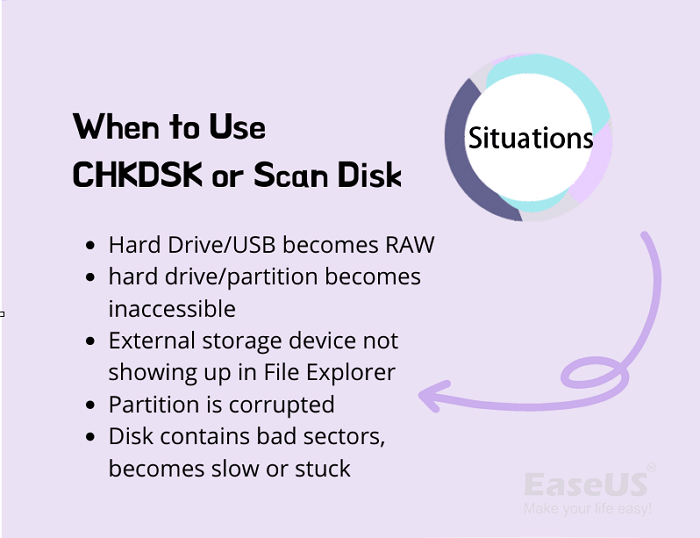
Here is a list of common issues that CHKDSK commands or ScanDisk can fix: CHKDSK commands or ScanDisk can fix issues such as disk errors, bad sectors, file system corruption, and disk fragmentation, allowing users to identify and resolve problems with their hard drive or solid state drive.
- The file system of a hard drive or external USB becomes RAW, meaning it's no longer recognized as a valid file system by the operating system, and data stored on it becomes inaccessible. This can happen due to various reasons such as power failures, software glitches, or physical damage to the storage device.
- Hard drive or partition becomes inaccessible.
- The external storage disk is visible in Disk Management, but not in File Explorer, which suggests that the disk is recognized by the system, but its drive letter is not being assigned or is not being recognized by File Explorer. This could be due to a variety of reasons such as incorrect drive letter assignment, corrupted system files, or file system issues.
- Selected volume or partition is corrupted for unknown reasons.
- A hard drive with bad sectors may slow down or become stuck due to the disk's inability to access data on those sectors, leading to system crashes or freezes. This can be caused by physical damage, overheating, or wear and tear over time.
You May Also Feel Like:
5 reliable software to check disk health for free are Qiling Partition Master, Hard Disk Sentinel, HD Tune, DiskCheckup, and CHKDSK/ScanDisk.
How Do I Run CHKDSK & Check Disk (ScanDisk) in Windows 10
To run the CHKDSK or ScanDisk on your Windows 10/11 or older computer, follow these steps: run the check disk tools to check and repair hard drive errors efficiently. The process varies slightly depending on the operating system version, but the general steps remain the same. On Windows 10/11, you can run the CHKDSK tool from the Command Prompt or File Explorer, or use the built-in Check Disk tool.
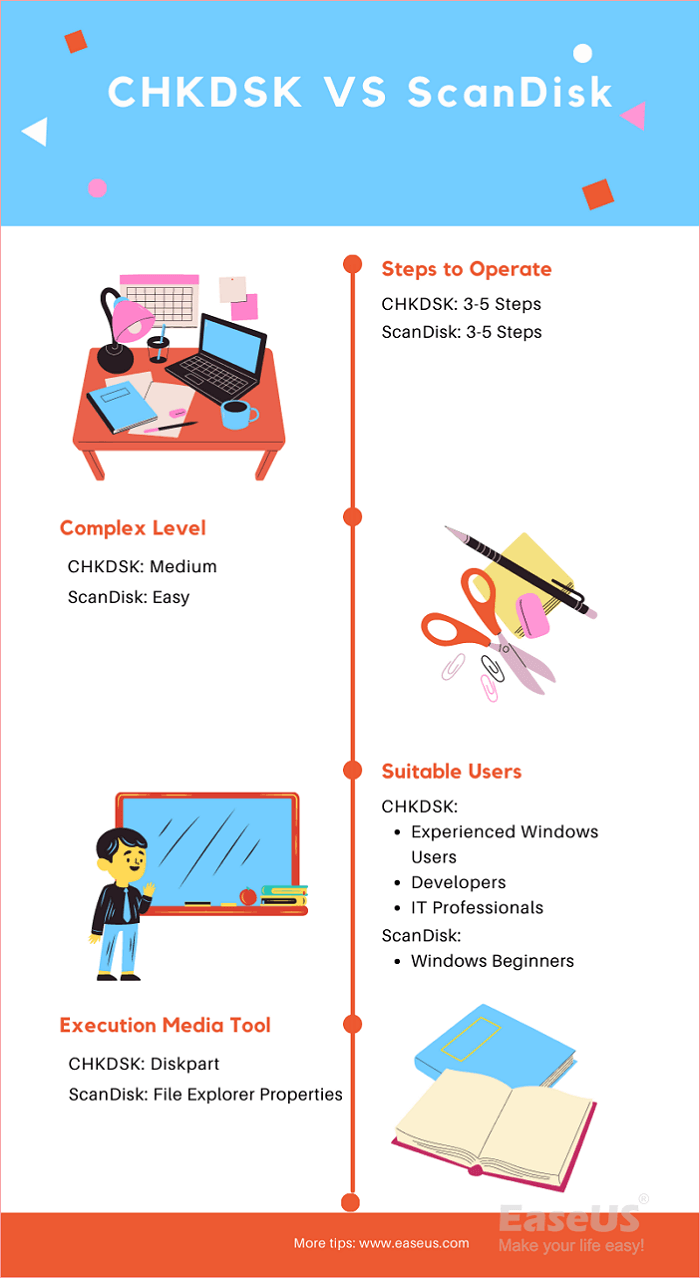
CHKDSK VS ScanDisk, Which Is Suitable for You
When deciding between CHKDSK and ScanDisk, consider the following unique factors:
| Comparison | CHKDSK | ScanDisk (Check Disk) |
|---|---|---|
| Steps to operate | 3-5 steps | 3-5 steps |
| Complex level | Medium | Easy |
| Suitable Users |
|
|
| Execution Media Tool | Diskpart | File Explorer Properties |
Guide 1: Run CHKDSK in Windows 11/10, Check and Fix Disk Errors
Applies to: Windows 11/10/8/7/XP and Windows Servers.
Step 1.To open CHDKSK, type "cmd" in the search box, right-click on Command Prompt, and select "Run as Administrator".
Step 2. Confirm the drive letter of your problematic drive.
To check and fix errors on a disk, open Windows File Explorer or Disk Management to verify the drive letter of the disk in question.
Step 3. Type the CHKDSK syntax command and hit enter:
- chkdsk E: /f /r /x
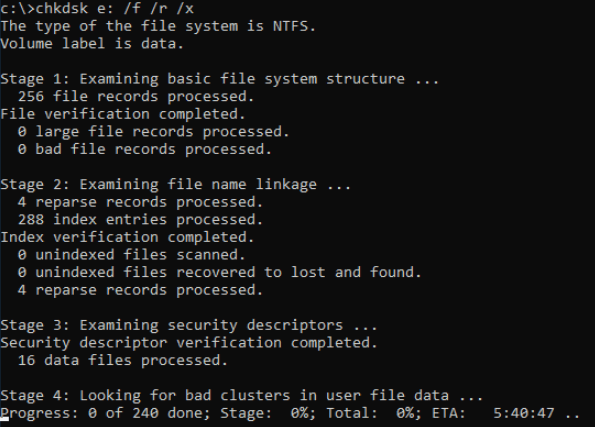
Step 4.To close the command window, wait for the process to complete, then type exit.
The syntax of CHKDSK has different meanings depending on the command used. The three commands are used to check and repair disk errors, check disk errors, and check and repair disk errors, respectively.
- /f - Fixes errors on the disk.
- /r - Locates bad sectors and recovers readable information.
- /x The command forces the volume to dismount first, if necessary, and includes the functionality of the /f command.
CHKDSK is a utility that checks and fixes disk errors, and it has several parameters to help with this process. Alongside the three key parameters (volume, surface, and sector), CHKDSK also contains other parameters that aid in checking and fixing disk errors. If you need more information about CHKDSK, you can refer to additional resources available online.
Guide 2: Run Check Disk - ScanDisk in Windows
Applies to: Windows 11/10/8/7 and Windows Servers.
Step 1. Press Windows + E keys to open File Explorer.
Step 2. Locate the problematic drive, right-click on it and select "Properties".
Step 3. To resolve the issue, go to the Tools tab in your software and click on "Check" under the Error checking section. This will initiate a check for any errors in your document or file.
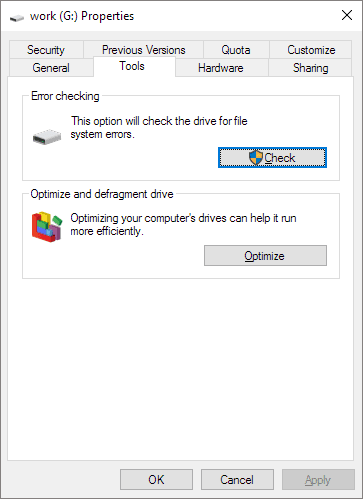
Step 4. Click "Scan drive" and wait for the program to scan and fix all found errors on your disk.
BONUS TIP: CHKDSK/ScanDisk Alternative
Aside from running CHKDSK or ScanDisk to check disk errors and fix file system corruption problems, you can also try using third-party disk checking software for help, which is often easier and faster.
Qiling Partition Master allows Windows users to scan and fix disk file system errors with ease, making it a useful tool for users of all levels.
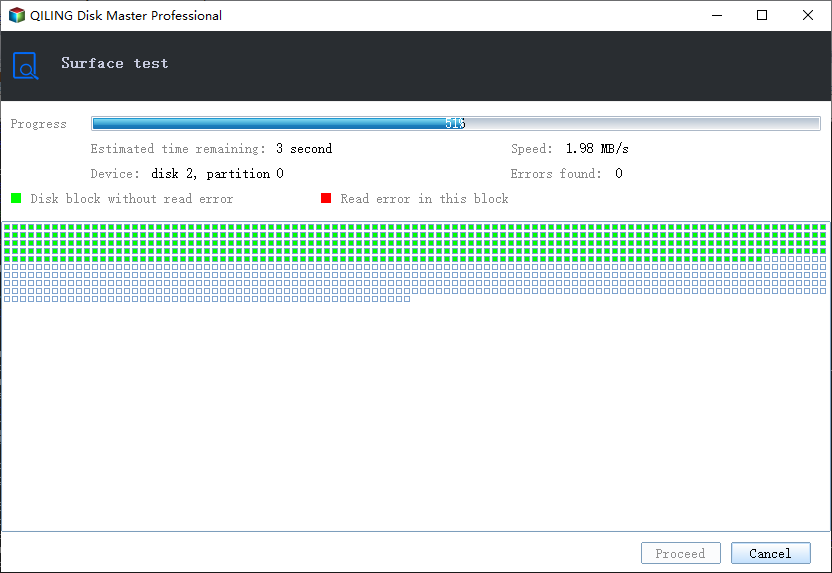
Step 1. To check the disk surface using Open Qiling Partition Master, simply open the program on your computer, locate the disk you want to check, click on the partition you're interested in, and then select the "Surface test" option from the menu.
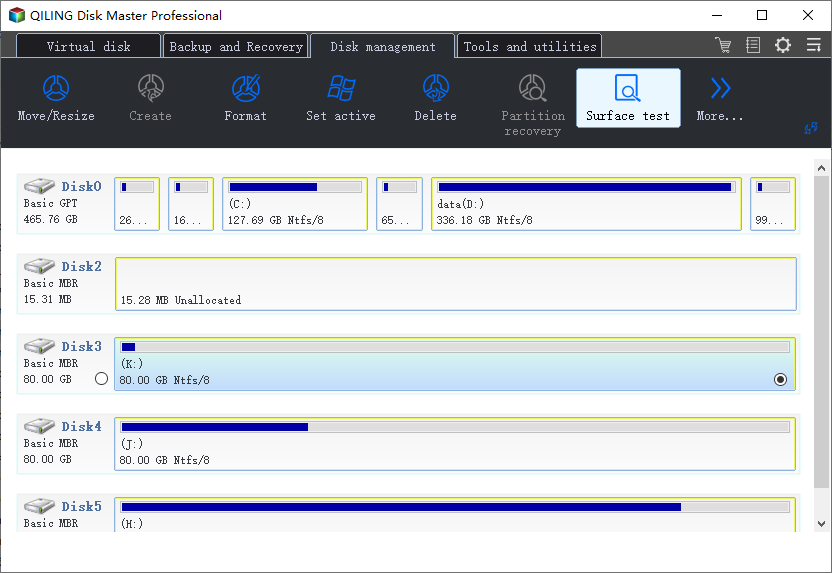
Step 2. The operation will immediately mark all bad sectors as red.
Three Check Disk Commands: CHKDSK, SFC, and DISM, What's The Difference
CHKDSK, SFC, and DISM are three command lines that are often confused with each other, but they serve different purposes. While CHKDSK is used to check and fix disk errors, SFC (System File Checker) is used to scan and replace corrupted system files, and DISM (Deployment Image Servicing and Management) is used to repair and prepare Windows images for deployment. These commands are not interchangeable and are used in different scenarios, making them essential tools for maintaining and troubleshooting Windows systems.
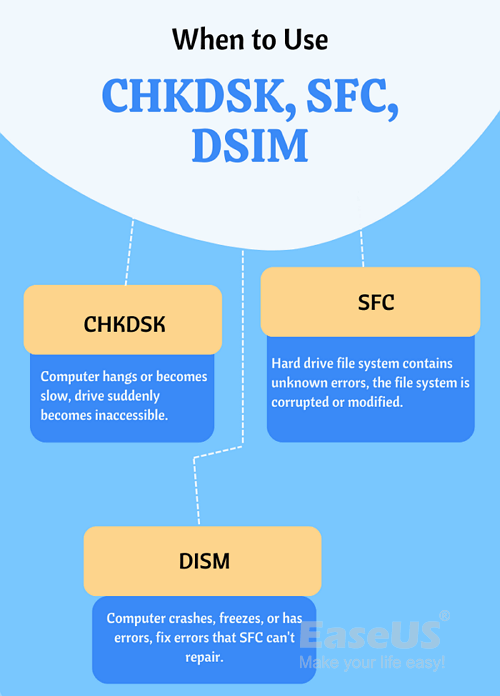
Here are the main differences between CHKDSK, SFC, and DISM:
When to Use CHKDSK, SFC, DSIM
- CHKDSK (Check Disk) When your computer becomes slow or hangs, and drives become inaccessible, you can run the CHKDSK command to troubleshoot and fix the issue.
- SFC (System File Checker) When the file system of your hard drive contains unknown errors, the file system is corrupted or modified, use System File Checker (SFC) to fix it.
- DISM (Deployment Image Servicing and Management) When your computer keeps crashing, freezing, or experiencing errors, and running the System File Checker (SFC) didn't resolve the issue, you may need to run the Deployment Image Servicing and Management (DISM) tool to troubleshoot and fix the problem.
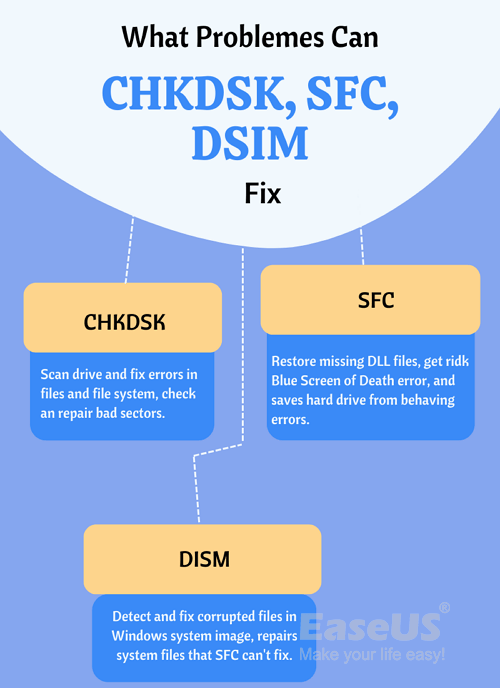
What Problems Can CHKDSK, SFC, and DSIM Fix
- CHKDSK This software scans the entire drive to identify and correct errors in files and the file system, and also detects and repairs bad sectors, making it possible to reuse the drive again.
- SFC This tool saves you from the frustration of a malfunctioning hard drive, restores missing DLL files, and even fixes the notorious Blue Screen of Death error, making your computer run smoothly again.
- DSIM DISM (Deployment Image Servicing and Management) detects and fixes corrupted files in the component store of the Windows system image, and repairs system files that the System File Checker (SFC) tool can't fix.
How to Run CHKDSK, SFC, and DISM Commands to Check Disk in Windows
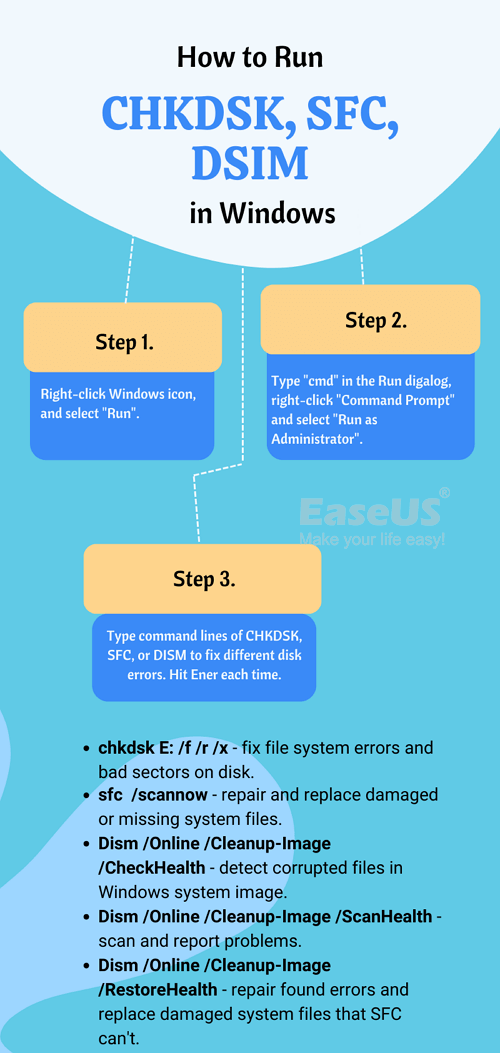
Step 1. Right-click the Windows icon and select Run.
Step 2. Type cmd in the Run dialog, right-click Command Prompt, and select "Run as Administrator".
Step 3.To fix different disk errors, you can use the following command lines in the Command Prompt:
- chkdsk E: /f /r /x - Check disk to fix file system error and bad sectors.
- sfc /scannow The system file checker fully scans system files, repairs, and replaces any damaged or missing files, ensuring the system's integrity and stability.
- Dism /Online /Cleanup-Image /CheckHealthTo detect corrupted files in the components store of Windows systems images, you can use the built-in tool called DISM (Deployment Image Servicing and Management). DISM allows you to scan the image for corrupted files and repair or replace them with a healthy copy from a known good source. This process helps ensure the integrity of the Windows image and prevents potential issues during deployment or boot-up.
- If no corruption is detected, try running the command: Dism /Online /Cleanup-Image /ScanHealth.
- If DISM reports some problems are found, run the command "Dism /Online /Cleanup-Image /RestoreHealth" to repair found errors and replace damaged files automatically.
What's the Difference Between CHKDSK, SFC, and DISM
The CHKDSK, SFC, and DISM commands are designed to fix different types of errors on various objects. CHKDSK is used to check and repair disk errors, SFC is used to scan and fix system file errors, and DISM is used to repair and restore Windows image errors.
- CHKDSK - Fix file system error on hard drives.
- SFC - Repair system file errors in Windows operating system.
- DSIM SFC (System File Checker) can't fix all Windows system file errors, but DISM (Deployment Image Servicing and Management) can. DISM can detect and repair Windows system file errors that SFC can't fix, helping to resolve issues that may be causing problems with your system.
LEARN MORE
To learn more about CHKDSK and SFC, which are used to check and fix disk errors in Windows computers, you can refer to the article "CHDKSK vs. SFC".
Troubleshooting: Fix Two Common Disk Check Errors on Your Own
Some Windows professionals and forums suggest that there are common issues that many users face while running the Check Disk tool on their computers.
Here are two top issues that you may have come across:
Error 1: Windows Cannot Run Disk Checking On This Volume Because It's Write Protected
Causes of This Error:
- The hard drive is write-protected.
- The file system of the hard drive is corrupted.
Solutions to This Error:
- 1. Remove Write Protection via CMD, DiskPart, or third-party write protection removal tool.
- 2. Clear read-only in Registry.
- 3. Recover files from the hard drive and format them.
Stey-By-Step Guide:
For a step-by-step guide, you can refer to this link to Fix Windows Can't Run Disk Checking On This Volume error with success.
Error 2: Disk Check (CHKDSK) Shows Up on Startup, Taking Long to Boot into Windows
Causes of This Error:
- Improper Windows system shutdown
- Suspicious malware or virus infection
- Unplug the external device from the computer without safe ejection
Solutions to This Error:
- 1. Use Command Prompt
- 2. Use Windows Registry Editor
- 3. Use Disk Check Alternative, like Qiling Partition Master
Stey-By-Step Guide:
To stop the Disk Check tool from running in startup on Windows, you can follow the guide on the provided link to learn how to stop CHKDSK on startup on Windows 10 on your own.
Conclusion
On this page, we explained the purpose of a check disk tool, which includes checking disk health, usage, and speed. The primary goal of these tools is to check disk health and fix disk partition errors, ensuring the overall health and performance of the disk.
To fix the issue, you can use the built-in Windows tools CHKDSK or ScanDisk, or a third-party tool like Qiling Partition Master, which can help repair and manage disk problems.
If you run Check Disk on a computer but encounter some unusual errors, such as Windows being unable to run disk checking or Check Disk running at startup and freezing Windows from booting up, you can resolve the issue by following the specific troubleshooting steps mentioned earlier, which will allow your computer to run smoothly again.
Related Articles
- Computer Is Running Slow? Causes and Fixes Are Found! [Your Ultimate Guide]
- Ultimate Guide: What Is GPT Disk, How to Use GPT in Windows
- A Starter Guide to the Windows Disk Management
- Partition Magic Software Free Download with How-To Tutorial [Full Guide]
- Is It Possible to Copy the Recovery Partition to a New Hard Drive?
If your disk is running out of space, you may want to copy the recovery partition to a new hard drive. This post will tell you all the details about how to do that. - Is It Possible to Format a 2 TB Hard Drive to FAT32 in Windows?
Are you looking for an operable method to format a 2 TB hard drive? Then, you should read this post, which contains two workable ways with detailed tutorials.
Products
Articles & Tutorials
- Data Recovery
- Data Backup
- File Recovery
- File Backup
- System Backup and Restore
- Disk and Partition Clone
- Technical articles
- Mobile articles
- Disk Master Help
- Windows Data Recovery Tutorials
- Windows Secure Delete Tutorials
- Windows Partition Management Tutorials
- Windows File Backup and Restore Tutorials
- Windows System Backup and Restore Tutorials
- Windows Disk Backup and Restore Tutorials
- Windows Clone Tutorials