How to Format EFI System Partition as FAT32? Your Guide Here 2023
The EFI (Extensible Firmware Interface) system partition is a hidden storage space on Windows PCs, typically found on devices using UEFI BIOS. This partition is essential as it contains the boot loader programs for the installed operating system, as well as other necessary utilities, such as programs that run system utilities before the operating system boots up. It plays a crucial role in starting the operating system.
An EFI partition is typically 100MB in size and stores data for the smooth functioning of Windows, but it can't be accessed or altered through File Explorer to protect the operating system. If it's accidentally deleted, the Windows system becomes unbootable.
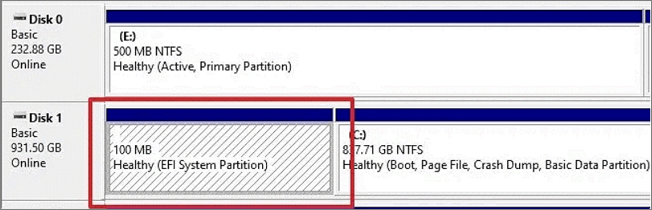
Formatting the EFI system partition as FAT32 is a common practice when updating or reinstalling the operating system, as it allows for the installation of a new bootloader and ensures compatibility with the updated operating system. This process typically involves deleting the existing partition and recreating it as FAT32, which can be done using a tool like the built-in Disk Management utility in Windows or the `mkfs.
Causes of "Windows Detected that the EFI System Partition Was Formatted as NTFS. Format the EFI System Partition as FAT32" Error
When Windows detects that the EFI system partition was formatted as NTFS, it will prompt an error message indicating that the partition should be formatted as FAT32 instead of NTFS. This is because the recovery partition setup requires a FAT32 format.
The "Format the EFI system partition as FAT32" error can occur due to various reasons beyond just the Windows 11 installation process. Other causes include a corrupted EFI system partition, a faulty SSD or hard drive, or a misconfigured BIOS settings.
- A USB drive larger than 32 GB cannot be formatted to FAT32 because FAT32 has a file size limit of 4 GB. Larger drives require a file system like exFAT or NTFS.
- A corrupted file system on your drive occurs when a drive gets damaged or formatted using an incompatible file system. To fix this, you'll need to use a recovery tool to retrieve your data, then format the drive correctly.
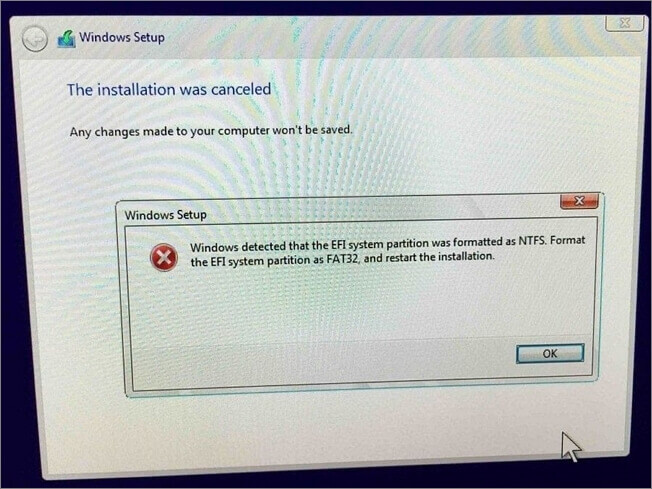
To resolve NTFS EFI system partition errors, format the EFI system partition as FAT32 and restart the installation.
How to Format EFI System Partition as FAT32
Formatting an EFI system partition as FAT32 requires reliability, and there are two methods to achieve this. The first method involves using a Linux-based operating system, such as Ubuntu, to format the partition using the `mkfs.
The converters are compatible with Windows OS and include Qiling Disk Master, which is easier and more user-friendly than DiskPart, ideal for Windows beginners. It can format the EFI system partition as FAT32, making it a better option.
It is recommended to back up important data to a safe location before using most EFI to FAT32 converters, as they often require formatting.
You can use free backup tools to backup important data.
#1. Format EFI System Partition as FAT32 with Qiling Disk Master
Qiling Disk Master is a superior alternative to Windows' built-in Disk Management tool. It helps manage partitions and format them as FAT32, providing an easy interface for Windows beginners to format the EFI system partition as FAT32 without stress.
This software offers various features, including adding labels and easily selecting and formatting the desired file system with minimal clicks.
Step 1. Launch Qiling Disk Master, right-click the partition you intend to format and choose "Format".
Step 2. In the new window, enter the Partition label, choose the desired file system (FAT32/EXT2/EXT3/EXT4), and set the cluster size according to your needs, then click "Proceed".
Step 3. You will see a warning window, click "Yes" to start formatting the partition to FAT32/EXT2/EXT3/EXT4.
Qiling Disk Master is highly reliable as it guarantees no data loss during the formatting process.
Qiling Disk Master is a tool that excels in formatting the EFI System Partition as FAT32. It is free to download and works seamlessly with Windows 11/10/8/7. Once installed, you can begin the process of formatting the partition using the program.
#2. Format EFI System Partition as FAT32 with DiskPart
To format EFI system partitions as FAT32 using DiskPart, you can follow these steps: Open DiskPart, select the EFI system partition, and then use the "convert mbr" command to convert the partition to a Master Boot Record (MBR) type. After that, you can use the "format fs=fat32" command to format the partition as FAT32. This method is useful for managing drive partitions and can be done on the EFI partition.
When formatting the EFI System Partition as FAT32 using DiskPart, the entire disk must be cleaned, so it's recommended to back up all valuable files on the target disk beforehand.
To format the EFI system partition using Diskpart, you'll need local administrator access and should make a disk backup first. Follow the instructions below to complete this process.
Step 1. The command "Windows button + R" is used to open the Run dialog box, where you can type commands or file paths to execute specific actions or open applications directly. This shortcut is commonly used by users to quickly access various system tools and utilities, such as the Command Prompt, Registry Editor, or System Information, without having to navigate through the Start menu or File Explorer.
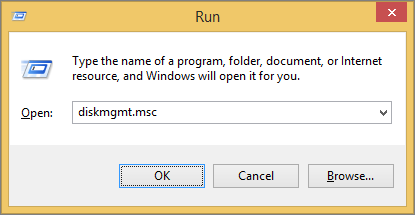
Step 2. Then, select "OK" after typing "DISKPART."
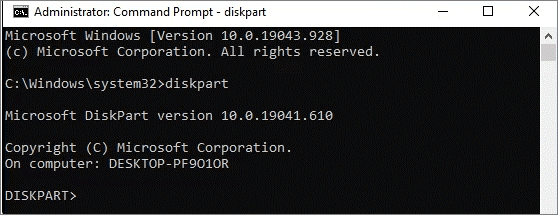
Step3. Press "Yes" to the User Access Control prompt, then open a command prompt window and type "DISKPART" to access the disk management utility.
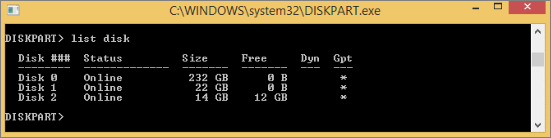
Step 4. Hit enter when you've typed list disk
Step 5. I will use disk 2 as the USB drive for this process
Step 5. Enter "select disk 2" (replace 2 with the number you got in the previous step)
Step 6. The command prompt will display a message indicating that "Disk 2 is the selected disk".
Enter the following commands below once the disk is selected
- attributes disk clear readonly
- clean
- convert mbr
- create partition primary
- select part 1
- format fs=fat32 quick
- assign letter (letter)
- list volume
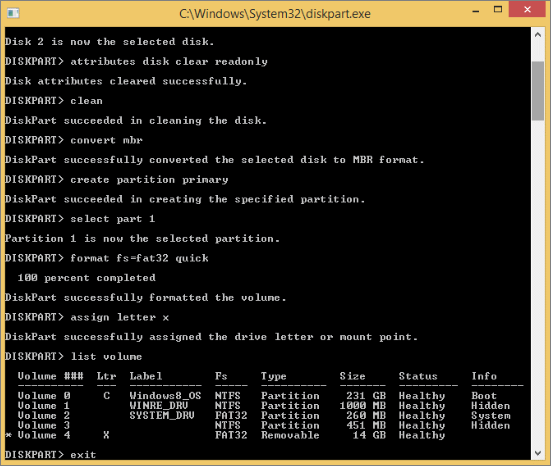
Step 7. To exit the application, click on the "Exit" button, then close the window using the Enter key on your keyboard.
Step 8. The full capacity of your drive will now be reformatted to FAT32. This means that any existing data on the drive will be erased, and the drive will be prepared for use with the new operating system.
Final Verdict
Formatting the EFI system partition is crucial for the effective functioning of your Windows Computer. If you need to format the EFI system, a reliable method is to do so as FAT32.
Qiling Disk Master is a superior alternative tool that not only helps you format EFI system partitions as FAT32, but also provides reliable assistance in various disk-related tasks.
Downloading this software will help you to format EFI to FAT32 and convert one hard disk/partition to another without any data loss on all Windows-supported Computers.
FAQs about Formatting EFI System Partition as FAT32
Formatting the EFI system partition as FAT32 can be done in a few easy steps. If you've got questions on "How to format an EFI system partition as FAT32," you will find answers here! To format the EFI system partition as FAT32, you need to boot into a live Linux environment.
1. Does EFI partition have to be FAT32?
After installing Windows on a GPT drive, a separate EFI system partition is usually created.
The EFI system partition needs to be formatted to FAT32.
2. Can you format a partition as FAT32?
To format an external hard drive on your Windows computer, you can use the built-in FAT32 Format utility to quickly convert the disk partition to FAT32 format.
3. How do delete EFI System partition?
Before deleting the EFI system partition, make sure to have a system backup or a Windows 10 installation media to restore it in case of failure, as deleting it may cause your PC to lose functionality and become unbootable.
To delete the EFI system partition, you can use Qiling Disk Master to prevent your PC from becoming unusable after deletion. Follow these steps to safely remove the partition.
- Once you launch Qiling Disk Master, select "Delete" by right-clicking on the EFI system partition in the Partition Manager section.
- Confirm the message to delete the selected partition by choosing "Yes" when prompted.
This tool will ensure the boot records are in place in case of an issue.
Related Articles
- How Do I Format External Hard Drive for PS5? Follow and Learn How-To
- Steam Deck SSD Speed Test? Yes, Your Guide Here
- Fixed: Unmountable Boot Volume Windows 11
- How to Boot ASUS Laptop from USB [Quick & Efficient Way]
- MSI Stuck on MSI Screen Windows 10/11? How to Fix?
You can also try to enter the BIOS settings by pressing the corresponding key (usually F2, F12, or Del) and then save and exit the BIOS settings. If none of these methods work, you may need to contact MSI support or visit their website for further assistance. - Solved: Nintendo Switch Keeps Asking Format SD Card
This guide discusses the issue of Nintendo Switch keeps asking format SD cards. Discover the potential causes, and solutions to resolve the problem.
Products
Articles & Tutorials
- Data Recovery
- Data Backup
- File Recovery
- File Backup
- System Backup and Restore
- Disk and Partition Clone
- Technical articles
- Mobile articles
- Disk Master Help
- Windows Data Recovery Tutorials
- Windows Secure Delete Tutorials
- Windows Partition Management Tutorials
- Windows File Backup and Restore Tutorials
- Windows System Backup and Restore Tutorials
- Windows Disk Backup and Restore Tutorials
- Windows Clone Tutorials