Solved: Nintendo Switch Keeps Asking Format SD Card
You inserted a 128 GB micro SD card into your device, and it prompted you to format it first. You chose to format it, and now it's saying it's been formatted and will restart in 3 seconds.
Some Nintendo Switch users are experiencing issues where their console keeps prompting them to format SD cards, which can be frustrating. This problem can arise due to incompatibility issues with the SD card, or it could be caused by a corrupted or damaged SD card. Fortunately, this guide will explore the reasons behind this issue and provide practical solutions to resolve it.
Why Nintendo Switch Keeps Asking Format SD Card
If you're having trouble with your Nintendo Switch and a compatible and working SD card is essential for a hassle-free and immersive gaming experience, you're not alone. Many users have encountered issues with their SD cards, and there are possible solutions to format your SD card.
The Nintendo Switch may ask to format the SD card if the card is not recognized by the system, or if there are issues with the card's formatting, or if the card is not compatible with the Switch, or if the card is damaged or corrupted. The formatting process is usually a quick and safe process that will erase all data on the card, so it's recommended to back up any important files before proceeding.
- An incompatible file system or data on the SD card is a frequent cause.
- The issue might occur if the SD card was removed incorrectly, causing physical damage, or due to an error in the console system.
- This alert may also appear if you have used the card on other devices that might contain some malware or viruses.
The Nintendo Switch supports the FAT32 or exFAT file system of SD cards, ensuring proper compatibility and optimal performance with the gaming console.
Nintendo Switch Not Reading SD Card? 10 Fixes Here!
Having trouble with your Nintendo Switch not recognizing your SD card? Don't worry, this guide will help you identify the possible causes and provide solutions to fix the Nintendo Switch no reading SD card issue.
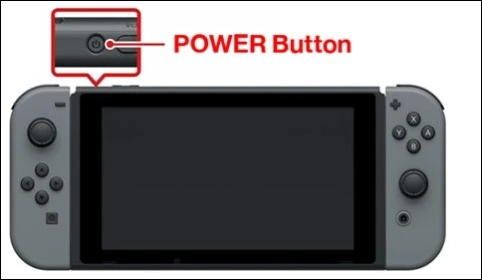
3 Ways: Nintendo Switch Keep Asking to Format SD Card
If your Nintendo Switch keeps asking to format an SD card, it may be due to bad sectors or a corrupted or incompatible SD card. To resolve this, formatting to FAT32 or exFAT can be helpful. This can be done in three ways: using Windows, Mac, or the Nintendo Switch itself. Each method involves a detailed explanation of the formatting process.
Way 1. Fix Nintendo Switch Keep Asking to Format SD Card on Windows PC
Qiling Disk Master is a one-stop solution for formatting SD cards on Windows PCs. It allows users to easily reformat their cards to restore their reliability and compatibility with Nintendo gaming consoles. With this tool, users can skip manual formatting methods and instead use its effective formatting feature to efficiently format SD cards larger than 32GB to FAT32 or exFAT.
This formatting tool is trusted by millions of users for its speed and user-friendly interface. It allows users to format their micro SD card with minimal effort, making it compatible with the Nintendo Switch. The tool can be downloaded and used to format the card in a few simple steps.
- Important
- We recommend you create a backup of your SD card as formatting will erase everything.
Step 1. Launch Qiling Disk Master, right-click the partition on your external hard drive/USB/SD card which you want to format and choose the "Format" option.

Step 2.Assign a new partition label, file system (NTFS, FAT32, EXT2, EXT3, EXT4, exFAT), and cluster size to the selected partition, then click "Proceed" to continue.

Step 3. To start formatting your external hard drive/USB/SD card, click "Yes" in the Warning window.

Qiling Disk Master provides better service for you with its features, including the following features.
The software has a user-friendly interface that makes it easy for people of all skill levels to use and navigate its features.
- Formatting options: The Nintendo Switch offers various formatting options for SD cards, including FAT32 and exFAT, to ensure the correct format is set.
- Data Backup: The software emphasizes the importance of backing up data before formatting to ensure data security and prevent potential losses.
- Clear instructions: To reduce confusion, Qiling Disk Master provides detailed instructions at each stage of the formatting process.
Way 2. Fix Nintendo Switch Keep Asking to Format SD Card on Nintendo Switch
To format an SD card on a Nintendo Switch without a computer, users can follow these steps: they need to insert the SD card into the console, go to System Settings, select System, and then scroll down to Format MicroSD Card, and finally, confirm the action. This process will erase all data on the card. It's essential to note that formatting the SD card will remove all data, so users should ensure they have backed up any important files before proceeding. By following these steps, users can format their SD card on the Nintendo Switch and resolve the issue of the console repeatedly asking to format the card.
Step 1: To insert an SD card into your Nintendo Switch, start by holding the console upside down. Next, locate the SD card slot on the top of the console and open it. Then, take the SD card and insert it into the slot, making sure it clicks into place.
Step 2: Turn on the Nintendo Switch and check if it detects the card.
Step 3: Go to the "Home" option and select "System Settings."
Step 4: Navigate the "Initialize" option under the System Settings.
Step 5: Select the "Format micro SD Card" option and confirm to proceed with formatting the micro SD card.
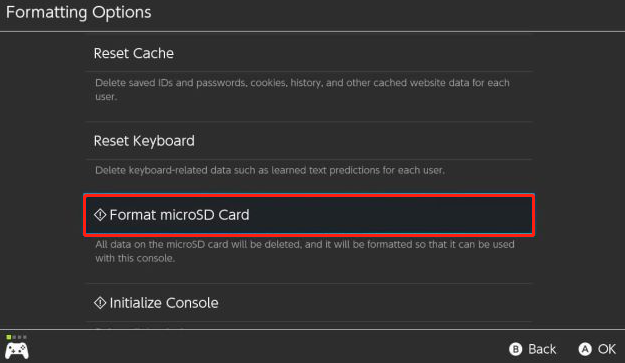
After the formatting process is complete, the Nintendo Switch will automatically choose the best file system and partitioning style for the SD card.
Way 3. Fix Nintendo Switch Keep Asking Format SD Card on Mac
To format a Nintendo Switch SD card, you can use the Disk Utility on your Mac, which is an inbuilt feature that helps with disk management. This tool can also be used for external storage devices connected to the Mac, and it's a one-stop solution for performing disk-related operations, such as formatting or repairing SD cards. To do this, simply follow the steps to format your SD card using Disk Utility.
Step 1: Connect the Nintendo Switch SD card to your Mac and open Disk Utility, which will allow you to manage and erase the card's contents.
Step 2: Go to "Finder" and select "Application".
Step 3: To launch the "Disk Utility" application on your Mac, select the "Utility" option and click on it to open the application.
Step 4: Navigate the "External" section on the left sidebar.
Step 5: Find and select the SD card from the list.
Step 6: Select the card you want to erase and then click "Erase" from the top menu bar.
Step 7: Enter a new name and choose the exFAT file system for your Nintendo Switch.
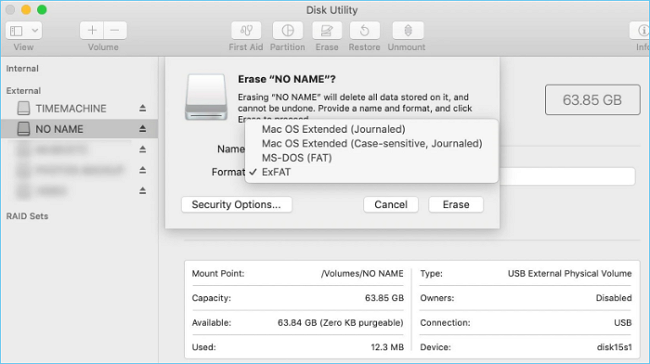
Step 8: Click the "Erase" button to confirm the action.
The Nintendo Switch SD card is now ready to use with the highest storage capacity and a compatible storage system.
The Nintendo Switch is known to sometimes ask users to format their SD card, which can be frustrating. This issue can occur due to various reasons, including corrupted data on the SD card, incorrect formatting, or even a faulty SD card. To resolve the problem, users can try restarting their Switch, checking the SD card for any errors or damage, and formatting the card using the Switch's built-in formatting tool.
Conclusion
The "Nintendo Switch Keeps Asking Format SD Card" issue can be resolved with a step-by-step guide, ensuring a smooth process for formatting your SD card. Additionally, user-friendly software like Qiling Disk Master can be used for Windows users, making the process even more convenient. It's recommended to try out the trial edition to see the effectiveness of the tool, and sharing this knowledge with other Nintendo Switch console owners can be beneficial to them.
Nintendo Switch Keeps Asking Format SD Card FAQs
The Nintendo Switch keeps asking for the format SD card problem can be frustrating. If your Switch is asking you to format your SD card, it's likely because the card is not recognized or is not in the correct format. To resolve this issue, try removing the SD card from the Switch, then reinserting it.
1. Why does my Switch keep telling me to format an SD card?
There could be a problem with the card's compatibility with your Switch, or there might be bad sectors or corruption on the SD card. Ensure the card has FAT32 or exFAT file format.
2. Why won't my Nintendo Switch recognize or read my SD card?
If your Nintendo Switch isn't recognizing or reading your SD card, it might be due to a defective or incompatible card. First, ensure the card is properly inserted, then try cleaning the contacts. Also, check if the Switch supports the card's file format, which should be either FAT32 or exFAT. If none of these steps resolve the issue, it's possible the card needs to be replaced.
3. What happens if you don't format an SD card for Nintendo Switch?
If you keep ignoring the instruction to format the SD card, your Switch won't be able to use it for game data, updates, or other content. This could lead to the card's data becoming corrupt or inaccessible, preventing you from saving new data or resulting in the loss of game progress.
Related Articles
- How to Create Bootable USB Windows 10
- How to Format SSD with OS on It [Reliable Solution] - Qiling
- How to Speed Up Hard Drive in Windows 11/10/8/7 [100% Working Solutions]
- How to Resize Virtual Hard Disk in 2026 [Efficient & Safe Solutions]
- Quick Fix: How to Fix RAW Hard Drive to NTFS in Windows 7/8/10?
You can learn how to fix RAW hard drive to NTFS in a success from this pose, if you encounter the situation that your external/portable/USB hard drive becomes RAW unexpected. - Solved: The Selected Disk is of the GPT Partition Style in Windows
Why "The selected disk is of the GPT partition style" happens? This post will explain and show you how to fix it in two simple way.
Products
Articles & Tutorials
- Data Recovery
- Data Backup
- File Recovery
- File Backup
- System Backup and Restore
- Disk and Partition Clone
- Technical articles
- Mobile articles
- Disk Master Help
- Windows Data Recovery Tutorials
- Windows Secure Delete Tutorials
- Windows Partition Management Tutorials
- Windows File Backup and Restore Tutorials
- Windows System Backup and Restore Tutorials
- Windows Disk Backup and Restore Tutorials
- Windows Clone Tutorials