How to Fix Nintendo Switch Not Reading SD Card Error
The Nintendo Switch has been a game-changer since its launch, offering a flexible and immersive gaming experience. One of its standout features is the ability to expand storage capacity using SD cards, allowing gamers to easily access and store their growing collection of games and content.
Occasional hiccups can occur on the Nintendo Switch, and one frustrating issue is the console's failure to recognize an SD card. To resolve this problem, Qiling provides a comprehensive guide with ten effective fixes, ranging from simple and quick solutions to more advanced methods.
Why Is Your Nintendo Switch Not Reading SD Card
There are several potential causes behind the "Nintendo Switch Not Reading SD Card" problem, including technical issues, user oversights, and other factors that may contribute to this situation. By investigating these causes, we can gain a better understanding of why the SD card is not being read.
- Compatibility: SD cards may not be compatible with the Nintendo Switch if they don't meet the console's requirements, so it's essential to check the specifications before using a card.
- Improper Installation: If the SD card is not being recognized, try re-inserting it into the console. Sometimes, the solution is as simple as re-inserting the SD card, as an improperly inserted card can prevent the console from reading it correctly.
- Corrupted SD Cards: A corrupted file system or damaged data on the SD card can cause the Switch to have trouble detecting it, but regular maintenance and careful handling of the SD card can help prevent this problem.
- Nintendo Switch SD Card Connector Problem: A faulty or dirty SD card slot on the Nintendo Switch can cause issues with connecting the card, and cleaning or professional repair may be needed to resolve the problem.
- Physical Damage to the SD Card: Accidental drops or mishandling of the SD card can cause physical damage, preventing the Switch from reading it, and you should also check the card for any signs of damage.
- Random Nintendo Switch Bug/Error: Software glitches can occasionally disrupt the normal functioning of the console, including its ability to read SD cards, and restarting the Switch or performing a software update might help resolve this.
- Firmware Issue with the microSD Card: If your microSD card is causing compatibility issues with the Nintendo Switch, check if the firmware on the card is outdated or incompatible. You can try updating the firmware for your specific card model to resolve the problem.
By understanding the possible causes, you'll be able to recognize and resolve the issue that's preventing your Nintendo Switch from recognizing the SD card, ultimately restoring your gaming experience to its optimal state.
10 Fixes for Nintendo Switch Not Reading SD Card
Having delved into the potential causes behind the "Nintendo Switch Not Reading/detecting SD Card" problem, it's time to take proactive steps to address this issue. Whether you're an experienced gamer or someone who enjoys playing casually, a range of fixes are available, from basic adjustments to more intricate troubleshooting methods, encompassing 10 thorough solutions to help resolve this problem.
Fix 1. Force Reboot the Switch
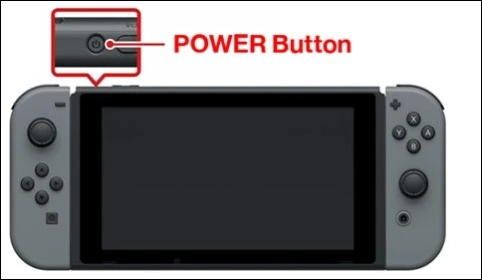
Force rebooting your Nintendo Switch can be a simple and effective solution to resolve minor software glitches that might be causing the SD card detection issue. To do this, press and hold the Power button on the top right side of the console for about 12 seconds, or until the console turns off. Then, release the Power button and press it again to turn the console back on. This process can help resolve the issue by restarting the system and clearing any temporary software issues.
Step 1: To shut down the system, press and hold the power button for at least three seconds, then select Power Options and choose Turn Off.
Step 2: If your device needs to be restarted, simply press the Power button again. If that doesn't work, you can force a reboot by holding the Power button for about 12 seconds. This should resolve the issue.
Fix 2. Remove and Re-insert the SD Card
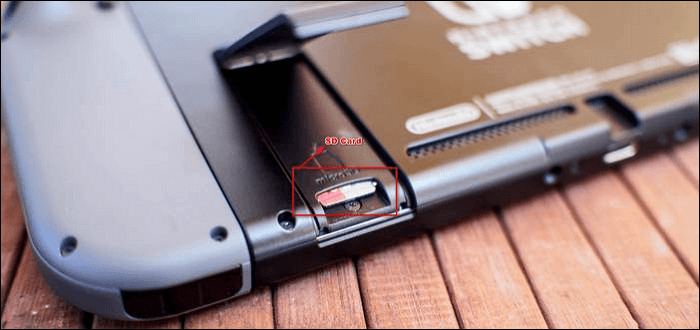
A loose or improperly inserted SD card may be the cause of the detection problem on your Nintendo Switch. To resolve this, safely remove and re-insert the SD card, ensuring a secure connection. This can be done by following a step-by-step guide, which involves carefully ejecting the SD card, checking for any debris or dust, and then re-inserting it firmly into the correct slot.
Step 1: To shut down the console, press and hold the power button for 3 seconds and select "Turn Off" from the menu.
Step 2: Remove the SD card from the console, wait, then reinsert it, turn the console back on, and verify if the card is recognized.
Fix 3. Ensure SD Card Is Compatible with Nintendo Switch
When dealing with the SD card detection issue on your Nintendo Switch, it's crucial to consider compatibility, as each SD card is unique and not all are compatible with the console. Incompatible cards may cause the console to fail to recognize the card, leading to potential problems.
The Nintendo Switch exclusively supports micro-SD cards, and standard SD cards or mini-SD cards are not compatible. However, users with SDXC-type cards can enhance compatibility with a system update. The update can be performed through the system update process, which involves accessing the system settings, checking for updates, and following the on-screen instructions to complete the update. This update ensures that the Switch can read and write data to SDXC-type cards, making them usable with the console.
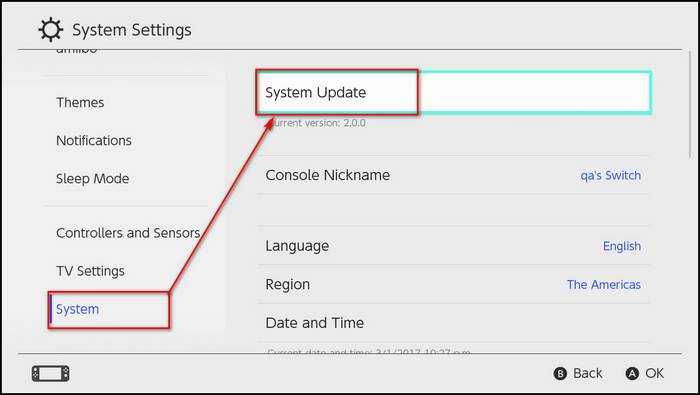
Step 1: To access the "Home Menu" and then select "System Settings," begin by accessing the "Home Menu" and then proceed to select "System Settings."
Step 2: Within the "System" section, opt for "System Update."
Step 3: The system will initiate a search for the most recent updates and proceed to download them.
Fix 4. Reformat the SD Card for Nintendo Switch
If your Nintendo Switch can't read your SD card, it might be due to a corrupted file system or incompatibility. Reformatting the SD card to the correct file system, such as FAT32 or exFAT, which are supported by the Nintendo Switch, can often resolve the issue.
For a user-Qiling Disk Master Free is an excellent tool that makes formatting straightforward! With its clear and user-friendly interface, you can easily format SD cards larger than 32GB to FAT32 or exFAT. But what sets it apart is its powerful disk management features, making it more than just a simple formatting tool. It's a great solution for anyone looking to efficiently and effectively manage their disks!
- Notice:
- Before reformatting your SD card, make sure to back up any important data on it, as the process will erase all content. This will prevent data loss and ensure you have a copy of your files.
Given below are the steps to format your SD with the right file system to fix the the error that Nintendo Switch is unable to read an SD card:
Step 1. Launch Qiling Disk Master, right-click the partition on your external hard drive/USB/SD card which you want to format and choose the "Format" option.

Step 2.Assign a new partition label, file system (NTFS, FAT32, EXT2, EXT3, EXT4, exFAT), and cluster size to the selected partition, then click "Proceed".

Step 3. Click "Yes" to start formatting your external hard drive/USB/SD card in the Warning window.

Key Features of Qiling Disk Master:
- Qiling Disk Master is a tool that enables users to manage their disk partitions with various operations, including creating, resizing, moving, merging, splitting, formatting, and deleting partitions.
- The software provides features for cloning and migrating the entire contents of one disk to another, allowing users to easily transfer data from one storage device to another.
- The software supports converting between different disk styles, such as converting between MBR (Master Boot Record) and GPT (GUID Partition Table) disks.
- The software provides options to securely erase data from a partition or entire disk, rendering data recovery extremely difficult.
For a hassle-Qiling Disk Master offers a free reformatting process that ensures optimal compatibility with your Nintendo Switch, making it a reliable choice to resolve your SD card detection issue. Download it now to take the next step.
Fix 5. Use Another microSD Card Again
A faulty or incompatible microSD card may be the root cause of your Nintendo Switch's SD card detection problem, even after trying to fix the issue.
If your Nintendo Switch doesn't recognize your SD card, try using a different SD card to see if it works. If it does, you'll know the problem is with the original card. In that case, it's probably time to get a new one.
Fix 6. Clear Cache of Nintendo Switch
Clearing the cache on your Nintendo Switch can help resolve performance issues caused by accumulated cache and temporary files. The process also includes detecting and reading SD cards. To get your console running smoothly, follow these steps: 1. Clear the cache. 2.
Step 1:To access the system settings menu, navigate to the "System Tab" in the System Settings.
Step 2: In the next step, choose the "Formatting Options" and then select "Reset Cache."
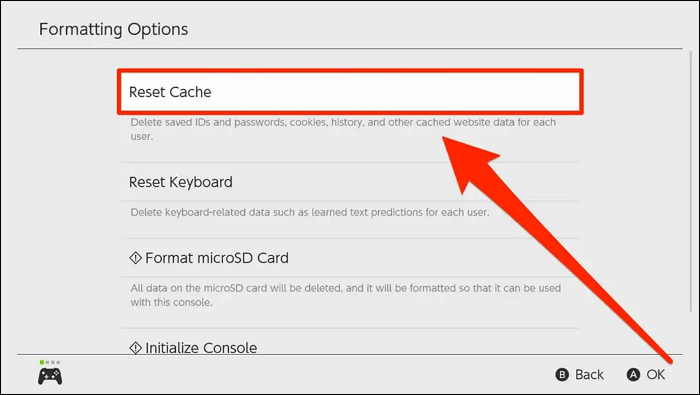
Step 3: To reset the cache associated with the switch, go to the "User section" and select the "Reset" option.
Fix 7. Check for Switch Nintendo Update
Here are the instructions to check for and apply updates to your Nintendo Switch, which may resolve issues affecting SD card detection:
Step 1: To update your system, go to the "System Settings" menu and select "System Update." This will initiate a scan for any available updates related to games, software, or the SD card.
Step 2: The system will automatically download and install the detected updates, then restart the console.
Fix 8. Check Nintendo Switch Storage Space
Running out of storage space on your Nintendo Switch can cause issues, such as difficulty reading SD cards, and impact the console's performance. To avoid this, check the storage space and free up some space if it is near full, ensuring the console has enough room to operate smoothly.
You May Also Like:
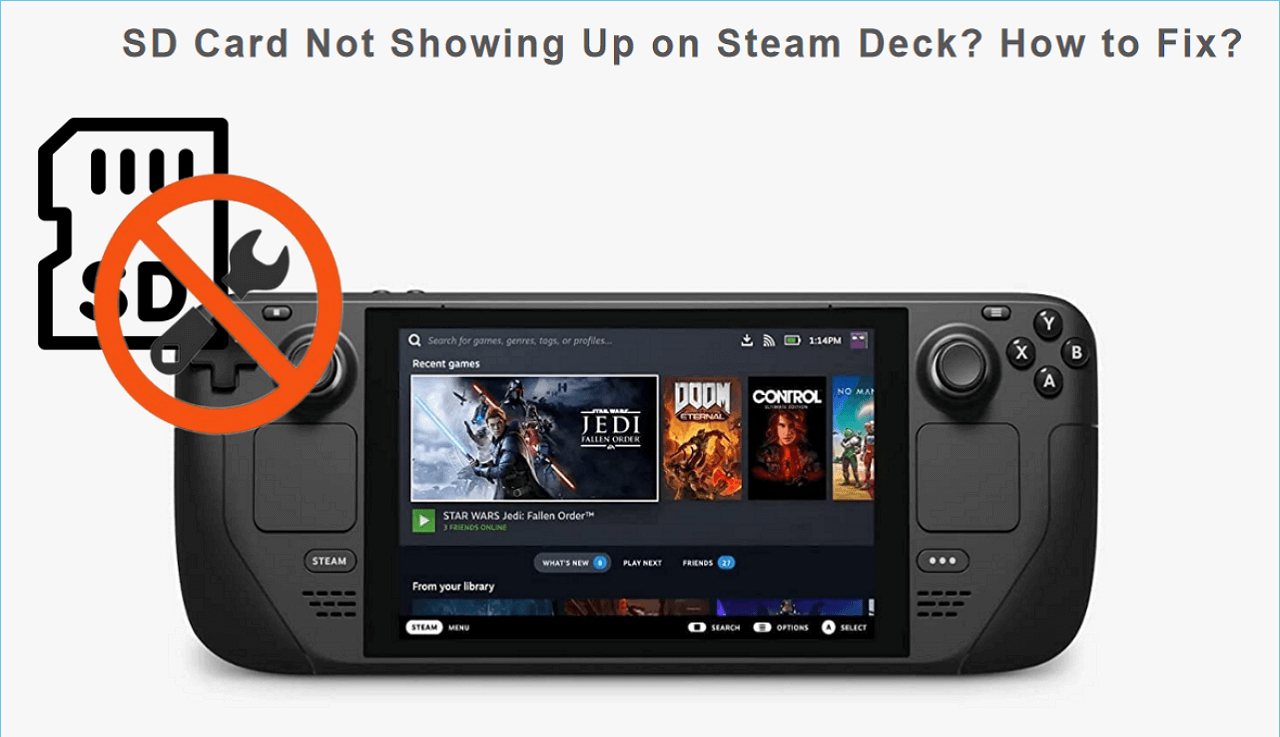
If your SD card isn't showing up on your Steam Deck, try restarting the device, checking the card's compatibility, and ensuring it's properly inserted. You can also try formatting the SD card in the Steam Deck's settings or using a different SD card reader to rule out any issues with the card itself. If none of these steps work, you may want to consider contacting Steam support for further assistance.
If your SD card is not working or not showing up on your Steam Deck, check that it's properly inserted, and ensure the card is formatted in FAT32. You may also need to check the Steam Deck's settings and restart it.
Fix 9. Clean the Game Card Slot and Game Card
Dirt, dust, and debris can accumulate in the Nintendo Switch's game card slot, causing connectivity issues with game cards, which can lead to a poor gaming experience. Regular cleaning of the game card slot and cards is necessary to ensure a smooth connection and optimal performance.
Clean the card slot and game card with soft, lint-free microfiber cloths and isopropyl alcohol (70% concentration or higher) to remove dust and grime that can cause connectivity issues and SD card detection problems.
Fix 10. Contact Nintendo Online Repair Center
When all else fails, and you've tried every troubleshooting option, reaching out to experts can be the best solution, especially for issues like SD card detection problems on the Nintendo Switch, where Nintendo's Online Repair Center can provide direct guidance and technical support.
Before contacting the Nintendo Online Repair Center, gather details about your Nintendo Switch, such as the serial number, purchase date, and a detailed description of the issue, including specifics about the SD card detection problem you're experiencing.
Conclusion
Dealing with a Nintendo Switch that won't read your SD Card can be frustrating, but there are solutions to explore before seeking help. This manual has covered ten possible solutions to tackle the issue, from initial troubleshooting procedures to more intricate remedies, offering a diverse array of choices to try and resolve the problem.
We started by identifying potential causes of the issue, such as compatibility problems or improper installation. Then, we guided you through 10 specific fixes, each with clear step-by-step instructions. These fixes included force rebooting the console, reformatting the SD card, ensuring sufficient storage space, cleaning the game card slot and the card itself, and possibly addressing issues specific to Steam Deck users.
Nintendo Switch Not Reading SD Card FAQ
If you're still searching for clarity or have more questions about the problem of your Nintendo Switch not recognizing the SD card, you're not on your own. In the following section, we've gathered responses to common inquiries to offer additional insights and direction.
1. Why is my Nintendo Switch not reading my SD card?
The issue could be caused by various factors, including compatibility problems, improper installation, corrupted files, physical damage, or even software bugs. Refer to the detailed guide above to explore potential solutions tailored to each of these potential causes.
2. What format should the SD card be for the switch?
The Nintendo Switch supports both FAT32 and exFAT file systems, with FAT32 recommended for SD cards up to 32GB and exFAT for larger capacities.
3. How can I clean the SD card slot on my switch?
Cleaning the SD card slot requires a soft, lint-free microfiber cloth and isopropyl alcohol to gently wipe the metal connectors and visible surfaces. To do this effectively, follow the step-by-step guide to clean both the game card slot and the game card itself.
Related Articles
- Top 5 Best Kingston USB Formatter Utility and Software Recommend in 2026 [Pros and Cons]
- SanDisk Format Solution: Format SanDisk to The Best Performance on Your Own
- How to Check SD Card Health on Windows [Safe & Efficient]
- Setup SSD/HDD and Change System/OS Disk for Windows 11/10
- What to Do When Shrink Volume Greyed Out in Windows 7/8/10?
When using Disk Management to shrink a volume in Windows 10/8/7, you may find shrink volume greyed out. In such case, what to do? This article provides you different solutions. - Best Free SSD Repair Tool: Fix Corrupted SSD Easily
Need an SSD repair tool to fix some SSD issues? Here, we collect some SSD repair methods and bring a great solid-state-drive repair program. It can help fix some damaged SSD drives.
Products
Articles & Tutorials
- Data Recovery
- Data Backup
- File Recovery
- File Backup
- System Backup and Restore
- Disk and Partition Clone
- Technical articles
- Mobile articles
- Disk Master Help
- Windows Data Recovery Tutorials
- Windows Secure Delete Tutorials
- Windows Partition Management Tutorials
- Windows File Backup and Restore Tutorials
- Windows System Backup and Restore Tutorials
- Windows Disk Backup and Restore Tutorials
- Windows Clone Tutorials