Best Kingston USB Formatter Tools
Kingston Technology offers a wide range of on-the-go USB devices for phones, tablets, and computers, including the popular Kingston USB.
But what to do if you want to format your Kingston USB? You should format it if you are going to erase your data or if you want to use your USB drive on a different operating system.
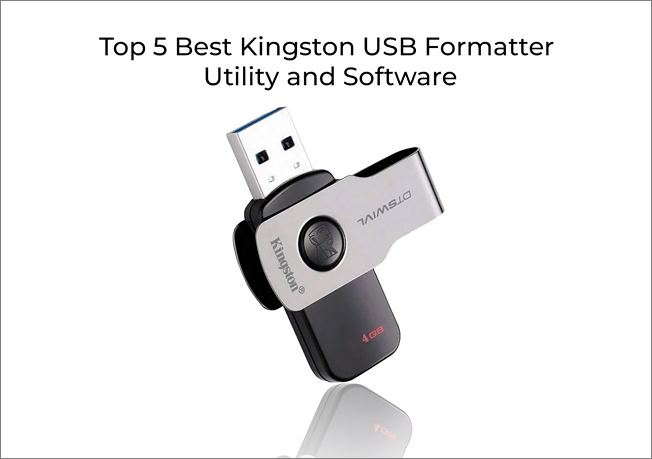
This article lists the 5 best Kingston USB formatters with detailed guidelines, providing a step-by-step guide to formatting your USB drives successfully without needing any guidance.
What Is A Kingston USB Formatter
A Kingston USB Formatter is a tool that helps format a Kingston USB drive to clear data or optimize performance.
If a virus infects your Kingston USB, using a Kingston USB Formatter can help you format it and regain control. Additionally, if your Kingston USB becomes write-protected or read-only, formatting can resolve this issue.
What Is the Best Format for Kingston USB Drives
Here are the best formats for different types of Kingston USB drives:
FAT32 - Kingston USB drives with capacities of 32 GB or smaller are suitable for this product.
exFAT - This format is suitable for Kingston external USB drives with 64 GB or larger capacity and gaming USB drives, and is also the best format for using a storage device on both Windows and macOS.
NTFS If you plan to use Kingston USB drives on a Windows operating system, you can use them without any issues. They are compatible with Windows and can be used to store and transfer files.
EXT2/3/4 - Suitable for Linux Kingston USB drives or gaming drives.
HFS+ - Well-suited for macOS devices.
Now that you know the popular formats for Kingston USB drives and what works best in which scenarios, you can proceed to the next section to find the best Kingston USB formatter software and use them for your assistance.
Top 5 Best Kingston USB Formatter Recommend [Pros & Cons]
After conducting extensive research, we have compiled a list of the top 5 Kingston USB formatter software options, which can be found here.
- #1. Qiling Disk Master Free
- #2. Kingston USB Format Utility
- #3. FAT32 Format
- #4. Windows File Explorer
- #5. Disk Management
Let's compare their pros and cons in a table:
| Comparison | Pros | Cons |
|---|---|---|
| Qiling Disk Master Free |
|
Available for Windows only |
| Kingston USB Format Utility |
|
Not available for Windows 11 |
| FAT32 Format |
|
"Quick Format" can cause corruption |
| Windows File Explorer | Built-in utility, you don't have to install it | The Quick Format option does not completely erase data from a device, and it can potentially be recovered. This is because the data is not actually deleted, but rather the file system is simply reset, leaving behind residual data that can be accessed through specialized tools or software. |
| Disk Management |
|
Formatting a drive can sometimes result in errors or incorrect formatting, leading to issues with data storage and retrieval. This can occur due to various reasons, such as faulty formatting software, incorrect drive settings, or hardware problems. |
Among the tools mentioned, Qiling Disk Master Free is the best option for formatting Kingston USB drives to any desired file format.
Keep reading for details on reliable Kingston USB formatters given below for help.
#1. Qiling Disk Master Free
The first tool we are introducing as an excellent Kingston USB formatter is Qiling Disk Master, a straightforward free tool designed for Windows beginners.
The Format/Wipe feature in this software allows for efficient formatting of drives or wiping of partitions, making it a useful tool for managing storage devices.
- It helps to clone partitions from one hard drive/partition to another without any data loss.
- It converts a primary partition to a logical partition or vice versa without deleting any existing volumes.
- The tool checks disk partition health and fixes bad sectors.
- The supported file systems include NTFS, EXT2/3/4, FAT12/16/32, ReFS, and exFAT.
You may follow these steps to format drives:
Step 1. Select the USB drive to format.
Connect your USB drive or USB flash drive to your computer and download the Qiling partition software. Once installed, launch the software and right-click on the USB drive you want to format, then select "Format" from the options.
Step 2. Set the drive letter and file system on USB.
Assign a new partition label, file system (NTFS, FAT32, EXT2, EXT3, EXT4, exFAT), and cluster size to the selected partition.
Step 3. Click Proceed button to format.
Click the "Proceed" button to format the USB drive.
Step 4. Check "Yes" to confirm formatting USB.
Click "Yes" if you see the Warning window. If you have important data on it, back up the data in advance.
#2. Kingston USB Format Utility
Kingston Format Utility is a software that formats Kingston USB drives, initially designed for HyperX DTHX30/XXGB series but also supports other Kingston drives.
Kingston Format Utility was created because most Kingston USB drives are pre-formatted to FAT32, and re-formatting them using default tools can decrease performance.
The main features include the following:
- It can convert the media file system to FAT32 and NTFS, allowing for better compatibility and performance with various devices.
- This software operates at a significantly faster speed compared to standard Windows formatting tools.
- Download and installation are free.
- Separate versions may be available from Kingston based on the target system architecture.
To format your Kingston USB Drive, you can download the tool and follow these steps.
Step 1. After downloading and installing the utility, insert the Kingston flash drive you wish to format into your computer's port.
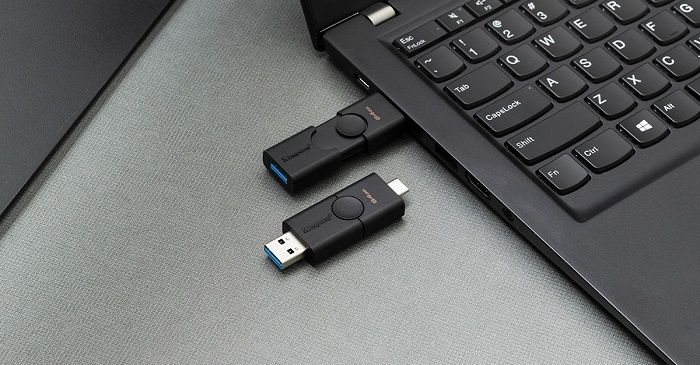
Step 2. The Kingston Format Utility allows you to format a selected drive and file system, and with a single click, the process is initiated.

Your Kingston USB drive will be formatted instantly.
#3. FAT32 Format
Windows operating systems have a limitation of structuring a drive greater than 32 GB, but this can be resolved using the FAT32 Format software, which allows users to format hard drives, micro SD cards, SD cards, and USB drives larger than 32 GB to the FAT32 file system.
The prominent features of this software include the following:
- The software is compatible with multiple operating systems, including Mac, iOS, Linux, Windows, and XP, as well as various media players.
- The "Quick Format" procedure is completed in seconds after giving the command.
- The interface is user-friendly.
- It supports large drives.
To format your Kingston drive with FAT32 Format, you can download FAT32 Format software and follow the steps to complete the process. This will allow you to format your drive with the FAT32 file system, which is a commonly used format for storage devices.
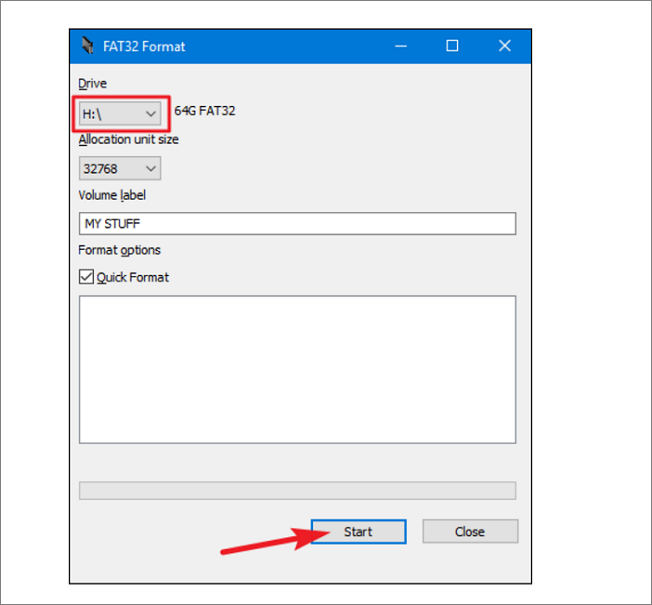
Step 1. Run the executable file after downloading, select the drive to format in the "FAT32 Format" window, choose the "Quick Format" option, and click the "Start" button.
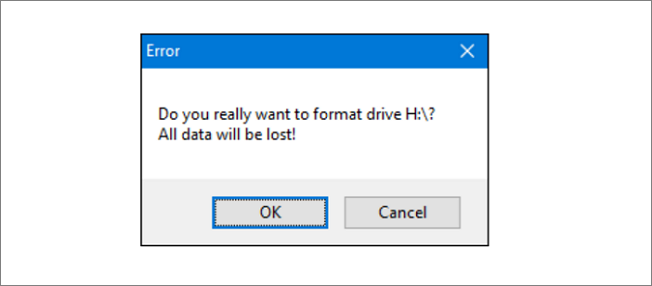
Step 2. A warning window appears, stating that all data on the drive will be lost. To proceed, click "OK" to format the drive.
#4. Windows File Explorer
To format a USB drive using Windows File Explorer, start by opening File Explorer and selecting the USB drive from the list of available drives. Right-click on the drive and select "Format" from the context menu. In the Format window, choose the file system you want to use (such as FAT32 or exFAT) and select the allocation unit size. Click "Start" to begin the formatting process.
Here are some features:
- It is free.
- No downloading or installation is involved.
- Quick and easy.
You can format your Kingston USB drive in a few different ways. You can format it as a standard drive, which will erase all data on the drive, or you can format it as a secure drive, which will erase all data on the drive and make it more difficult for others to recover any deleted files.
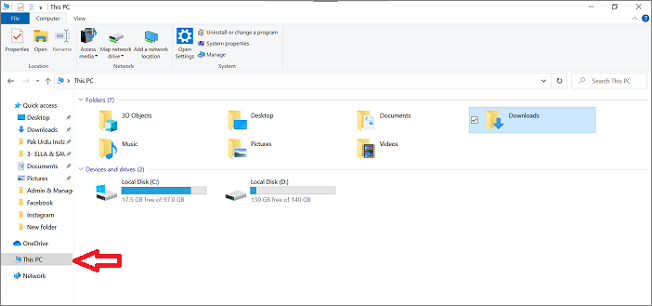
Step 1. To access the "This PC" section in File Explorer, you can follow these steps: Open File Explorer, which is typically found on the taskbar or can be accessed by searching for it in the Start menu. Once File Explorer is open, click on the "This PC" option from the left panel, which is usually located under the "Devices" or "Locations" section. This will display a list of available drives and devices connected to your computer, including your local hard drive, external drives, and network locations.
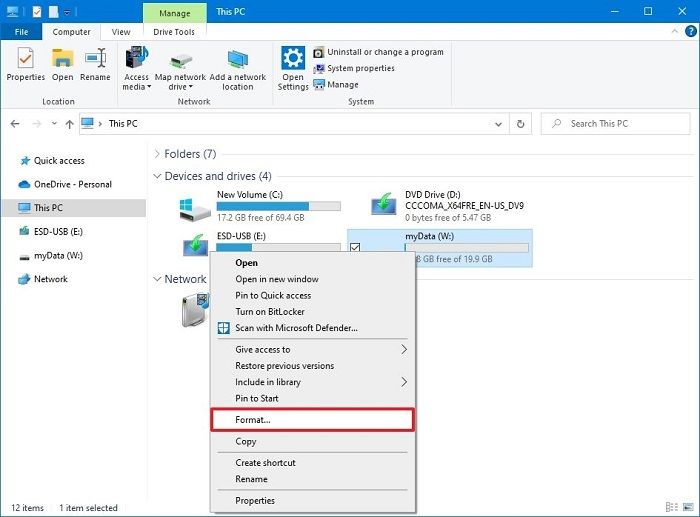
Step 2. To format a USB flash drive, navigate to the "Devices and drives" section, right-click the USB flash drive, and select the "Format" option.
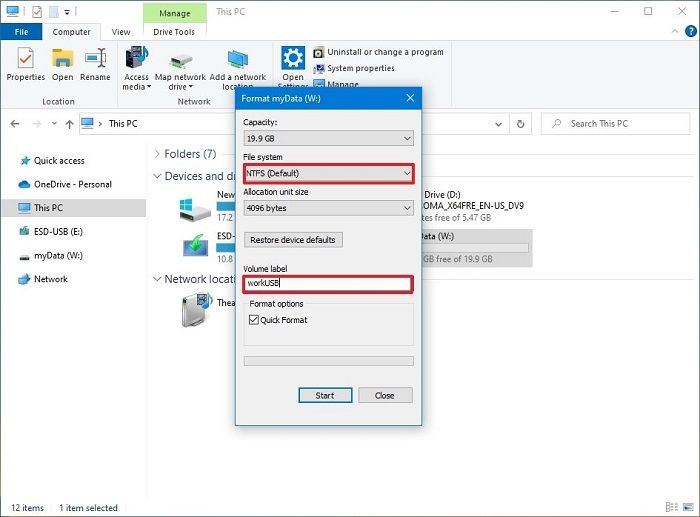
Step 3. When setting the file system and allocation size, be aware that checking the "Quick format" option only deletes the file system table and root folder, but the data can still be recovered.
If you uncheck it, a full format operation will be performed, which will take a bit longer.
Click "Start" and your drive will be formatted.
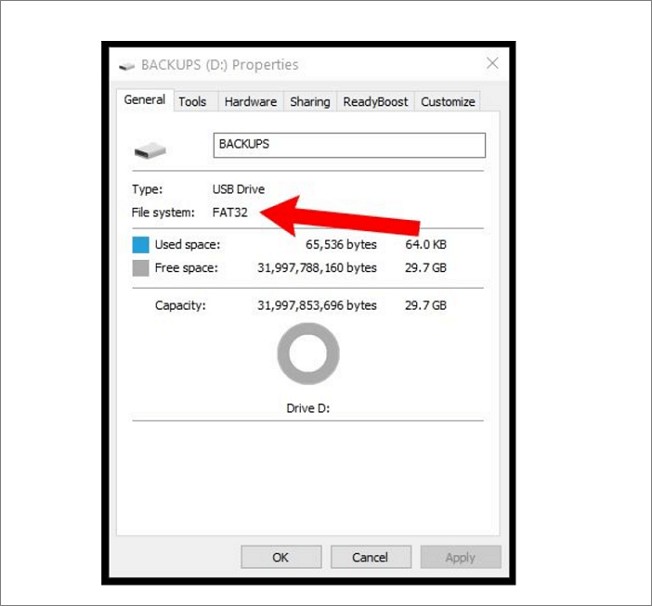
Step 4. To verify that your Kingston USB drive has been formatted, open File Explorer, right-click on your USB drive, and select "Properties". This will display the drive's properties, including its capacity, used space, and file system type.
#5. Disk Management
Besides File Explorer, Disk Management is another built-in tool that saves you the trouble of downloading and installing other software.
The main features include the following:
- It is free
- It carries the least amount of risk and malfunctioning possibilities
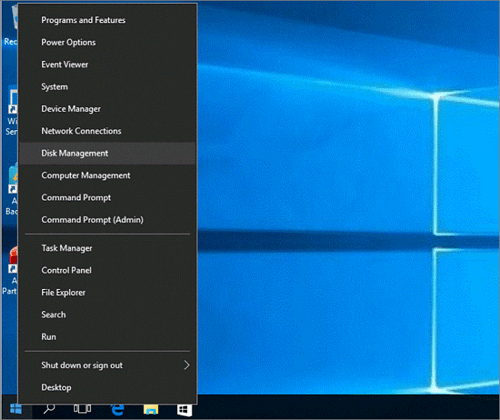
Step 1. To format your Kingston USB Drive, right-click on the Start Menu and choose Disk Management.
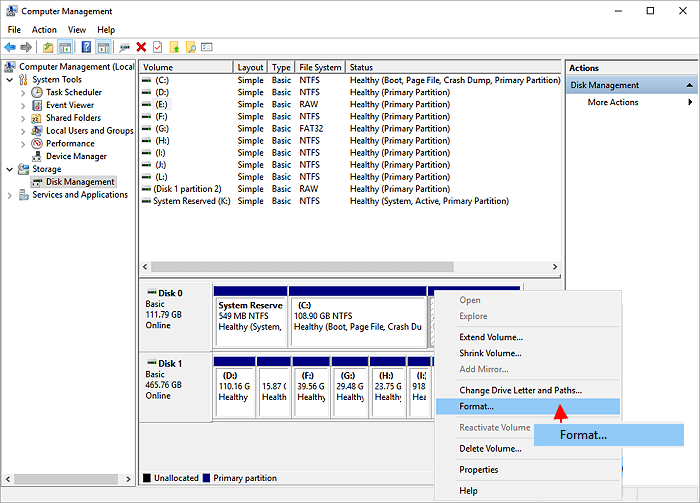
Step 2. You will see all the storage devices of your computer, including your connected external Kingston USB Drive. Right-click on the Drive and select the "Format" option.
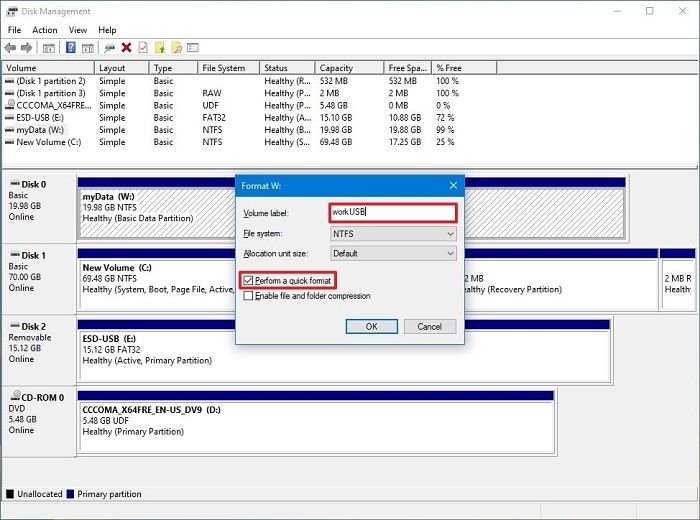
Step 3. After clicking "OK", a pop-up window will appear with various options to configure the formatting as per your requirements. You can set the File System, Volume Label, and Allocation unit size based on your needs, then click "OK" to start the formatting process.
Once the procedure is completed, your Kingston USB will be formatted.
Conclusion
This article provides a concise guide to formatting Kingston USB flash drives using the top 5 Kingston USB Formatter utilities, including their step-by-step instructions to ensure easy and efficient formatting.
Among the available options, Qiling Disk Master Free and File Explorer are recommended as they are the easiest Kingston USB formatter tools to use.
FAQs about Kingston USB Formatter
In case you need further clarification, we have narrowed down the frequently asked questions people have with their answers given below.
1. How do I format a Kingston flash drive?
To format your Kingston flash drive, you can opt for any of the methods given below:
- Open File Explorer. Right-Insert the flash drive into your computer's USB port. Click on the flash drive in "My PC" or "This PC" and select the "Format" option.
- Go to Disk Management. Right-To format a drive, click on the drive you want to format and select the "Format" option from the context menu. This will erase all data on the drive and prepare it for new data.
- Download a third-You can use a party tool like Kingston USB Format Utility or Qiling Disk Master to automatically format a USB drive, making it ready for use without having to manually do it through the computer's operating system.
2. How do I format a 250 GB or bigger Kingston USB to FAT32?
To format a 250 GB or bigger Kingston USB to FAT32, you need to download a third-party formatting tool like Qiling Disk Master, which contains an advanced formatting algorithm that breaks the limit of the maximum volume size limit of FAT32.
3. What do I do if Kingston USB Format Utility is not working?
If Kingston USB Format Utility isn't working, you can use Qiling Disk Master, which is a straightforward tool that formats USB drives efficiently.
Related Articles
- How to Fix (GPT) Hard Disk Partition Not Recognized in Windows 11/10
- How to Fix Extend Volume Greyed Out in Windows 11?
- How to Format External Hard Drive for Mac and PC? 2023 Complete Guide Here
- Fix MBR2GPT Cannot Find OS Partition Error Like an Expert
- How to Convert External Hard Drive to GPT without Data Loss?
How to convert external hard drive to GPT without data loss? here, the best disk converter will be introduced to help get it done without deleting anything. - How to Create Partition From Unallocated Space?
If you meet problems when you create partition from unallocated space in Windows, have a look of this article to get the solution.
Products
Articles & Tutorials
- Data Recovery
- Data Backup
- File Recovery
- File Backup
- System Backup and Restore
- Disk and Partition Clone
- Technical articles
- Mobile articles
- Disk Master Help
- Windows Data Recovery Tutorials
- Windows Secure Delete Tutorials
- Windows Partition Management Tutorials
- Windows File Backup and Restore Tutorials
- Windows System Backup and Restore Tutorials
- Windows Disk Backup and Restore Tutorials
- Windows Clone Tutorials