Fix MBR2GPT Cannot Find OS Partition Error Like an Expert
| ⏳Duration: | 3-5 minutes |
| 🎯Goal: | Fix MBR2GPT cannot find OS partition error in Windows |
| 💻Supported Systems: | All Windows systems |
| 👔Who Will Need It: | Windows beginners and non-technical users |
Are you facing the frustrating 'MBR2GPT cannot find OS partition' error while attempting to convert your disk from MBR to GPT? This error typically occurs when using the MBR2GPT tool to convert the disk layout on your computer. But don't worry, this article will guide you through efficient methods and provide easy-to-follow tutorials to help you fix the 'MBR2GPT cannot find OS partition' error like an expert. Let's dive in and resolve this issue once and for all!
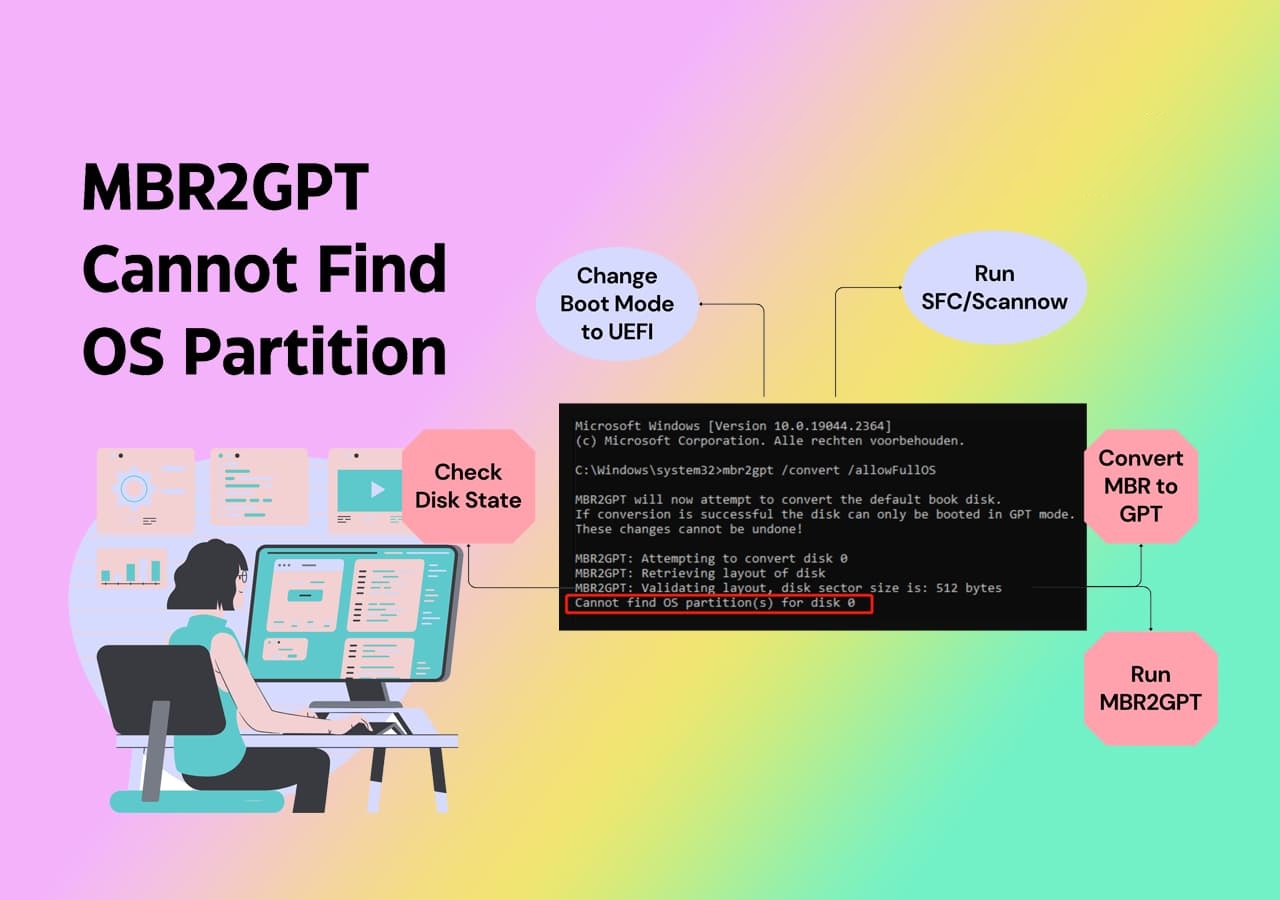
What to Do When Windows Reports 'MBR2GPT Cannot Find OS Partition' Error
If you encounter the 'MBR2GPT cannot find OS partition' error, don't panic and refrain from using the mbr2gpt /convert /disk:* /allowfullOS command line. Remain calm and try the suggested workaround solutions to resolve the issue effectively.
The solutions to the problem have been listed along with their complexity levels and estimated durations, allowing you to choose the most suitable method for your situation.
| Procedure | Complex level | Duration |
| Complex | 5-10 mins | |
| Convert Disk from MBR to GPT | Medium | 3-5 mins |
To fix the 'MBR2GPT cannot find OS partition' error, you should proceed with caution if you've encountered a similar issue before. Each solution will be explained in detail to help you get your system back on track.
Guide 1: Fix Disk Error Which Causes the 'MBR2GPT Cannot Find OS Partition' Issue
The 'MBR2GPT cannot find OS partition' error during disk conversion can be caused by multiple reasons. To resolve this issue, follow the methods provided below, which can help troubleshoot and fix the problem, allowing the conversion process to proceed successfully.
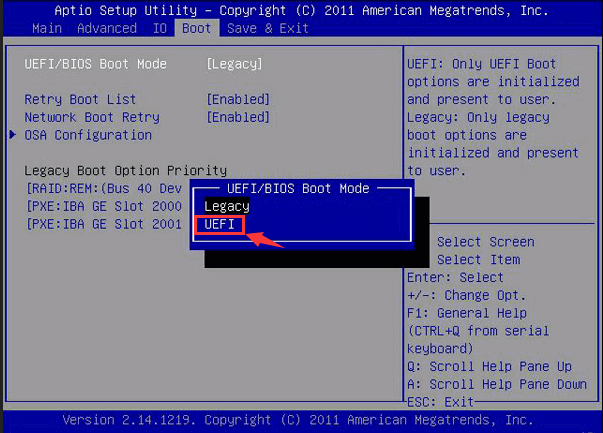
#1. Change Boot Mode from Legacy to UEFI
To convert a Windows 10 system from MBR to GPT, start by booting in Legacy mode, then access the UEFI firmware settings and switch the boot mode to UEFI. Next, create a bootable USB drive with a UEFI-compatible tool like Rufus. Insert the USB drive, boot from it, and run the tool to convert the MBR disk to GPT.
Step 1: Restart your computer.
Step 2: Long-press F2 to open the BIOS Setup.
Step 3: Use arrow keys to select the "Boot" tab.
Step 4: Select "UEFI" in the "UEFI/BIOS Boot Mode". Press Enter.
#2. Run SFC/Scannow to Fix Existing System File Errors
To fix corrupted system files that may be interfering with the MBR2GPT conversion process, run the built-in System File Checker (SFC) tool in Command Prompt as an administrator. This tool scans and repairs corrupted system files, ensuring a smooth conversion process. Additionally, you can run the DISM (Deployment Image Servicing and Management) tool to scan and fix any issues with the system image.
Step 1. To access the Command Prompt as an administrator, right-click the Start button, then select "Command Prompt (Admin)".
Step 2. Enter the command "sfc /scannow" in the Command Prompt window.
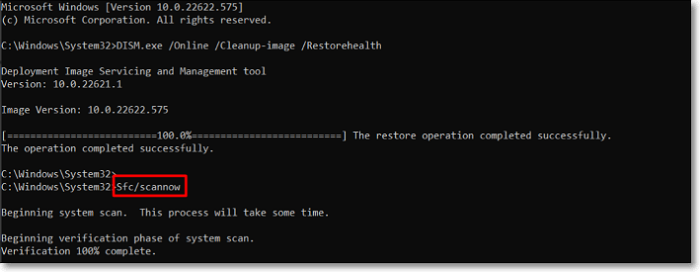
Step 3. The System File Checker (SFC) tool will scan your system and fix any corrupted files it discovers, so hold off for a moment.
To execute a successful scan and repair procedure, navigate to the Command Prompt and follow the provided instructions to work through the necessary steps.
If this method helps you fix this error, share it to help more people with the "MBR2GPT cannot find the OS partition" issue online:
#3. Check the State of the Target Disk and Confirm It's Healthy
Ensure the target disk is in a good state before converting. This includes checking for any errors, running a disk check, and verifying the disk's health.
Before starting the disk conversion, ensure the target disk is in good condition by checking for any physical damage, formatting the disk if necessary, and verifying the disk's capacity and compatibility with your system. This includes checking for any physical damage, formatting the disk if necessary, and verifying the disk's capacity and compatibility with your system.
Step 1. To access Windows' Disk Management program, right-click the Start button and choose "Disk Management."
Step 2. To verify the destination disk's presence in Disk Management and the drive letter allocated, open the Disk Management tool, which can be accessed by pressing the Windows key + R, typing "diskmgmt.msc," and pressing Enter.
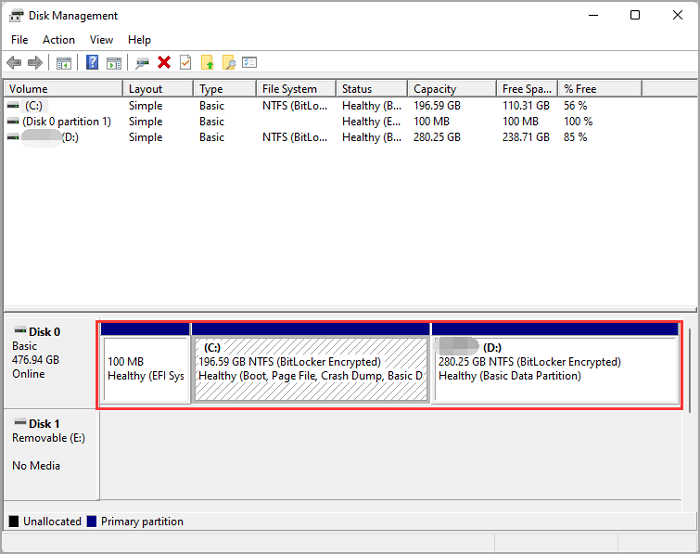
Step 3. To ensure the disk can be accessed without any problems, try opening it.
To ensure a smooth disk conversion process, it's essential to verify that the disk is functioning properly. If the disk is in good condition and operating normally, you can proceed to the next step and complete the conversion operation successfully.
Guide 2: Convert MBR to GPT with MBR2GPT Alternative or MBR2GPT Command
To convert your MBR disk to GPT, you can use either the built-in Windows tool, Disk Management, or a third-party tool like Qiling Partition Master. The first method involves selecting the disk in Disk Management and clicking on the "Convert to GPT" option, but it may not work if the disk contains multiple operating systems or has issues with its partition table. The second method offers more flexibility and features, but requires some technical knowledge and may carry additional risks if not used correctly.
Method 1: Convert MBR to GPT with MBR2GPT Alternative Tool - Qiling Disk Master
If you're a Windows user looking for a reliable program to convert your disk from MBR to GPT, we highly recommend Qiling Disk Master. It has a user-friendly feature called "Convert to GPT" that allows you to change the partition style of your target disk without losing any data.
Pros and Cons of Qiling Disk Master:
| Pros👍🏻 | Cons👎🏻 |
|
You'll need to purchase the paid version of Qiling Disk Master after the free trial period. |
Why we recommend Qiling Disk Master:
To begin, download and test Qiling Disk Master from their official website.
Step 1. Download and launch Qiling Disk Master on your computer.
Step 2. Go to Disk Converter, select "Convert MBR to GPT".
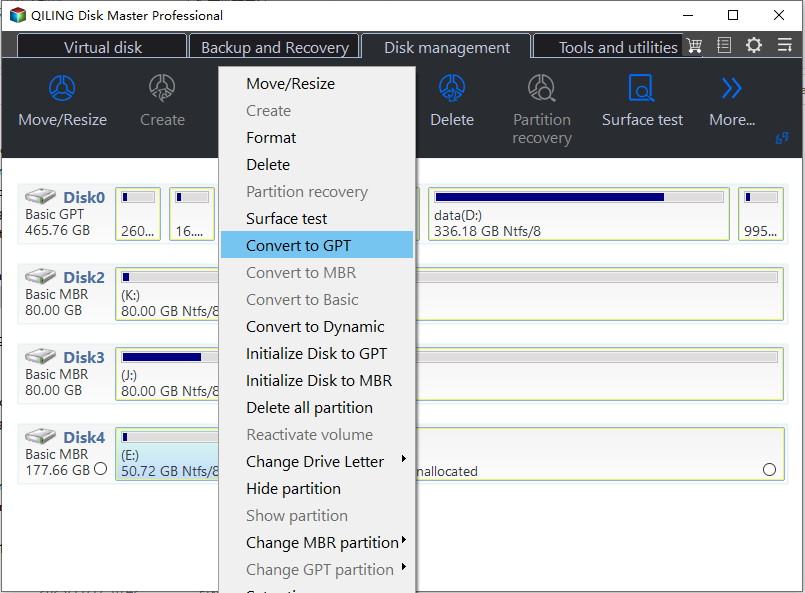
Step 3. Waiting to start the conversion.
To convert a disk from MBR to GPT without losing any data, you can use the built-in Disk Management tool in Windows or a third-party software like Qiling Partition Manager. First, back up your data to an external drive or cloud storage to ensure safety.
Method 2: Convert MBR to GPT with MBR2GPT Command Lines
The MBR2GPT command line tool provides a simple method to convert a Master Boot Record (MBR) disk to a GUID Partition Table (GPT) disk, specifically for users familiar with command line operations and running Windows 10 version 1703 or later. This conversion comes with both advantages and disadvantages, which need to be carefully evaluated.
Pros and Cons of MBR2GPT command lines
| Pros👍🏻 | Cons👎🏻 |
|
|
Steps to Convert MBR to GPT with MBR2GPT Command Lines
If your Windows requirements match and you are comfortable with interpreting command lines, then use the following steps:
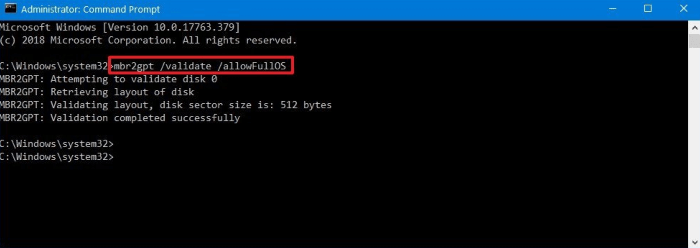
Step 1. Open Command Prompt and select "Run as administrator".
Step 2. To convert a UEFI system to a GPT disk, open the Command Prompt as an administrator, and type the command: `mbr2gpt /convert /disk: /allowfullOS`. This command will convert the disk to GPT format, allowing you to install a full UEFI operating system on the converted disk.
Step 3. I've completed the process. The new password is now in place. You can now log in with your new password. Would you like me to help you with anything else?
What Causes 'MBR2GPT Cannot Find OS Partition' Error and How to Avoid It
Here are some common reasons for the 'MBR2GPT Cannot Find OS Partition' error and how you can avoid those issues: The OS partition is not found, The disk is not a GPT disk, The disk is not a MBR disk, The disk is not a valid disk, The disk is not a valid GPT disk, The disk is not a valid MBR disk, The disk is not a valid disk, The disk is not a valid GPT disk, The disk is not a valid MBR disk, The disk is not a valid disk, The disk is not a valid GPT disk, The disk is not a valid MBR disk, The disk is not a valid disk, The disk is not a valid GPT disk, The disk is not a valid MBR disk, The disk is not a valid disk, The disk is not a valid GPT disk, The disk is not a valid MBR disk, The disk is not a valid disk, The disk is not a valid GPT disk, The disk is not a valid MBR disk, The disk is not a valid disk, The disk is not a valid GPT disk, The disk is not a valid MBR disk, The disk is not a valid disk, The disk is not a valid GPT disk, The disk is not a valid MBR disk, The disk is not a valid disk, The disk is not a valid GPT disk, The disk is not a valid MBR disk, The disk is not a valid disk, The disk is not a valid GPT disk, The disk is not a valid MBR disk, The disk is not a valid disk, The disk is not a valid GPT disk, The disk is not a valid MBR disk, The disk is not a valid disk, The disk is not a valid GPT disk, The disk is not a valid MBR disk, The disk is not a valid disk, The disk is not a valid GPT disk, The disk is not a valid MBR disk, The disk is not a valid disk, The disk is not a valid GPT disk, The disk is not a valid MBR disk, The disk is not a valid disk, The disk is not a valid GPT disk, The disk is not a valid MBR disk, The disk is not a valid disk, The disk is not a valid GPT disk, The disk is not a valid MBR disk,
Possible Causes of the 'MBR2GPT Cannot Find OS Partition' Error
The 'MBR2GPT cannot find OS partition' error can occur due to several reasons, including incorrect partition table information, corrupted system files, or issues with the system's boot configuration. This error can be caused by a variety of factors, such as incorrect partition table information, corrupted system files, or issues with the system's boot configuration, making it difficult to identify the root cause without further investigation.
- Disk errors: The MBR2GPT utility may fail to detect the OS partition due to existing disk errors, such as corrupted partitions or file system issues.
- Incompatible boot mode: MBR2GPT requires the appropriate boot mode for successful conversion. If your computer is set to an incompatible boot mode, such as Legacy (MBR) for a GPT conversion, the error may occur.
- Missing system files: If essential system files are missing or corrupted, MBR2GPT may fail to locate the OS partition during conversion.
Practical Tips to Avoid the 'MBR2GPT Cannot Find OS Partition' Error
To prevent encountering the 'MBR2GPT cannot find OS partition' error, consider implementing the following tips: First, ensure that your Windows installation is up-to-date, as older versions may not be compatible with MBR2GPT. Next, use the built-in Windows tool, 'MBR2GPT', to convert the MBR to GPT, but be aware that this process will erase all data on the disk.
- ✔️Set the compatible boot mode: Set your computer to the correct boot mode that matches your desired partition style: UEFI-GPT for GPT conversion and Legacy-MBR for MBR conversion, adjusting BIOS/UEFI settings as needed.
- ✔️Fix system file errors promptly: Run the System File Checker (SFC) utility to scan and repair corrupted or missing system files, ensuring a healthy operating system.
- ✔️Maintain disk health: Regularly check your disk for errors and resolve any issues promptly to ensure a smooth conversion process. You can use disk management utilities or third-party disk-checking tools to scan and fix disk errors.
- ✔️Backup your data: Before attempting any disk conversion, it's always a good idea to create a backup of your important data to safeguard against unexpected errors or data loss during the conversion process.
To minimize the chances of encountering the 'MBR2GPT cannot find OS partition' error, it is recommended to ensure that the disk to be converted is not in use by other systems or applications, and to check that the disk is not corrupted or damaged. Additionally, it is essential to verify that the Windows operating system is installed on the correct disk and that the disk is properly initialized before proceeding with the conversion.
Conclusion
If you encounter the 'MBR2GPT cannot find OS partition' error, it's recommended to avoid using the MBR2GPT command and instead follow the methods outlined in this article to resolve the issue efficiently.
- For those seeking a user-friendly approach, Qiling Disk Master is a reliable alternative tool recommended for beginners.
- Advanced users can use the MBR2GPT command lines, provided they have the correct Windows version, to convert their system disk from MBR to GPT.
To resolve the error, set the compatible boot mode, fix system file errors quickly, keep your disk healthy, and back up your data. This will help you successfully complete the disk conversion process.
FAQs About MBR2GPT Cannot Find OS Partition Issue
Here are a few questions that might help you address and find solutions to fix MBR2GPT if it is unable to find the OS partition error: What is the exact error message you are getting? Have you tried running the command with elevated privileges?
1. Can I convert non-OS disk with MBR2GPT?
The MBR2GPT utility only converts the disk containing the operating system from MBR to GPT, and cannot be used to convert non-OS disks.
2. What to do if MBR2GPT reports disk layout validation failed?
If MBR2GPT reports a "disk layout validation failed" error, check that the disk meets the conversion requirements and is not locked or in use. Run disk error-checking tools like chkdsk and consider backing up data before initializing the disk as GPT or performing a clean OS installation if necessary.
3. What is the best MBR2GPT alternative software?
One of the best MBR2GPT alternative software options is Qiling Disk Master, which offers a user-friendly interface and a "Convert to GPT" feature for seamless disk conversion.
Related Articles
- M.2 VS SATA, What's The Differerence and How to Install [2023 Guide]
- How to Test SSD Read/Write Speed on Windows 10/11 [Step-by-Step Guide]
- Can't Delete Partition on USB? Time to Fix it!
- Top 9 Best Hard Drive Format Software Free Download (Windows & Mac)
- Best Way to Increase C Drive Space in Windows 7/8/10
Increasing C drive space without hard drive formatting and OS reinstallation is a common issue. A utility gives good schemes to extend C partition securely. - Easily Manage Basic and Dynamic Disk via a Great Disk Manager
To manage basic and dynamic disk or convert dynamic into basic without data loss, you can use a powerful disk manager, Qiling Disk Master Professional.
Products
Articles & Tutorials
- Data Recovery
- Data Backup
- File Recovery
- File Backup
- System Backup and Restore
- Disk and Partition Clone
- Technical articles
- Mobile articles
- Disk Master Help
- Windows Data Recovery Tutorials
- Windows Secure Delete Tutorials
- Windows Partition Management Tutorials
- Windows File Backup and Restore Tutorials
- Windows System Backup and Restore Tutorials
- Windows Disk Backup and Restore Tutorials
- Windows Clone Tutorials