How to Check SD Card Health on Windows [Safe & Efficient]
Overview of checking SD card health on Windows:
| Items | Details |
|---|---|
| ⏱️Duration | 2-3 minutes |
| 💻Target Operating System | Windows 11/10/8/7; Windows XP/Vista |
| ⚙️Operation Difficulty | Low for beginners |
| 🔧Tools |
Qiling Disk Master provides a detailed test result, making it an easy-to-use tool. Way 2. Command Prompt (drive status only) - Difficult; |
SD cards are a must-have for tech enthusiasts due to their compact size, allowing for expanded digital storage capacity and easy access to files on the go, especially for large data files like high-resolution images and videos. However, no one wants to receive an error message saying their SD card is in poor health or malfunctioning. To prevent SD card failure and data loss, it's essential to check the health of your SD card, which we'll explore in this article, and if you find it helpful, don't hesitate to share it on your social media.
Why Check SD Card Health on Windows
You might start by asking, "Why do I need to check the health of my SD card?" Simply put, if your files and data are important to you, it shouldn't be too much trouble to check to make sure the tools that store them are working properly. Over time, SD cards are at an increased risk of encountering issues such as accessibility errors and file corruption. This is because normal SD cards use "flash memory." This memory format has many benefits, such as its ability to write and write data efficiently without moving parts and lower power consumption.
See Also: How to Spot Fake SD Card by Running SD Card Speed Test
Unfortunately, flash memory, like that found in SD cards, has a limited lifespan and will eventually wear out, causing most functions to cease properly. However, this process takes a long time, so you don't have to worry about it immediately. To prevent SD card failure, it's essential to test the health status of your SD card in advance, making it a crucial step in maintaining its functionality.
To check SD card health on Windows, you can use a dedicated disk health tool for detailed information or Command Prompt for a basic status check. A health tool can show bad sectors, file system errors, and other useful indicators, while CMD mainly reports whether the device status is OK.
Check SD Card health on Windows - 2 Safe Ways
Checking SD card health on a Windows PC is easier when you choose the right method. This guide covers two options: using Qiling Disk Master for a detailed check, or using Command Prompt for a quick drive status result.
Way 1. Check SD Card Health on Windows by Qiling Disk Master
Qiling Disk Master is a professional SD card health checker for all Windows users. It checks the SD card's health status and shows a warning message if the card has a bad condition. The tool is easy to use due to its well-organized and clear interface, making it suitable even for new users. Downloading this tool and following the tutorial can help you determine if your SD card is real and healthy.
When you receive your test result, pay attention to the following attributes:
- Status (Good or bad)
- Power on hours
- SD card serial number
- The total host writes and read
- Critical warning and more
Step 1. Launch Qiling Disk Master and click the blue arrow to activate the "Disk Health" feature under the "Discovery" section.

Step 2. To check the health condition of your disk, select the target disk and click the "Refresh" button. This will display the health status of your disk.

After running a detailed SD card health test, you'll get results showing the card's overall health. If it's in good shape, you can continue using it as usual. However, if the test reveals any issues, it's a good idea to back up your important data before continuing to use the SD card.
Qiling Disk Master can help with SD card issues by recovering lost data, repairing corrupted file systems, and even recovering data from damaged or unreadable SD cards. It can also help to clone SD cards, making it easier to transfer data to a new card or device. Additionally, Qiling Disk Master can help to format SD cards, which can help to resolve issues with corrupted or damaged file systems.
Qiling Disk Master can help solve SD card issues by performing various tasks, including formatting, partitioning, and data recovery, as well as fixing errors and bad sectors, and even cloning the SD card to a new one to prevent data loss.
- Clone SD card
- Repair bad sectors on SD card
- Format SD card on Windows 10
- Merge/split partitions on an SD card
- Check file system errors on SD card
- Run SD or micro SD card speed test to tell fake SD/microSD card
To check the health of an SD card on Windows or run a speed test, you can download Qiling Disk Master, a tool that allows you to do so.
Way 2. Check SD Card Health on Windows by Command Prompt - Difficult
Command Prompt is also a utility that can check the status of an SD card, but it is better suited for experienced users who need to type commands during the check process. For those without much computing experience, checking the SD card status through the File Explorer is a better choice.
Here is how to check SD card health on Windows using CMD:
Step 1. To open a Command Prompt window in Windows, press the Windows key + R to open the Run dialog, type "cmd" in the text field, and click "OK" to open the Command Prompt.
Step 2. Enter "wmic" in the CMD window.
Step 3. Next, type "diskdrive get status" and hit "Enter."
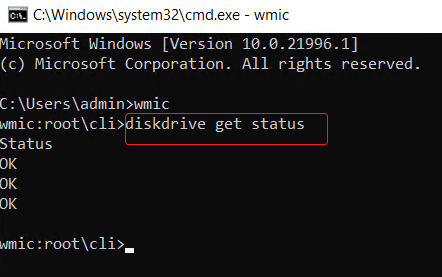
- If your SD card is healthy, CMD will show "OK."
- If your SD card is unhealthy and on the verge of crashing, the command prompt (CMD) may display the message "Pred Fail," indicating that the card is likely to fail soon.
Back up your important data on your SD card when CMD warns that it's about to crash, and use Qiling Disk Master to check the health condition of your SSDs, HDDs, or external hard drives, as well as access details like Power on hours and SD Card Serial Number.
Conclusion
Qiling suggests regularly testing SD card health to ensure the long-term safety of your files and documents. You can use CMD for experienced users or Qiling Disk Master, a more user-friendly tool that provides detailed test results, including SD card speed testing on a Windows PC, and even checks if the card is genuine. By using Qiling Disk Master, you can easily manage your SD card and keep it in good condition.
Check SD Card Health Windows FAQs
To check the SD card health condition on a Windows PC, you can use the built-in Disk Management tool. Here's how: Press the Windows key + R to open the Run dialog box, type "diskmgmt.msc" and press Enter.
1. How do I test my microSD card health?
Windows comes with built-You can use the built-in tools in your operating system or third-party software to check for file system errors on a microSD card. For example, on Windows, you can use the built-in tool "chkdsk" to scan the microSD card for errors.
Step 1. To access and manage files on your microSD card, you can use Windows Explorer. Right-click on the icon representing your microSD card in the File Explorer window, which should be located on the left side of the screen.
Step 2. After updating your micro SD card's firmware, you can run a health check scan on the card to diagnose and correct any errors that may have occurred during the update process. This scan can help identify any issues with the card's file system, formatting, or other parameters, allowing you to take corrective action to ensure the card is functioning properly.
2. How to check micro SD card health on Android?
To check the health of your memory card, download a reliable SD card health detection tool on your Android phone, such as SD Insight, and install it. Then, use its sector test function to run a test and assess the condition of your memory card.
3. How to check SD card health on Mac?
On a Mac, you can check the health status of an SD card using Disk Utility. To do this, first, insert the SD card into your Mac.
Step 1. Open 'Finder' and select 'Applications' to go to it.
Step 2. Select 'Disk Utility' from the 'Utilities' tab.
Step 3. Connect your SD card to your computer using a reader slot, then select the correct drive in Disk Utility, which should be labeled with the name of your SD card.
Step 4. Select 'First Aid' to scan your SD card and fix any issues that are discovered.
For checking the condition of an SD card in Windows, read How to Check SD Card Health in Windows.
Related Articles
- How to Format Write Protected SD Card and Repair It to Usable Again [2023 Newest Guide]
- Home Office Setup: Setting Up Home Office for Remote Work
- How to Speed Up Hard Drive in Windows 11/10/8/7 [100% Working Solutions]
- Convert FAT32 to NTFS Without Losing Data [2023 Guide]
- Can Windows 10 Be Cloned [2024 Fullest Guide]
This article covers the theme Can Windows 10 Be Cloned and introduces a professional tool to clone Windows 10. - Can't Install Windows 7 on Dynamic Disk - 3 Fixes 🔥
To fix the error of installing Windows 7 on a dynamic disk, you can try the following methods. Firstly, you can convert the dynamic disk to a basic disk using the built-in Disk Management tool in Windows.
Products
Articles & Tutorials
- Data Recovery
- Data Backup
- File Recovery
- File Backup
- System Backup and Restore
- Disk and Partition Clone
- Technical articles
- Mobile articles
- Disk Master Help
- Windows Data Recovery Tutorials
- Windows Secure Delete Tutorials
- Windows Partition Management Tutorials
- Windows File Backup and Restore Tutorials
- Windows System Backup and Restore Tutorials
- Windows Disk Backup and Restore Tutorials
- Windows Clone Tutorials