How to Check SD Card Health in Windows
An SD card that opens slowly, loses files, or repeatedly asks to be formatted may have a damaged file system, a bad reader, or failing flash memory. Windows can check the file system, but a successful check does not prove that the card's memory is healthy. Start by protecting the files you can still read.
Protect the data and rule out the reader
Step 1. Stop taking photos or saving files to the card. Copy readable files to a different physical drive. If copying fails repeatedly, avoid repeated repair attempts on the only copy; consider recovery before any write operation.
Step 2. Check the adapter's lock tab, then try another compatible card reader and USB port. A loose adapter or faulty reader can mimic card failure. In File Explorer, confirm the card's reported capacity. An impossible size or a card that disappears from Disk Management points to a connection or hardware issue rather than a simple directory error.
Step 3. If the card stays connected, right-click its volume in File Explorer, choose Properties > Tools > Check, and follow Windows' prompts. This checks file-system consistency. On a card with unbacked-up data, read the proposed repairs before allowing changes.
Use the command line when Windows reports an error
Open Command Prompt as administrator, confirm the card's current drive letter in File Explorer, and run chkdsk X:, replacing X with that letter. This read-only check reports logical errors; it does not benchmark the flash or reliably predict remaining life. If Windows says a repair is required, first finish a backup, then run chkdsk X: /f while the volume is not in use. Never run it against a guessed drive letter.
For a card used by a camera or console, test a few copied files after the check. If the device still cannot read the card, confirm its supported capacity and required file system before deciding to format. Formatting is not a health test and erases the directory information.
Check the File System with Qiling Disk Master
This is another logical file-system check, not an SD-card wear report. Make a copy of important files first.
Step 1. Insert the SD card through a reliable reader. Open Qiling Disk Master and select Disk management. Identify the removable disk by capacity, then select its partition; do not select your Windows system disk.
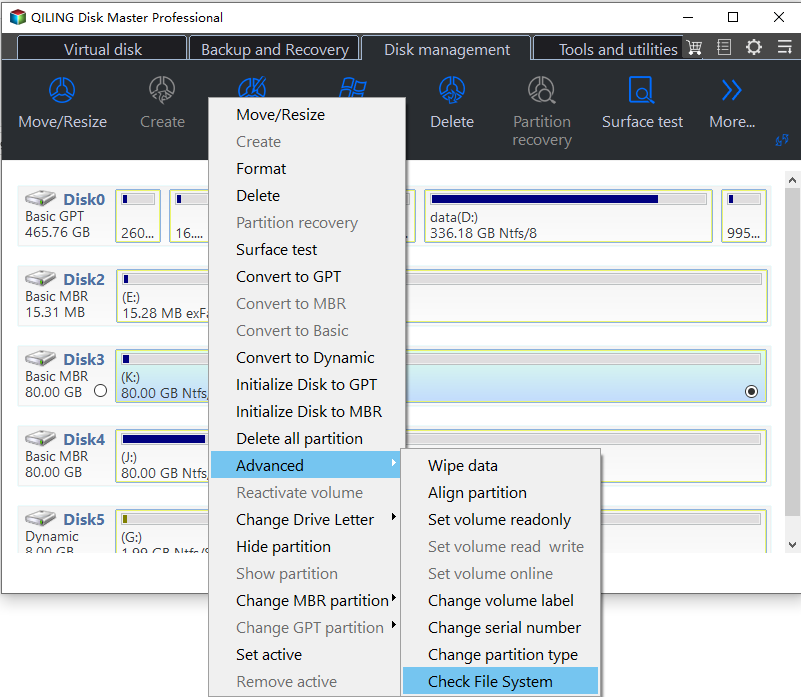
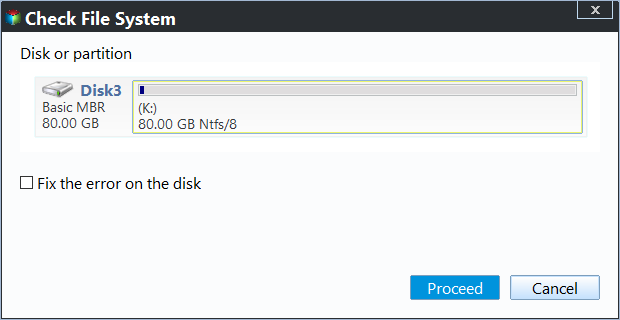
Step 2. Right-click the selected partition and choose Advanced > Check File System. For the first pass, leave Fix the error on the disk unchecked and click Proceed. If the check reports errors, finish a separate backup before repeating it with repair enabled. Keep the reader connected until the scan finishes.
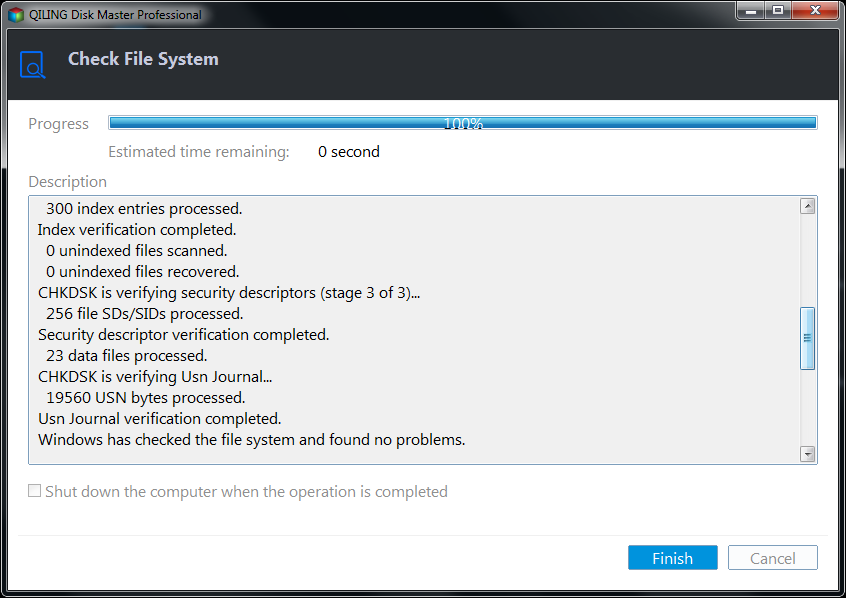
Step 3. Read the result, then open several copied files from the separate backup. If the card continues to disconnect or produces new errors, replace it rather than trusting another repair pass.
When should you replace the card?
Repeated read failures across two readers, recurring file-system errors after a fresh format, or files that change or vanish are strong reasons to retire the card. A normal scan only confirms that no checked logical error was found at that moment. Keep at least two copies of valuable photos, because removable flash can fail suddenly.
Conclusion
Back up first, eliminate reader problems, and run a non-destructive check before attempting repairs. Replace an unstable card even if one scan reports no errors.
Related Articles
- Check SD Card Health on Windows
Compare additional checks and warning signs before reusing a suspect card. - How to Format an SD Card
Choose a compatible format only after copying the files you need.
Products
Articles & Tutorials
- Data Recovery
- Data Backup
- File Recovery
- File Backup
- System Backup and Restore
- Disk and Partition Clone
- Technical articles
- Mobile articles
- Disk Master Help
- Windows Data Recovery Tutorials
- Windows Secure Delete Tutorials
- Windows Partition Management Tutorials
- Windows File Backup and Restore Tutorials
- Windows System Backup and Restore Tutorials
- Windows Disk Backup and Restore Tutorials
- Windows Clone Tutorials