How to Repair Bad Sectors on SD Card [Step-by-Step Guide]
If your SD card has bad sectors, you risk losing precious photos, videos, or music. To prevent this, it's essential to know how to repair bad sectors on your SD card. Fortunately, there are six fixes that can help, and learning about them can save your valuable data.
How Do You Know If Your SD Card Has a Bad Sector
Bad sectors on an SD card can manifest as a corrupted file system, file corruption, or data loss. They can also cause slow data transfer rates or frequent system crashes. The causes of bad sectors include physical damage to the SD card, such as drops or shocks, exposure to extreme temperatures or humidity, or overwriting the card too many times.
Symptoms:
- SD card shows empty or 0 bytes
- SD card shows bad sector error
- Windows cannot format the SD card
- SD cards cannot be read or written to
- Try using the SD card in a different device, and also check if the SD card is properly inserted into the slot. If it still doesn't work, try formatting the SD card.
- The computer needs the SD memory card to be formatted in order to access it.
A bad sector, also known as a bad block or a sector failure, occurs when a sector on a hard drive or solid-state drive (SSD) becomes damaged or corrupted. This can happen due to various reasons, such as physical shock, overheating, power surges, or software issues.
Causes:
- Poor-quality SD cards
- Virus infection in the media or computer
- SD card has completed its read/write cycle
- Multiple devices are using the same SD card
- Physical damage, dust, or moisture on the SD card
- Improper insertion and ejection of SD cards from devices
- A sudden system shutdown or power failure can occur while transferring files or viewing SD card data, resulting in data loss or corruption. This can be frustrating and potentially costly, especially if the data being transferred or viewed is important.
To fix bad sectors on an SD card, you can try the following methods: 1) Check the SD card for physical damage, 2) Use the built-in repair tool on your computer or phone, 3) Use a third-party software like Disk Drill or Qiling to scan and repair the bad sectors, 4) Format the SD card, or 5) Replace the SD card if none of the above methods work. It's also recommended to regularly back up your data to prevent data loss due to bad sectors. Additionally, using a high-quality SD card and handling it properly can also help prevent bad sectors from occurring in the first place.
How to Fix Bad Sectors on SD Card - 6 Efficient Fixes
This section helps you fix bad sectors on SD cards by applying various methods. Since multiple factors can cause bad sectors, you can try some of the fixes below to resolve the issue. The six fixes include: (insert fixes here).
- Fix 1. Use Qiling Disk Master
- Fix 2. Use Windows Error Checking Feature
- Fix 3. Run Windows Troubleshooter
- Fix 4. Assign a New Drive Letter to the SD Card
- Fix 5. Run CHKDSK Command
- Fix 6. Reinstall the Drivers
You can get a professional third-party tool to fix this part.
Fix 1. Use Qiling Disk Master
Qiling Disk Master Professional is a reliable tool that performs a surface test on SD cards to identify and fix bad sectors, compatible with all Windows versions, featuring a user-friendly interface that makes the process straightforward and easy to follow.
Step 1. Open Qiling Disk Master. Right-click the disk you want to check, and then click "Surface Test" to check the disk.
Step 2. The operation will be performed immediately and all bad sectors will be marked as red.
After using Qiling Disk Master, you have completed a surface test on your SD card, and it can also help repair bad sectors on an external hard drive.
Fix 2. Use Windows Error Checking Feature
Windows provides a built-To repair bad sectors on your SD card, you can use an error-checking feature that scans your SD card and fixes various problems. Simply follow a point-and-click process to identify and correct issues, including bad sectors, by following these detailed steps.
Step 1. Connect your SD card to your PC before launching Windows Explorer.
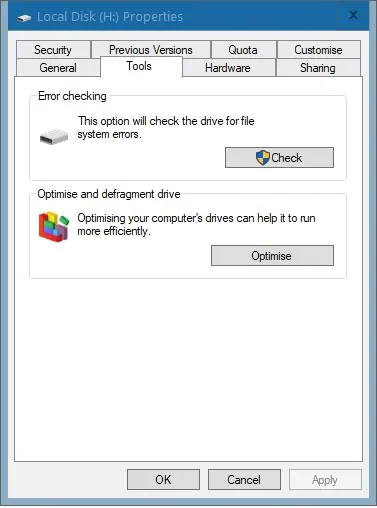
Step 2. To access the SD card's properties, locate the SD card icon, right-click on it, and select "Properties" from the context menu. Then, navigate to the "Tools" tab within the properties window.
Step 3. Click the "Check" button under the "Error Check" section to start repairing your SD card.
If your SD card is slow, click the following link to learn.
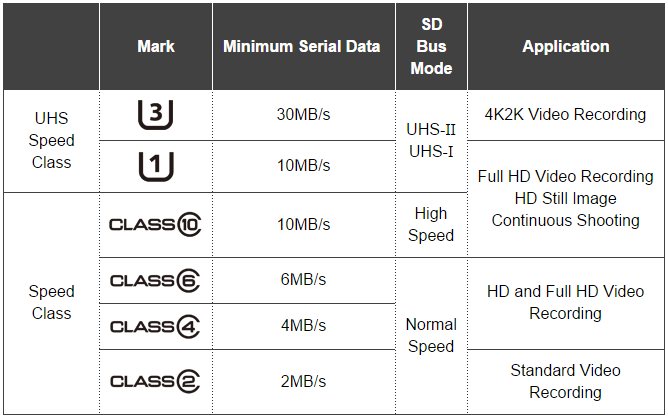
Your SD card may be slow due to various reasons, including physical wear and tear, corrupted data, incorrect formatting, insufficient power, and compatibility issues with your device. Over time, the physical components of your SD card can deteriorate, causing slower performance.
The SD card slows down due to various reasons such as overwriting, fragmented files, and corrupted data. This can be caused by frequent formatting, deleting files without emptying the recycle bin, and using the SD card for a long time without cleaning it.
Fix 3. Run Windows Troubleshooter
There may be some hardware-The issue of the SD card not being detected by Windows may be caused by a corrupted SD card or other related issues. To resolve this problem, you can run the built-in hardware troubleshooting feature provided by Windows. This feature can help identify and fix any issues with the SD card.
Step 1. Connect your SD card to your PC.
Step 2. Go to Start > Settings > Update & Security.
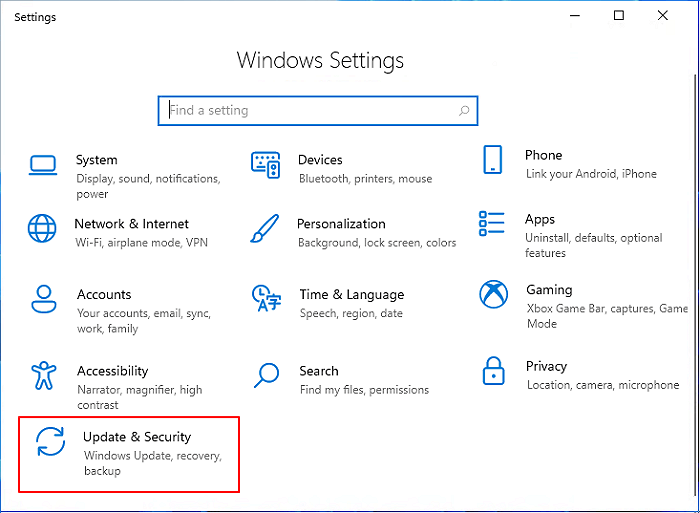
Step 3. Click Run the troubleshooter under the Hardware and Devices section.
Step 4. Wait for it to complete, and don't forget to restart your computer.
Step 5. Check if the issue has been removed.
Fix 4. Assign a New Drive Letter to the SD Card
To resolve issues with your SD card, check if its drive letter is assigned to another partition or disc. If so, change it manually in Disk Management to resolve the problem.
Step 1. To launch Disk Management, go to Start > Disk Management. Alternatively, you can type `diskmgmt.
Step 2. Right-click on the SD card.
Step 3. Select the "Change Drive Letter and Paths" option.

Step 4. Click "Change" in the next window.
Step 5. To assign a new drive letter to the target SD card, follow these steps: 1. Open the Disk Management console. 2.
You may also like the following links:
Fix 5. Run CHKDSK Command
The CHKDSK command checks the file system for logical and physical errors, and can repair errors on your storage device if used with the /f or /r parameter, which can help fix bad sectors on an SD card.
Step 1. To connect the target SD card to your Windows PC, insert the card into your computer's SD card reader or use a USB SD card reader. Once the card is recognized by your PC, note down the drive letter assigned to it, as this will be used later in the process.
Step 2. Type 'cmd' in the search box, then click on the Start icon. The Command Prompt will open, and you will see a black window with a blinking cursor.
Step 3. Right-click on Command Prompt and choose the Run as administrator option.
Step 4. In the command window, type `chkdsk e: /f /r/x` (replacing "e" with the drive letter of your SD card), and press Enter. This command will run a check on the SD card, fixing any errors it finds and recovering any lost space. The "/f" option forces the check to run, the "/r" option runs a thorough check, and the "/x" option forces the check to run even if the drive is in use.
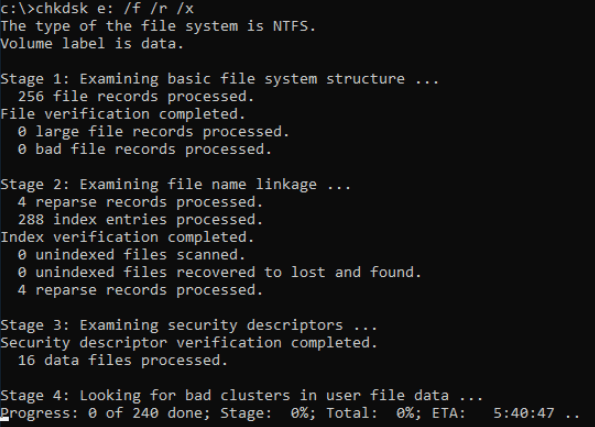
Step 5. Press the "Enter" key and wait for it to finish.
There are some links for you to learn more about CHKDSK commands:
Fix 6. Reinstall the Drivers
If you're experiencing issues with your PC, you can try reinstalling the driver to resolve the problem. To do this, follow these steps:
Step 1. Right-click on the "This PC" icon and click on "Manage."
Step 2. Click "Device Manager" on the left side.
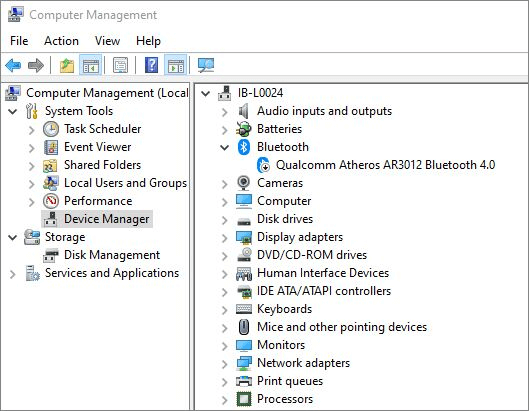
Step 3. Double-click Disk Drives. Right-click on your SD card.
Step 4. Click Uninstall and next "OK."
Step 5. Disconnect your SD card and restart the PC.
Conclusion
A bad sector on a storage device can disrupt normal use, making it crucial to know how to fix it. Fortunately, this guide provides a comprehensive solution to help repair bad sectors on an SD card, allowing you to efficiently restore its functionality. Among the fixes, Qiling Disk Master stands out as a user-friendly option, ideal for those with limited computing experience.
To resolve your disk partition issues, consider downloading Qiling Disk Master, a helpful tool that can assist you.
Repair Bad Sectors on SD Card FAQs
Some of you may also have questions about diagnosing bad sectors on your SD card, so let's dive into that.
1. What causes bad sectors on SD cards?
A computer may malfunction due to various reasons, including excessive usage, malware infection, incorrect usage, power outage, or physical damage to the device.
2. How to avoid bad sectors?
There are some suggestions for you:
- Use your device properly.
- Run virus cleaner software to remove malware and virus.
- Run the CHKDSK command on your drive regularly to get rid of soft bad sectors, which can eventually turn into hard bad sectors and cause data loss.
3. What is a bad sector?
A bad sector on a hard disk is a storage cluster that has physical damage, potentially caused by factors such as mechanical damage, manufacturing flaws, wear and tear, physical stress, power interruptions, or dust entry.
Related Articles
- How to Format an External Hard Drive Without Losing Data [2023 New]
- How to Delete OEM Partition in Windows 11/10/8/7 [2026 Updated]
- How to Reset Windows XP Passwords [Full Guide in 2026]
- Fixed: Windows Could Not Format A Partition on Disk 0 (Error Code 0x80070057)
- The Best Way to Set up SSD for OS Only
Learn the advantages of using SSD for Windows OS only and how to set up SSD for OS only with the help of reliable software Qiling Disk Master step by step. - Prolong the Lifespan of Your SSD with Several Ways
This tutorial will explain the definition of SSD lifespan and how to prolong Synology/Crucial SSD read write lifespan in both desktop and laptop in several simple ways.
Products
Articles & Tutorials
- Data Recovery
- Data Backup
- File Recovery
- File Backup
- System Backup and Restore
- Disk and Partition Clone
- Technical articles
- Mobile articles
- Disk Master Help
- Windows Data Recovery Tutorials
- Windows Secure Delete Tutorials
- Windows Partition Management Tutorials
- Windows File Backup and Restore Tutorials
- Windows System Backup and Restore Tutorials
- Windows Disk Backup and Restore Tutorials
- Windows Clone Tutorials