Difference Between SFC, CHKDSK, and DISM Windows 11
- 1. What Is SFC Scannow and How to Use It?
- 2. What Is CHKDSK and How to Use It?
- 3. What Is DISM and How to Run DISM Command?
- 4. What is the Difference Between SFC, CHKDSK, and DISM?
- 5. Extra Tip: Repair Disk Error with Free Disk Manager
Introduction
When your computer starts experiencing issues, such as faults, slowing down, or strange behavior, Windows 10's built-in diagnostic tools can help you identify the problem. CHKDSK, SFC, and DISM are three programs that examine the health of your hard drive and restore faulty data, each targeting different areas of your system and functioning slightly differently. These tools can help you troubleshoot and potentially resolve issues with your computer.
System utilities like DISM, SFC, and CHKDSK are available, but using any or all of them can be both time-consuming and ineffective in certain situations. This article will focus on the main differences between SFC, CHKDSK, and DISM Windows 11, ensuring you know which one to use and how to use it during times of need.
What Is SFC Scannow and How to Use It?
The sfc /scannow command invokes System File Checker to scan and repair corrupted or missing system files, which can help resolve issues caused by malware or other system problems.
The most common method to use the /scannow command is to type "sfc /scannow" in the Command Prompt, but there are other options available.
Windows DLL files, along with other essential Windows files, will be scanned by Sfc /scannow. If any issues are found, the files will be replaced.
Run SFC to Repair System Files
There is a risk that system files are damaged or missing on Windows 10, which can cause problems starting the laptop, unexpected errors, or functionalities not operating properly.
The System File Checker (SFC) is a command-line program in Windows 10 that checks the integrity of system files and replaces missing or damaged ones with functioning replacements.
To restore corrupt or damaged Windows System Files, use the SFC command.
Step 1: Using the Start button's right-click menu, choose Command Prompt (Admin).
Step 2: To run the System File Checker (SFC) tool in the Command Prompt window, enter the command line `sfc /scannow`, then press `Enter`. This will scan all protected system files and replace any corrupted or altered files with a known good copy from the cache.
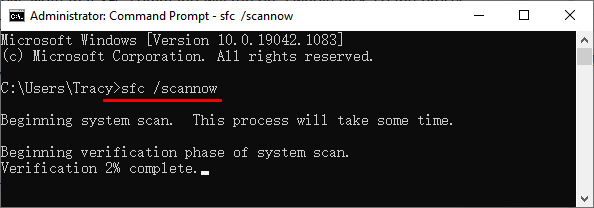
Notification: After sfc, a comma should be used.
Step 3: Run a System File Checker scan on Windows 10 to identify and correct any system file errors, persisting through the process to ensure complete correction.
Notification: A comprehensive system scan might take 10 to 20 minutes. One of the following outcomes will be shown when the SFC scan is complete.
- Windows Resource Protection discovered no integrity breaches (a good result).
- Windows Resource Protection was able to identify and fix any corrupt files discovered, ensuring the integrity and stability of the operating system.
- Windows Resource Protection detected some corrupt files, but was unable to repair them, which is a less desirable outcome.
What Is CHKDSK and How to Use It?
CHKDSK is a command that checks the logical integrity of the file system and repairs any faults found, available in all Windows versions and DOS.
CHKDSK can be executed directly from a Windows installation DVD. It creates and displays disk status using a specific partition file system, showing the current drive's status if run without arguments.
To access Check Disk, you can run it from an elevated Command Prompt window, where you can use various commands to check and repair faults on a specified partition. Running the Command Prompt as an administrator is recommended to utilize the command prompt check disk.
Step 1: To access the Command Prompt in Windows, press the Windows key + R simultaneously, type 'cmd' in the Run dialog box, and press Enter. This will open a command prompt where you can use commands to check your disk.
Note: If you don't know how to use the chkdsk command, enter `chkdsk /?` and press Enter to get its settings or switches.
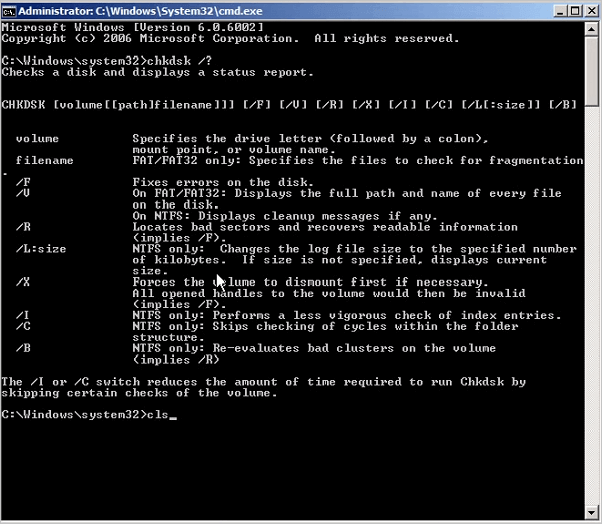
Important: If you can't launch your computer, try booting into recovery mode or using the original installation disc to access a command prompt, where you can check the disk for issues.
Step 2: To test the integrity of the E: drive, type the command "chkdsk e:" and press Enter. For a more thorough check, use "chkdsk e: /f" to identify and fix any issues found on the E: disk.
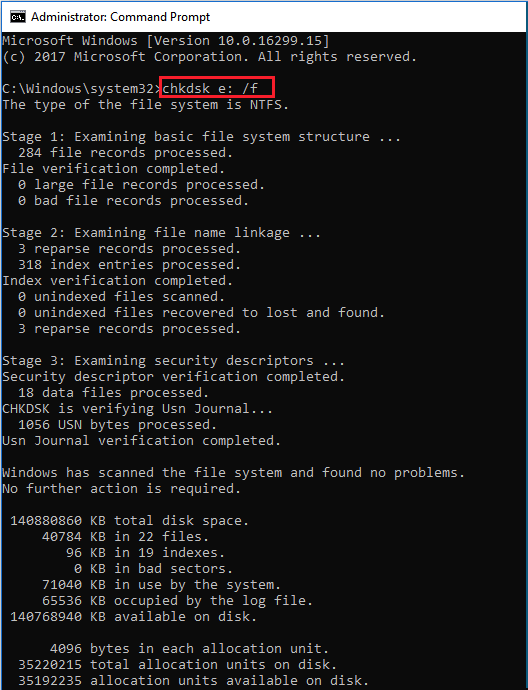
Step 3: Check disk cannot repair volumes currently in use. If this is the case, a popup will appear asking if you want to schedule the volume to be checked the next time the system is restarted, prompting you to click on Yes.
What Is DISM and How to Run DISM Command?
Microsoft's DISM (Deployment Image Servicing and Management) is a command-line utility that combines various Windows platform technologies into a single tool for servicing Windows images.
When the System File Checker (SFC) can't fix issues on a computer, the DISM utility is used to repair Component Store Corruption, which can prevent SFC from working correctly.
Keep in Mind: If SFC is corrupted and does not function properly for whatever reason, you can restore it using DISM. To enable DISM, you only need to do the steps outlined below.
Step 1: To start Command Prompt as an administrator, right-click on it and select "Run as administrator" from the context menu. This will open a new instance of Command Prompt with elevated privileges.
Important: Type the Following Command: DISM /Online /Cleanup-Image /RestoreHealth
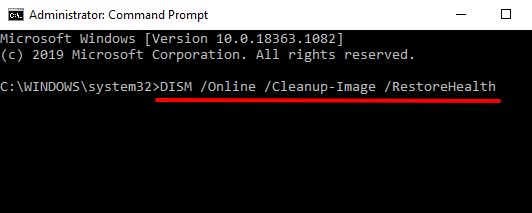
Step 2: To execute the command, press the Enter key.
Step 3:The scanning process can take anywhere from five to 10 minutes, sometimes longer, to complete.
Step 4: Once DISM has finished scanning your computer, restart your computer.
Notification: if the progress meter seems to be stuck at 20 percent, as this is a normal occurrence and requires patience.
What is the Difference Between SFC, CHKDSK, and DISM?
SFC analyzes system files, while CHKDSK searches the hard drive and DISM scans and patches faulty files in the Windows system image, allowing SFC to work properly. It's recommended to back up your disk partition before running DISM to avoid any potential issues.
To execute DISM, you'll need to start a Command Prompt with elevated privileges. This allows you to run the DISM command without any issues. You can use this feature to check if a picture is corrupted before making any changes, which can save you time and prevent unnecessary fixes.
Conclusion
Now that you know what CHKDSK, SFC, and DISM perform, you can try running one or more of these Windows troubleshooting tools to see if they can assist you in fixing your computer issues.
If you're still having issues, you can try a System Restore, which will revert your system to a previous point in time when everything was working properly. This will restore your system data, configurations, and applications to their previous state.
Extra Tip: Repair Disk Error with Free Disk Manager
The Qiling Partition Master Free Edition is a top-of-the-line choice for anyone seeking a sophisticated yet simple-to-use disk management application that's also completely free.
Qiling Partition Master provides a user-friendly interface with a disk map, a comprehensive user manual, and a variety of help resources to assist users in resolving disk-related issues, including utilizing the 'Check File System' feature.
Step 1. Click the target partition that has a problem.
Step 2. Choose "Advanced" > "Check File System".
Step 3. In the Check File System window, select the option to "Fix the error on the disk".
Step 4. Click "Proceed" to check errors on your partition.
Partition Master Free is a free version of the Partition Master software, which allows users to format, copy, resize, move, and manage disk partitions. It also supports detachable disks and hardware RAID, making it a comprehensive tool for managing disk partitions.
- Apply a hard disk health check.
- To make your external storage device usable again, you can try the following: If the device is physically damaged, consider replacing it. If it's not physically damaged, try using a data recovery software to scan the device for recoverable files.
- Small partitions can be merged into a larger one to free up space.
- Save all private and sensitive data by erasing everything from the hard drive, then format the hard drive to prevent any potential data recovery.
Related Articles
- Which Is The Best File System Format for (Bootable) USB/External Hard Drive?
- How to Wipe a Hard Drive in Windows XP Without CD
- How to Clone and Move System Reserved Partition to Another Drive or Another Disk Windows 11/10
- 20 Tips and Tricks on How to Speed Up Windows 11/10 in 2026
- Use Diskpart to Create Primary Partition or Volume on Windows [For Beginners]
If you're looking for a way to create a primary partition, this article provides two methods to achieve that. One method involves using Diskpart, which is a built-in tool that allows you to create a partition right away. - Best 3 DBAN Alternatives to Wipe Hard Drive - 2024 New
If you're looking for a better alternative to DBAN disk eraser, consider Qiling Disk Master. This tool offers a secure way to erase hard drives, SSDs, SD cards, and USB drives, providing a reliable alternative to DBAN.
Products
Articles & Tutorials
- Data Recovery
- Data Backup
- File Recovery
- File Backup
- System Backup and Restore
- Disk and Partition Clone
- Technical articles
- Mobile articles
- Disk Master Help
- Windows Data Recovery Tutorials
- Windows Secure Delete Tutorials
- Windows Partition Management Tutorials
- Windows File Backup and Restore Tutorials
- Windows System Backup and Restore Tutorials
- Windows Disk Backup and Restore Tutorials
- Windows Clone Tutorials