Run SD Card Speed Test on Windows 10/11 [Easy Tutorial]
You might know that SD cards are popular, but do you know which one has the fastest speed? To find out, you can test your SD card speed with reliable tools on this page.
SD cards have different speed classes, and understanding the speed of your SD card is crucial for optimal performance. The speed class of an SD card is a measure of how quickly it can read and write data, and it's essential for tasks like video recording, photography, and gaming. By knowing the speed of your SD card, you can make a better choice when selecting a new one or upgrading your existing one, ensuring that it can keep up with your device's demands.
Why Run SD Card Speed Test
The four main SD card categories - SD, SDHC, SDXC, and SDUC - all serve the same purpose of data storage, but differ in their characteristics. When choosing the right SD card, the primary factor to consider is speed. The reasons behind prioritizing speed include:
- Better match with your device: While the fastest SD card may seem appealing, it's not always the best choice. What's more important is ensuring your device, whether it's a camera or an Android device, can take full advantage of the SD card's speed. This means choosing an SD card that's compatible with your device and meets its specific requirements, rather than just opting for the fastest one available.
- Test if the SD card is fake: You might have encountered fake or mislabeled SD cards that don't live up to their claimed capacity and speed.
You can learn more about an SD card by following the link below:
To make full use of your SD card, it is recommended to test its speed, which can be done on Windows 11/10/8/7 using various methods.
How to Run SD Card Speed Test on Windows 10/11- 2 Safe Ways
To test the SD card speed, you can use a third-party tool like CrystalDiskMark or a built-in way by going to Settings > Storage > SD card > SD card speed test. The third-party tool provides you a detailed report of the card's read and write speeds, while the built-in method will simply show you the card's speed in megabytes per second.
Qiling Disk Master is a tool that allows you to measure the peak speed of an SD card. To use it, first, download and install the software. Then, insert the SD card into your computer and launch Qiling Disk Master.
Run SD Card Speed Test via Qiling Disk Master - Easy
Testing the speed of an SD card on a Windows PC is a straightforward process, thanks to the "Disk Mark" feature in Qiling Disk Master. With just a few clicks, you can get detailed speed results, including I/O, Delay, and sequential and random read/write speeds, without needing to type any commands.
You can learn more information from the list below:
- Supported system: Windows 11/10/8/7 and Windows XP/Vista
- Target users: All users (Beginners and experienced users)
- Interface: Rather clear
- Operation difficulty: Easy
To run an SD card speed test using Qiling Disk Master, start by installing the software on your computer. Once installed, insert the SD card you want to test into your computer's card reader.
Step 1. Launch Qiling Disk Master and click the download button to activate the Surface test feature under the Disk management tab page.
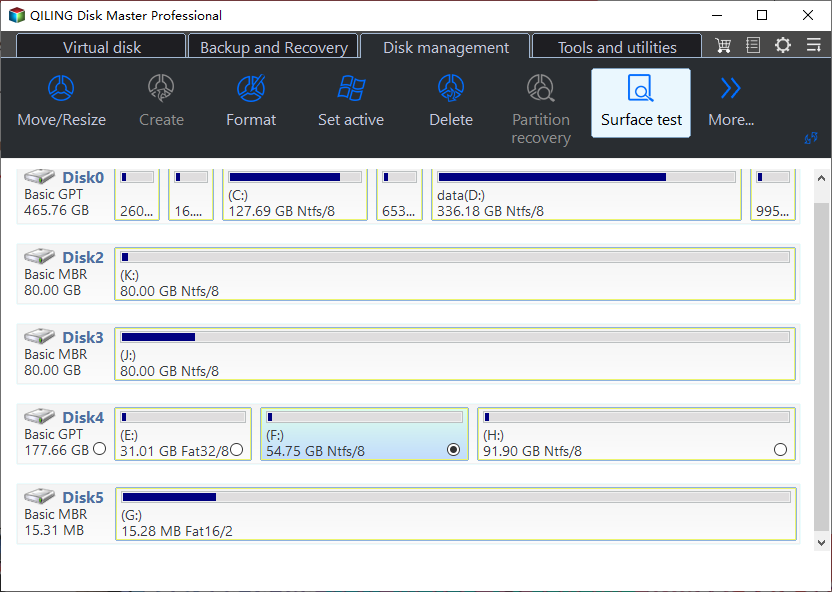
Step 2. To select the target drive, test data, and block size, click on the list view.
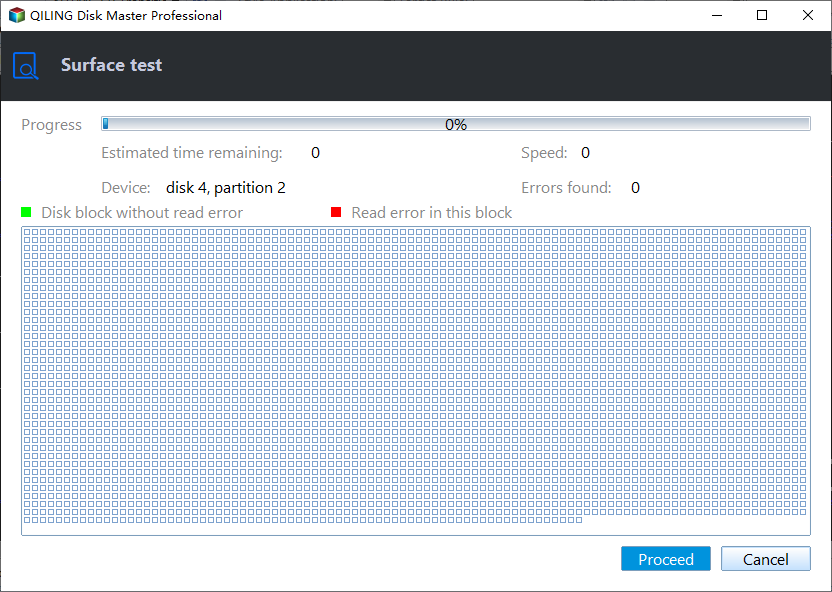
Step 3. Once everything is configured, click "Proceed" to begin the disk test. This will display the sequential read speed, I/O, and Delay data.

Now, let's see what else this tool can do to help.
Key features of Qiling Disk Master:
- Clone SD card
- Format SD card on Windows 10
- Repair bad sectors on SD card
- Check SSD health on Windows 10
- Test USB/External hard drives' speed
- Fix the "RAW SD card won't format" error
- Check SSD temperature on Windows 10
- Run external hard drive speed test
This tool can help you manage your SD card, including formatting/wiping it and merging/moving/partitions. Download it to try.
Run SD Card Speed Test via Task Manager - Limited Data
Task Manager is also a free SD card speed test tool for Windows, but it can't show the peak data of your SD card. To use it, you can press Ctrl + Shift + Esc to open Task Manager, click on the "Performance" tab, and then click on "SD card" under the "Disk" section to test the speed.
Step 1. Search "Task Manager" in the search box and launch it.
Step 2. Locate your SD card on the left panel in the "Performance" section.
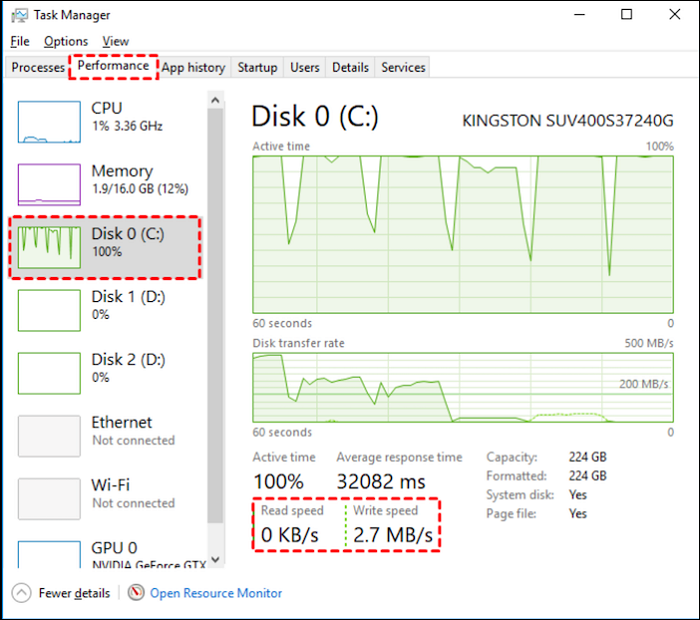
The data shown by Task Manager fluctuates due to its real-time display, so it's recommended to use Qiling Disk Master instead, which provides a more accurate reading of your SD card's speed.
Conclusion
SD cards are widely used across various operating systems, including Android, Linux, Mac, and Windows. To ensure data safety, it's crucial to identify genuine SD cards by testing their read/write speeds.
This guide shows two ways to check SD card speed. You can check it in Task Manager, which provides you basic results, or use Qiling Disk Master, which will provide more accurate and comprehensive speed display results.
There are some other popular topics below that you might enjoy. Click on them to explore more!
SD Card Speed Test FAQs
This section will address some frequently asked questions and answers about checking SD card speed in Windows devices. It aims to provide helpful information to users who want to know how to check the speed of their SD cards in Windows devices.
1. Is there an app to test SD card speed?
Qiling Disk Master is a standout app for testing SD card speed, allowing you to easily test the speed of an SD card, USB, or other external hard drives with simple steps.
Step 1. Launch Qiling Disk Master on a Windows PC and navigate to the "Discovery" section.
Step 2. Click "Disk Mark" and choose the target SD card.
Step 3. Click the "Refresh" button, and then you can see the detailed speed.
2. How fast is a 1TB SD card?
The read and write speeds of a 1TB UHS SDXC memory card vary by brand, but for example, the SanDisk 1TB UHS SDXC card supports read speeds of up to 200 MB/s and write speeds of up to 140 MB/s.
3. Which SD card class is the fastest?
UHS Speed Class and Video Speed Class are faster than regular flash cards, with Video Speed Class designed for high video resolutions, and U3-rated cards required for high-end camera features like high-resolution video recording.
Related Articles
- Format EXT4 on Windows 10,8,7 with Best EXT4 Format Freeware
- [Fixed] 'Current Read-Only State Yes' on USB Flash Drive/SD Card
- Fixed: Default Boot Device Missing or Boot Failed on Windows 10/11
- 4 Quick Fixes to Remove Your Login Password in Windows 11🚀
- Fix: Windows 11 'Windows Cannot be Installed to This Disk MBR'
Here's a tutorial to fix Windows 11 'Windows cannot be installed to this disk MBR' error in 3 methods. - Convert GPT to MBR During Windows 7 Install Without Data Loss
Do you have any idea about how to convert GPT to MBR during Windows 7 install? This post shows you how to do it.
Products
Articles & Tutorials
- Data Recovery
- Data Backup
- File Recovery
- File Backup
- System Backup and Restore
- Disk and Partition Clone
- Technical articles
- Mobile articles
- Disk Master Help
- Windows Data Recovery Tutorials
- Windows Secure Delete Tutorials
- Windows Partition Management Tutorials
- Windows File Backup and Restore Tutorials
- Windows System Backup and Restore Tutorials
- Windows Disk Backup and Restore Tutorials
- Windows Clone Tutorials