How to Fix SSD Slow Write Speed on Windows 10/11 [Full Guide]
If you're experiencing slow write speeds and other random errors with your SSD, the steps below can help. In this guide, you'll learn about the causes of SSD slowdowns and discover some quick and easy solutions to resolve the issue.
First, let's figure out why our SSDs get slowly gradually.
Why SSD Gets Slow
Many users experience slow write speeds with their Samsung SSDs, a common issue affecting old or 100% filled drives, despite the benefits of solid-state drives in improving computer performance.
Running SSD performance tests regularly can help identify errors in a timely manner. Slow SSD performance on Windows 10/11 or other operating systems may be caused by various factors, including.
- Low RAM
- AHCI mode is disabled
- PC settings are incorrect
- SSD space runs out entirely
- A virus has infected your files in the SSD
- The boot sequence is incorrectly configured
- The TRIM command is missing or disabled
- The BIOS/firmware of your device or drive is outdated
Now that you know the leading causes of SDD slow write speeds, you can refer to the article's next section to learn how to test and fix the slowdowns.
See Also:
How to Test SSD Write Speed
To verify your suspicions about SSD slow write speeds causing your computer to run slowly, you can use the Command Prompt. You'll need to type a few lines of commands, which may be tricky if you're new to this. However, this will help you understand if your SSD is indeed the culprit behind your computer's sluggish performance.
Using a third-You can use Qiling Disk Master, a user-friendly party app, for speed testing, as it's easier to use even if you're not familiar with the commands.
The Qiling Disk Master's "Disk Mark" feature allows for easy SSD write speed checks, making it accessible even to beginners. Its user-friendly interface enables effective drive management, even for those new to the software.
The software is great at resolving SSD speed issues with minimal effort, and it also has a quick partition feature to boost computer performance by addressing partition or low disk space problems.
Qiling Disk Master is your one-The app helps identify drive issues and provides a solution, allowing you to immediately check for file system errors and bad sectors, then correct them to get your device back to working properly.
So, what are you waiting for? Download it and use it now.
How to Fix SSD Slow Write Speed on Windows 10/11 - Ten Fixes
Here are 10 fixes to address slow SSD speed problems:
- Fix 1. 4K Align the Slow SSD
- Fix 2. Make Sure the TRIM Command Is Running
- Fix 3. Enable AHCI Mode
- Fix 4. Disable Onboard VGA
- Fix 5. Choose a High-Performance Mode
- Fix 6. Update the Firmware of the SSD
- Fix 7. Configure Correct Boot Order
- Fix 8. Free Up Hard Drive Space
- Fix 9. Check Your SATA Port
- Fix 10. Check Your SATA Cable
If you're experiencing slow SSD write speeds, you can try the following fixes: check for disk errors, disable and re-enable the drive, update the SSD firmware, adjust the AHCI settings, check for outdated drivers, and consider upgrading to a faster SSD. If you know the specific issue affecting your SSD write speed, you can skip to that fix and see how to proceed. If not, try going through each individually to see if it works.
Fix 1. 4K Align the Slow SSD
4K Aligning your SSD can improve its performance by reducing fragmentation, which can slow it down. This can be done using Qiling Disk Master, which has a feature to speed up your SSD by aligning it to 4K.
Here is how to:
Step 1. Go to "Disk management" and choose "Move/resize".
Step 2. Select the disk you want to align and click the "Proceed" button.
To efficiently fix your slow SSD, try Qiling Disk Master now, which can fix the issue and improve SSD read and write speed.
Fix 2. Make Sure the TRIM Command Is Running
If the TRIM command is not running, your SSD may have slow write speeds. To resolve this, you can run the TRIM command on your system. This can be done by enabling TRIM in the BIOS settings or by running a TRIM command in the command prompt.
Step 1. Open the "Command Prompt" as an administrator.
Step 2. To check if TRIM is enabled on your Windows system, open the Command Prompt and type "fsutil behavior query DisableDeleteNotify" and press Enter. A result of 0 indicates that TRIM is running, while a result of 1 means it is disabled.
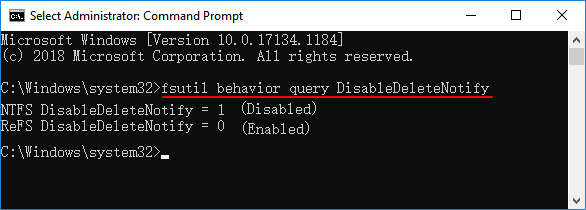
Step 3. If the result is "1", type the command "fsutil behavior set DisableDeleteNotify 0" and press Enter.
You have successfully enabled the TRIM command on your device.
Fix 3. Enable AHCI Mode
AHCI enables SSDs to operate faster than IDE mode, making it necessary to enable it for optimal SSD write speeds.
Here's how you can do it using the Command Prompt:
Step 1. Run "Command Prompt" as an administrator.
Step 2. Type "bcdedit /set {current} safeboot minimal" and press "Enter."
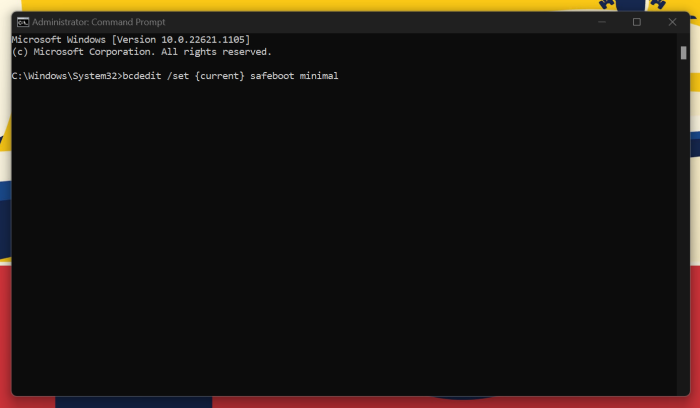
Step 3. In BIOS, enable the "AHCI" mode.
Step 4. Save the changes you have made and exit the BIOS.
Step 5. To delete the safeboot value from the current operating system, enter the command "bcdedit /deletevalue {current} safeboot" in the Command Prompt terminal while in safe mode.
Step 6. Restart your system for automatic AHCI installation.
You may also like:
Fix 4. Disable Onboard VGA
If your SSD write speed is slow, it may be due to your onboard VGA being enabled. To resolve this issue, follow these instructions.
Step 1. Open the "BIOS" on your computer after restarting it.

Step 2. Go to the "Advance BIOS" section and search for "Onboard VGA" to access and configure the settings for the onboard graphics card.
Step 3. Choose "Disable."
Fix 5. Choose a High-Performance Mode
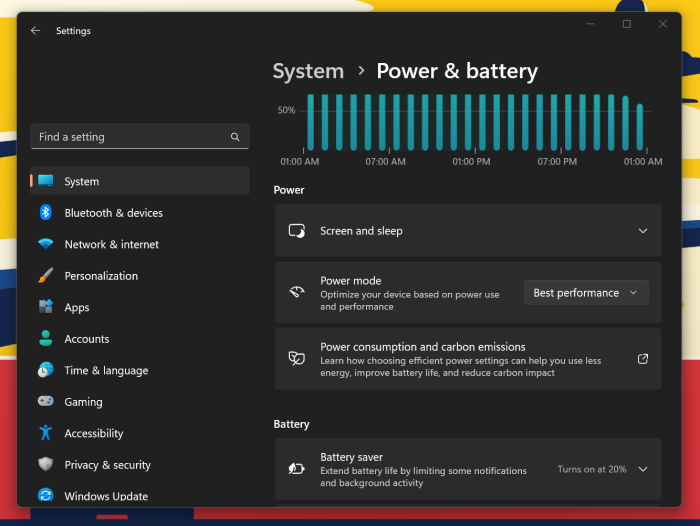
If your SSD isn't getting sufficient power, it may not work properly. To ensure it runs at its best capacity, choose a high-performance mode.
Step 1. In the "Start" menu and search "power."
Step 2. Choose the "Power and Sleep" option.
Step 3. Now choose the "Additional power Settings" option.
Step 4. Choose the "Power mode" option and select "Best Performance."
Fix 6. Update the Firmware of the SSD
Is your SSD's firmware up-Updating the firmware on your SSD is crucial to ensure optimal performance and prevent potential issues, as new bugs and issues can be found and fixed, making it an essential step in maintaining your drive's health and longevity.
To update the firmware of your SSD, you need to first check the current firmware version and then download the latest version from the manufacturer's website. This can help improve the SSD's performance.
Fix 7. Configure Correct Boot Order
An incorrectly configured boot sequence may also cause a slow SSD drive. The computer will operate slowly if the hard drive receives priority over the SSD. Follow the steps given below to configure the correct boot order.
Step 1. Restart and open the "BIOS" on your device.
Step 2. Select "System Configuration" and then "Boot Options."
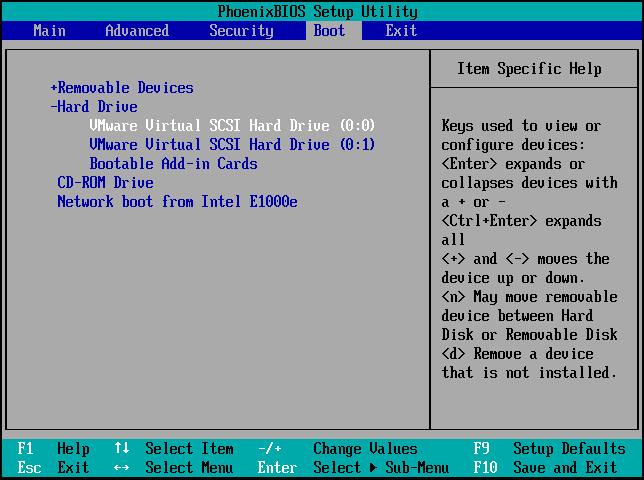
Step 3. Now you can make desired changes to the boot order.
Fix 8. Free Up Space on SSD
Clutter on your drive can slow down the SSD write speed, but don't worry, it's easy to fix with the Qiling Disk Master tool.
You can find the information on how to free up hard drive space by following the link below.
To free up hard drive space in Windows 10/11, start by deleting unnecessary files and documents. Then, use the Disk Cleanup tool to remove temporary files, system files, and other items you don't need.
If your computer is cluttered with too many applications or games, or if you're running low on storage space, you're not alone. Many people struggle with the same issue, and it's often a sign that it's time to clean up and free up some space. Whether you're looking to make room for new software, or simply want to declutter your digital life, there are ways to tackle the problem and get your computer running smoothly again.
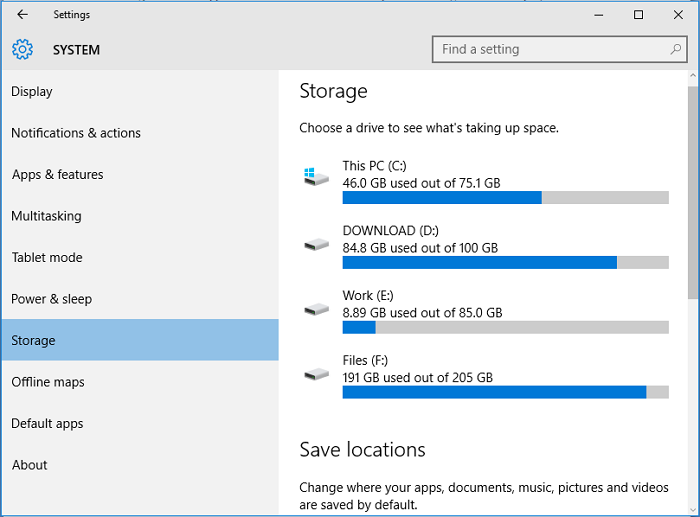
Fix 9. Check Your SATA Port
Most motherboards come with SATA 3Gbps/SATA 6Gbps ports, which significantly impact the performance of your SSD. To determine which type of SATA port you have, it's recommended to consult your motherboard's manual, as it can be challenging to visually identify the port.
Intel SATA controllers are commonly found on motherboards with Intel chipsets. It's recommended to use the fastest available SATA port, usually labeled as such, to achieve optimal speeds.
- Notice:
- M.2 SSDs are becoming popular, offering high performance with the NVME standard. Ensure your motherboard supports M.2 SSDs to take advantage of this technology.
Fix 10. Check Your SATA Cable
The condition of a SATA cable, whether it's torn or of poor quality, can affect the SSD's write speed. It's a good idea to check the cable's condition and only purchase a SATA cable from a reputable manufacturer to ensure optimal performance.
To troubleshoot the issue, ensure the cable is properly slotted and securely connected, and try re-seating it for a snug fit.
The ten solutions provided above should have helped resolve your issue.
Conclusion
A slow SSD can be frustrating, especially when gaming or performing important tasks. If not addressed, it may lead to data loss and permanent damage to the SSD.
To fix a slow SSD, check its status regularly using Qiling Disk Master, which can also speed up slow SSDs and is compatible with brands other than Samsung and Sandisk. If you're experiencing slow write speeds on a Toshiba SSD, the solutions provided in this article may be helpful.
SSD Slow Write Speed FAQs
With the ten fantastic solutions offered in the article, fixing the SSD's slow write speed has become simpler and easier.
If your SSD is not functioning properly, you may be able to resolve the issue using the solutions provided. If you still have questions about the slow write speed, you can refer to the FAQs below for further assistance.
1. What is a good SSD write speed?
The speed at which a file can be written to a drive is measured as write speed, with a standard SSD capable of reading and writing at 200-500 MB/s, and some reaching speeds of thousands of MB/s, making anything above 300 MB/s a great speed.
2. Why is my disk writing so slow?
Your disk writing may be slow due to various reasons such as low RAM, outdated BIOS firmware, insufficient disk space, a virus-infected disk, or disabled TRIM command. Fortunately, you can quickly identify and resolve the issue using a third-party tool like Qiling Disk Master.
3. How do I fix slow write speed on SSD?
Check the SSD's available space, enable TRIM command, check SATA connection and cable, and update firmware and drivers to resolve the slow write speed issue.
Related Articles
- 4 Proven Ways to Fix Zsh Permission Denied in Terminal on macOS Ventura/Monterey
- 2023 Guide | How to Turn On Offline Sync Google Drive/Google Docs
- Step-by-Step Guide to Backup Drivers Windows 10 [Powerful Solutions]
- How Long Does It Take to Factory Reset A PC
- Full Guide: Move Partition Gparted in Windows 11/10/8/7 [Step-by-Step Guide]
You can move a partition using Gparted, a powerful partition editor. While it's essential to understand why partition movement is necessary, this article provides techniques on how to easily use the right tools to move partitions in your Windows computer, utilizing Gparted to achieve this. - Msvcr100.dll Is Missing? Here Is How to Fix It [2023 Updated]
Are you receiving an error where it says Msvcr100.dll Is Missing? Then follow this easy guide to download the DLL and replace it on a working PC. You can also install the redistributable again to fix the problem or copy from a working PC of similar specification.
Products
Articles & Tutorials
- Data Recovery
- Data Backup
- File Recovery
- File Backup
- System Backup and Restore
- Disk and Partition Clone
- Technical articles
- Mobile articles
- Disk Master Help
- Windows Data Recovery Tutorials
- Windows Secure Delete Tutorials
- Windows Partition Management Tutorials
- Windows File Backup and Restore Tutorials
- Windows System Backup and Restore Tutorials
- Windows Disk Backup and Restore Tutorials
- Windows Clone Tutorials