What Is SSD and How Do I Set Up and Make Use of SSD [Beginners' Guide]
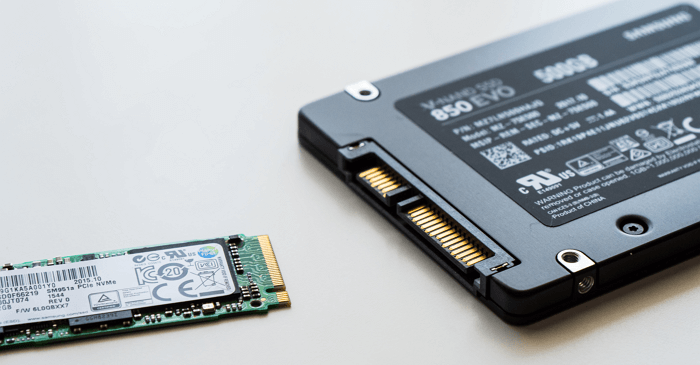
SSD (Solid-State Drive) has become a popular disk storage device for both Windows and Mac users. But what exactly is an SSD, and what are its best uses? This guide will help you understand what an SSD is, what it's best for, and provide tips on selecting and setting up an SSD for different purposes, whether you're looking to upgrade your computer's storage or simply want to learn more about this versatile storage solution.
In this article, you'll learn:
- What Is SSD, Types, and Price
- What Is SSD Best for
- To set up a Solid-State Drive (SSD) in Windows, start by installing it in your system, making sure to secure it properly. Next, initialize the SSD by opening the Disk Management tool, selecting the SSD, and clicking "Initialize.
- SSD VS HDD, What's the Difference Between SSD and HDD
- Tutorial: How to Migrate OS from HDD to SSD
- Bonus Tips: SSD Cleanup and Optimization
- Fix All Types of SSD Physical and Logical Errors
What Is SSD, Types, and Price
SSD, known as Solid-Solid-state drive (SSD) is a type of storage device that uses integrated circuit assemblies to store data persistently, typically with flash memory, serving as secondary storage in the computer storage hierarchy.
The Internet is the global system of interconnected computer networks that use the standard Internet Protocol Suite (TCP/IP) to communicate with each other. It is a network of networks that interconnects millions of computers and users worldwide with a wide range of hardware platforms, operating systems, and technical standards, allowing users to access, share, and transmit information using various applications and services.
The SSD is a storage device that uses flash memory and integrated circuit assemblies to store files and data persistently, designed as a secondary storage device for computers, and has become more popular than HDDs.
In Q1 2022, HDDs were shipped at 64.17 million, while SSDs reached 99.438 million units, according to a Tomshardware.com survey. The market share of SSDs shipped by different manufacturers is also available, showing the dominance of certain brands in the SSD market.
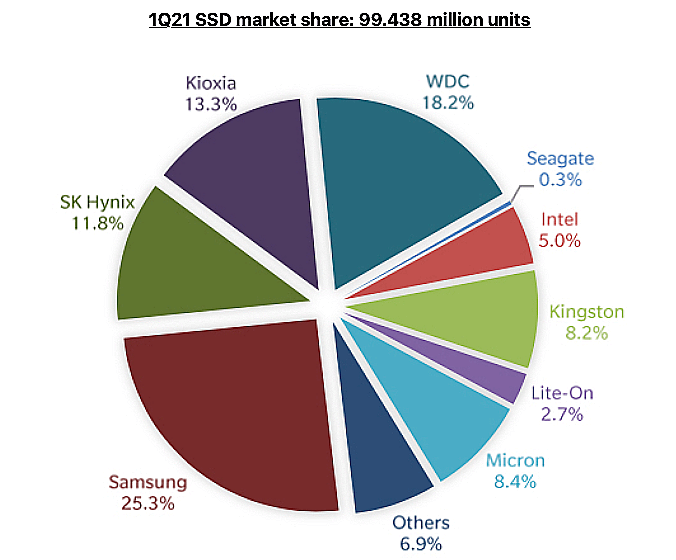
(Image credit: Trendfocus/StorageNewsletter)
So what is SSD? Do you know about it? Follow to learn more details about it.
SSD Price:
- 128GB - $38 or more
- 250GB: $40 - $70
- 500GB: $50 - $90
- 1TB: $90 - $140
- 2TB: $129 - $200+
SSD Interface Types:
- SATA Interface
- PCI-E Interface
- mSATA Interface
- M.2 Interface
- USB interface
SSD History: Introduced by SanDisk in 1991
Popular SSD Types:
- 1TB or 2TB SSDs are sufficient for most users, with 1TB being ideal for operating systems and gaming, while 2TB is better suited for those who need to store large media collections.
- Most Widely Used SSD: SATA SSD
- Latest SSD: M.2 NVMe SSD
- Best SSD Brands: Samsung
- Best Portable SSD: Samsung, WD My Passport, and SanDisk Extreme
The best SSD in 2022 can be found by following this link, where you can get the desired SSD disk.
You May Also Like:
The main differences between HDD (Hard Disk Drive) and SSD (Solid State Drive) are their storage technology, speed, and durability. HDDs use physical disks and mechanical heads to read and write data, while SSDs use flash memory to store data, making them faster and more resistant to physical stress. This means that SSDs are generally a better choice for gaming computers, as they can load games and levels more quickly and provide a smoother gaming experience.
What Is SSD Best for
When deciding whether to use a Solid-State Drive (SSD) on your computer, consider the following factors: If you're a gamer, video editor, or heavy user who needs quick loading times and fast performance, an SSD is a great choice. Additionally, if you have a large collection of files, photos, or videos, a larger storage capacity SSD (e.g., 1TB or more) may be necessary to store them.
When Do You Need SSD:
- Speed up the computer from startup.
- Increase computer reading and writing speed.
- Optimize gaming experience with higher smoothness.
- Running demanding applications and games, cropping videos, and adding video effects are just a few examples of the types of tasks that require a powerful computer.
256GB, 500GB,1TB, or 2TB SSDs, Which to Select?
The most popular SSDs on the market come in 4 main storage capacities, including 256GB, 500GB, 1TB, and 2TB.
When selecting the right storage capacity for an SSD, consider the following factors: the type of user you are (casual vs. heavy user), the number of files and programs you need to store, and the amount of free space you have available on your computer. A general rule of thumb is to choose an SSD with at least 256GB of storage for casual users, while heavy users may need 512GB or more.
- 250GB - To install or migrate the operating system to SSD only.
- 500GB - Installing an operating system or migrating big apps and games to a solid-state drive (SSD) can significantly improve the performance and speed of a computer. This process involves transferring the operating system and large applications from a traditional hard drive to the faster SSD, allowing for quicker loading times and smoother overall performance.
- 1TB - To replace the OS drive and move apps to SSD.
- 2TB - To run demanding games and large applications like Adobe Premiere and After Effects smoothly, an SSD (solid-state drive) is recommended.
You May Also Like:
How to Install, Initialize and Partition SSD in Windows [Set Up SSD]
Before selecting an SSD, ensure your computer has a compatible interface to install the SSD. Once you've chosen a favored SSD, follow the tutorial guidelines to install it and set it up for installing Windows or gaming.
#Guide 1. Install SSD
Follow the steps below to install the new SSD safely.
Step 1.To open the back case of your computer or laptop, start by locating all the screws that hold the case together. Remove each screw using a screwdriver, taking care not to strip the screws.
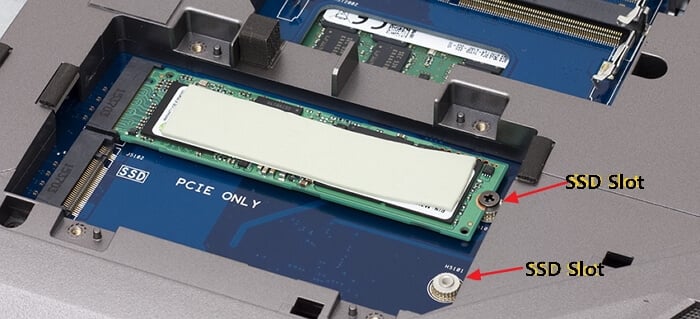
Step 2. Find the SSD slot or SATA SSD connection cables.
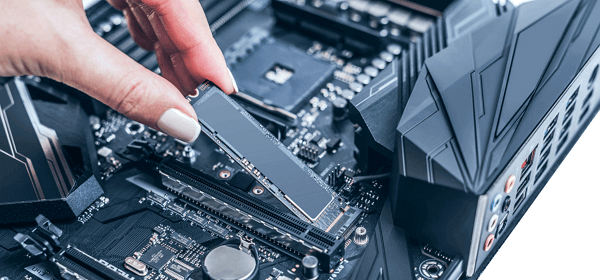
Step 3. Insert the SSD to the SSD slot or connect SSD to the computer via the connection cables.
Insert SSD to SSD slot:
Install SSD via connection cables:
Step 4. Reboot the computer.
Guide 2. Set Up SSD - Initialize and Partition SSD
To set up your SSD for specific purposes, you'll need to initialize and partition it, which can be done by following the steps outlined in the provided text.
To Initialize SSD:
If an SSD or HDD disk is not initialized, you'll meet Disk Unknown, Not Initialized, or SSD not showing up error. Here are the steps:
Step 1. Right-click the Windows icon and click "Disk Management".
Step 2. Let the Disk Management open, right-click the SSD and select "Initialize Disk".
Step 3. Set the disk type for SSD - "GPT" or "MBR".
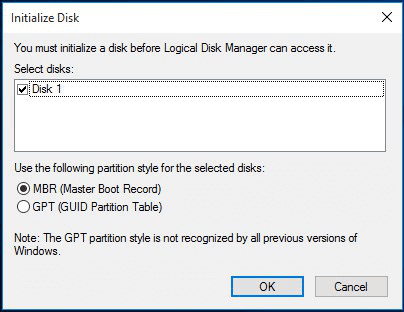
- GPT - For installing new Windows OS or gaming.
- MBR - To use SSD as a data disk.
To Partition SSD:
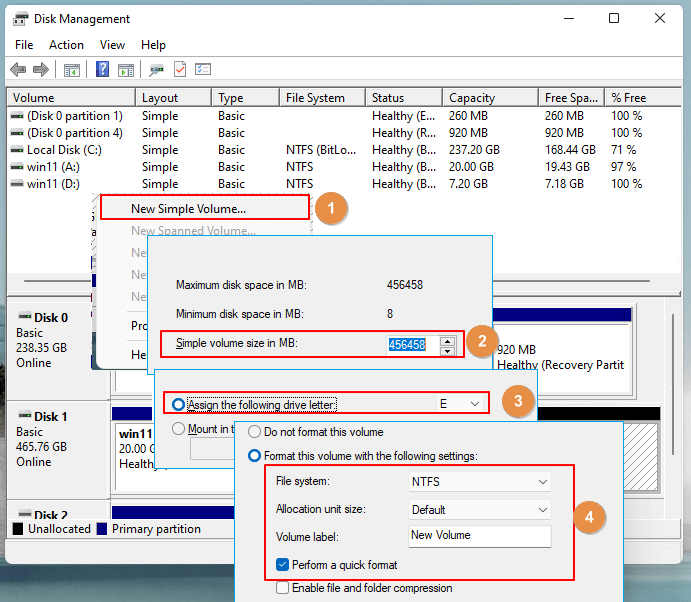
To set up a Solid-State Drive (SSD) for specific usage, you'll need to partition the SSD using Disk Management, following the steps shown in the provided instructions.
Open Disk Management > Right-To create a new simple volume on an unallocated space in your SSD, follow these steps: click on the unallocated space, select "New Simple Volume..." from the context menu, set up the drive letter, file system format, and volume size, and then click "Finish".
Complete Guide:
Aside from using disk management, you can also apply third-party disk partitioning software for help. For a more detailed guide, you can refer to a Complete Guide to Install SATA, M.2 NVMe SSD on your computer. This guide will walk you through the process step by step.
SSD VS HDD, What's the Difference Between SSD and HDD?
Unlike Solid State Drives (SSDs), Hard Disk Drives (HDDs) are older but still widely used globally. The main difference between the two lies in their storage technology, with HDDs using physical disks and SSDs relying on flash memory. When it comes to Windows operating systems, both options have their advantages, but SSDs are generally preferred for their faster performance, lower power consumption, and increased durability. However, HDDs are often more affordable and offer higher storage capacities, making them a popular choice for users who need to store large amounts of data. Ultimately, the choice between an HDD and an SSD for Windows depends on individual needs and priorities.
To determine whether a Solid State Drive (SSD) or a Hard Disk Drive (HDD) is better for you, consider the following comparison: SSDs offer faster read and write speeds, lower latency, and improved durability, making them ideal for applications that require quick data access, such as gaming and video editing. In contrast, HDDs provide larger storage capacities at a lower cost per gigabyte, making them suitable for storing large amounts of data, such as video libraries and music collections. Ultimately, the choice between an SSD and an HDD depends on your specific needs and preferences.
| Comparison | SSD | HDD |
|---|---|---|
| Price |
|
|
| Reading & Writing Speed |
|
|
| Capacity |
|
|
| Interface Type |
|
|
| Pros & Cons |
|
|
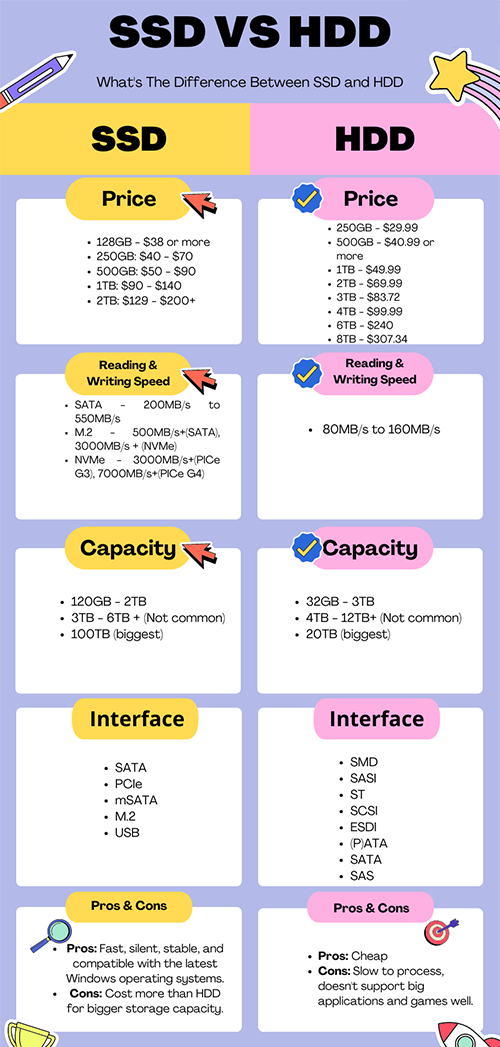
SSDs outperform traditional storage devices in reading and writing data, making them a great choice for installing the latest Windows on an SSD or optimizing the gaming experience with an SSD.
BONUS TIP:
To understand the differences between SSDs and HDDs, check out this link: SSD VS HDD, Which Is Better [Differences and Comparison]. You'll learn that SSDs outperform HDDs in terms of reading and writing speed, making them ideal for tasks like loading Windows, launching applications, and gaming.
Tutorial: How to Migrate OS from HDD to SSD
If you're planning to replace your computer's hard drive disk (HDD) with a solid-state drive (SSD), you'll likely have two main needs:
- #1. Clone HDD to SSD
- #2. Migrate OS to SSD
Professional partition manager software, such as Qiling Partition Master, can assist with migrating the operating system and cloning partitions, making it easier to achieve these tasks.
#1. Clone HDD to SSD
You can use the Clone feature in Qiling Partition Master to completely replace the OS HDD with a new SSD, moving everything to the new drive.
Step 1. Select the source disk.
Right-To copy or clone a disk, click on the disk you want to copy or clone and then select the "Clone" option.
Step 2. Select the target disk.
Select the desired hard drive or solid-state drive as the destination and click "Next" to proceed.
Step 3. You can view the disk layout and edit the target disk partition size by using the Disk Management tool, which is a built-in feature in Windows operating system. To access it, go to Control Panel, click on System and Security, then select Disk Management. In the Disk Management window, you can see the current disk layout, including the partition size, drive letters, and file system type.
To reformat a disk, first back up any valuable data on the target disk, as the process will wipe out all data on it. Then, run the disk formatting program and click "Continue" when it warns you that it will erase all data on the target disk.
You can customize your disk layout by choosing "Autofit the disk", "Clone as the source", or "Edit disk layout", with the last option being ideal if you want to leave more space for the C drive.
Step 4. Click "Proceed" to start the disk cloning process.
#2. Migrate OS to SSD [Video Guide]
To move Windows OS to a Solid-State Drive (SSD) while keeping data on the old hard drive, you can use the Migrate OS feature in Qiling Partition Master for assistance.
Steps to migrate OS to HDD/SSD:
- Run Qiling Partition Master, select Migrate OS from the top menu.
- Choose the destination disk, either an SSD or HDD, and proceed by clicking Next.
- Be aware that the process will erase data and partitions on the target disk, so it's essential to back up important data beforehand. If you haven't already, do it now to avoid any potential loss.
- Then click Continue.
- Preview the layout of your target disk. Then click Proceed to start migrating your OS to a new disk.
Note: When migrating an OS to an SSD or HDD, be aware that it will erase all existing partitions and data on the target disk if there's not enough unallocated space. It's essential to back up any important data to an external drive before proceeding.
Step-By-Step Guide:
If you prefer a step- Here is a one-paragraph, step-by-step guide to upgrading Windows to an SSD:
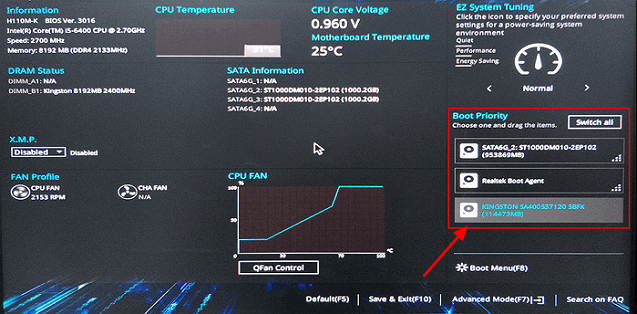
To ensure a smooth transition, configure the new SSD as the boot drive in BIOS after migrating the OS to the SSD or cloning the HDD to the SSD. This ensures that Windows can boot up without any issues.
Bonus Tips: SSD Cleanup and Optimization
Some SSD users may also have requests for disk cleaning up or optimizing, in addition to setting up tasks. Advanced Windows users can use Windows File Explorer, Disk Management, or CMD commands to format or erase SSDs on their own.
#1. Format SSD
- Open Disk Management, right-click on the SSD volume you wish to format.
- Select "Format...".
- Set the file system to the desired type, check the box next to "Perform a quick format" to ensure a clean installation, and then click "OK" to proceed with the formatting process.
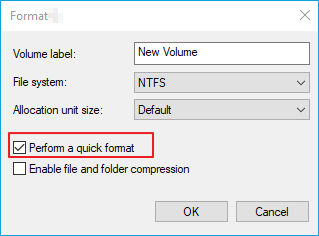
Repeat the process until you finish formatting all target partitions on the SSD disk.
#2. Cleanup and Erase SSD
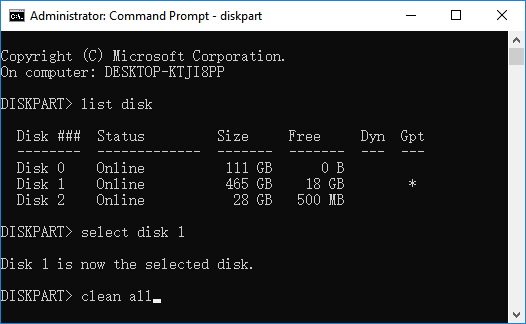
To completely reset an SSD disk, you can use the erase feature in Windows DiskPart by running the command "clean all". This command will completely erase all data on the SSD, making it ready for reuse.
- Right-click the Windows icon, and select "Search".
- Type cmd and right-click "Command Prompt" from the search list.
- Type diskpart and hit Enter.
- Type list disk and hit Enter.
- Type select disk * (Replace * with the disk number of SSD.)
- Type clean all and hit Enter.
Tips for Beginners:
If you're a Windows beginner, you might find the Diskpart commands overwhelming, but a third-party SSD erasing tool like Qiling Partition Master can help. This tool allows you to securely erase an HDD or SSD with just a few simple steps, making the process much more accessible.
#3. Optimize SSD
Optimizing SSD performance requires the help of reliable SSD optimizer software, and Qiling Partition Master is an all-in-one tool that serves as a SSD cleaning tool and optimizer for SSD owners of all levels.
Here is what you can apply this SSD optimizer do:
- Check and fix file system errors on SSDs.
- Extend and speed up system C drive on SSD.
- 4K Alignment SSD.
- Change cluster size on SS, etc.
Overall Solution:
For a step-To optimize your SSD in Windows 11/10, simply check and optimize its performance by following this page's instructions. This will help you successfully optimize your SSD on your own.
SSD Troubleshooting: Fix All Types of SSD Physical and Logical Errors
Aside from daily management on SSDs, some users may also encounter multiple physical or logical errors on their SSD disks.
SSD corruption or inaccessibility is one of the most common errors that may occur to any SSD owner, among other issues.
Qiling Partition Master is a reliable partition manager software that can help check and fix file system corruption errors on both SSDs and HDDs with ease.
Step-By-Step SSD Repair GUIDE:
If you need a step-To repair a corrupted SSD disk, follow these steps: First, visit the link to learn how to repair a corrupted SSD without losing any data. Next, use Qiling Partition Master to resolve SSD corrupted or inaccessible errors. This tool can help you recover your SSD and prevent data loss.
Here are some common SSD issues and their fixes:
Error 1. SSD is not showing up
Symptoms: If your SSD isn't showing up in Windows File Explorer or isn't detected in the BIOS or Disk Management, there could be several reasons for this issue. It might be due to a faulty SSD, incorrect BIOS settings, or a driver issue.
Fix: How to Fix M.2 SSD Not Detected (BIOS/Disk Management)
Error 2. SSD Maintenance
Symptoms:SSDs are prone to data loss and have a relatively short lifespan compared to traditional hard drives. Their fragile nature makes them susceptible to physical damage, which can result in data loss.
Fix: Tips to Maintain Performance and Extend the Life of Your SSD
Error 3. SSD Trim Recovery
Symptoms: SSD data recovery is impossible with Trim enabled.
Fix: Enable/Disable Trim in SSD and Perform SSD Trim Recovery
Related Articles
- File System Comparison: NTFS, FAT32, exFAT, and EXT, Which File System Should I Use
- One for All Guideline: How to Format/Reformat A Hard Drive
- Ultimate Guide: What Is GPT Disk, How to Use GPT in Windows
- What Does Check Disk Actually Do and How to Run Check Disk (CHKDSK) in Windows [Beginners' Guide]
- Guide on How to Partition a Hard Drive
How to partition a hard drive in Windows 8/7/XP/Vista/2000 and Server 2012/2003/2008 easily? This time, you'll find the best Windows partition manager. - Learn How to Repartition Hard Drive in Windows 10, 8, 7
The right way to repartition a hard drive is to use Qiling Partition Asssitant to repartition a hard drive.
Products
Articles & Tutorials
- Data Recovery
- Data Backup
- File Recovery
- File Backup
- System Backup and Restore
- Disk and Partition Clone
- Technical articles
- Mobile articles
- Disk Master Help
- Windows Data Recovery Tutorials
- Windows Secure Delete Tutorials
- Windows Partition Management Tutorials
- Windows File Backup and Restore Tutorials
- Windows System Backup and Restore Tutorials
- Windows Disk Backup and Restore Tutorials
- Windows Clone Tutorials