SSD Maintenance: Tips to Maintain Performance and Extend the Life of Your SSD
Introduction
Solid State Drives (SSDs) are gaining popularity in the storage industry due to their low pricing, ruggedness, and reduced power consumption, offering better speed and widespread acceptance.
Using solid-State disks can accelerate a PC by significantly reducing access times, as data can be retrieved directly from the state disk, eliminating the need for the read/write head to wait for the hard-disk platter to rotate and transport data to DRAM. This results in faster overall system performance.
Unlike traditional hard disk drives (HDDs), solid-state drives (SSDs) don't rely on rotational platters. Instead, they store data electronically, without the need for moving parts. This means that data is readily available, eliminating the wait time associated with HDDs, where the platter must rotate to access the required information.
Data integrity is crucial for businesses, particularly those in government, defense, medical, and finance, as they are often legally required to ensure data recoverability and readability. Traditional hard drives, which rely on magnetic platters, are susceptible to crashes and physical trauma that can lead to data loss or corruption. In contrast, Solid-State Drives (SSDs) store data in memory chips, eliminating the risk of physical damage and ensuring data safety and security.
The increasing demand for faster and more efficient storage solutions has led to the growing popularity of Solid-State Drives (SSDs). As traditional hard disk drives (HDDs) face limitations in terms of speed and reliability, SSDs offer a more appealing alternative, providing faster data access times, lower power consumption, and improved shock resistance, making them an attractive choice for users seeking to upgrade their storage needs.
To maintain the speed and performance of your external or internal SSD storage, follow these steps to prolong its capabilities.
Tip 1. Update SSD Firmware
Tip 2. Don't Defrag SSD
Tip 3. Enable TRIM or Not
Tip 4. Don't Store to Full Capacity
Tip 5. Don't Store Large Files
Tip 6. Enable AHCI
Tip 7. Disable Hibernation
Tip 1. Update SSD Firmware
Firmware revisions are software updates that fix bugs and add new features to devices, improving their performance and functionality.
A computer's Solid-A solid-state drive (SSD) is like any other digital storage device that requires an update to its firmware, similar to a smartphone or computer, which also have code controlling their functionality.
Is It Necessary to Update SSD Firmware?
Updating firmware is a must-The firmware of an SSD should be updated regularly to maintain performance across the board, with updates potentially occurring monthly, quarterly, or yearly. This process is recommended to improve both the performance and functionality of the SSD.
Tip 2. Don't Defrag SSD
While defragmentation is necessary for traditional hard disk drives (HDDs) to maintain performance, it's not necessary for solid-state drives (SSDs). SSDs store data in a series of interconnected flash memory chips, where data is written and read almost instantly, eliminating the need for defragmentation.
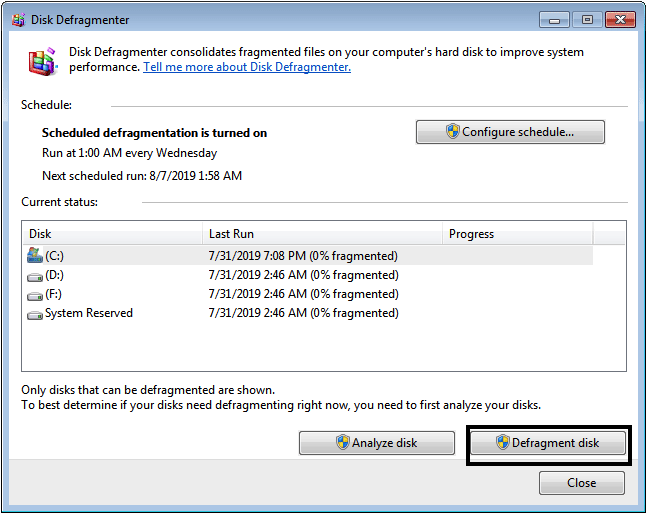
Defragmenting an SSD as a boot drive is unnecessary because it doesn't improve performance, as there's no moving part to access data.
Defragging a Solid State Drive (SSD) is not necessary and may even be counterproductive, as it can potentially decrease its lifespan. Unlike traditional hard disk drives, SSDs do not benefit from defragmentation and may even be harmed by it, so it's best to avoid this maintenance task altogether.
Tip 3. Enable TRIM or Not
TRIM, introduced in the 2009 SATA specification, is a command that informs an SSD which blocks of data are no longer in use, allowing it to skip unnecessary zeroing out of sectors and maximize its lifespan. This feature, also known as SCSI UNMAP or ATA Unmap, is particularly valuable on Solid State Disks (SSDs).

Enabling the TRIM command on your operating system allows the SSD controller to identify unused data blocks, which helps the SSD optimize its wear-leveling and garbage collection algorithms. This results in improved performance and longer drive lifespan.
Without TRIM, the SSD has no way to know which data is no longer in use, making it difficult for the built-in garbage collection algorithm to remove unused data, leading to performance degradation over time.
SSDs have a performance advantage over HDDs, and enabling the Trim command can further enhance this advantage. By telling the SSD which data blocks can be wiped, the Trim command allows the operating system to remove unnecessary files, increasing the SSD's performance potential and lifespan. If your SSD and OS support Trim, keeping it enabled can help prolong the life of your SSD.
Tip 4. Don't Store to Full Capacity
As the world becomes increasingly digital, the need for faster storage solutions has become more pressing, leading to a growing interest in solid-state drives (SSDs) as a potential replacement for traditional hard disk drives (HDDs).
When an SSD's substantial capacity is utilized, problems can arise. The reduced free space for writing, especially in gaming PCs, leads to decreased transfer speeds and error messages during writing. This can also result in sluggish system performance during boot-up or shut-down, and even system instability issues.
Filling an SSD all the way can lead to performance issues due to overflowing caches, as the flash memory used as a cache starts to throw out old data, making the drive slower as it decides what data to keep and clear.
The key to maintaining the speed of a solid-state drive (SSD) is to never fill it up or only occasionally fill it.
Tip 5. Don't Store Large Files
Storing large, infrequently accessed files is best done on specialized hardware that prioritizes high availability and reliable content delivery, rather than wasting expensive SSD storage on them.
SSDs are expensive, so they're not ideal for storing large amounts of data like movies, music, photos, and other files you rarely access.
Storing infrequently accessed files like games on a mechanical hard drive can be a cost-effective and energy-efficient option, as they take up a lot of space but are used sparingly. This allows you to save money and consume less electricity by not having to upgrade to a more expensive and power-hungry SSD.
Storing data from your movies, music, etc. on a standard HDD drive can help free up space on your SSD drive, potentially improving its speed and performance.
Store your operating system, frequently used applications, and important program files on a Solid-State Drive (SSD) for optimal performance. For less critical data, such as documents, videos, and other files, use a Hard Disk Drive (HDD) which is more cost-effective and suitable for bulk storage.
Tip 6. Enable AHCI
AHCI stands for Advanced Host Controller Interface, a high-speed platform for data transfer between a computer's hard drive and motherboard. Enabling AHCI mode, especially for SSD users, provides the best experience with increased writing speed due to enhanced command queuing support, and can be found in most modern motherboards, requiring only a BIOS update.
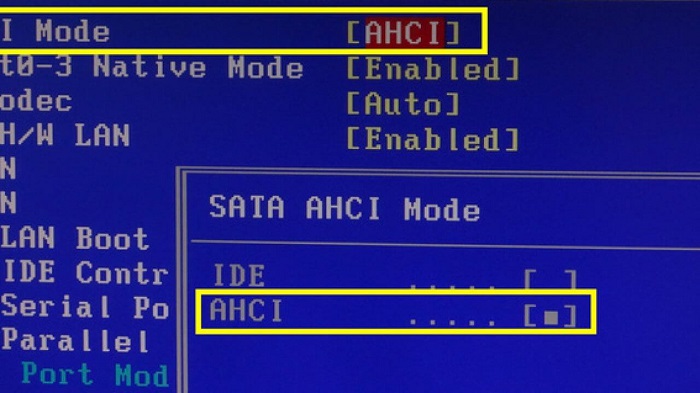
When using the IDE mode on a computer, the number of writes per second to the SSD is limited, but when switched to AHCI mode, the speed increases significantly, reaching up to 600-800mbps or more.
You can enable AHCI using this official Windows 10 guide.
Tip 7. Disable Hibernation
Enabling Hibernation on Windows can be convenient, as it saves your current state and shuts down, allowing you to quickly restart by pressing the power button. However, this feature can have a negative impact on the lifespan of an SSD, as hibernation uses more power than a standard shutdown and requires loading everything from the SSD when it starts up again. This can substantially shorten the life of an SSD.
Most computer users have no issues with Windows hibernate, which allows them to save their work and pick up where they left off later. However, some users worry that using hibernate could lead to data loss and damage their SSD hard drive over time.
Disabling hibernation on an SSD can help improve performance by reducing disk writes, which can prolong the lifespan of the drive.
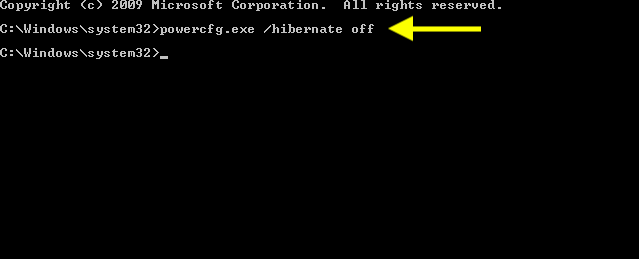
To turn off hibernation in Windows, open Command Prompt and type "powercfg.exe /hibernate off".
Press enter and hibernation will be stopped.
SSD Maintenance: How to Optimise SSD with Qiling Partition Master
Qiling Partition Master Free Edition is a reliable software that can manage hard disk partitions, providing users with features to partition disk space more efficiently.
Partition Master can copy partitions from one location to another, particularly helpful when the destination partition is smaller than the source. It can also copy data from a large partition to a small one, or from a hard drive to an SSD. Additionally, the software has a "Clone Drive" function that allows you to copy all partitions of one disk to another, and offers many other features such as defragmentation tools, unwanted program removal, and more.
You can easily resize a drive to extend your disk space by expanding the partition size of your disk safely and easily, while keeping the original data unchanged. This process can also be used to copy the entire hard disk drive, including the system partition or operating system, to other hard drives without losing any data. Simply select the source partition and a destination partition, then press "Clone Partition" to clone the source to the destination, resulting in an exact copy.
4K alignment in Qiling Partition Master optimizes SSD performance by adjusting it to 4K, aligning sectors to 4096 for faster data access and write operations.
Qiling Partition Master allows you to resize and move partitions on your hard drive, maximizing disk space with its advanced features. It enables you to resize FAT32, NTFS, and EXT2/3 partitions without losing data, and even boosts system performance by splitting large partitions into smaller ones.
Step 1. Shrink partition to free up space to extend partition.
If the hard drive has enough unallocated space to extend the target partition, jump to Step 2, and continue. If not, free up space first, then proceed.
- To resize or move the target partition, click on a partition next to it and select the "Resize/Move" option.
- Drag the partition ends to free up space, leaving enough unallocated space behind the target partition, then click "Proceed".

Step 2. Extend target partition.
Click on the target partition and select "Resize/Move".
To extend the target partition, simply drag the partition handle into the unallocated space. This action will allow the partition to grow and occupy the newly available space, effectively increasing its size.
Step 3. Keep all changes.
Click the "Proceed" to keep all changes.
To Sum Up
SSDs are impressive -- SSDs make the process of loading files and applications seem like magic, but they are more than just speed. Like regular hard drives, they require regular maintenance to ensure their longevity. By learning best practices and taking necessary precautions, you can maximize your SSD's performance and extend its lifespan.
While SSD technology has made significant strides, it's not immune to limitations. Despite proper care, SSDs can still fail and eventually die. However, with regular use of defragmenting software and cleaning utilities, as well as proper maintenance, you can extend the lifespan of your SSD and enjoy its benefits for several more years.
Following these tips can significantly boost your SSD's performance, speed, and overall lifespan. By defragmenting, disabling unnecessary system services, setting your page file to 0, and avoiding full disk writes, you can help maintain your SSD's integrity and keep it running smoothly. Additionally, avoiding unnecessary writes, regularly cleaning up temporary files, and using a solid-state drive specifically designed for your system can also contribute to a longer lifespan and improved performance.
Related Articles
- How to Wipe Hard Drive in Windows 11 (Get Your Answer)
- [Fixed] Windows Resource Protection Found Corrupt Files but Was Unable to Fix Some of Them
- How Do I Convert NTFS to FAT32 in Windows 11 [2022 New Guide]
- How to Convert SD Card RAW to FAT32/NTFS in Windows 11/10/8/7
- How to Upgrade eMMC to M.2 [Step-by-Step Guide]
Is it possible to upgrade the eMMC to M.2 NVMe SSD? Sure! This article provides you with a step-by-step guide on how to upgrade eMMC to M.2. Dive into learning now. - How to Upgrade EMMC to SSD [Tutorial with Pictures]
Upgrading eMMC to SSD can provide faster performance, improved storage capacity, and increased durability, making it a worthwhile investment for those seeking to enhance their device's functionality.
Products
Articles & Tutorials
- Data Recovery
- Data Backup
- File Recovery
- File Backup
- System Backup and Restore
- Disk and Partition Clone
- Technical articles
- Mobile articles
- Disk Master Help
- Windows Data Recovery Tutorials
- Windows Secure Delete Tutorials
- Windows Partition Management Tutorials
- Windows File Backup and Restore Tutorials
- Windows System Backup and Restore Tutorials
- Windows Disk Backup and Restore Tutorials
- Windows Clone Tutorials