How to Upgrade eMMC to M.2 [Step-by-Step Guide]
Overview of how to upgrade eMMC to M.2:
| ⏱️Duration | 10 - 20 Minutes (Step-by-step Tutorial) |
| 💻Applies to | Upgrade eMMC to M.2 on Windows 11/10/8/7 |
| 🖌️ Stages | |
| ⛏️ Tools |
✔️USB cable ✔️M.2 SSD ✔️Windows PC |
| 🔍Required Software | Disk Cloning - Qiling Disk Master |
eMMC can be replaced by M.2, but it depends on the specific use case and requirements. eMMC (Embedded MultiMediaCard) is a type of storage that is commonly used in mobile devices, while M.2 is a newer, more versatile standard that can be used for a variety of applications. In some cases, M.
To change eMMC to M.2, you can follow these steps: first, purchase an M.2 NVMe SSD and a compatible adapter, then remove the eMMC module from the device, taking care not to damage any surrounding components; next, install the M.2 SSD into the adapter and secure it firmly; after that, insert the adapter into the device's M.
eMMC is primarily used for consumer digital services and ultra-mobile applications, and is limited in its capabilities, lacking features such as multiple flash chips, fast interfaces, firmware, and high-quality hardware.
M.2 is a better option than eMMC for faster transmission speed and larger capacity, providing an excellent experience for gaming and large storage capacity. It's also suitable for booting the operating system and working with very large files. This makes it a suitable replacement for eMMC.
Stage 1. Connect M.2 to Your PC
To connect an M.2 SSD, physically insert it into a compatible slot on your device, such as a case or a USB to SATA adapter. Then, use a USB cable to connect the M.2 SSD to your PC or laptop. This allows the device to read and utilize the storage capacity of the M.
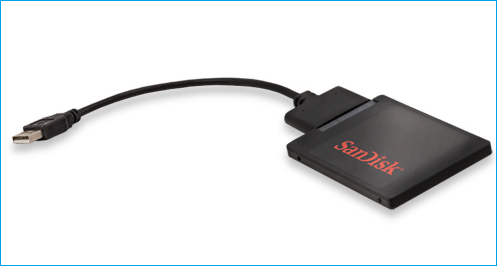
Stage 2. Clone eMMC to M.2
To upgrade eMMC to M.2, using Qiling Disk Master's "Clone" function is the most efficient way, allowing you to transfer everything, including the OS, from the old eMMC to an M.2 SSD without data loss. This tool is user-friendly, even for those without extensive computer knowledge, and can be downloaded and used on a PC.
Before we start, read the notice below:
- Notice:
-
Ensure that target M.2 has enough space for your data.
If your M.2 is new, you need to initialize it before you can use it. This process typically involves entering the BIOS settings, selecting the M.
To access the Windows operating system on an eMMC, you need to enter the BIOS settings and change the boot order to prioritize the M.2 drive as the primary boot device. This allows the system to boot from the M.
To clone eMMC to M.2 using Qiling Disk Master, you can follow these steps. First, download and install Qiling Disk Master on your computer.
Step 1. Select the source disk.
- To clone a disk in the Disk Utility, click the "Clone" button from the left menu, select the appropriate option (either "Clone OS Disk" for the operating system or "Clone Data Disk" for user data), and then click "Next".
- Choose the source disk and click "Next".
Step 2. Select the target disk.
- Choose the desired hard drive or solid state drive as the destination and click "Next" to proceed.
- Read Warning message and confirm "Yes" button.
Step 3. View the disk layout and edit the target disk partition size.
To install Windows, you'll need to wipe the target disk clean. This will erase all data on the disk, so be sure to back up any important files first. Once you're ready, insert the Windows installation media and restart your computer. The installer will detect the target disk and prompt you to continue with the installation.
You can customize your disk layout by selecting "Autofit the disk", "Clone as the source", or "Edit disk layout", with the last option being best if you want to leave more space for the C drive.
Step 4. Click "Start" to start the disk cloning process.
Then, Qiling Disk Master migrated all data to the M.2. Now, let's see more features of this tool:
- Upgrade HDD to SSD
- Upgrade Steam Deck SSD
- Add storage to Steam Deck/PS5
- Clone SSD to larger one
- Initialize a hard drive or an SSD
If you're planning to upgrade your hard drive or SSD, this tool can help you do so without losing any data.
Stage 3. Replace eMMC with M.2
After migrating the data, you can replace the old eMMC with an M.2. Follow the instructions below:
Step 1. To shut down the computer or laptop, press the power button until it turns off completely. Then, locate the screws that hold the rear panel in place and remove them using a screwdriver.
To access your eMMC drive, you need to shut down the laptop, disconnect the power cord and any other connected cables, including the M.2, and then remove the back panel by unscrewing it. This provides you access to the eMMC drive.
Step 2. To upgrade your PC, remove the eMMC and replace it with an SSD, which should be installed on the rear panel. This change will improve your device's performance and storage capacity.
Stage 4. Boot From M.2
To change the boot drive order, you need to enter the BIOS settings, navigate to the boot order section, and reorder the drives so that the M.2 SSD is set as the primary boot drive. This will allow the system to boot from the M.2 SSD instead of the old eMMC.
Step 1. To access the BIOS, restart the computer and press F2/F8/Del.
Step 2. To set the M.2 as the boot drive, go to the Boot menu, then select the Boot Priority section, and choose the M.2 as the boot drive.
Step 3. To complete this procedure, save your adjustments and leave.

After completing the four stages, you have successfully upgraded your eMMC to an M.2 drive. This upgrade is significant, and we'll explain why we made the switch in the next part. Keep reading to learn more.
Why Upgrade eMMC to M.2
Although eMMC is a cost-effective, compact, energy-efficient, and durable storage solution, it's mainly used in mobile phones, tablets, and budget-friendly laptops. However, it has a significant disadvantage compared to M.2, lacking in transmission speed and capacity flexibility.
eMMC is limited to ultra-portable and consumer digital devices without firmware, multiple flash chips, high-quality hardware, and fast interfaces.
M.2 has a larger capacity and faster transfer speed than eMMC, making it the best choice for laptops and desktops that require full-featured performance, such as booting operating systems, playing games, and processing large files. This provides a better user experience.
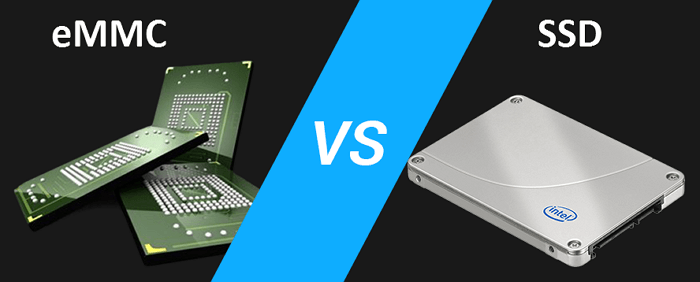
eMMC and SSD are both types of storage devices used in electronic devices, but they have some key differences. eMMC (embedded MultiMediaCard) is a type of storage that is typically used in lower-end devices, such as budget smartphones and tablets, while SSD (Solid-State Drive) is a more advanced type of storage that is commonly used in high-end devices, such as laptops and desktops. The main difference between the two is that eMMC has slower read and write speeds compared to SSD, which can affect the performance of devices that use eMMC.
We compared eMMC and SSD storage in various key areas, including storage components, capacity, price, speed, application, and performance, among others.
With the tutorial above, you can replace your eMMC with M.2 smoothly, and if this article helps you, share it to help more users.
Conclusion
Users may want to replace eMMC with M.2 for higher capacity and faster speed. Fortunately, upgrading eMMC to SSD is possible and relatively easy to do. To accomplish this, you'll need a trustworthy cloning tool, a qualified M.2 SSD, and other installation tools. A detailed tutorial is provided to guide you through the process, allowing you to effortlessly complete the eMMC replacement and still utilize Qiling Disk Master to manage your M.2 SSD.
Upgrade eMMC to M.2 FAQs
Upgrading eMMC to an M.2 NVMe SSD can be an easy task with the right tutorial, but here are some other common issues to consider:
1. Can eMMC be upgraded?
With a reliable disk cloning tool, you can upgrade the eMMC with an SSD, which usually offers more choices in disk capacity and higher read/write speed.
2. How do I move my Windows OS from eMMC to an SSD?
You may need a reliable disk cloning tool, Qiling Disk Master. It can clone OS from eMMC to an SSD. Here is how:
Step 1. Launch Qiling Disk Master and navigate to the Disk Clone section.
Step 2. Choose the Migrate OS option and click "Next."
Step 3. Select the destination where you want to migrate the OS to.
Step 4. Click next and then "Yes" to migrate.
3. Is M.2 NVME faster than eMMC?
eMMC is a type of memory card like an SD card, but soldered to the PCB, making it cheaper, slower, and less powerful than SSDs, while NVMe is a type of SSD that uses PCIe for high transfer rates.
Related Articles
- Best NTFS to exFAT Converter [2024 Top]
- How to Resize Virtual Hard Disk in 2024 [Efficient & Safe Solutions]
- Top 5 Best Partition Magic Server Software Recommend in 2024
- SSD Reports Wrong Size? Reasons and Fixes Here!
- How to Clone and Move System Reserved Partition to Another Drive or Another Disk Windows 11/10
It is possible to move the system reserved partition, and this tutorial will guide you through the process of copying and cloning it to another drive or disk without causing any boot problems, making it compatible with Windows 11/10/8/7. - How Do I Clone Disk in Windows Server? 2022 Full Guide
Upgrading and cloning disks in Windows Server computers is a straightforward process that can be completed with simple steps.
Products
Articles & Tutorials
- Data Recovery
- Data Backup
- File Recovery
- File Backup
- System Backup and Restore
- Disk and Partition Clone
- Technical articles
- Mobile articles
- Disk Master Help
- Windows Data Recovery Tutorials
- Windows Secure Delete Tutorials
- Windows Partition Management Tutorials
- Windows File Backup and Restore Tutorials
- Windows System Backup and Restore Tutorials
- Windows Disk Backup and Restore Tutorials
- Windows Clone Tutorials