How to Check M.2 SSD Performance [3 Efficient Ways]
Key Takeaways:
- The average performance of M.2 SSDs is generally high, with sequential read and write speeds often exceeding 5000 MB/s and 4500 MB/s, respectively. However, random read and write performance, which is more indicative of real-world usage, is typically lower, ranging from 600-1000 MB/s.
- To accurately test the performance of an M.2 SSD, you can use benchmarking tools such as CrystalDiskMark, ATTO Disk Benchmark, or HD Tune. These tools provides you a detailed breakdown of the SSD's read and write speeds, as well as its random read and write performance.
There are two main types of SSDs: SATA SSDs and M.2 SSDs, with the latter also known as NVMe M.2 drivers, which typically plug directly into the motherboard.
This article provides information on M.2 SSD performance and offers three ways to run performance tests on your PC. It aims to help you understand the capabilities of M.2 SSDs and provide guidance on how to test their performance.
View Necessary Tools to Test M.2 SSD Performance:
| ⏱️Duration | 3-5 minutes |
| ⛏️Tools | |
| 🧑💻Supported Systems | Windows 11/10/8/7 |
| 🔋Tested Data |
|
| ✍️Operation Difficulty |
|
Overview Of M.2 SSD Performance
The M.2 SSD is a compact form factor that supports various protocols, including PCle and SATA, as well as faster NVMe interface, allowing for high-speed data transfer. Its direct connection to the motherboard results in a neater computer interior, and it can even replace traditional 2.5-inch storage drives.
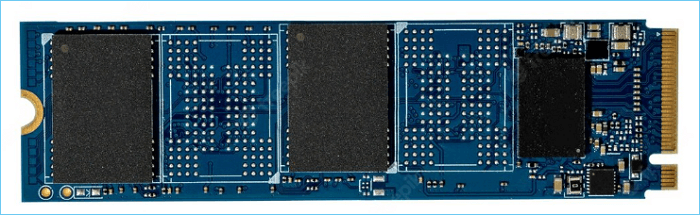
After learning the basics about M.2 SSDs, we'll delve into their performance in two key areas.
Metrics for Measuring M.2 SSDs:
When selecting an M.2 SSD as a storage device, the two main types to consider are SATA M.2 SSDs and NVMe SSDs, with the primary consideration being their storage and read/write speed performance.
According to a report by Seagate, speed is one of the most important factors in determining hard drive performance.
A hard drive's performance is best measured by its data transfer speed, typically expressed in gigabytes (or gigabits) per second, which measures how quickly data is transferred from the spinning media (platters) through the read/write.
M.2 SSD performance also includes benchmarking of M.2 SSDs, which typically involves testing their speed performance. Common specifications for M.2 SSD speed performance tests include reading and writing speeds, as well as other metrics such as sequential read and write speeds, random read and write speeds, and 4K read and write speeds. These tests help to evaluate the performance of M.
- Throughput: Measures the drive speed transfer rate.
- IOPS: Calculates the number of input/output operations per second
- Latency: The result of SSD response time.
- 4K: The speed at which multiple small files can be written.
Understanding the factors that affect M.2 SSD performance, such as host controller, controller type, and storage type, is crucial to getting an accurate picture of M.2 SSD benchmark. Normal M.2 SSD read and write speeds vary depending on these factors, and knowing what to expect can help users make informed decisions when choosing an M.2 SSD.
Performance of A Normal M.2 SSD:
M.2 SSDs have storage capacities ranging from 256 GB to 2 TB, with read and write speeds reaching up to 5000 MB/sec, making them up to 10 times faster than regular SSDs, and a mean time between failures (MTBF) rating of 2 million hours.
The M.2 SSD is ideal for applications that require fast speeds, such as gaming, video editing, or large file transfers, and fits well with the new generation of desktops and laptops.
How to Run M.2 SSD Performance Test
To get the most out of your M.2 SSD's exceptional performance, it's crucial to run regular SSD performance tests. Fortunately, there are three ways to run M.2 SSD benchmark tests on Windows, making it easier to solve the problem quickly. One effective method is to use professional SSD benchmark tools, such as Qiling Disk Master, to check your M.2 SSD's performance.
Or you can try Windows built-To compare the performance of M.2 SSDs, refer to the table below and make a decision based on the specifications that are most important to you. The table provides a side-by-side comparison of various M.2 SSDs, highlighting their key features and capabilities.
| Comparison | |||
|---|---|---|---|
| Tested Data |
|
Read/write speed | Read/write speed |
| Operation Difficulty | Easy to operate | Medium | Difficult |
| Suitable Users | Simple for all | For users who are familiar with PC | For experts |
Qiling Disk Master is a suitable tool for checking NVMe M.2 SSD performance, especially for those unfamiliar with commands. It's also free to use. To get started, follow these detailed steps.
Run M.2 SSD Performance Test via Qiling Disk Master
Qiling Disk Master Free offers the DiskMark feature to scan and check M.2 SSD speed, providing a tool to test and measure M.2 SSD performance and speed.
- Perform speed tests with just one click.
- Get accurate data about the drive.
- Allows users to export and analyze data.
To check M.2 performance on Windows, follow these steps: First, right-click on the Start menu and select Device Manager. Then, expand the "Disk drives" section and look for the M.
Step 1. Launch Qiling Disk Master, click the download button under the "Disk management" section to activate the "DiskMark" feature.

Step 2. Select the target drive, test data, and block size from the drop-down boxes.

Step 3. Once everything is configured, click "Start" to begin the disk test, and then view the Sequential read speed, I/O, and Delay data.
Qiling Disk Master is a powerful tool that can check hard drive health, fix bad sectors, and resolve disk or partition errors, making it a reliable solution for restoring your disk to a healthy state.
Run M.2 SSD Performance Test via Task Manager
If you don't want to use a third-party tool, you can use Windows' built-in Task Manager to test your SSD's performance. However, Task Manager can only detect the read and write speed of the SSD, and won't provide detailed data. If you need more information, you'll still need to use a tool like Qiling Disk Master. To check your M.2 SSD status, you can follow these steps.
Step 1. To access the Task Manager on your computer, right-click on the bottom of the Task Bar, then select "Task-Manager" from the menu that appears.
Step 2. To check the performance of your computer, go to the menu at the top of the newly opened window, select "Performance" to view various performance metrics and see how your system is handling tasks and resources.
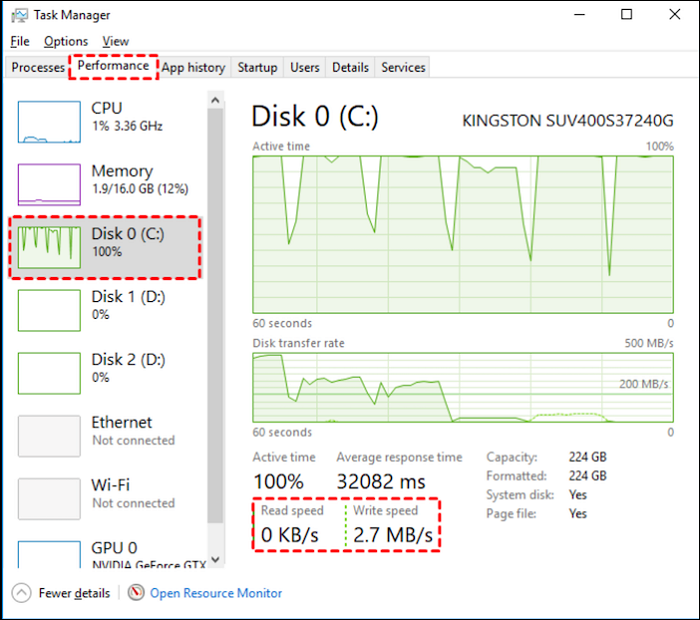
Step 3. Choose the target M.2 SSD and view the read/write data.
You May Also Like:
Run M.2 SSD Performance Test via CMD
If you're used to using the command line to manage and operate your hard drive, Windows offers a Command Prompt to help you check the speed and performance of your M. 2 drive. To do this, you can follow specific step-by-step instructions.
Step 1. Click Windows+R to open a command line window.
Step 2. Type cmd to open a new window.
Step 3. Type winsat disk -drive c and wait for a moment.
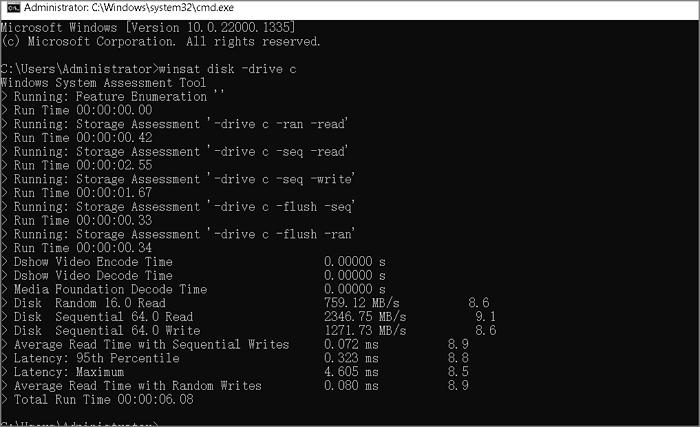
You can also check SSD speed via CMD. Be sure not to enter the wrong parameters when using CMD, as this may cause data loss.
Bonus Tip: How to Improve M.2 SSD Performance
To test the performance and speed of M.2 SSDs, you can use methods such as CrystalDiskMark, HD Tune, and AS SSD Benchmark. These tools can help you identify any poor performance of M.2 SSDs. If you encounter any issues, you can refer to the solutions provided in this section to resolve the problem.
For M.2 SSD Storage Performance:
M.2 SSDs can have storage capacities ranging from 256 GB to 2 TB. If an M.2 SSD has incorrect specs, it may be due to an incorrect MBR partition style, the presence of virtual memory paging files or hibernation files, or incompatibility.
You can fix this by doing the following:
- Converting the MBR to GPT
- Resetting the virtual memory page file
- Using an unallocated space expansion volume
The rewritten response is shorter and more concise, while still conveying the same information. The original response had a more formal tone, while the rewritten response is more conversational.

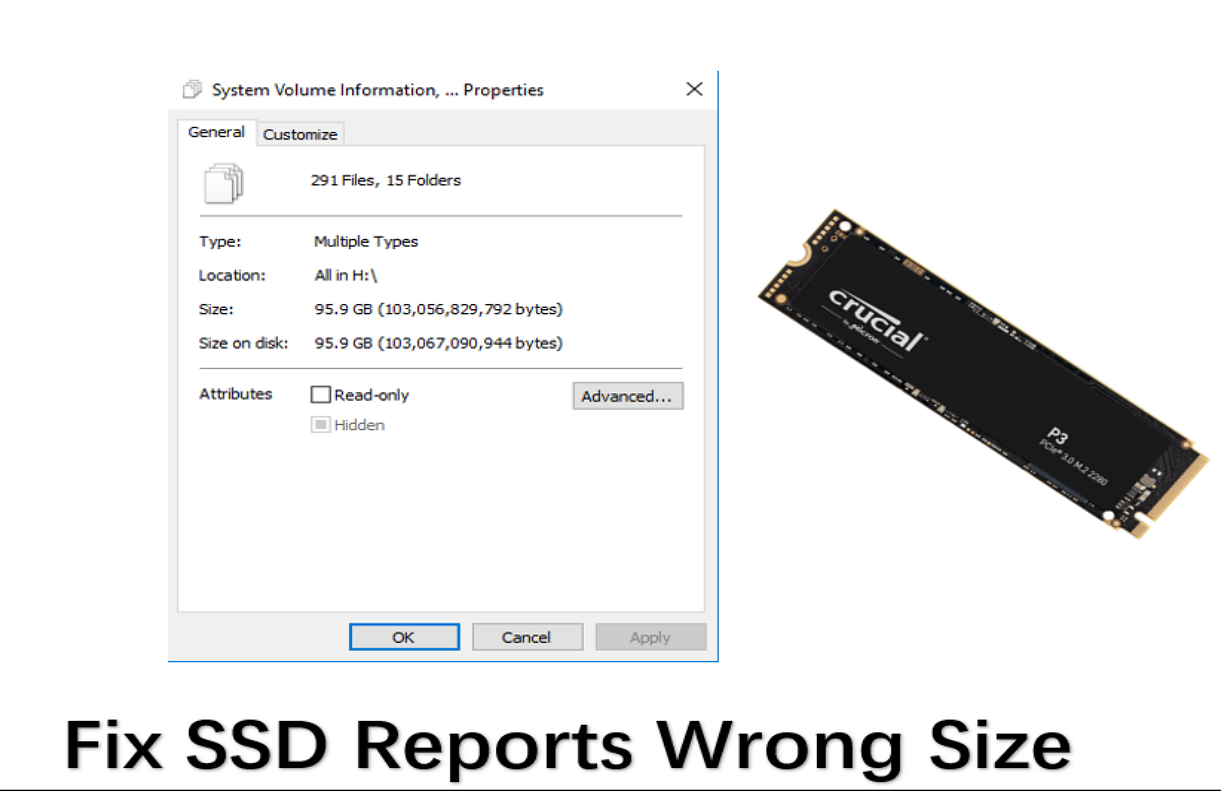
SSD Reports Wrong Size? Reasons and Fixes Here!
We will address the problem of SSDs reporting the wrong size, along with some possible causes. This will enable readers to successfully solve the issue and ensure optimal SSD performance.
For M.2 SSD Speed Performance:
M.2 SSDs offer high speeds of up to 3,500 MB/sec for reading and 3,000 MB/sec for sequential writing, with a 2 million hour MTBF rating. The Qiling Disk Master tool allows you to run a benchmark test, save the report, and troubleshoot issues like low disk space, incorrect configuration, or insufficient RAM.
You can improve SSD performance by:
- Extending the partition to gain more space
- Updating the SSD's firmware
- Configuring the correct boot sequence
If you found your M.2 SSD slow, click the following link to improve the SSD read/write speed:
To improve SSD read and write speed, consider updating your operating system and drivers, running a disk cleanup and disk defragmentation, disabling unnecessary startup programs, and enabling TRIM and AHCI modes. Additionally, consider using a solid-state drive with a high read and write speed rating, such as an NVMe SSD, and using a fast USB port or PCIe slot to connect your SSD.
If you're experiencing slow SSD issues, follow this guide to access multiple fixes that can help improve SSD read and write speeds, ultimately offering a better PC experience.
Conclusion
Compared to SATA SSDs, NVMe M.2 SSDs prioritize performance, leveraging the PCIe x2 or x4 lane and NVMe protocol to achieve transfer rates of up to 5000 MB/sec.
You can run the M.2 SSD benchmark test using Windows built-in tools like Task Manager and CMD, but this requires some computer knowledge and only provides rough data. Alternatively, Qiling Disk Master offers a more user-friendly solution, allowing you to better manage your drives and gain more accurate insights into your SSD's performance.
FAQs About M.2 SSD Performance
You should be more clear about the M.2 SSD performance. If you still have confusion, continue to read the frequently asked questions and answers. Hope it can be helpful to you.
1. Is M.2 faster than SSD?
M.2 SSDs are a type of solid-state drive that uses different bus standards and bandwidth than regular SATA SSDs, making them notably faster, with speeds up to 5000 MB/S compared to the SATA SSD's 560 MB/S.
2. Does M.2 SSD affect performance?
M.2 SSDs won't decrease performance, and they can store more data and are faster than most mSATA cards due to their support for multiple interface standards.
3. How fast is M.2 SSD?
NVMe M.2 SSDs have faster transfer speeds than SATA M.2 SSDs, with NVMe capable of reaching speeds of up to 20Gbps compared to SATA's 6Gbps.
4. Why my M.2 SSD is so slow?
A slow M.2 SSD can be caused by several factors, including low RAM, outdated BIOS firmware, insufficient disk space, and a disabled TRIM command, all of which can impact the SSD's speed.
Related Articles
- Samsung SD Card Format Tool Free Download 2024 [Step-by-step Guide]
- 5 Methods to Improve and Speed up Dell Laptop/PC on Windows 10/8/7
- Windows 10 Booting From Wrong Drive - Fix Easily
- How to Delete FAT32 Partition [Step-by-Step Guide]
Deleting a FAT32 partition is sometimes necessary, and there are three ways to do it. First, you can use built-in disk management tools, such as Disk Management in Windows or Disk Utility in macOS, to delete the partition. - 2022 Magic Wester Digital (WD) Partition Manager Software Free Download
To properly partition Western Digital hard drives in Windows 10/8/7, you can use the Magic Western Digital partition tool, Qiling Partition Master, which is available here. This tool allows you to create, resize, move, and convert partitions on all WD HDDs, SSDs, and external hard drives with ease. - How to Make C Drive Bigger Windows 7/10| Assigning More Space to C Drive
If your Windows 7/10 system drive (C drive) is full or running out of space. You can easily expand its capacity by assigning more space to C drive from other drives.
Products
Articles & Tutorials
- Data Recovery
- Data Backup
- File Recovery
- File Backup
- System Backup and Restore
- Disk and Partition Clone
- Technical articles
- Mobile articles
- Disk Master Help
- Windows Data Recovery Tutorials
- Windows Secure Delete Tutorials
- Windows Partition Management Tutorials
- Windows File Backup and Restore Tutorials
- Windows System Backup and Restore Tutorials
- Windows Disk Backup and Restore Tutorials
- Windows Clone Tutorials