Samsung SD Card Format Tool Free Download 2024 [Step-by-step Guide]
SD cards and external storage drives are crucial for safely storing and transferring files. If you're a Samsung SD card user, you might want to format old data or switch to FAT32 for new files. Before proceeding, it's essential to understand what formatting means and what the best formatting tools are for your Windows system in 2024.
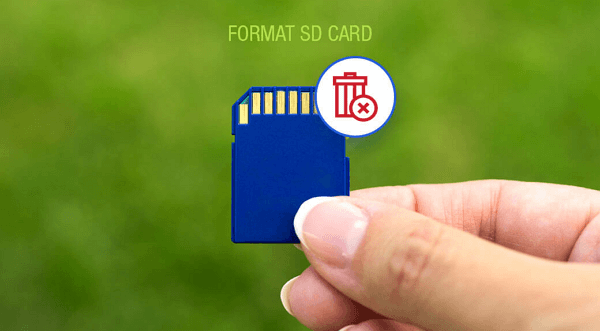
Formatting an SD card is the most effective way to completely erase all data on it. When you format the card, it deletes all files, including any internal or hidden ones. This is the best method to ensure the card is completely wiped clean.
This article highlights the best memory card format software, including advanced disk management and formatting tools in 2024, along with a step-by-step guide for using each tool.
How Do I Format My Samsung SD Card?
To format your Samsung Micro SD card, go to Settings > Storage > SD Card, and select the "Format SD Card" option. This will erase all data on the card, so make sure you've backed up any important files first.
- Notice:
- Formatting a device or storage media is a process that permanently erases all data stored on it. This is because formatting rewrites the device's file system, making it impossible to recover any data that was previously stored.
Step 1. Open your Android Settings > Device Care.
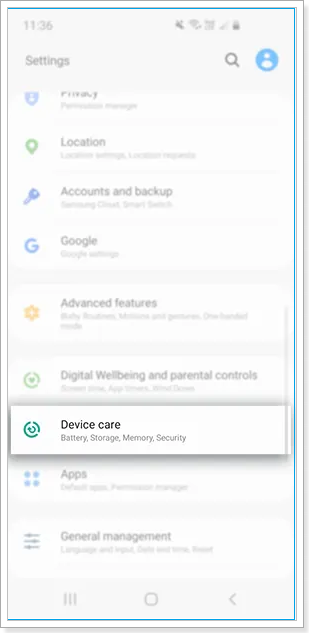
Step 2. Select "Storage" to format the SD card.
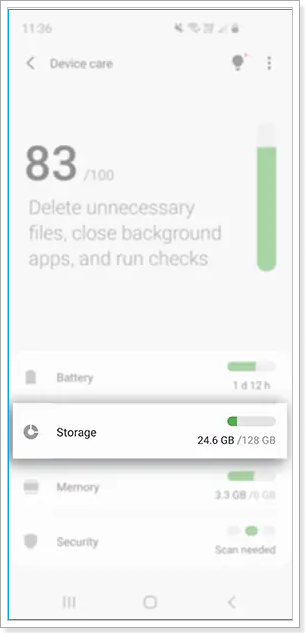
Step 3. Tap on "Advanced".
Step 4. Under Portable storage, choose "SD Card".
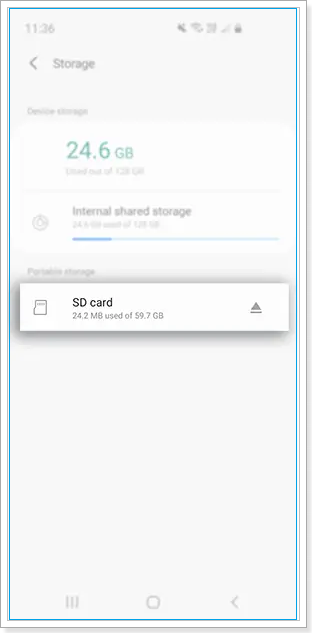
Step 5. Tap on "Format".
Step 6. Read through the pop-up message, then select "Format SD Card".
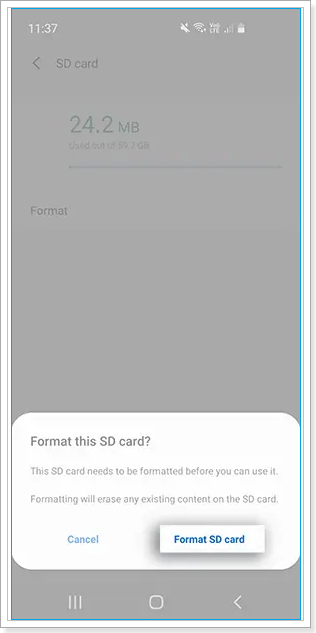
If you're experiencing an "Unable to Format the SD Card" error message, don't worry, this article will guide you through the steps to resolve the issue. The error typically occurs when trying to format an SD card, and the device warns you with an error message, but with the help of this article, you'll be able to fix the problem and format your SD card successfully.

Samsung Format Utility Download Free [With Guide]
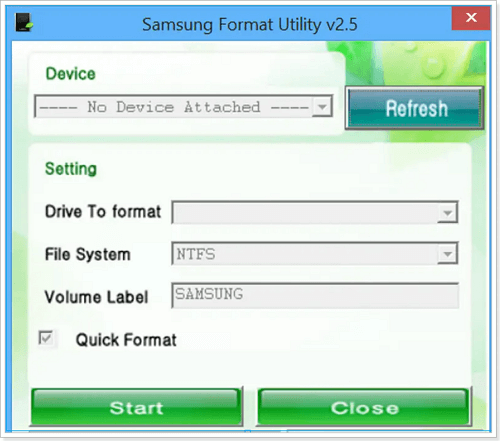
Samsung Format Utility is a tool that allows users to format Samsung storage devices. You can download Samsung Format Utility 2.5/2.4 for free, making it an ideal tool for formatting Samsung storage devices.
What Is A Format Tool for SD Card?
SD cards are essential for storing data, but they're not ideal for long-term storage as files can become corrupted over time. The standard formatting process also fails to clear clutter from the card, making it difficult to keep the data safe.
The SD Memory Card Formatter is a tool that properly formats an SD card, ensuring it remains in working order. It optimizes the data structure of the SD card according to the flash parameters defined by the SD Association, allowing for fast formatting and creating an empty partition.
Formatting an SD card securely ensures that any sensitive information stored on the device is unrecoverable, providing a more secure format. This can be achieved using various SD card formatting tools available for different Windows versions, including Windows 7, 10, and 11. However, using Windows' built-in formatting functions, it is not possible to format SD cards with capacities larger than 32 GB.
You can rely on a third-party format tool, such as Qiling Disk Master, to format your SD card. This tool maintains the specification standards, is compatible with all SD host devices, and ensures that the FAT is aligned to the partition to internal flash boundaries for maximum performance. It's a reliable option to try.
Samsung SD Card Format Tool Free Download with How-To Guide
The Samsung Format Utility is a program designed to format Samsung external storage drives, specifically allowing the use of NTFS or FAT32 file systems on Samsung SD cards. This tool can be used to convert between the two file systems by formatting the drive.
What Is Samsung SD Card Format Tool?
Samsung offers a formatting tool called Samsung SD card format utility, which is an easy-to-use application for Windows computers that allows formatting of external Samsung storage devices like hard drives or SD cards. This tool enables users to wipe data from their Samsung SD Card with minimal effort, and can be run on any computer.
After installing the SD card format tool, you can drop any file and run it. The tool allows you to select the Samsung device, drive to format, file system type, and write a volume label from the regular window. Although it has limited formatting options, the tool can quickly perform the task, depending on the amount of data on your Samsung SD card.
Follow these steps to use the Samsung SD card format tool:
How to Use Samsung SD Card Format Tool?
Step 1. To download the Samsung Format Utility application to your Windows Computer, go to your internet browser and download it.
Step 2. To open the zip file, Right-click on it and extract.
Step 3. Select your desired location to extract the file.
- Notice:
- Make sure your Samsung SD card is connected to your computer.
Step 4. Follow the prompts after double-clicking "Formatter_v2.5.exe".
More SD Card Format Tools to Format Your SD Card
Windows 10/11 offers built-in tools like Disk Management and File Explorer to format SD cards up to 32GB, but for easier and more hassle-free formatting of any SD card, Qiling Disk Master can be used. This tool provides a more developed and effortless way to format SD cards, making it a convenient option for users.
- Fix 1. Format SD Card via Qiling Disk Master
- Fix 2. Format SD Card via Windows File Explorer
- Fix 3. Format Samsung SD via Disk Management
Fix 1. Format SD Card via Qiling Disk Master
A quick and straightforward solution to format an SD card is using the Qiling partition tool, which is a reliable tool that can solve any formatting issue, even if your SD card is unreadable. It provides cutting-edge disk management solutions worldwide for free and has a user-friendly interface, making it effortless to use. This formatting tool can easily and quickly format SD cards of more than 32 GB with a file system format, such as FAT32.
The tool provides advanced disk partition options and a Format feature that is frequently used. It can even erase data from a corrupted and unreadable SD Card, but be aware that it will delete all data on the card. If you need to recover essential files, you can use the Qiling Data Recovery tool.
Qiling partition tool is user-friendly and accessible to everyone, even those without prior experience. It improves the performance and data writing speed of Samsung SD Cards. Once installed on a Windows PC, it detects and optimizes the SD card, providing easy-to-use options.
To easily format the SD card with Qiling Disk Master, please follow the steps below:
Step 1. To format an SD card, locate it on your computer, right-click on the partition you want to format, and select the "Format" option.
Step 2. Set a new partition label, file system (NTFS, FAT32, EXT2, EXT3, EXT4, exFAT), and cluster size to the selected partition.
Step 3. Click "Yes" on the pop-up window to continue.
Step 4. Click the "Proceed" button to start formatting your SD card.
Fix 2. Format SD Card via Windows File Explorer
File Explorer is a build-The Disk Management app is a useful tool on Windows computers that allows you to check existing files in your system and format your SD card with ease. To achieve the best results, follow these steps.
Step 1. To quickly open File Explorer, go to the File Explorer icon and click on it, or press "Windows + E" in Windows 11/10.
Step 2. On the left-side panel, Select "This PC".
- Notice:
- Make sure your SD Card is inserted correctly.
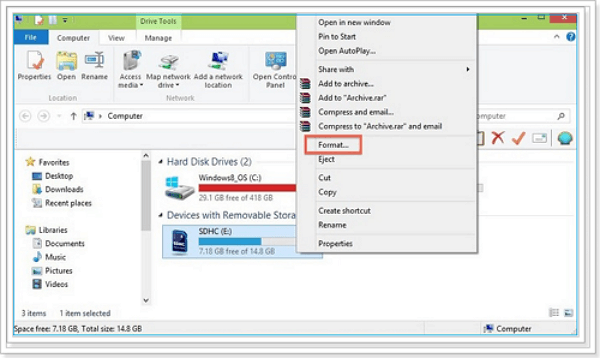
Step 3. To format your SD card, check if it's listed as a device, then right-click on it and select the "Format" option.
Step 4. In the format window, select the desired file system, which can be NTFS, FAT32, or exFAT.
- Notice:
- For 32GB SD cards, choose "NTFS" or "FAT32", while for 64GB SD cards, choose "exFAT".
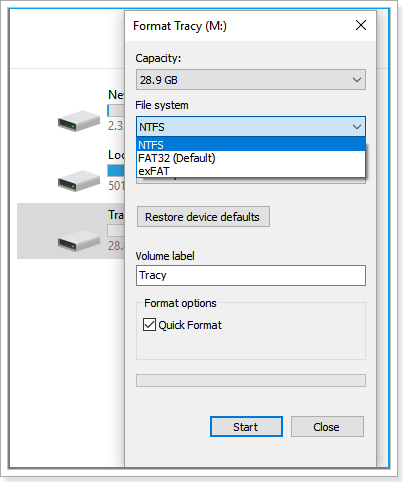
Step 5. Click on "Start" to initiate the format process and wait for it to complete.
Fix 3. Format Samsung SD via Disk Management
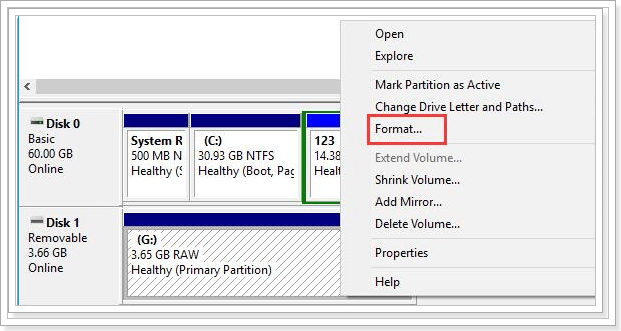
Disk Management is a powerful tool that offers excellent functionality for formatting SD cards. With it, users can perform various disk volume operations, including formatting, creating, and deleting disk volumes. To format an SD card, users can follow detailed steps, and the tool can also help resolve issues such as an inability to format the card.
Step 1. Make sure your SD card is inserted into your computer, then open File Explorer and right-click on "This PC".
Step 2. To access Disk Management, go to the "Manage" option, then under Storage, select "Disk Management".
Step 3. To format a Samsung SD card, locate the card, right-click on it, and select the "Format" option. Then, choose the file system and click "OK" to confirm the formatting process.
- Notice:
- The Windows feature is not applicable for formatting SD cards over 32GB to FAT32, but Qiling Disk Master can be used to achieve this.
Conclusion
To format a Samsung SD card, you need to use a specialized tool, Qiling Partition Master, as default tools in Windows 10/11 cannot handle memory cards over 32 GB. This tool can be downloaded and used for free, allowing you to quickly and easily perform the formatting process.
Samsung SD Card Format Tool FAQS
Here is the list of the top three frequently asked questions about the formatting of SD cards.
1. What is the Best Format for SD Card?
FAT32 is more compatible, but it has a 4GB file size limit and is only suitable for SD cards under 32GB. If your card is larger, you can use a third-party formatting tool.
2. How Do I Format My Samsung Hard Drive or USB?
You can format an external storage device using either disk management or Windows File Explorer, but these methods are limited to formatting SD cards with capacities of 32GB or less. For larger capacities, it is recommended to use a more advanced third-party tool, such as Qiling Disk Master, to ensure successful formatting.
3. Why Can't I Format My SD Memory Card?
- The SD card contains bad blocks that can negatively impact its reading capacity.
- You may be unable to format the SD card due to write-protected. This is often caused by a physical write-protect switch on the card itself, or by the card reader or computer not being able to write to the card.
- Windows platforms can no longer format data from a corrupted memory card, as of a recent update.
Related Articles
- What Is the Best SD Card Benchmark Tool? Your Answer Is Here
- How to Boot From USB on Windows 11 [Full Guide]
- Paragon Migrate OS to SSD Review [Pros & Cons]
this guide provides a detailed review of Paragon Migrate OS to SSD, covering its pros and cons. It also highlights the best alternative, Qiling Disk Master, for migrating Windows OS to SSD. - Top 3 Best Partition Resizer Portable Review: Pros and Cons
If you're looking for the best portable partition resizer, this guide can help. This article introduces three portable resize tools and compares them from multiple aspects, providing you with a comprehensive guide to make an informed decision. - How to Restore Missing Partition(s) on SSD
If you can't find a partition on your SSD disk in Windows, - the missing partition is likely hidden or deleted. To resolve this issue, you'll need to use different solutions depending on whether the partition is hidden or deleted. - How to Repair and Restore Unallocated Space on a USB/SD Card
If your USB drive or SD card suddenly stops working and shows up as unallocated, efficient fixes are available to help you repair and fix it.
Products
Articles & Tutorials
- Data Recovery
- Data Backup
- File Recovery
- File Backup
- System Backup and Restore
- Disk and Partition Clone
- Technical articles
- Mobile articles
- Disk Master Help
- Windows Data Recovery Tutorials
- Windows Secure Delete Tutorials
- Windows Partition Management Tutorials
- Windows File Backup and Restore Tutorials
- Windows System Backup and Restore Tutorials
- Windows Disk Backup and Restore Tutorials
- Windows Clone Tutorials