Paragon Migrate OS to SSD Review [Pros & Cons]
Migrating an operating system from a hard disk drive (HDD) to a solid-state drive (SSD) can significantly improve performance and provide a smoother experience. Paragon Migrate OS to SSD is a useful solution for this task, and Qiling software will provide a review of its pros and cons, including a better way to migrate Windows 11/10/8/7 from HDD to SSD.
What Is Paragon Migrate OS to SSD
Paragon Migrate OS to SSD is a utility provided by Drive Copy Advanced that migrates an entire system partition to a high-capacity hard disk or a new SSD, taking around 15-20 minutes to complete, and is available in 32-bit and 64-bit versions, compatible with Windows XP and later versions.
Basic Information Of Paragon Migrate OS to SSD:
| Specification | Paragon Migrate OS to SSD Information |
|---|---|
| Version |
3.0 and 4.0 |
| Price | $88.73 |
| Download | https://www.paragon-software.com/us/home/migrate-os-to-ssd/ |
| Features |
|
This tool is very useful and supports transferring your PC operating system in the background. It has both advantages and disadvantages, and if your friends are considering it, you can share this review with them by clicking the social buttons.
Paragon Migrate OS to SSD Review [Pros & Cons]
Paragon Migrate OS to SSD is a practical and handy tool that offers several advantages, including a user-friendly interface, efficient data transfer, and the ability to clone or migrate the operating system to a new SSD. However, it also has some drawbacks, such as requiring a separate license for each operating system to be migrated, which may be a limitation for users with multiple OS installations.
Pros:
- ✅Simple interface, suitable for all users
- ✅The tool supports the transfer of all parameters, installed programs, and the "System Reserved" section, enabling a seamless migration of settings and applications.
- ✅Automatically filters unwanted files
- ✅This software provides advanced features such as creating USB thumb drives or ISO images, allowing users to customize and personalize their devices.
Cons:
- ❎The company's pricing plan is considered too expensive by some users, who feel that it doesn't offer a free trial or demo version to test the product before committing to a purchase. This has led to some customers expressing dissatisfaction with the service, citing the high cost as a major drawback.
- ❎Limited functionality, only supports OS to SSD migration
- ❎Only supports migration between the same partition tables, such as MBR to MBR
- ❎Prone to problems like getting stuck in a certain program
Paragon Migrate OS to SSD is a useful tool for transferring data to an SSD, offering convenience but also some limitations. Reviews from forums suggest that it can be a reliable option, but it's essential to consider these comments as a reference when making a decision.
While Paragon Migrate OS to SSD offers some convenience, its high cost may deter some users. However, using a cracked version is not recommended because it can be unstable, expose private data, or bring malware risks. Fortunately, there is a cost-effective alternative available - Qiling Disk Master.
Paragon Migrate OS to SSD Alternative
Qiling Disk Master is the best free alternative to Paragon Migrate OS to SSD 4.0, offering powerful features like system cloning, migration, partitioning, and formatting. As a top OS migration software, it surpasses the limitations of Paragon tools, allowing users to successfully transfer Windows OS regardless of their partition table.
Main Features Of Qiling Disk Master:
- Provides a lot of free features, such as Format/Partition/Delete, etc.
- The ability to quickly and safely migrate an operating system (OS) to a solid-state drive (SSD) without installing Windows is a sought-after feature. This capability would enable users to upgrade their storage without having to reinstall their OS, applications, and settings, saving time and effort.
- This software offers flexible and reliable features to quickly convert partition styles between different formats, ensuring a smooth transition for users.
- This tool provides more advanced features that can fix the problems caused by Paragon Migrate OS to SSD, offering a more comprehensive solution for users.
To migrate OS with Paragon Migrate OS to SSD, follow these steps in Windows 11/10/8/7: Clone the source disk to the destination SSD using Paragon Migrate OS to SSD, which is a reliable alternative to the original tool. This process involves selecting the source disk, choosing the destination SSD, and starting the cloning process.
Steps to migrate OS to HDD/SSD:
- Qiling Disk Master allows users to clone a disk, including hard drives, solid state drives, and USB drives. To clone a disk using Qiling Disk Master, follow these steps: Run Qiling Disk Master, and select "Clone" from the left menu.
- Check "Migrate OS" and click "Next".
- Select the SSD or HDD as the destination disk and click "Next".
- Be aware that the data and partitions on the target disk will be completely erased. Make sure you've backed up any important data beforehand. If not, do it now to avoid any potential losses.
- Then click "Yes".
- Preview the layout of your target disk. Then click "Start" to start migrating your OS to a new disk.
- After this, click "Reboot Now" or "Done" to reboot the computer from the new disk.
"Reboot Now" applies the changes immediately, whereas "Done" requires a manual restart of the computer later.

Note: If you're migrating your OS to a new SSD or HDD, be aware that the process will erase all data on the target disk if there's not enough unallocated space. Make sure to back up any important data to an external drive beforehand.
After completing the above steps, Qiling Disk Master can help you migrate your OS to the new SSD, allowing you to boot your computer normally by setting the SSD as a boot disk in BIOS.
- To reboot your computer and enter the BIOS (Basic Input/Output System), simply restart your computer and, as soon as it starts booting up, press and hold the F2 or F8 key. This will allow you to access the BIOS settings, where you can make changes to your computer's configuration, such as setting the boot order, adjusting the time and date, or configuring other settings.
- To select the new SSD as the boot drive, go to the boot options on your computer, which is usually accessible by pressing a specific key (like F2, F12, or Del) during startup. Once you're in the boot options, navigate to the boot drive settings and select the new SSD as the primary boot device.
More Functions of Qiling Disk Master:
- Clone Windows from SSD to NVMe SSD
- Move Windows 10 to Another Drive
- Format Hard Drive from BIOS Windows 10
- Partition Western Digital Hard Drive
Download the software for free and enjoy its convenience on your PC.
How to Use Paragon Migrate OS to SSD
If you've purchased Paragon Migrate OS to SSD or have a legitimate copy of the tool, you can use it to migrate your operating system to a solid-state drive (SSD). The process involves using the tool to create a bootable USB drive or CD/DVD, which you can then use to boot your system and initiate the migration process.
- Notice:
- Before starting, ensure the SSD has enough space to hold all the data in the system partition. The partition style of the OS and the SSD need to be consistent, otherwise, convert the MBR to GPT using Qiling Disk Master.
Step 1. Connect the new SSD to the SATA cable and power cable.
Step 2. To migrate your Windows operating system to a solid state drive (SSD), start by booting your PC, then install and run Paragon Migrate OS to SSD, and finally select the "Migrate" option.
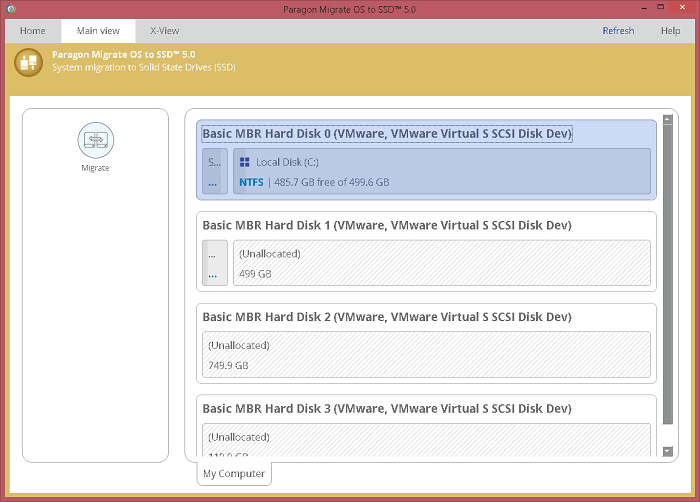
Step 3. To select the Windows OS on the disk and the SSD to copy to, simply choose the desired operating system and storage device from the available options. This will ensure that the correct files are copied to the correct location, making the process smoother and more efficient.
Step 4. Select the files you want to copy, including folders like pictures, music, etc.
Step 5. The software will continue to copy the files, taking approximately 20 minutes or more to complete the process.
Conclusion
Migrating your operating system to an SSD allows for faster booting or program loading speeds. Paragon Migrate OS to SSD provides a quick solution to help you boot from your new SSD and access other files on your old drive.
After studying the Paragon Migrate OS to SSD review, we found that the tool has both advantages and disadvantages. However, if you're not satisfied with its performance, there's a more reliable alternative - Qiling Disk Master, which can be a better option.
FAQs About Paragon Migrate OS to SSD Review
If you're still unsure about Paragon's migrate OS to SSD feature, keep reading and this section will address any remaining questions and provide clarity.
1. Is it good to migrate OS to SSD?
Migrating your operating system to a solid-state drive (SSD) can significantly improve your PC's performance, offering faster read and write speeds, reduced noise, and enhanced overall quality compared to traditional hard drives.
2. Can I use a cracked copy of Paragon Migrate OS to SSD?
Using a cracked copy of Paragon Migrate OS to SSD is not recommended because it may put your data at risk, expose your computer to viruses, or cause boot issues. Instead, consider using Qiling Disk Master as a safer alternative.
3. How can I move my OS from HDD to SSD?
You can use Paragon Migrate OS to SSD or Qiling Disk Master to transfer your OS to an SSD. Both tools can help you move your OS quickly and efficiently. To save time and energy, using Qiling Disk Master involves following these steps:
Step 1. Launch the software and enter the Disk Clone interface.
Step 2. To begin the OS migration process, select the "Migrate OS" option and choose the target disk where you want to move the operating system. This will initiate the migration process, which may take some time depending on the size of the OS and the speed of your computer's hardware.
For a current Windows migration, compare the product workflow with this Paragon Migrate OS to SSD 4 alternative guide, including source, target, and first-boot checks.
Related Articles
- Windows 11 MBR to GPT Convert Tool [Free&Paid]
- [2024 Update]How to Resize EXT4 Partition in Windows 11/10
- Windows 10 File Transfer Stuck at 99%? Fixes Are Here!
- Fixed: Change Block Size From 4K to 64K | 2024 Full Guide
If you want to change your block size from 4K to 64K but don't know how, then this article is for you. Continue reading for a step-by-step guide and understand the background of this tutorial. - Overall Guide to Migrate/Move OS to SSD
To move your OS to a new SSD, you can clone your existing system disk to the SSD with a few clicks, allowing you to install Windows 10 on the new drive without reinstalling and keeping all your data intact. - How to Move Partition in Windows Server
To move a partition in Windows server using Disk Management, launch the Disk Management application and right-click the partition drive you want to extend or move, then select the appropriate option from the context menu.
Products
Articles & Tutorials
- Data Recovery
- Data Backup
- File Recovery
- File Backup
- System Backup and Restore
- Disk and Partition Clone
- Technical articles
- Mobile articles
- Disk Master Help
- Windows Data Recovery Tutorials
- Windows Secure Delete Tutorials
- Windows Partition Management Tutorials
- Windows File Backup and Restore Tutorials
- Windows System Backup and Restore Tutorials
- Windows Disk Backup and Restore Tutorials
- Windows Clone Tutorials