Paragon Migrate OS to SSD 4.0 Alternative for Windows
Paragon Migrate OS to SSD 4.0 is an older Windows migration product. If its edition, licensing, or compatibility no longer fits your PC, use a current system-cloning tool instead of copying C: in File Explorer. A bootable Windows installation also depends on EFI or system-reserved partitions and boot configuration.
Check compatibility and protect the source
Confirm the target SSD connects to the PC and has enough usable capacity for the used space on the Windows source. Match the SSD form factor and interface to your motherboard or USB enclosure. If BitLocker is enabled, save the recovery key and suspend protection before changing boot hardware. Make a separate image or file backup, then keep the old drive unchanged until the clone is verified.
Warning: Cloning overwrites partitions on the target SSD. Verify its model and capacity, and copy any files on it elsewhere before proceeding.
Clone Windows with Qiling Disk Master
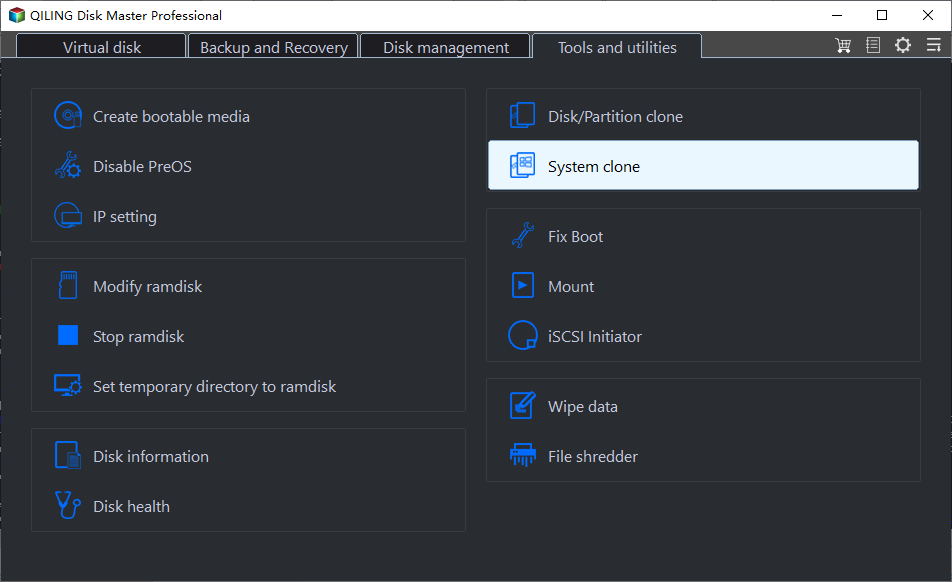
Step 1. Connect the target SSD. Open Qiling Disk Master and select Tools and utilities > System clone. This is the system migration path; choose disk clone only if you intend to copy the entire physical disk.
Step 2. Review the Windows source selected by the software. Confirm the system disk model and the boot-related partitions it plans to include.
Step 3. Select the target SSD by model and capacity. Make certain it is not your backup drive. If a warning says target data will be overwritten, stop and reconfirm the target before accepting it.
Step 4. Review the preview: source and destination should be in the intended order, and the destination should have space for all required partitions. Adjust destination layout only if the tool offers an appropriate option.
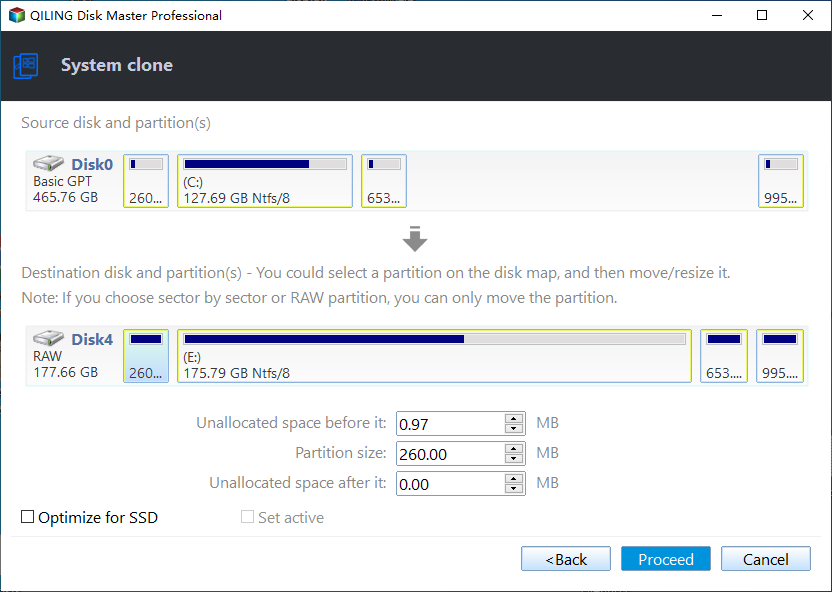
Step 5. Click Proceed, acknowledge the overwrite warning, and wait for the progress view to finish. Do not disconnect either drive or power off the PC.
Boot and verify the target
Shut down, temporarily disconnect the original drive if practical, and start the PC from the SSD in UEFI or BIOS boot order. Confirm Windows sign-in, installed apps, and representative files. Check Disk Management for unused target capacity. Only erase or repurpose the old disk after several successful boots and a tested backup. If Windows fails to start, restore the original drive and investigate boot mode or missing system partitions; do not repeatedly reclone over the only good copy.
Related Articles
- Move Windows 11
Understand boot and licensing checks after moving Windows. - Clone Capacity Issue
Recover unused space after migrating to a larger SSD.
Products
Articles & Tutorials
- Data Recovery
- Data Backup
- File Recovery
- File Backup
- System Backup and Restore
- Disk and Partition Clone
- Technical articles
- Mobile articles
- Disk Master Help
- Windows Data Recovery Tutorials
- Windows Secure Delete Tutorials
- Windows Partition Management Tutorials
- Windows File Backup and Restore Tutorials
- Windows System Backup and Restore Tutorials
- Windows Disk Backup and Restore Tutorials
- Windows Clone Tutorials