How to Restore Missing Partition(s) on SSD
How Do I Find a Missing Partition on SSD
To restore a missing partition on an SSD drive, you can use built-in tools like Disk Management in Windows or Disk Utility in macOS, or third-party software like Qiling Partition Recovery or MiniTool Partition Wizard, which offer advanced features and a higher success rate. If the partition is not recoverable, it may indicate a more serious issue with your SSD, such as a hardware failure or corruption, in which case seeking professional help or replacing the SSD may be necessary.
This morning, I turned on my Windows 10 laptop, finding an SSD partition was missing. The missing partition is about 100GB, with 50GB occupied by essential documents and other files. Help, please."
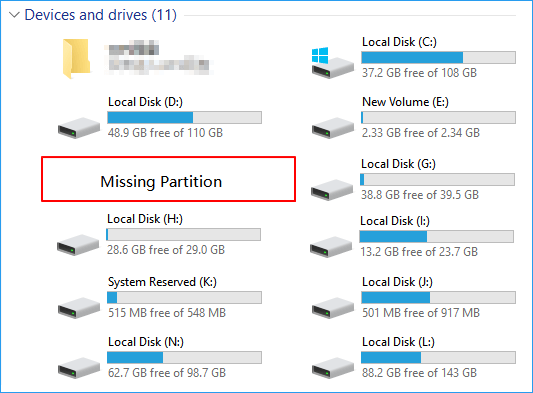
When you find a partition has disappeared in File Explorer on Windows PC, remain calm. You can check if the missing partition is hidden or lost by following the instructions on this page.
To resolve the issue of a missing partition with saved data, you can use automated partition recovery software or a manual method to bring it back immediately.
Note: Stop using the SSD disk before restoring the missing partition.
Check the Missing Partition Status: Lost or Hidden
To find the right solution and restore the missing partition, you should first check if the partition is hidden or lost, then use disk management tools or partition recovery software to scan and recover the partition.
To check the missing partition status, you can use the built-in Disk Management tool on your PC. This tool allows you to view and manage your disk partitions, including checking for any missing partitions.
Step 1: Right-click on This PC/My Computer, click "Manage".
Step 2: Open Computer Management and click "Disk Management".
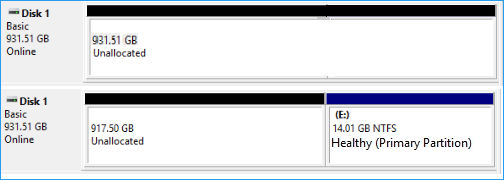
Step 3: Then check the partition status:
If the partition or entire SSD becomes unallocated, it's likely that the partition was deleted or lost due to various reasons.
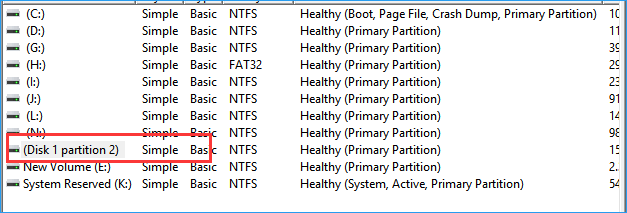
If there's a partition showing as (Disk * partition *) with no drive letter, it's likely the missing partition, possibly due to a disk error or formatting issue.
It's now a hidden partition without a drive letter.
To fix the issue of missing partitions on an SSD, you can either use an automated method or a manual approach. The automated way involves using a tool like Qiling Partition Recovery or Disk Drill to scan the disk and recover the missing partitions. On the other hand, the manual method requires using a live Linux CD or a Windows installation media to boot from, and then using tools like TestDisk or Qiling Partition Master to scan the disk and recover the missing partitions.
Restore Lost SSD Partition with Automated Partition Recovery Software
Automated partition recovery software can help recover a lost or deleted partition by scanning the disk and identifying the lost partition, allowing users to recover their data and restore the partition to its original state.
Qiling Partition Recovery, a software developed by Qiling, is designed to recover lost partitions.
This software supports all Windows OS, including Windows 10/8/7, Vista, and XP.
This tool will scan and restore the partition with all saved data from unallocated space in a few simple steps, allowing for a quick and efficient recovery of lost data.
Step 1. Run Qiling Partition Recovery on your PC.
The disk or device where the lost partition(s) are located should be selected, and then the "Proceed" button should be clicked to continue the process.
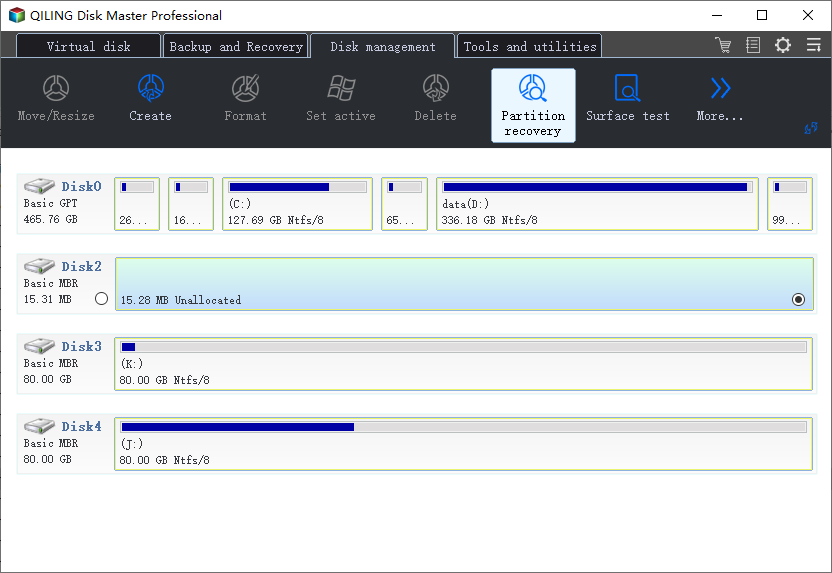
Step 2. Wait for the scanning process to complete.
The program will scan the selected disk and identify any lost partition(s) on it, providing a detailed report of the found partitions.
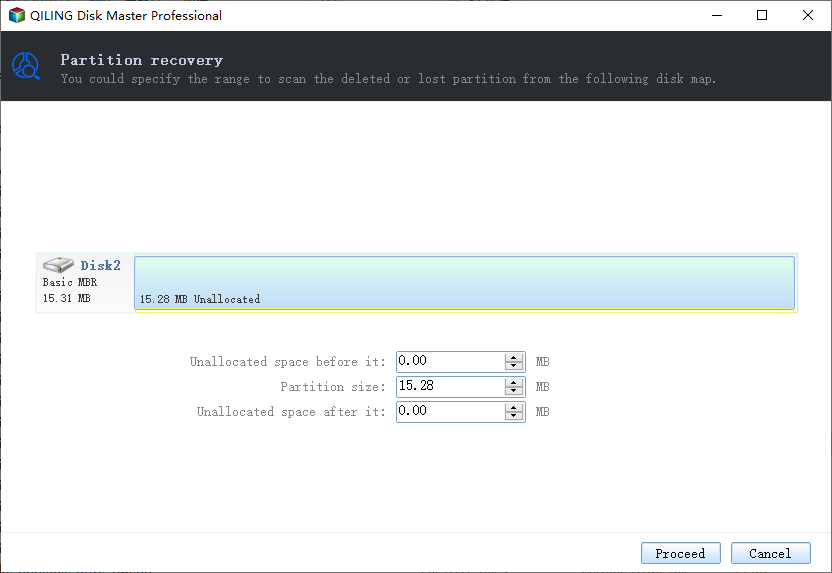
Step 3. Preview and restore the lost partition(s).
Double-click on the partition which is marked as "Lost" with "Good" recoverability.
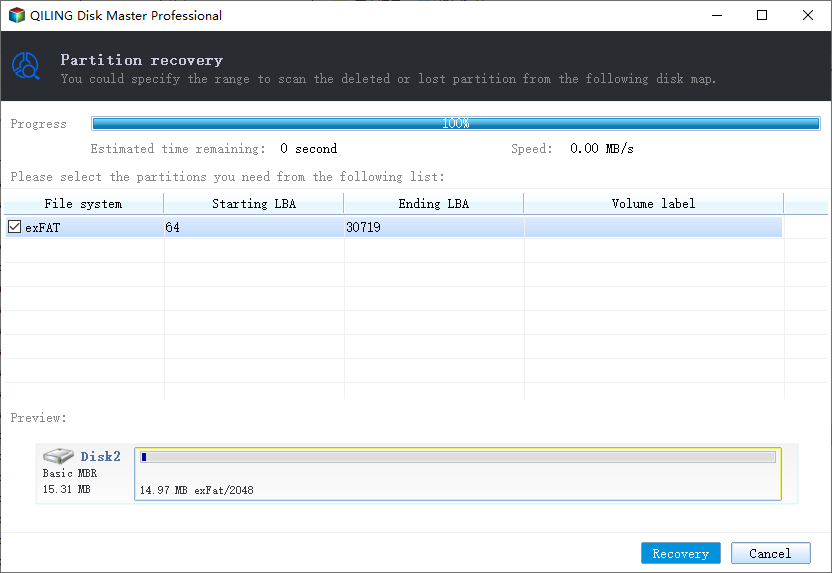
To access the lost partition, first, preview the content of the lost partition. Then, tick the partition from the list to view the lost partition.
Step 4. Click "Recover" to finish the partition recovery process.
To resolve the partition conflict, backup the listed partition with essential data to an external hard drive first, then execute the final operation to restore your lost partition. This will prevent data loss in case of a conflict.
Restore Hidden Partition on SSD with Disk Management
If the missing partition on your SSD disk is hidden and not lost, you can unhide it using Disk Management. This tool allows you to view and manage all partitions on your disk, including hidden ones.
Step 1: Right-click on This PC/My Computer and click on "Manage".
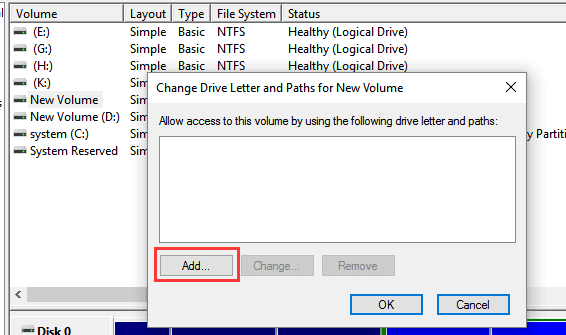
Step 2: To change the drive letter and paths of a hidden partition, first enter Disk Management. Locate the hidden partition and right-click on it.
Step 3: To unhide a partition, click the "Add" button in the Disk Management console to assign a drive letter to the partition. This will make the partition visible and accessible in Windows.
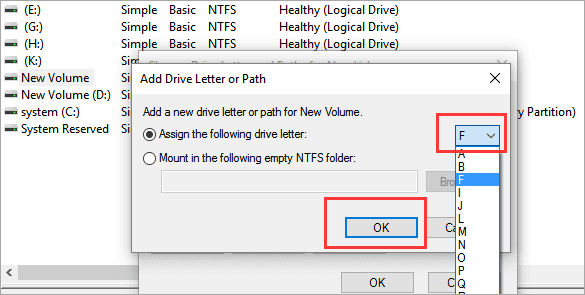
Step 4:Assign the drive letter for the hidden partition, such as "F", and click "OK".
Bonus Tip: Customize Manual Partition Recovery Service
If you're experiencing issues with a complex partition loss on an SSD disk, don't panic. Our Qiling data recovery experts can provide a customized manual partition recovery service to help you recover your lost data.
Your lost partition and data will be back in no time:
- 1. Unformat the drive
- 2. Repair the RAID, RAW disk or operating system
- 3. To recover a lost partition that cannot be recovered by software, you can try using a combination of hardware and software tools. First, you'll need to create a bootable USB drive or CD/DVD with a Linux distribution, such as Ubuntu or Fedora.
Related Articles
- 4 Ways to Recover NTFS Partition Without Losing Data
- How to Recover Data/Partition After Power Outage
- Format External Drive/USB exFAT in Windows 10 in Simple Steps
Format drive to exFAT Windows 10 so that it is read-and-write in Mac OS. This post tells how to format drives to exFAT in Windows 10. - [Guide]: How to Run Hard Drive Test in Windows 10
Do you know how to perform a hard drive test in Windows 11, 10, 8, and 7? You can find the answer from this article. - How to Partition A USB Drive Windows 10 [Step-by-Step Guide]
This article explains how to partition a USB drive Windows 10. You will know three ways to partition a usb, and you can choose the best suitable one to make your USB better used. - How to Partition C Drive [Step-by-Step Guide]
Do you have enough space for the C drive? Or is there too much free space for C drive? In this article, we provides a comprehensive guide on how to partition C drive in Windows 10. Read on to find out more.
Products
Articles & Tutorials
- Data Recovery
- Data Backup
- File Recovery
- File Backup
- System Backup and Restore
- Disk and Partition Clone
- Technical articles
- Mobile articles
- Disk Master Help
- Windows Data Recovery Tutorials
- Windows Secure Delete Tutorials
- Windows Partition Management Tutorials
- Windows File Backup and Restore Tutorials
- Windows System Backup and Restore Tutorials
- Windows Disk Backup and Restore Tutorials
- Windows Clone Tutorials