4 Ways to Recover NTFS Partition Without Losing Data
The NTFS file system has gained popularity due to its numerous benefits, but it also comes with its own set of challenges, such as the need for NTFS partition recovery. This is where specialized software comes in, designed to recover data from corrupted or damaged NTFS partitions, helping to mitigate the impact of data loss. By utilizing these tools, users can salvage their important files and get back to work quickly.
- 1. How to Recover NTFS Partition With Software
- 2. Recover Deleted/Lost NTFS Partition with DiskPart
- 3. Turn to Data Recovery Service
- 4. Repair Damaged NTFS Partition
What Is NTFS- Overview
NTFS is the standard file system of Windows NT and its later versions, including Windows 2000, XP, Server 2003, Server 2008, Vista, and Windows 7.
NTFS, the successor to FAT, is the preferred file system for Microsoft's Windows operating systems, offering several improvements over its predecessors, including FAT and HPFS. NTFS boasts enhanced metadata support and advanced data structures that boost performance, reliability, and disk space utilization, as well as additional features like security access control lists (ACL) and file system journaling.
What Causes an NTFS Partition Loss
If you accidentally format a partition or have a corrupted or damaged NTFS partition, you won't be able to access the files on it. In such cases, data recovery software can help you recover lost files from the affected partition. Common errors that indicate a damaged partition include.
- Operating System not found
- Invalid partition table
- The file system is displayed as RAW
- Drive not formatted.
- Cannot find the file or program
- Invalid command.com
- Non-system disk
- File names contain "weird" characters.
- "Sector not found" messages.
Method 1. How to Recover NTFS Partition Without Losing Data
If you accidentally format your NTFS partition, don't panic, as Qiling Partition Recovery software can easily restore data and undelete files from a formatted, deleted, damaged, or lost NTFS partition, helping you recover data from a formatted drive, RAW/NTFS partition, and restore deleted or lost NTFS partitions under Windows.
Step 1. Run Qiling Partition Recovery on your PC.
To recover lost partitions, select the disk or device where the partitions were lost, then click "Scan" to proceed. This will initiate the scanning process to locate the lost partitions.
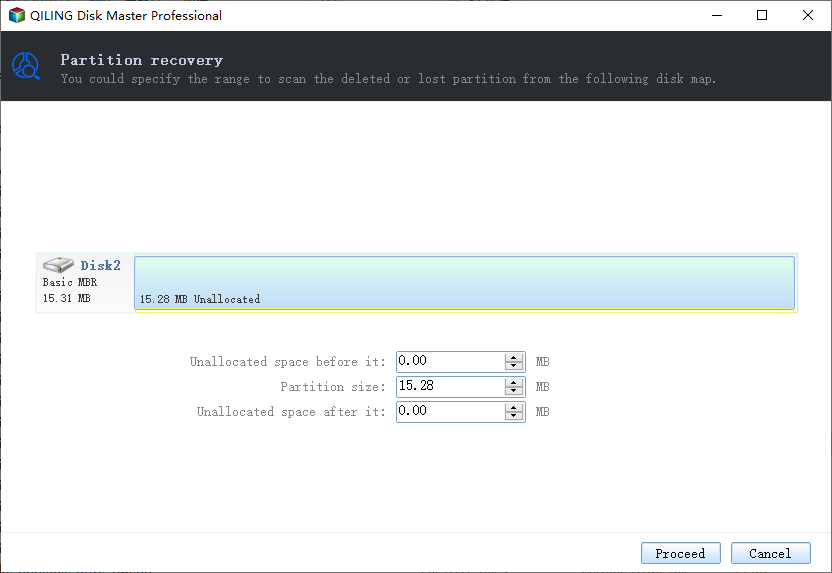
Step 2. Wait for the scanning process to complete.
Let the program scan the selected disk and find the lost partition(s) to recover any deleted or lost data.
Step 3. Preview and restore the lost partition(s).
Double-click on the partition which is marked as "Lost" with "Good" recoverability.
To preview the content of the lost partition, click "OK" and then click "Proceed" to start restoring the lost partition.
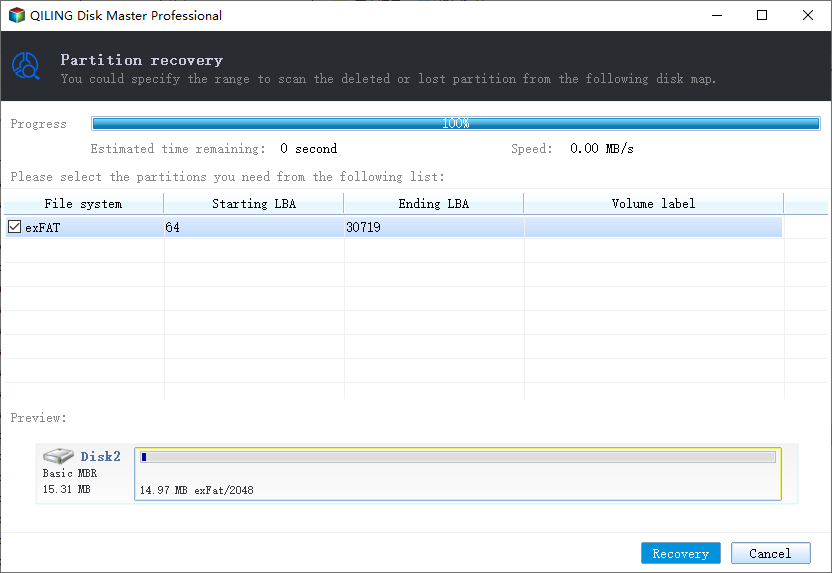
Step 4. Click "Recover Now" to finish the partition recovery process.
To resolve the partition conflict, back up essential data from the conflicting partition to an external hard drive, then execute the final operation to restore the lost partition. This ensures your data is safe before proceeding with the partition restoration.
Method 2. Recover Deleted/Lost NTFS Partition with DiskPart
If the NTFS volume label is missing, it may not be visible, but you can use the CMD command to fix the issue. Assigning a drive letter to the NTFS drive can help, and it may also be possible to restore the lost partition.
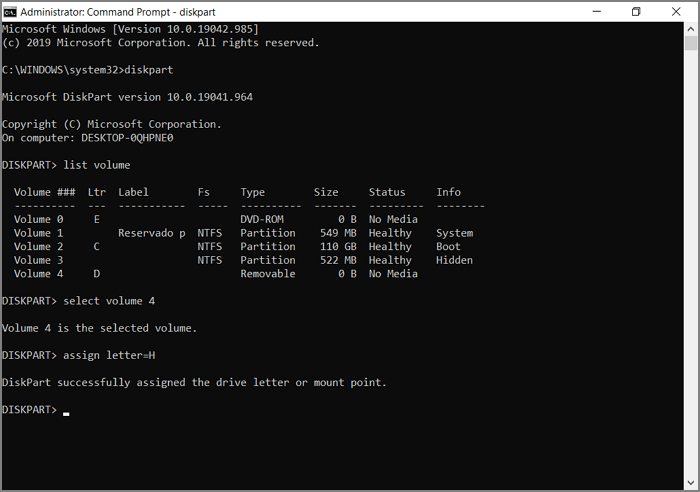
Step 1. To run the Command Prompt as an administrator, press the Windows key + S to open the search bar, type "cmd", and when the Command Prompt appears, right-click on it and select "Run as administrator".
Step 2. Type diskpart at the command prompt. Press Enter.
Step 3. Type list volume, then press Enter.
Step 4. select volume < 1 >.
Step 5. To assign a new drive letter, go to Disk Management, right-click on the NTFS partition, and select "Change Drive Letter and Paths". Then, click on "Add" and select a new drive letter from the list. Substitute the new drive letter with a new letter for the drive inside the <>. After making the change, exit the Disk Management window and try to access and restore the NTFS partition.
Method 3. Turn to Data Recovery Service
If you're still struggling to recover your lost NTFS partition, it may be time to seek the help of a professional data recovery service, such as Deep Data Recovery, which can quickly and easily recover your lost partitions.
Qiling offers data recovery services to help you retrieve lost or corrupted data quickly and easily, utilizing the expertise of experienced professionals and advanced tools to recover photos, videos, documents, and other file types.
Consult with Qiling Data Recovery Experts for a one-on-one manual recovery service, which includes the following services after a FREE diagnosis.
- Repair corrupted RAID structure, unbootable Windows OS and corrupted virtual disk file (.vmdk, .vhd, .vhdx, etc.).
- Recover/repair lost partition and re-partitioned drive.
- Unformat hard drive and repair raw drive(Bitlocker encrypted drive)
- Fix disks that become GPT protected partitions
Method 4. Repair Damaged NTFS Partition
After recovering data from a damaged, lost, or deleted NTFS partition, you can use Qiling CleanGenius to repair the file system and fix the damaged partition.
Qiling CleanGenius is a user-Say goodbye to tedious file system fixes! Introducing a user-friendly computer fixing tool that's both safe and lightweight. This one-click wonder is the perfect alternative to the CHKDSK command, making it easy to repair damaged file systems with just one click. No more hassle, no more stress - just a quick and effortless fix!
Step 1. DOWNLOAD Qiling CleanGenius on your computer and complete the installation.
Step 2. Run the software. Click "Optimization", and then choose "File Showing" .
Step 3. Select the drive with a corrupted file system. Tick the "Check and fix file system error" option and click "Execute".
Step 4. Wait the tool performs the repairing task. After that, click the "here" button to check the drive.
Conclusion
If you have any questions or need assistance, please feel free to contact us 24/7. We're here to help and can provide more information about our services and how they can help you recover lost data or partitions.
Related Articles
- 2 Effective Ways to Fix Asus Recovery Partition Missing Problem
- How to Restore Missing Partition(s) on SSD
- 3 Tips to Recover Lost Partition on Windows 10
- How to Restore Lost or Deleted Hard Disk Partition
- How to Burn Windows 11 23H2 ISO to USB | 2024 Latest🔥
To burn the Windows 11 23H2 ISO to a USB drive, you can use a tool like Rufus or the Windows USB/DVD Download Tool. These tools allow you to create a bootable USB drive from the ISO file, which can then be used to install Windows 11. - Troubleshoot and Bypass SMART Failure in Windows 2024 [Full Guide]
This tutorial will guide you through step-by-step solutions to troubleshoot and bypass SMART failure issues in Windows, ensuring optimal performance of your disk.
Products
Articles & Tutorials
- Data Recovery
- Data Backup
- File Recovery
- File Backup
- System Backup and Restore
- Disk and Partition Clone
- Technical articles
- Mobile articles
- Disk Master Help
- Windows Data Recovery Tutorials
- Windows Secure Delete Tutorials
- Windows Partition Management Tutorials
- Windows File Backup and Restore Tutorials
- Windows System Backup and Restore Tutorials
- Windows Disk Backup and Restore Tutorials
- Windows Clone Tutorials