Troubleshoot and Bypass SMART Failure in Windows 2024 [Full Guide]
SMART stands for Self-Monitoring, Analysis, and Reporting Technology (SMART) is a feature built into hard drives to monitor performance and health-related elements, providing notifications of possible failure and enabling users to take preventative action. However, if you're encountering a bypass SMART failure in Windows, this guide aims to help you understand the potential causes and solutions to fix it.
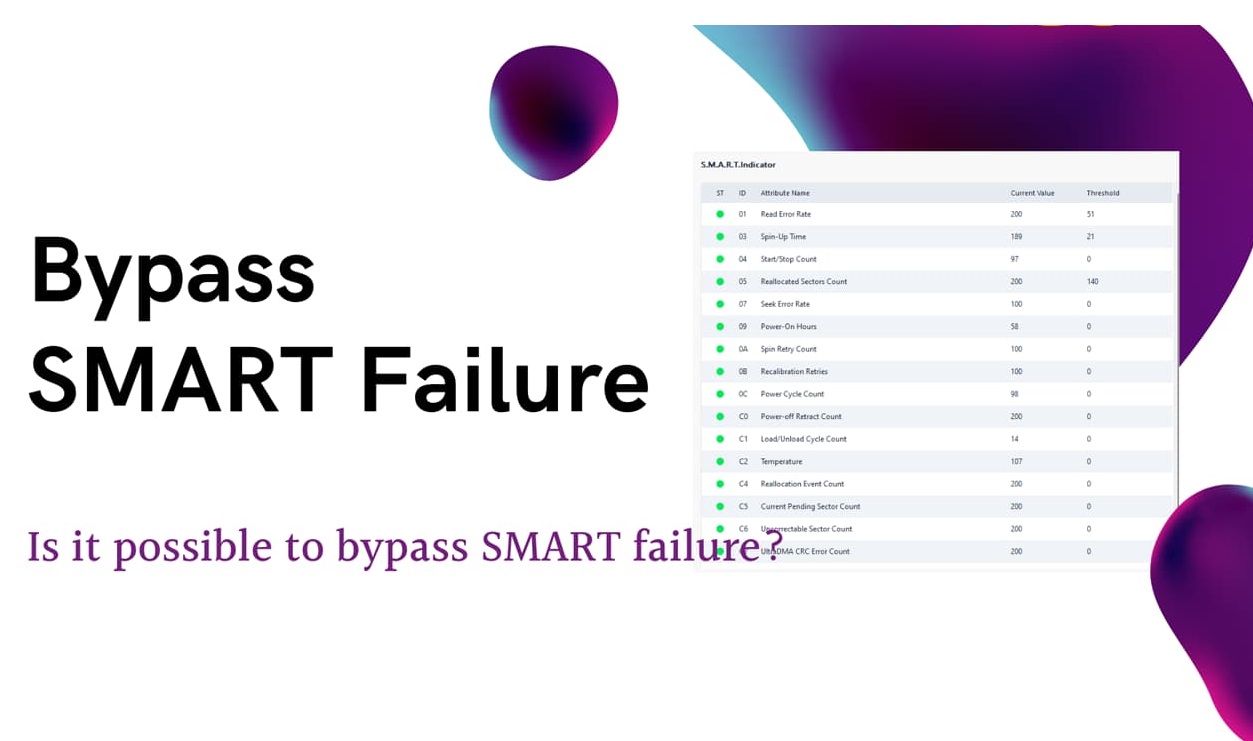
If your bypass SMART failure is caused by a specific issue, you can resolve it using the techniques described in the next section. Let's identify the best approach for you.
Troubleshoot and Bypass SMART Failure Issues on Hard Drives [4 Methods]
To troubleshoot and bypass SMART failure errors instantly, check the disk's SMART status, run a disk check, and update the disk's firmware. If the issue persists, try resetting the disk, checking for physical damage, and running a disk diagnostic tool.
| Methods | Duration | Who Will Need It |
| 1️⃣Disable SMART in BIOS | 5-10 minutes | Advanced users |
| 2️⃣Use SMART Test Software | Less than five minutes | All users |
| 3️⃣Check and Fix File System Error | 5-10 minutes | Beginners |
| 4️⃣Defrag Hard Drive | 3-5 minutes | Beginners |
Regardless of your computer expertise, you can fix the SMART failure problem with any of the options provided. We've included detailed instructions to guide you through the process. It's also essential to create a backup before proceeding to prevent data loss.
1. Disable SMART in BIOS
When SMART is enabled in BIOS settings, it alerts you to potential hard drive issues, which may or may not be actual problems. To avoid unnecessary warnings, you can disable SMART from BIOS before proceeding.
| Pros | Cons |
|---|---|
|
|
Step 1: Restart your system, and when the Windows logo appears, press a specific key to access BIOS settings, typically F2, F8, F12, or DEL.
You can find the key online by entering the modal number of your laptop or computer if you're unsure.
Step 2: Once you enter the BIOS interface, use the arrow keys to navigate to the Hardware, Hard disk, or a related storage section.
Step 3: You will encounter the "S. M. A. R. T" option.
Step 4: Expand SMART and select "Disable".
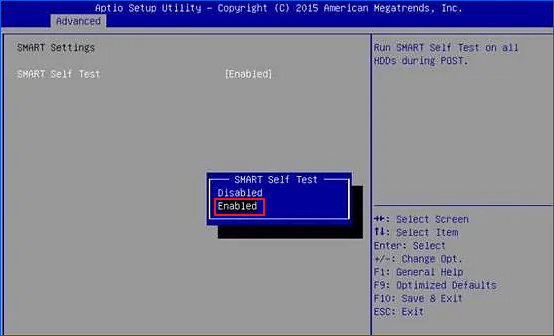
Step 5: Select "Save and Exit" and press "Y" to confirm changes.
2. Use SMART Test Software - Qiling Disk Master
If you encounter a bypass SMART failure in your Windows computer, disabling or resetting the SMART may not be helpful. Instead, you can use efficient SMART test software like Qiling Disk Master, which works perfectly on all Windows versions. You can simply install the free version of this tool and follow the given steps to resolve the issue.
| Pros | Cons |
|---|---|
|
|
Step 1. Launch Qiling Disk Master and click the blue arrow to activate the "Disk Health" feature under the "Tools" section.

Step 2. Select the target disk and click the "Refresh" button to view its health condition.

Video Tutorial on Testing SSD S. M. A. R. T State
Here, we also created a detailed video tutorial for you to follow and test the S. M. A. R. T state of your SSD, which is available on our website.
3. Check and Fix File System Error
To fix a bypass SMART Failure, you can check the file system integrity of your disk and fix errors. This can be done using Windows's built-in check file system feature, which helps to identify and resolve any issues with your disk's file system, potentially resolving the bypass SMART Failure.
| Pros | Cons |
|---|---|
|
The check and fix process can be time-consuming. |
The drive scan tool efficiently performs a scan on the drive, allowing users to take proper action on any potential file system errors that may be detected.
Step 1: Open "File Explorer" and double-click "This PC".
Step 2: Select your system drive (C-drive) and right-click on it.
Step 3: Click on "Properties" to explore more options.
Step 4: To check for errors, select the "Tools" tab from the top menu and click the "Check" button under the "Error Checking" button.
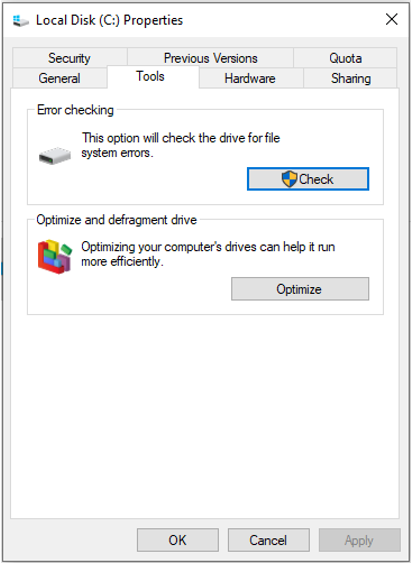
Step 5: To scan a drive, go to the Start menu, type "chkdsk" in the search bar, and select the "Check for errors" option. Alternatively, you can open File Explorer, right-click on the drive you want to scan, and select the "Properties" option.
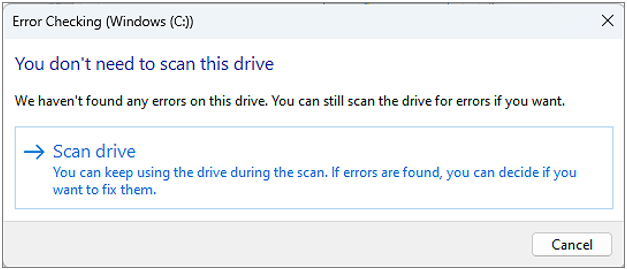
The scan will now look for any file system issues, and after scanning the drive, you can fix any errors found.
4. Defrag Hard Drive
Defragmenting the hard drive may resolve SMART failure caused by disk fragmentation.
| Pros | Cons |
|---|---|
|
Possibility of file corruption and data loss |
Quickly perform disk defragmentation by following these steps:
Step 1: Go to Windows "Search bar" and type "Disk Defragmenter".
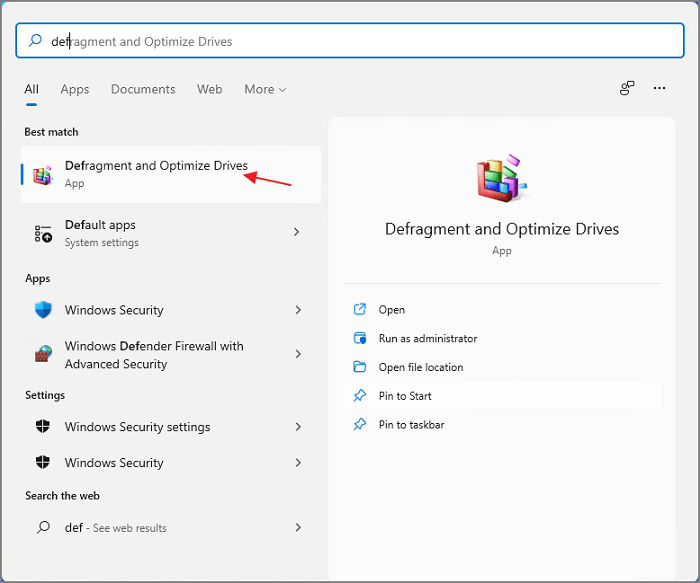
Step 2: Select the first option from the results.
Step 3: Choose the drive and click the ''Defragment Disk'' option.
Bypass SMART Failure: What You Should Know
SMART is a self-A SMART failure occurs when the Self-Monitoring, Analysis, and Reporting Technology (SMART) system in a computer's hard drive detects potential issues or warning signs of impending failure. Common symptoms of SMART failure include slow performance, high temperatures, frequent crashes, virus attacks, and error messages. These indicators can signal that the drive is experiencing problems and may fail soon. The SMART system is designed to monitor drive conditions based on error rates and performance, providing an early warning system for potential failures.
If you encounter a bypass SMART failure in your Windows computer, the first step you should take is to create a backup of your data to prevent unexpected data loss. This proactive measure allows you to take preventive action before a catastrophic breakdown, thanks to the early warning system enabled by SMART technology.
If your bypass SMART failure occurs, you can fix it using the techniques described above. The cause of the failure can be due to various reasons, but with the right approach, you can resolve the issue.
Conclusion
This guide provides a possible solution to fix the SMART failure error, along with measures to indicate the problem. Users can easily resolve the issue by using the suggested measures and solutions. We highly recommend using Qiling Disk Master, as it is the most efficient and easiest way to rectify the bypass SMART failure problem in Windows.
SMART goals are a popular framework for setting and achieving objectives, but they can also be a source of frustration and disappointment when they fail. SMART stands for Specific, Measurable, Achievable, Relevant, and Time-bound, but even with these clear guidelines, goals can still fall short.
FAQs About Bypassing SMART Failure
If you have additional queries on this issue, please follow and find answers in this FAQs section.
1. Why is SMART failure predicted on the hard disk
SMART failure prediction on a hard disk is based on evaluating factors such as read/write error rates, spin-up time, temperature, reallocated sectors, and others. This allows users to take action to prevent data loss and drive failure.
2. How do I skip SMART failure in BIOS
You can skip SMART failure in BIOS using the F1 key, but it's not recommended as it may indicate issues with your hard disk. It's best to replace the failed hard disk to avoid data loss.
3. What is the best SMART software for benchmark hard drive
Qiling Partition Master is the best SMART software for benchmarking hard drives, offering ease of use and compatibility with all internal and external hard drives.
Related Articles
- How to Disable PIN on Windows 11? 2024 Guide
- Best Free System Clone Software for Windows 10 Recommend
- Qiling Disk Master 16.0 Crack 2024 | Get Qiling Disk Master Crack License Key
- No EFI System Partitition Was Found? 4 Quick Fixes!
- Tools to Run Toshiba Hard Drive Test - Health & Speed 2024
Discover the essential tools to run a Toshiba hard drive test and maintain optimal health and speed. It's crucial for peak performance and detecting potential issues. Our recommended tools provide in-depth analysis, allowing you to monitor health and optimize speed effectively. - Unable to Extend C Drive? Fix It Now
If you're having trouble extending the C drive on your Windows computer, this article can help. It provides causes and practical solutions to resolve the issue.
Products
Articles & Tutorials
- Data Recovery
- Data Backup
- File Recovery
- File Backup
- System Backup and Restore
- Disk and Partition Clone
- Technical articles
- Mobile articles
- Disk Master Help
- Windows Data Recovery Tutorials
- Windows Secure Delete Tutorials
- Windows Partition Management Tutorials
- Windows File Backup and Restore Tutorials
- Windows System Backup and Restore Tutorials
- Windows Disk Backup and Restore Tutorials
- Windows Clone Tutorials