How to Disable PIN on Windows 11? 2024 Guide
Windows Hello PIN allows users to sign in with a unique numerical code, but some users prefer to turn it off for various reasons.
Some users may choose to disable PIN on Windows 11 due to personal preferences or security concerns, as PINs can be easier to guess than longer passwords. Additionally, alternative authentication methods may be more practical for users with accessibility needs. To learn how to disable PIN on Windows 11, follow this guide, which provides well-functioning methods to achieve this.

Method 1. Turn Off Windows Hello Sign-in Option
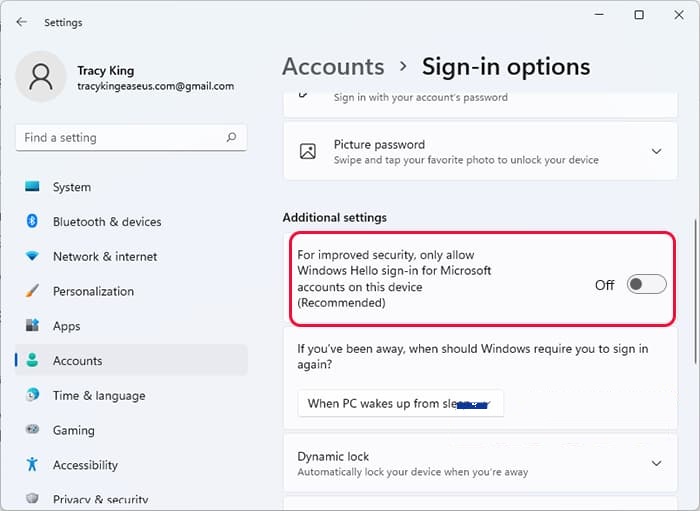
To disable the PIN on Windows 11, you can turn off the Windows Hello Sign-in option, which allows you to revert to traditional password-based authentication and choose other sign-in methods. To do this, go to Settings, then to Accounts, and finally to Sign-in options. From there, toggle off the switch next to "Windows Hello Sign-in" to disable it. This will allow you to use alternative sign-in methods such as passwords or other authentication options.
Step 1. To begin, right-click on the Start Menu icon and select "Settings" from the options that appear.
To access account settings in the Settings app, select the "Accounts" tab from the left pane, scroll down, and choose "Sign-in options" from the list of available settings. This will take you to the next screen, where you can manage various account-related settings.

Step 2. To improve security, disable the option that only allows Windows Hello sign-in for Microsoft accounts on this device, allowing other authentication methods.
Method 2. Use Windows PIN Removal Software
While the method mentioned earlier is effective for most situations, it's not a one-size-fits-all solution. To disable PIN without worrying about specific factors or scenarios, a reliable tool like Qiling Disk Master Professional can be a confident choice.
This tool's Password Reset feature allows you to easily remove your Windows PIN password, even if you've forgotten the digits. It's compatible with almost every version of Windows, making it a comprehensive solution for all users. The software also offers additional features that can be explored to learn more about its capabilities.
Detailed Guide to Disable the Windows PIN Using Qiling Disk Master
Now, follow the below step-by-step guide to disable the Windows PIN effortlessly:
Step 1. Insert the target USB disk into a computer, run Qiling Disk Master, and click "Tools" > "Create bootable media" to proceed with the process.

Step 2. Select the correct USB flash drive and click "Proceed" to create bootable media.

Step 3. After creating the password reset USB flash drive, connect it to the locked PC and restart it. Press F2/F8/F11/Del to enter the BIOS, then set the USB as the boot drive. Once done, the system will automatically boot from the USB.
Step 4. After restarting, launch Qiling Disk Master again and go to "Password Reset". All accounts on the PC will be displayed, click on the target account and select "Reset" to reset the password.

Step 5. When you receive this prompt, click "Yes" to continue. Your password will be erased.

If you find this tool helpful, feel free to share it with others online and help them customize their Windows PIN settings with ease, just like you did.
Method 3. Use I Forgot My PIN Window
To disable the PIN on your Windows 11, you can use the 'I Forgot My PIN' option, allowing you to skip using the PIN for authentication while still accessing your account.
To disable the PIN on Windows 11, you can use the "Change PIN" feature, which also allows for PIN removal. This method lets you reset your PIN when you forget it, and you can also use it to disable the PIN altogether. To do this, follow the steps below.
Step 1. To access the "Sign-in options", first open the "Settings" app on your device, then navigate to the "Accounts" tab, and finally select the "Sign-in options" from the available choices.
To reset your Windows Hello PIN, go to the Windows Settings, then select Accounts, then select Sign-in options, and finally select "PIN (Windows Hello)". From there, select the "I forgot my PIN" option.
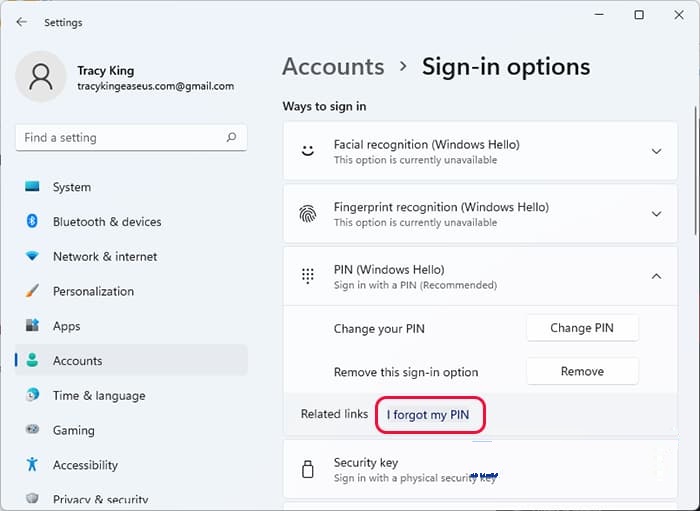
Step 2. To remove your PIN, confirm the process by hitting "Continue" on the next pop-up screen, then sign in with your Microsoft credentials. This will lead you to the "Set up a PIN" dialog. Simply click "Cancel" and close the window to successfully remove your PIN.
Method 4. Remove PIN on Windows 11
To disable Windows PIN on Windows 11, you can try the removal method by turning off the Windows Hello sign-in option. This will restore the option to directly remove the Windows PIN, allowing you to completely remove the PIN from your Windows authentication. To do this, follow the instructions for the removal method.
Instructions:
- Access the "Sign-in options" screen as discussed in the guide above.
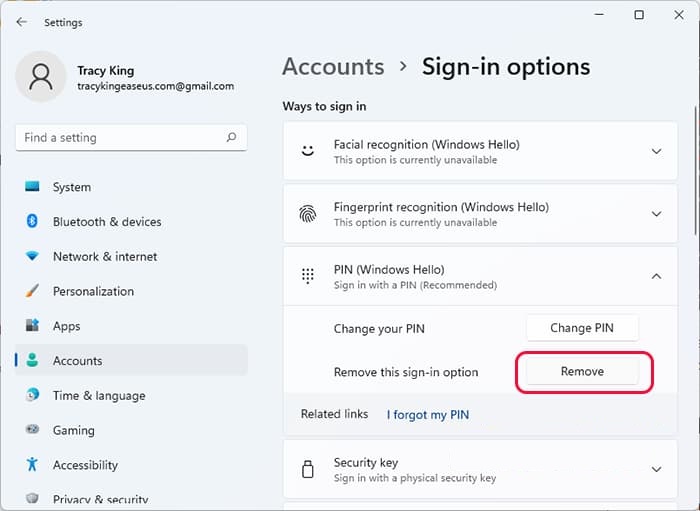
- After clicking the "PIN (Windows Hello)" drop-down button, select "Remove" from the options.
- Then, hit the "Remove" option again for confirmation.
- To remove your PIN on Windows 11, input your account password and tap "OK" to confirm the action.
If you're tired of the annoying Windows Hello pin, you can easily remove it by following these steps. First, go to Settings > Accounts > Sign-in options and toggle off the switch next to "Windows Hello Face" or "Windows Hello Fingerprint" to disable biometric sign-in.
Method 5. Turn Off the Passwordless Login Feature for Microsoft Account
Passwordless login is a built-To disable the PIN authentication feature in Windows 11, you can follow these steps. This feature, which triggers authentication through a Personal Identification Number (PIN), can be turned off anytime, allowing users to log in to Windows using only their traditional passwords. To do this, you can follow a simple guide that will walk you through the process of disabling this feature, giving you the option to use passwords instead of PINs for authentication.
Step 1. To access the account settings in Windows, start by entering the "Settings" and proceed to the "Accounts" tab. From there, select the "Your info" option.
Step 2. To access your Microsoft account security page, click "Accounts (Manage my account)" from the "Related settings" in the Settings app, which will open the page in a browser window.
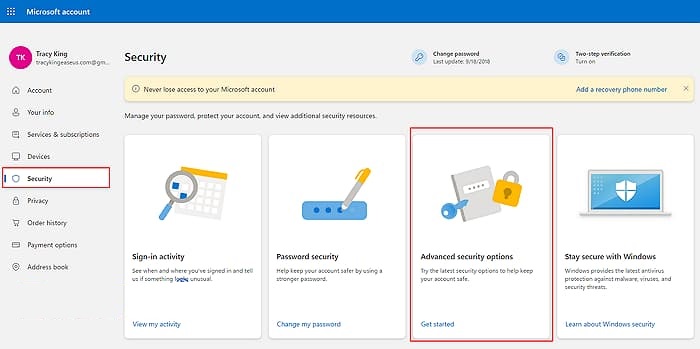
Step 3. To access the advanced security options, click the "Get Started" button and sign in to your Microsoft account. Once signed in, navigate to the "Security" tab from the top bar and select "Advanced security options".
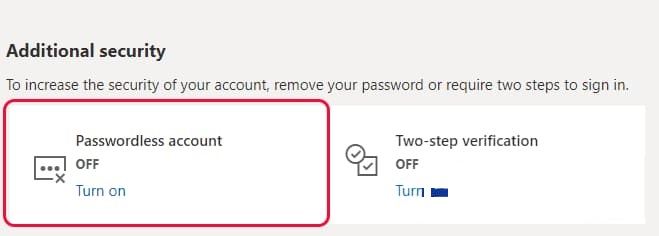
Step 4. To disable passwordless account on GitHub, navigate to your account settings, then click on "Security", followed by "Additional security", and finally toggle off the "Passwordless account" feature by clicking on it and confirming the action.
Conclusion
Microsoft Windows introduced the PIN feature for added convenience and security, but users can choose their own authentication methods. This guide provides easy methods to disable PIN on Windows 11.
You can bypass the PIN authentication system by disabling the "Windows Hello Sign-in" option or using the "I forgot my PIN" feature. Alternatively, you can use Qiling Disk Master, a reliable tool that eliminates the need to remember your PIN password. With this tool, forgetting your PIN isn't a concern anymore.
FAQs of Disabling PIN on Windows 11
We've already shared in-depth insights on disabling the PIN on Windows 11, but here are some frequently asked questions and their answers for further clarity.
1. Can I log in to Windows 11 without a PIN password?
You can log in to Windows 11 using a PIN password, or alternative methods like fingerprint biometrics, facial recognition, or traditional passwords.
2. How do I stop Windows 11 from asking PIN?
To stop Windows 11 from asking for a PIN, you can turn off the Windows Hello Sign-in option. Here's how:
- Access the "Sign-in options" window from the "Accounts" tab of Windows settings.
- To turn off the "For improved security, only allow Windows Hello sign-in for Microsoft accounts on this device (Recommended)" option, go to the "Related settings" section and toggle off the switch. This will allow Windows Hello sign-in for all accounts, not just Microsoft accounts.
If the tool doesn't work for you, you can use the powerful Qiling Disk Master tool to remove the PIN.
3. How do I Remove PIN in CMD on Windows 11?
To remove the Windows 11 PIN password using the Command Prompt, follow these steps:
- To open the Command Prompt, press the "Win + R" keys and type "cmd" in the Run dialog box, then hit "Enter".
- Now, enter the "C:\Windows\ServiceProfiles\LocalService\AppData\Local\Microsoft\Ngc /T /Q /C /RESET" command and reboot your PC.
Related Articles
- Failed to Format the Device? How to Fix HP USB Format Tool Write Protected
- Windows 11/10/8/7 Won't Boot from SSD
- How to Format PS4 Hard Drive on PC in Windows [Your Full Guide Here]
- Top 4 Best Partition Magic Alternatives Recommend
If you're searching for a Partition Magic alternative, you're in luck! This article provides a comprehensive overview of the top 4 best Partition Magic alternatives, offering you a reliable and efficient solution for managing your disk partitions. - How to Format SD Card for Trail Camera [2024 Newest Solution]
this guide provides a step-by-step guide to show you how to format SD card for trail camera. And you will know the detailed instructions on Windows, Mac, and camera. - How to Format SD Card to FAT32 on Windows 11/10? [7 Free Methods]
This page collected 7 reliable SD card formatter software that helps you to format all types of SD cards to FAT32 for free. Follow to download the best free SD Card formatter FAT32 software and set the desired file system to your SD card on Windows now.
Products
Articles & Tutorials
- Data Recovery
- Data Backup
- File Recovery
- File Backup
- System Backup and Restore
- Disk and Partition Clone
- Technical articles
- Mobile articles
- Disk Master Help
- Windows Data Recovery Tutorials
- Windows Secure Delete Tutorials
- Windows Partition Management Tutorials
- Windows File Backup and Restore Tutorials
- Windows System Backup and Restore Tutorials
- Windows Disk Backup and Restore Tutorials
- Windows Clone Tutorials