How to Format SD Card for Trail Camera [2024 Newest Solution]
If you're looking for a solution to format your SD card for a trail camera, this guide can help. To format your SD card, you can use a computer or a camera with a built-in formatting feature. On a computer, insert the SD card into the card reader and open the file explorer. Right-click on the SD card and select "Format" to erase all data and prepare it for use with your trail camera. Alternatively, if your trail camera has a built-in formatting feature, you can use it to format the SD card directly.
Formatting the SD card for a trail camera can help prevent glitches and full memory cards. This can be done on Windows or Mac using the operating system's built-in formatting tools, or directly on the trail camera itself using its built-in formatting feature.
Do You Need to Format SD Cards for Trail Cameras?
Formatting an SD card for your trail camera is necessary, whether it's new or old. This process provides several benefits, including ensuring the card is compatible with your camera, freeing up space by removing any existing data, and improving overall performance by removing any corrupted or fragmented files. Additionally, formatting the SD card helps to prevent any potential issues that may arise from using a previously used card in your camera. Therefore, it's a good idea to reformat the SD card before using it with your trail camera.
- Change the file system format for a new SD card
- Preventative cleaning of data
- Erase photos from the trail camera's SD card
- Extend the life of the SD card for better performance
Formatting an SD card is a crucial step to maintain its performance, but before doing so, it's essential to be aware of three key pieces of information. Firstly, formatting will erase all data on the card, so make sure to back up any important files. Secondly, formatting will not fix issues like corrupted files or bad sectors, so if you're experiencing problems, consider using a data recovery tool or seeking professional help.
- Important
- 1. Formatting the SD card will clear all the data, so remember to backup the SD card before formatting.
- 2. The suitable formats for the tracking camera are FAT32 and exFAT.
- 3. To use a computer to format an SD card for a trail camera, you'll need to have an SD card port on your computer or be prepared to use an SD card reader. This allows you to insert the SD card into your computer and format it.
To format an SD card for a trail camera, start by inserting the SD card into your computer or a card reader. Next, open the file explorer and locate the SD card.
How to Format SD Card for Trail Camera? [Three Ways]
Formatting an SD card for trail cameras is crucial for optimal performance. The formatting process depends on your operating system: Windows users can use a recommended format tool, while Mac users can use Disk Utility. Alternatively, you can also format the SD card directly on the trail camera.
To format an SD card for a trail camera using Qiling Disk Master, first, download and install the software on your computer. Next, insert the SD card into the computer via an adapter or card reader. Launch Qiling Disk Master and select the SD card as the target disk.
To format an SD card for a trail camera using Disk Utility, first, locate the SD card in the Disk Utility window. Select the SD card and click on the "Erase" button. Then, select the "Quick Erase" option and click on the "Erase" button.
To format the SD card for a trail camera using the Trail Camera Tool, first, download and install the software on your computer. Then, insert the SD card into the computer and launch the Trail Camera Tool. Select the SD card and choose the format option.
Formatting an SD card for a trail camera is a straightforward process. To start, ensure your SD card is empty or backed up, as formatting will erase all data. Next, insert the SD card into your computer or a card reader, and open the file explorer or finder.
How to Format SD Card for Trail Camera on Windows
You can use Qiling Disk Master Free, an all-in-one disk manager in Windows, to format SD cards for trail cameras safely and efficiently. This tool is very easy to use, and you'll know how to use it once you download it.
Step 1. To format an SD card, locate the card and right-click on the partition you want to format, then select the "Format" option.
Step 2. Set a new partition label, file system (NTFS/FAT32/EXT2/EXT3/EXT4/exFAT), and cluster size to the selected partition.
Step 3. Click the "Proceed" button to start formatting your SD card.
Step 4. Click "Yes" on the pop-up window to continue.
What Else Can Qiling Disk Master Do?
The device also formats SD cards to exFAT and FAT formats for trail cameras, in addition to its other formatting features.
- Format write-protected SD cards
- Convert NTFS to FAT32 without data loss
- Check disk, file system errors, and bad sectors
Qiling Disk Master is a great helper for your computer's disk manager, offering a range of useful features and tools to make managing your disks easier and more efficient.
🔍Read More: How to Fix Ender 3 Not Reading SD Card
How to Format SD Card for Trail Camera on Mac
To format a trail camera's SD card on Mac, you can use Disk Utility or Terminal command. Disk Utility is a user-friendly option that allows you to repair the disk or format it to FAT or exFAT, making it suitable for the trail camera. To use Disk Utility, follow the steps: connect the SD card to your Mac, open Disk Utility, select the SD card from the list on the left, click the "Erase" button, choose the desired format (FAT or exFAT), and click "Erase" again. Alternatively, you can use the Terminal command to format the SD card.
Step 1. Insert the SD card into your Mac using a card reader.
Step 2. Press "Command+Space" to find "Disk Utility" and open it.
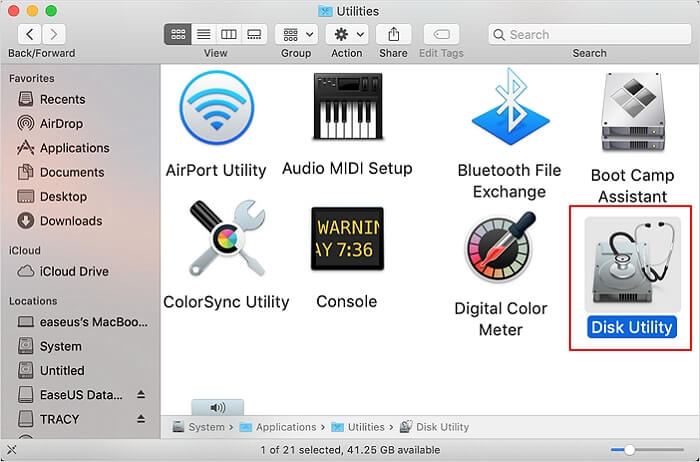
Step 3. Select the inserted SD card on the left side and click "Erase."
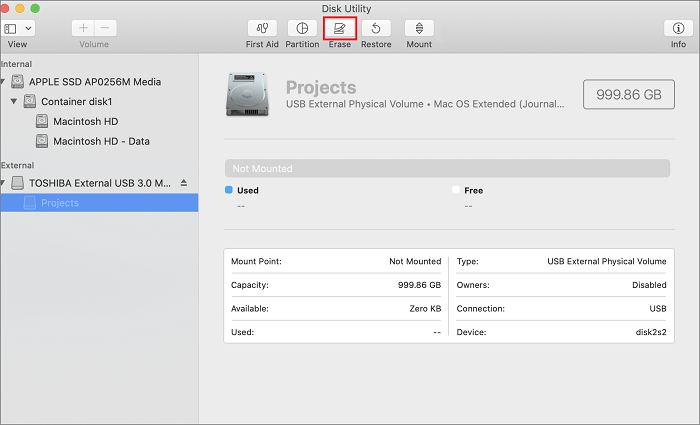
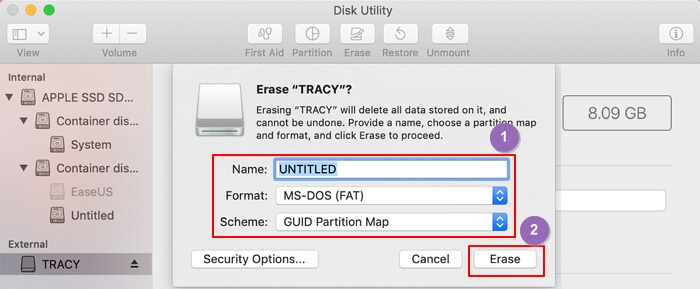
Step 4. Insert the SD card into your computer and launch the SD card formatting tool. Select the SD card from the list of available drives and choose the desired format, either "MS-DOS (FAT)" or "exFAT.
- Tip
- If your SD card is 32GB or smaller, choose FAT, while cards larger than 64GB require exFAT.
Step 5. To complete the formatting process on your Mac, click the "Erase" button. This will finalize the formatting of the SD card, making it ready for use with your Mac.
How to Format SD Card for Trail Camera on Trail Camera
Formatting an SD card on a trail camera is a quick and easy option that doesn't require a computer or card reader. The camera itself can match the SD card to its most suitable format, and the formatting options are typically found in the "Settings" menu.
Step 1. Open the trail camera and click the gear-like button.
Step 2. Find "Format."
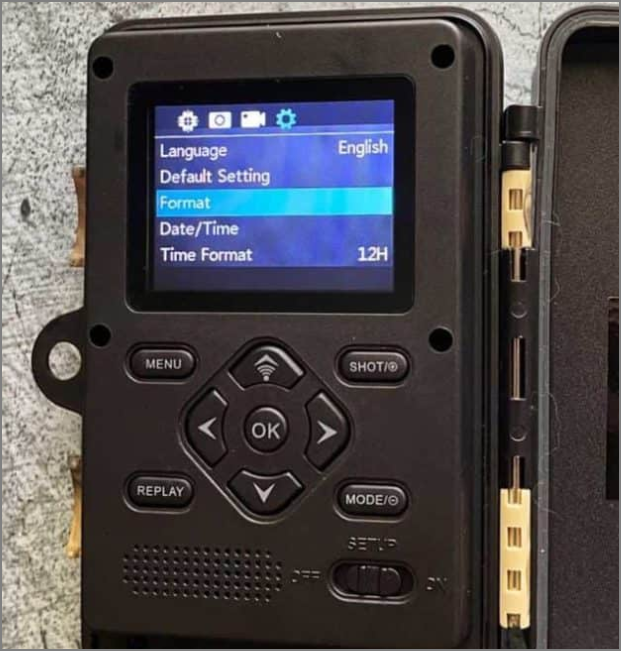
Step 3. To format the SD card for the trail camera, click on the "Format" option, and the "Please wait" message will disappear, indicating that the formatting process is complete.
Summary
After reading this guide, you'll know how to format an SD card for a trail camera. The process is easy and can be done on Windows, Mac, or directly on the camera. On PC, you can use Qiling Disk Master, while on Mac, Disk Utility is the way to go. Each method is quick and efficient, solving your problem in no time. These are the easiest ways to format an SD card for a trail camera.
FAQs About How to Format SD Card for Trail Camera
If you are interested in these questions, please continue reading.
1. What format do trail cameras use?
Trail camera video files are supported in AVI or MP4 format, and SD cards used with them can be formatted in FAT32 or exFAT.
2. Do I have to format a new SD card for my trail camera?
To avoid issues with your new trail camera, you'll need to format the SD card it uses. If the card is currently formatted with NTFS, you'll need to reformat it to match the format the camera is compatible with, which will ensure smooth operation and prevent problems.
3. How do I format my SD card for my Moultrie camera?
To format an SD card, you can either do it on your computer or on your Moultrie camera. If you prefer to format on your computer, you can refer to the instructions in this guide. Alternatively, if you want to format directly on your Moultrie camera, follow the steps provided.
Step 1. Open the camera and find "Settings."
Step 2. To format an SD card, press and hold the "Format SD card" button until the SD card indicator turns yellow.
Step 3. Release the button, and the SD card will turn green when formatted successfully.
Related Articles
- Top Partition Magic Freeware/Best Partition Software
- Run USB Flash Drive Speed Test on Windows 10/11 - 2 Ways
- Move Partition to the Left and Unallocated Space to the Right or End of A Drive
- How to Fix SSD Shows Up in BIOS But Not Windows Issue 💡
A situation where an SSD is recognized in the BIOS but not in Windows is a frustrating issue. Fortunately, this problem can be attributed to a few possible reasons, including loose connections, incorrect drive configuration, or a corrupted drive. - How to Remove MBR Partition in Windows 7/8/10/11
This article delves into the details of the MBR (Master Boot Record) partition table, providing a deeper understanding of its functionality. Additionally, it will guide you through the process of removing the MBR partition table from a hard drive or USB drive in a Windows environment. - How to Remove Password in Windows 10 Without Login
To remove passwords in Windows 10 without logging in, there are four ways to consider, with Qiling Disk Master being the most effective option.
Products
Articles & Tutorials
- Data Recovery
- Data Backup
- File Recovery
- File Backup
- System Backup and Restore
- Disk and Partition Clone
- Technical articles
- Mobile articles
- Disk Master Help
- Windows Data Recovery Tutorials
- Windows Secure Delete Tutorials
- Windows Partition Management Tutorials
- Windows File Backup and Restore Tutorials
- Windows System Backup and Restore Tutorials
- Windows Disk Backup and Restore Tutorials
- Windows Clone Tutorials