Solved: Ender 3 Not Reading SD Card [Quick Fixes]
The Ender 3 3D printer has gained popularity for its affordability and capabilities, but issues like the "Ender 3 Not Reading SD Card" can be frustrating. This problem often arises unexpectedly, halting the printing process and impeding workflow efficiency. In this guide, we will explore quick fixes to address the issue of the Ender 3 failing to read the inserted SD card.
How to Fix Ender 3 Not Reading SD Card
This section will explore several troubleshooting steps to rectify the problem and get your printer back on track. Click and share these valuable solutions with users who are experiencing the same issue.
Now, let's go through the step-by-step procedures to troubleshoot and fix the Ender 3 not reading SD card issue.
Way 1. Reinsert or Clean the SD Card
If the Ender 3 is having trouble reading the SD card, a simple disconnection or debris on the card may be the culprit. To troubleshoot, power down the printer to avoid any potential damage, then remove the SD card from its slot and inspect it for any visible dirt, dust, or damage. If you find any, use a soft, dry cloth to wipe the contacts and ridges of the SD card.
Insert the SD card back into the designated slot on the Ender 3, turn on the printer and check if the SD card is being read. If the issue persists, try a different solution.
Way 2. Format SD Card to FAT32
Formatting the SD card to FAT32 can enhance compatibility with the Ender 3, resolving issues caused by the card's original formatting. There are three ways to format your SD card to FAT32:
Option 1. Qiling Disk Master - Best SD Card Formatter
Qiling Disk Master Professional is a comprehensive disk manager that offers various functionalities, including managing storage devices, optimizing disk space, and resolving issues like the Ender 3 not reading SD cards, making it an exceptional free partition manager for Windows.
To format your SD card to FAT32 without any issues, follow these steps: First, ensure your SD card is properly connected to your computer. Next, open the Disk Management tool on your computer.
Step 1. Launch Qiling Disk Master, right-click the partition on your external hard drive/USB/SD card which you want to format and choose the "Format" option.

Step 2. Assign a new partition label, file system (NTFS, FAT32, EXT2, EXT3, EXT4, exFAT), and cluster size to the selected partition.

Step 3. Click the "Proceed" button to start formatting your external hard drive/USB/SD card.

Step 4. In the Warning window, click "Yes" to continue.
Option 2. Disk Management
Disk Management is a built-in tool on Windows that offers disk-related functionalities like partitioning, formatting, and management. While it may not have as many features as Qiling Disk Master, it's still a viable option to format an SD card, which can resolve issues like the Ender 3 not reading an SD card. To format your SD card to FAT32 using Disk Management, follow the steps provided.
Step 1. To access your SD card, attach it to your computer and open "Disk Management" from the Start menu. This will display a list of drives, allowing you to locate and identify your SD card.
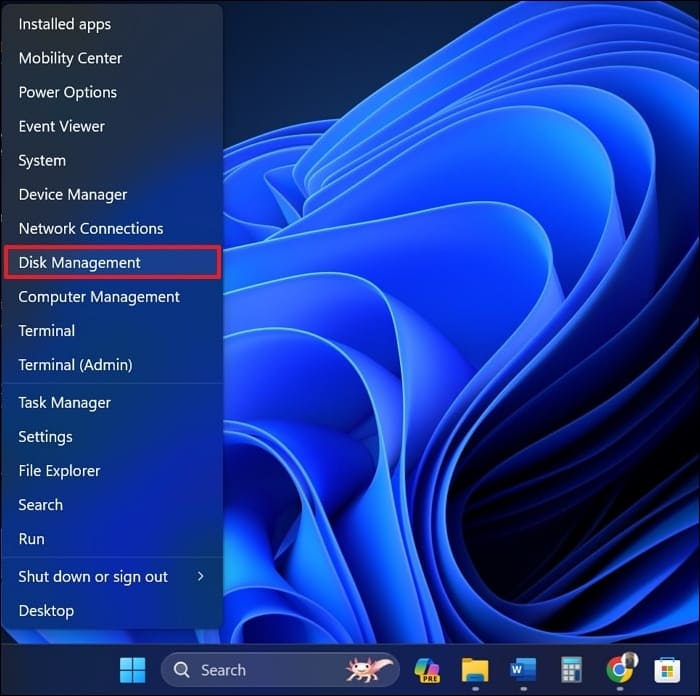
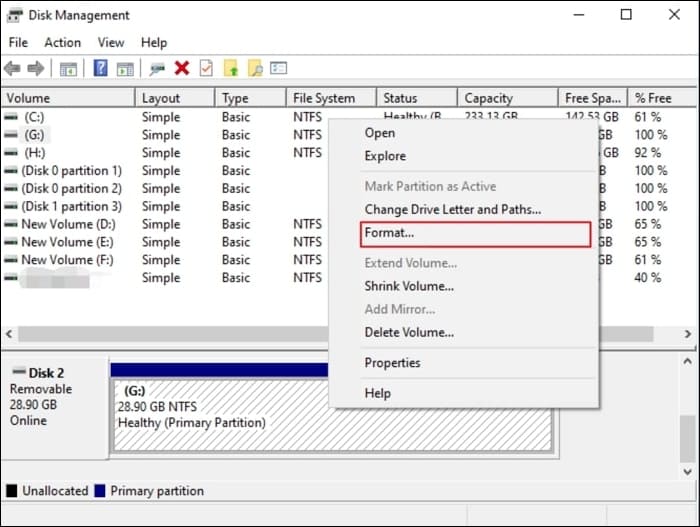
Step 2. To format an SD card, locate the card in your computer's file system, right-click on it, and choose "Format." In the pop-up window, select FAT32 from the drop-down menu.
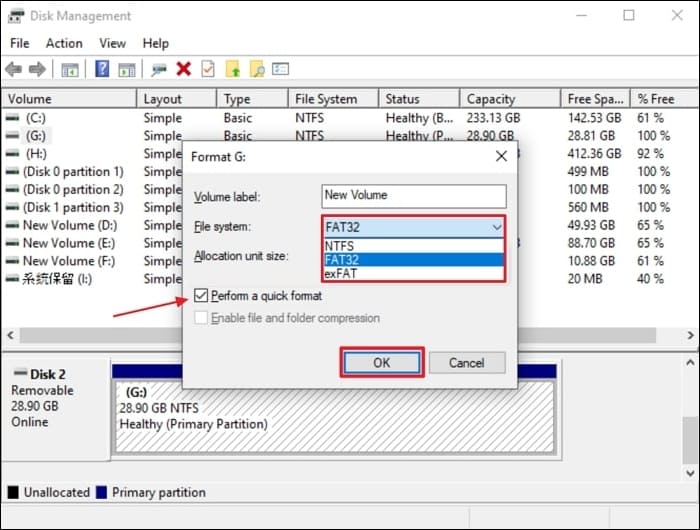
Step 3. After selecting the SD card, mark the checkbox beside the "Perform a quick format" option, then click "OK" to initiate the process. Once the process is complete, check if the SD card works with Ender 3.
Option 3. Diskpart
Diskpart is a command-To format an SD card to FAT32 using the Diskpart utility in Windows, follow these steps:
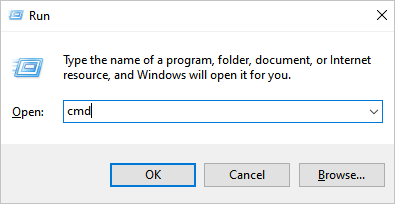
Step 1. To start the process, open the Windows Run function, type "cmd", and press the "Ctrl + Shift + Enter" keys to access the Command Prompt with administrator privileges.
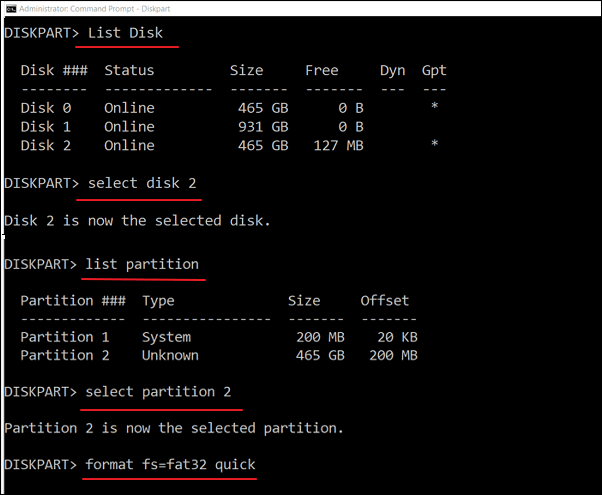
Step 2. To access the SD card in the Command Prompt, first run the command "diskpart" followed by "list disk" to view the available drives. Then, choose the SD card from the list by running the command "select disk X", where "X" represents the drive number of the SD card.
Now, execute the "list partition" command followed by the "select partition Y" command, where "Y" denotes the partition on your SD card. Then, run the "format fs=fat32 quick" command to format your SD card to FAT32 via Diskpart.
Way 3. Free Up SD Card Storage Space
Qiling Disk Master is a tool that helps manage disk space, particularly on SD cards, by freeing up unused space and optimizing storage. It also has a feature called SpaceAnalyzer that efficiently identifies and recovers unused space. This software can recreate unused space and optimize the SD card's storage, making it useful for managing storage capacity.
Here's how you can use Qiling Disk Master to free up storage space on your SD card to fix the Ender 3 not reading your SD card:
Way 4. Rename File/Folder of SD Card
3D printers like the Ender 3 Pro/V2 have a limitation in identifying file names, only allowing names up to 8 characters long, which can cause issues when accessing files or folders with longer names on the SD card.
To resolve the Ender 3 not detecting SD card issue, you can try shortening file names to within eight characters, and also eliminate spaces or special symbols from the names of any files or folders. This may help the printer detect the SD card correctly.
Why is Ender 3 Not Reading the SD Card
The Ender 3 may not read the SD card due to a variety of reasons, including a faulty SD card reader, incorrect SD card formatting, loose connections, or software glitches. Ensuring the SD card is properly formatted for the printer's operating system, checking the card reader for any physical damage, and verifying that the card is securely inserted into the reader can help resolve the issue.
- Bad or Dirty SD Card: Dirt, debris, or physical damage on the SD card's contacts can prevent it from connecting properly with the printer's reader.
- Wrong SD Card Format: Incompatibility due to an incorrect file system format, such as using NTFS instead of the recommended FAT32, can result in reading issues.
- Corrupted SD Card Reader: A faulty SD card reader slot on the printer can prevent it from recognizing the SD card.
- Incorrect SD Card Size/Insufficient Space: Using an SD card that is larger than the supported capacity or has insufficient space may cause reading issues.
- Outdated Firmware: Older firmware versions in the Ender 3 might have compatibility issues with certain SD cards or bugs affecting card recognition.
Conclusion
The Ender 3 not reading SD cards can be due to a damaged or dirty SD card, incorrect formatting, a corrupted reader, inadequate space, or outdated firmware, which can be resolved by cleaning or formatting the SD card, checking compatibility, and updating firmware.
To effectively manage your SD card and optimize disk space for smoother 3D printing experiences, consider using Qiling Disk Master. This tool offers a comprehensive approach to managing your SD card, as well as other disk space management solutions, potentially resolving issues and providing a smoother experience.
FAQs About Ender 3 Not Reading SD Card
If your Ender 3 is not reading the SD card, the issue may be due to a faulty SD card or a loose connection. Try using a different SD card to rule out any issues with the current one. Additionally, ensure that the SD card is properly seated in the reader and that the reader itself is securely connected to the printer.
1. What format should I use on my SD card for Ender 3?
For the Ender 3, it's best to use FAT32 on your SD card for optimal compatibility with the printer's firmware.
2. What should I do to format my SD card to FAT32?
To format your SD card to FAT32, try these steps:
Step 1: To transfer your data, place the SD card in a card reader connected to your computer, and then open Disk Management (Windows) or Disk Utility (Mac).
Step 2: To format an SD card, locate it, right-click, and choose Format. Select FAT32 as the file system and proceed with the formatting process.
3. How can I update Ender 3 firmware with an SD card?
To update the Ender 3 firmware via SD card, start by downloading the latest firmware from the Creality website or other reliable sources. Next, create a new folder on your SD card and extract the downloaded firmware files into it.
Step 1: From the official Creality website, download the latest firmware version, and copy the firmware file (.bin) onto the root directory of the SD card.
Step 2: To update the firmware on your Ender 3, first insert the SD card into the printer and navigate to the printer's menu. From there, you can initiate the firmware update process.
Related Articles
- NTFS or exFAT: Which Format is Better for External Hard Drive
- Which of the Following Commands Can be Used to Create Partitions
- How Do I Write Protect My USB Flash Drive, Help
This article will help you learn how to write-protect your USB drive, preventing your data from being changed or written. Two solutions were provided. - How to Find Hard Disk Serial Number in Windows 10
Do you want to check the serial number of your disk without taking out the hard drive? If so, continue reading, and I will tell you how to find hard disk serial number in Windows 10 in an easy way. - File Copy Stuck at 5 Seconds Remaining [Fixed]
If you're experiencing a file copy stuck at 5 seconds remaining error on Windows 10, 8, or 7, this article will guide you through fixing the issue without losing any data. - How to Fix "File System Error (-805305975)" in Windows 10/11 [Step-by-Step Guide]
To fix file system errors (-805305975), you can use a professional tool that checks the file system error and bad sectors. This tool can help identify and resolve the issue, allowing you to access your files and data again.
Products
Articles & Tutorials
- Data Recovery
- Data Backup
- File Recovery
- File Backup
- System Backup and Restore
- Disk and Partition Clone
- Technical articles
- Mobile articles
- Disk Master Help
- Windows Data Recovery Tutorials
- Windows Secure Delete Tutorials
- Windows Partition Management Tutorials
- Windows File Backup and Restore Tutorials
- Windows System Backup and Restore Tutorials
- Windows Disk Backup and Restore Tutorials
- Windows Clone Tutorials