How to Fix "File System Error (-805305975)" in Windows 10/11 [Step-by-Step Guide]
Are you experiencing File System Error (-805305975)? This guide provides effective solutions to resolve the issue.
What Is File System Error (-805305975)?
File system errors can occur in Windows, just like any other operating system, due to various reasons.
Users may encounter the file system error (-805305975) in Windows 10/11 when trying to open files in the wrong file format, particularly with files like photos, videos, and music.
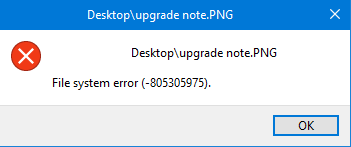
it's a common file system error. We'll provide full solutions. Let's briefly understand why this error occurs.
Besides, you may also be likely to another file system error with different codes and this is a link to help.
Why File System Error (-805305975) Happens?
There are three main possible reasons for file system error (-805305975). These include a corrupted system file, a faulty disk driver, or a disk that is failing or has failed.
- Wrong image format: Each computer has its own settings and uses different software, which can cause an error when trying to open a file that doesn't meet the system's requirements.
- Bad sectors: Hard drives can fail over time, potentially causing physical damage and rendering them unusable.
- Problems with photo applications: When installing a photo application, some files may be lost, which can cause this error to occur.
File system errors can be caused by various factors, including corrupted files, which can lead to system crashes and data loss.
To troubleshoot the error, you can try the following methods. We will provide a step-by-step guide for each method. Regardless of the cause of the error, these methods can help you identify and resolve the issue. Let's continue with the troubleshooting process.
How Do I Fix File System Error (-805305975) - Efficient Methods
Now that we've identified the main reasons for the file system error (-805305975), we can move on to solving the problem. To do this, we offer six efficient methods to help resolve the issue. First, we recommend using a professional tool to help with the error, which can be a convenient and effective solution. Let's start with this first method and see how it works.
Method 1. Check File System Errors
Checking file system errors is necessary, as it may indicate a problem with your hard drive file system. To do this, you can use Qiling Partition Master Free, which can efficiently scan and locate any file system errors.
As a free tool, it's easy to use with a clear interface, making it perfect for checking your file system.
Step 1. Open Qiling Partition Master, locate the disk, right-click the partition, and choose "Advanced" > "Check File System" to check the partition for errors.
Step 2. In the Check File System window, select the "Fix the error on the disk" option and click "Proceed".
Step 3. The software will begin checking your partition file system on your disk. Upon completion, click "Finish".
To resolve the file system error -805305975, you can use the built-in Check Disk utility (chkdsk) in Windows. This utility can help identify and fix file system errors, check disk for bad sectors, and even run a disk check. To use it, open Command Prompt as Administrator, type "chkdsk" followed by the drive letter of the affected disk (e.g., "chkdsk C:"), and press Enter.
Method 2. Check Bad Sectors
Qiling Partition Master is a partition manager that offers more than just partition management capabilities. It also allows for a surface test to identify bad sectors on a hard drive.
Let's see how to use it to find the bad sectors now.
Step 1. Open Qiling Partition Master, right-click the disk you want to check, and click "Surface Test" to run a surface test on the selected disk.
Step 2. The operation will be immediately performed and all bad sectors will be marked as red.
The tool checks for bad sectors and file system errors, but its specific features are not mentioned in this context.
- Convert NTFS to FAT32
- Resize, extend, or merge partitions
- Convert MBR to GPT without losing data
- Formatting an external hard drive, such as a USB, SD card, or any other portable storage device, is a straightforward process that can be completed on both Windows and Mac computers. To do so, insert the device into your computer's available USB port, and follow the on-screen instructions to select the drive you want to format.
It will help you if you have problems with disk partition management or format.
Method 3. Reset Photos App
To resolve the Photo app error in Windows, reset the Photo app. This can be done by going to Settings > Apps > Apps & features > Photo, and clicking on the three dots next to it, then selecting "Advanced options" and finally clicking on "Reset". This should resolve the file system error (-805305975) and allow the Photo app to function normally again.
Step 1. Right-click the "Start" option and choose" Apps and Features."
Step 2. To access advanced options in Microsoft Photos, click on the ellipsis (three dots) in the top right corner of the app, and select "Advanced options" from the dropdown menu.
Step 3. Click "Reset" and choose "Repair."
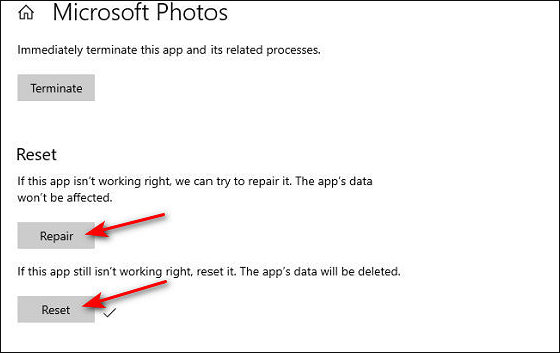
Step 4. Click "Reset" again and confirm your operation.
If it doesn't work, try the next method.
Method 4. Clean Boot Computer
If other processes and applications on your laptop conflict with the current system processes, it may cause file system errors. To resolve this issue, you need to clean boot the computer.
Step 1. To open the System Configuration utility, press the Windows and R keys to open the "Run" dialog box, then type `msconfig` and press Enter. This will open the System Configuration utility, where you can configure various system settings, including boot options, startup programs, and services.
Step 2. Click the Services tab, uncheck the "Hide all Microsoft services" option, click "Disable all", and then click "OK".
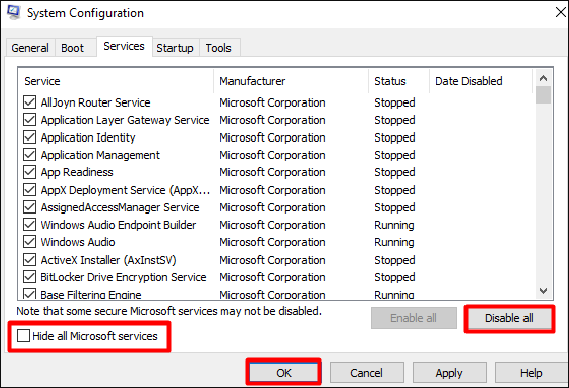
Step 3. Click "Restart" to confirm the operation.
The issue with the file system error (-805305975) may be resolved by running the System File Checker (SFC) tool or DISM (Deployment Image Servicing and Management) tool. If the issue persists, you can try installing the latest Windows Version. Additionally, ensure that your system is up-to-date and that there are no corrupted system files.
Method 5. Install the Latest Windows Version
The file system error (-805305975) may occur for the sake of an outdated version of Windows. Therefore, you can update your Windows version by following the guide below.
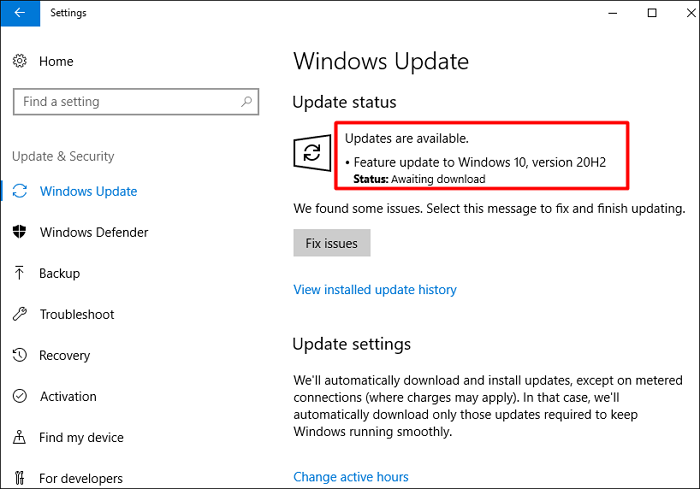
Step 1. Open the "Settings" window and then choose "Update & Security."
Step 2. Check the status of Windows updates on the right side of the screen. If updates are available, go to the Microsoft website to download and install the latest version of Windows.
Method 6. Factory Reset Windows
If the file system error -If the issue of 805305975 still persists after trying the methods above, it may be that the Windows system module itself is to blame. You can try resetting the operating system by following these steps.
Step 1. To access the Recovery option in the Settings window, go to the "Update & Security" section, and then click on the "Recovery" option in the left pane.
Step 2. Click the "Get started" option in this Window.
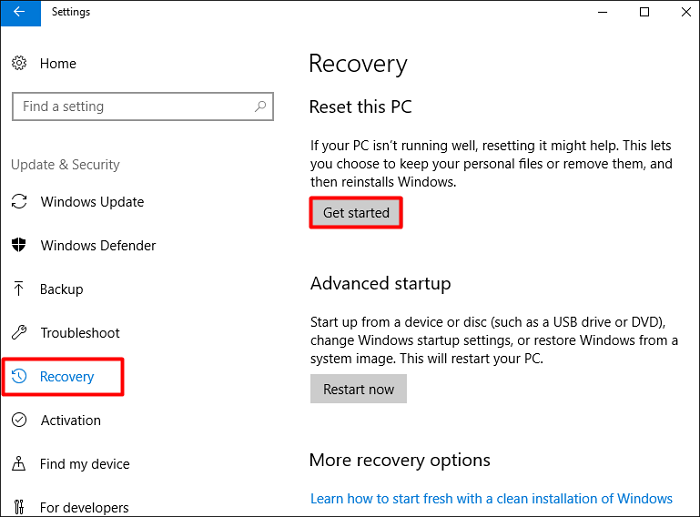
Step 3. Choose "Keep my files" to protect your data.
Step 4. Click "Next" and then "Reset" to confirm your action.
If you're experiencing the file system error -(805305975), - we've got six fixes to try! Each method is a potential solution, so be sure to test each one and see if the error is resolved. By trying each of these fixes, you should be able to get your file system back up and running smoothly.
If you're experiencing file system errors on Windows, there are some resources that can help you troubleshoot and resolve the issues. You can visit the Microsoft Support website for guidance on fixing common file system problems, or check out the Windows Forum for community-driven solutions and advice from experienced users.
Conclusion
This article provides six effective ways to solve the file system error (-805305975), with detailed steps and screenshots to help you easily perform them. If you have other questions about the file system error (-805305975), additional information is available.
FAQs About File System Error -(805305975)
In this part, there are three questions about today's topic, file system error (-805305975). If you have similar doubts, just continue reading.
1. What causes a file system error?
File system errors on Windows computers can occur due to hard disk-related issues such as bad sectors, disk corruption, and other errors. They can also be caused by malware or occur when trying to access files or programs that require administrator privileges.
2. How do I fix the file system error (-2147219200)?
File system errors may occur when system files that support program execution become corrupted, resulting in the error code -2147219200. To resolve this issue, you can try the suggested methods to repair the problem.
- Update device drivers
- Install Window's latest version
- Run Windows Troubleshooter
- To check the file system for errors and bad sectors, you can use Qiling Partition Master. This tool allows you to scan the file system for issues and identify any bad sectors that may be causing problems.
3. What is the system error (-2147219196)?
File system error 2147219196 is a Windows update issue that prevents users from running a specific application, typically the Photos app, or multiple applications, due to a file system error caused by the latest Windows update.
Related Articles
- Fix "Not Enough Space on the Disk in Windows Server"
- Can I Upgrade SSD to M.2 Without Reinstalling OS? Yes, Here Is Your Guide
- How to Fix DPC Watchdog Violation Error in Windows 10
- Fixes for Windows Cannot Be Installed to Disk 0 Partition 1 Error
- How Do I Shred Files for Free in Windows with Pictures
If you're looking for a free tool to shred files on Windows, this guide can help. It provides a list of the best free file shredder software available, making it easy to find the right tool for your needs. - Top 5 Best HDD S.M.A.R.T Monitor Software Free Download 2024
Do you need how to efficiently check and learn the hard drive health state in your computer? We collected the top 5 best S.M.A.R.T hard drive monitor software for you to free download and apply to monitor the hard drive health status efficiently in a few simple steps.
Products
Articles & Tutorials
- Data Recovery
- Data Backup
- File Recovery
- File Backup
- System Backup and Restore
- Disk and Partition Clone
- Technical articles
- Mobile articles
- Disk Master Help
- Windows Data Recovery Tutorials
- Windows Secure Delete Tutorials
- Windows Partition Management Tutorials
- Windows File Backup and Restore Tutorials
- Windows System Backup and Restore Tutorials
- Windows Disk Backup and Restore Tutorials
- Windows Clone Tutorials