How to Fix File System Error (-2147219200) [7 Efficient Fixes]
To resolve the file system error (-2147219200) when opening applications on Windows 10/11, check if the issue is related to a corrupted system file. Run the System File Checker (SFC) tool to scan and replace any corrupted system files. Additionally, check for any malware infections and update your operating system.
What Is File System Error (-2147219200)?
Windows is a widely used operating system developed by Microsoft, known for its impressive features that make it a favorite among users. Despite its popularity, it's not immune to occasional glitches and failures, which can occur despite its robustness.
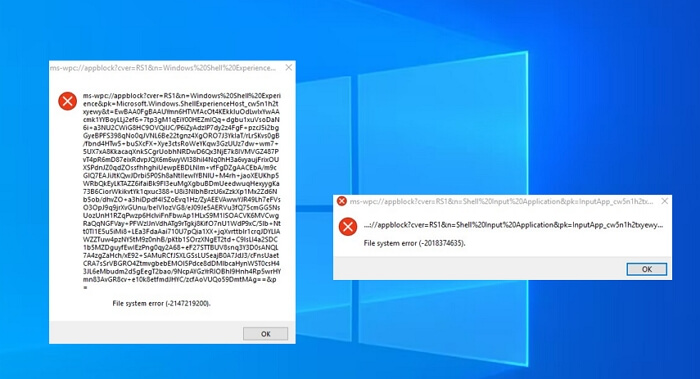
File system errors are disk-The file system error (-2147219200) may appear due to corruption in system files that support the execution of a program, preventing you from opening files such as PDFs, images, documents, or movies. This error can be caused by various issues, including corrupted system files, outdated software, or hardware problems. To resolve this error, you can try running a System File Checker (SFC) scan, checking for any corrupted system files, and reinstalling any outdated software. Additionally, running a disk check and ensuring that your system is free from malware can also help resolve the issue. If the problem persists, seeking professional help from a computer technician may be necessary.
You may also like:
What Causes File System Error (-2147219200)?
An early sign of the file system error (-2147219200) is when your system window crashes and displays a message saying "Windows has detected a file system corruption." This error often occurs on your local disk (C:) or system drive. The main reasons for this error include file system corruption, which can be caused by a variety of factors such as power outages, hardware failures, or software issues, leading to a crash of your system window.
- A bad sector or corrupt files: This error may occur if there is a bad sector on your disk or if your files are corrupted.
- Incorrect document execution policies: Incorrect document execution policies may result in a file system error.
Once you understand the cause, let us now focus on the solution to resolve this issue.
How Do I Fix the File System Error (-2147219200)?
How to fix file system error (-2147219200)? You can find answers in this part. Based on the two main causes, you can try the following fixes to repair your file system.
Fix 1. Check File System by Qiling Partition Master
As a professional partition manager, Qiling Partition Master Free can help you find and fix the error without any fees. It efficiently checks the file system with simple clicks, making it easy to use even for those who are not experts in computers.
The bad sector is a sector on a hard drive that is unable to be written to, often due to physical damage or corruption. To find out the bad sector, you can use the built-in Windows utility called Check Disk (chkdsk).
Step 1. Open Qiling Partition Master, right-click the disk you want to check, and click "Surface Test" to verify its integrity.
Step 2. The operation will be performed immediately, and all bad sectors will be marked as red.
You can also use Qiling Partition Master to check the file system, in addition to the steps mentioned earlier.
Step 1. Open Qiling Partition Master on your computer, locate the disk, right-click the partition you want to check, and choose "Advanced" > "Check File System".
Step 2. In the Check File System window, select the "Fix the error on the disk" option and click "Proceed".
Step 3. The software will start checking your partition file system on your disk. Once it's done, click "Finish".
Qiling Partition Master allows you to check the file system and bad sectors, convert MBR to GPT without data loss, convert FAT32 to NTFS, format hard drives and external hard drives, and more.
Fix 2. Use Windows Update Troubleshooter
Windows Update Troubleshooter is a built-in tool that can help detect and fix errors related to corrupt updates or other Windows issues, including the 2147219200 error code. You can try running Troubleshooting to resolve the issue.
Step 1. Press Windows + I and click open "Settings."
Step 2. Go to the System menu on the left and select Troubleshoot from the right menu.
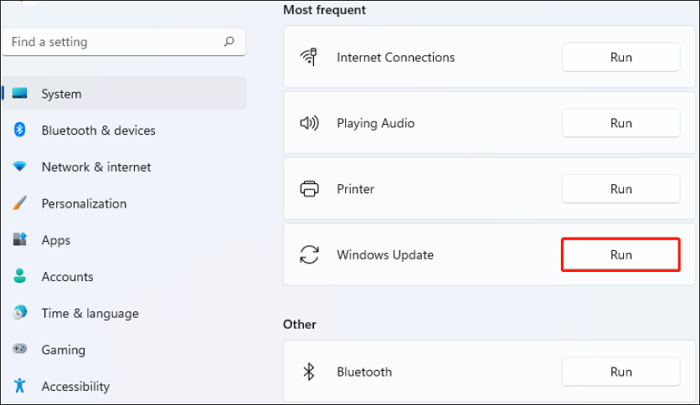
Step 3. This troubleshooter will scan for problems related to Windows Update components. If you find any fixes, click "Apply" and follow the on-screen instructions to complete the process.
Then you can then check if the file system error (-2147219200) has disappeared.
Fix 3. Run CHKDSK
To resolve the file system error (-2147219200), you can run the CHKDSK tool to check the disk and remove the error. CHKDSK is a built-in utility that can help identify and fix disk errors, including this specific issue. By running CHKDSK, you can troubleshoot the problem and potentially resolve the error.
Step 1. To open Command Prompt as an administrator, type "cmd" in the Search box and select "Run as administrator."
Step 2. Then, type chkdsk /f /x and press the Enter key.
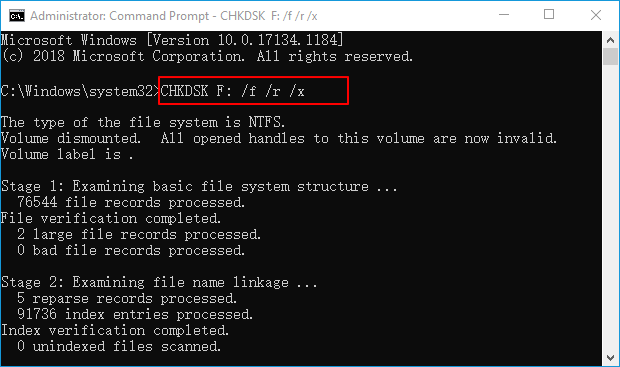
Step 3. Follow the on-screen prompts to finish this operation.
To resolve the file system error (-2147219200), restart your computer. This should repair the issue.
Fix 4. Run an SFC or DISM Scan
To troubleshoot issues with your system, run an SFC (System File Checker) or DISM (Deployment Image Service and Management) scan to scan and repair system files. You can do this by opening the Command Prompt as an administrator, typing "sfc /scannow" or "dism /online /cleanup-image /restorehealth" and pressing Enter. These tools will scan your system files and replace any corrupted ones with a fresh copy from the Windows installation media.
Step 1. To open the Command Prompt as an administrator, type "cmd" in the search box, right-click the "Command Prompt App" that appears, and select "Run as administrator" from the context menu.
Step 2. Type sfc /scannow.
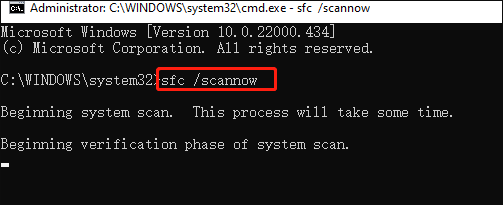
Note: This process may take you a lot of time to scan, so please wait patiently.
Step 3. If the SFC scan doesn't work, you can try running the DISM command, which is a more advanced tool for repairing corrupted system files. You can run the command prompt as administrator and type the following command: `DISM /Online /Cleanup-Image /RestoreHealth`.
- Dism /Online /Cleanup-Image /CheckHealth
- Dism /Online /Cleanup-Image /ScanHealth
- Dism /Online /Cleanup-Image /RestoreHealth
To fix the error code 2147219200, run the System File Checker (SFC) and DISM commands to scan and replace corrupted system files. Open Command Prompt as an administrator, type "sfc /scannow" and press Enter, then type "DISM /Online /Cleanup-Image /RestoreHealth" and press Enter.
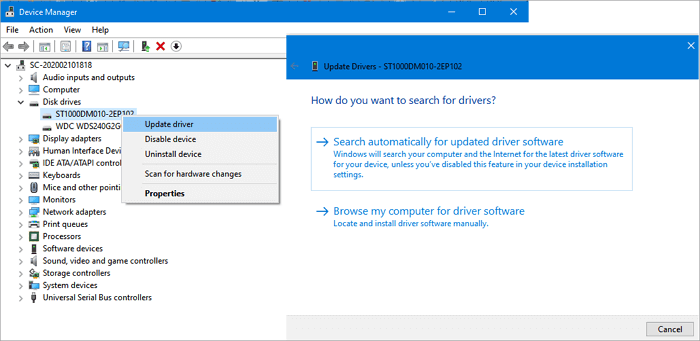
Fix 5. Update Device Drivers
If your device encounters the error "driver not found", try updating your device driver as an alternative. There is a guide available.
Step 1. Type "Device Manager" in the search box and click the result to open the Device Manager.
Step 2. Double-click on the device category, then select the device you want to update the driver for.
Step 3. Right-click the selected device, then click the "Update driver" option.
Fix 6. Install the Latest Windows Version
To resolve the file system error (-2147219200), you can try updating your system version. This may resolve the issue.
Step 1. First, click on the "Start" button and choose"Settings."
Step 2. Go to Update and Security and select Windows Update.
Step 3. Select "Check for updates."
To resolve the error, you can perform a series of steps. Firstly, you need to update your operating system to the latest version.
Fix 7. Reset Your Computer
To resolve the file system error (-2147219200), you can reset your computer without losing private files. This process involves a series of steps to safely reset your computer while preserving your important files. Please follow the instructions carefully to avoid any data loss or corruption.
Step 1. Right-click "Start" and choose Setting.
Step 2. To reset your PC, go to Update & Security, select Recovery, then click on Reset this PC and choose Get Started.
Next, choose Recovery and click Get started under the section.
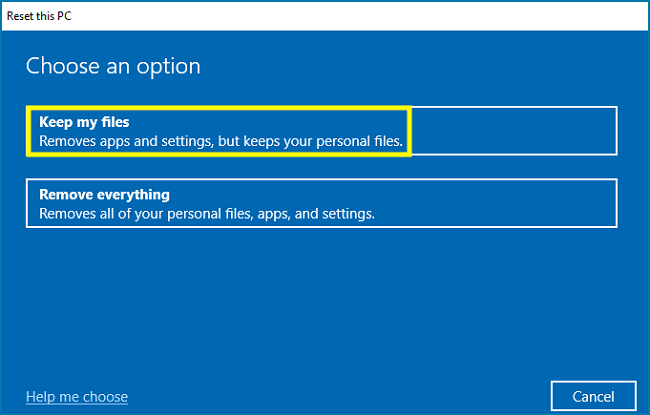
Step 3. You will see the two options below. Choose "Keep my files" if you don't want to lose any data, and "Remove my files" if you're okay with deleting all your files and data.
Step 4. You will see a popup window reminding you of what programs will be removed. Click Next to continue.
Step 5. To reinstall Windows without losing personal files, click "Reset" after selecting the desired options. This will allow you to start fresh with a clean installation while preserving your data.
You've learned seven fixes to resolve the file system error (-2147219200). Hopefully, these solutions will help you overcome the issue you're currently facing.
Click these links if you meet other problems such as:
Conclusion
Windows is a popular operating system, but it's not immune to occasional failures. One common issue users may face is the file system error -2147219200. Fortunately, this article provides detailed solutions to this problem and also introduces you to professional disk tools that can help resolve it.
FAQs About File System Error (-2147219200)
Do you have any questions about the file system error (-2147219200)? If your answer is "Yes", this part may help you. Continue to read and learn more.
1. How do I know if my file system is corrupted?
To check your file system, you can use the built-in command `fsck` to run a file system check, or consider using third-party tools like Qiling Partition Master to scan your file system.
2. What is File System Error (- 2147219196)?
The file system error (- The Windows Update may bring in a new feature or update that restricts the use of a specific app, typically the photo app, or multiple apps, due to compatibility issues or other technical reasons.
3. What is a file system error (-2018374635)?
The file system error (-2018-374-635 may appear when trying to run ms settings via the "Run" window. This is mainly due to the missing system files or components.
A similar-looking Photos app error can have a different number and cause; the file system error -2147219196 guide helps distinguish app problems from file or disk faults.
Related Articles
- Backup Windows Registry with 3 Possible Ways
- Fixed: Windows 10 File History Doesn't Recognize the Hard Drive
- (2 Simple Solutions) How to Re-image a Computer for Windows 11/10/8/7
- What Are the Best External SSDs for Backup [5 Recommendations]
- How to Change the Read/Write Permission on a Flash Disk/Memory Card
Cannot copy, delete, or format a flash disk, memory card, or external hard drive? Learn 4 ways to change read/write permission and remove write protection. - How to Check and Find Exchange 2016 Product Key/License
If you're unsure about the Exchange 2016 Product Key/License, you can check and find it using various methods. You can use the Licensing Portal, Command Prompt, or third-party tools like Qiling Key Finder to locate the key.
Products
Articles & Tutorials
- Data Recovery
- Data Backup
- File Recovery
- File Backup
- System Backup and Restore
- Disk and Partition Clone
- Technical articles
- Mobile articles
- Disk Master Help
- Windows Data Recovery Tutorials
- Windows Secure Delete Tutorials
- Windows Partition Management Tutorials
- Windows File Backup and Restore Tutorials
- Windows System Backup and Restore Tutorials
- Windows Disk Backup and Restore Tutorials
- Windows Clone Tutorials