How to Fix Windows 10 File System Error (-2018375670) [Step-by-Step Guide]
If you're experiencing a Windows 10 file system error (-2018375670), this guide can help! This error can be frustrating, but with the right guidance, you can fix it. To start, it's essential to understand what this error is. The file system error (-2018375670) is a common issue that can occur due to various reasons, and we'll provide you with a detailed guide on how to resolve it. In this article, we'll walk you through the steps to fix this error, so you can get back to using your Windows 10 system without any issues.
What Is Windows 10 File System Error (-2018375670)?
When Windows 10 was first released, it brought a lot of exciting new features, but it also had its share of bugs and glitches, which were frustrating at times.
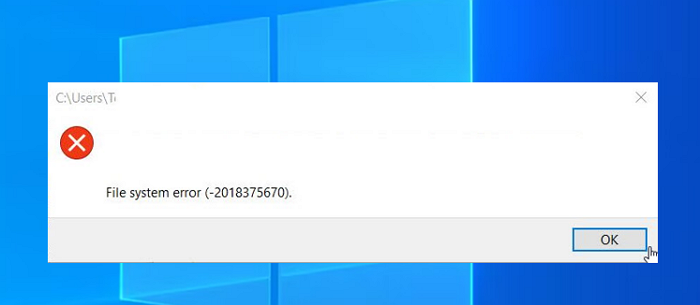
Windows 10 file system error (-2018375670 is a common error code related to the hard drive, often appearing after upgrading to Windows 10, causing issues with opening files.
You may also like to know the following:
The Windows 10 File System Error (-2018375670) can be caused by various factors, including corrupted system files, disk errors, and issues with the Windows Update process. To fix this error, it's essential to identify the underlying cause and take corrective actions, such as running a System File Checker (SFC) scan, checking for disk errors, and ensuring that the Windows Update process is completed successfully. By addressing these potential causes, users can resolve the File System Error and prevent it from occurring in the future.
What Causes Windows 10 File System Error (-2018375670)?
The file system error (-2018375670) may occur on Windows 10 for many reasons. The main three causes are as follows:
Bad sectors: Bad sectors on a hard drive may lead to various file system errors, including the Windows 10 File System Error (-2018375670).
Outdated drivers: The error you're referring to is likely the "driver not updated" error. This occurs when the operating system's driver is outdated or corrupted, causing the system to malfunction.
Corrupt or mismatched system files: You may encounter this error if there are some mismatched or corrupted system files.
Malware or virus infections: Some viruses may also prevent you from opening any files and lead to this error.
If you're experiencing a Windows 10 file system error (-2018375670), - there are fixes you can try to troubleshoot the issue. To resolve this error, you can follow a series of steps to identify and address the root cause, which may involve checking for disk errors, running the built-in System File Checker (SFC) tool, or using the Deployment Image Servicing and Management (DISM) tool to repair corrupted system files. By following these steps, you may be able to resolve the file system error and get your Windows 10 system up and running smoothly again.
How to Fix Windows 10 File System Error (-2018375670) - 7 Efficient Ways
Now that we understand the causes of the Windows 10 file system error (-2018375670), let's move on to learning how to fix it. Six useful fixes are available, which include follow the steps below.
Fix 2. Check File System Error
Fix 3. Check for Viruses and Malware
Fix 6. Use Default Windows 10 Theme
Fix 7. Check for Windows Update
To fix the error, follow these fixes and solve it shortly. First, check the bad sectors on your disk, which can be done using a professional disk partition management tool for Windows users.
Fix 1. Check Bad Sectors
Qiling Partition Master Free is a tool that efficiently checks and finds bad sectors on a hard drive, allowing users to locate them with ease. It can be downloaded and used to fix bad sectors with simple steps.
Step 1. Open Qiling Partition Master, right-click the desired disk, and select "Surface Test" to check its condition.
Step 2. The operation will be performed immediately, and all bad sectors will be marked red.
To check and fix Windows 10 file system error (-2018375670), you can use the built-in tool "chkdsk". This tool can check for bad sectors and try to fix the file system error, helping to resolve the issue.
Fix 2. Check File System Error
When encountering the "Windows 10 file system error (-2018375670)", it's likely that there are issues with the hard drive file system. To troubleshoot, you can use Qiling Partition Master to check the file system for any problems.
Step 1. To check the file system on a partition using Open Qiling Partition Master, open the software on your computer, locate the disk, right-click the partition you want to check, and select "Advanced" followed by "Check File System".
Step 2. In the Check File System window, select the "Fix the error on the disk" option and click "Proceed".
Step 3. The software will start examining your partition file system on your disk. Once it's done, click "Finish".
Besides checking file system errors and bad sectors, Qiling Partition Master can do a lot. Its specific features are as follows:
- Check disk and partitions.
- Merge, move, create, delete, and extend partitions.
- To convert a Windows 10 or earlier system disk from MBR to GPT without losing data, you can use the built-in Windows utility called "Diskpart" or a third-party tool like Qiling Partition Master. First, create a bootable USB drive with the Windows 11 installation media and boot from it.
- Format and reformat hard drive, SD cards, USB, and other external drives.
If you're experiencing file system errors or other disk management issues, consider downloading this software to help resolve the problem. Its clear interface makes it user-friendly.
Fix 3. Check for Viruses and Malware
We will scan for malware and viruses, and if any are found, we will quarantine them using Windows Defender.
Step 1. Open Windows Defender by clicking Start and typing defender, then double-clicking on the Windows Defender icon that appears in the search results.
Step 2. To access the "Virus & threat protection" section, select the shield icon on the left.
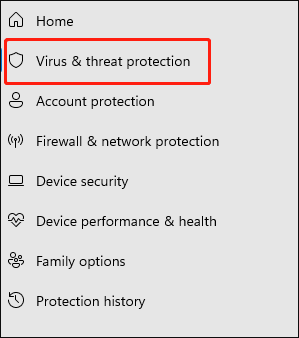
Step 3. Choose the "Advanced scan."
Step 4. Then, you can launch a full system scan.
Here, if you can't find your Windows Defender, you can click the link below to help: https://support.microsoft.
Fix 4. Run SFC
You can also try running SFC to scan and repair system files. To perform this operation, follow these steps: follow the steps below.
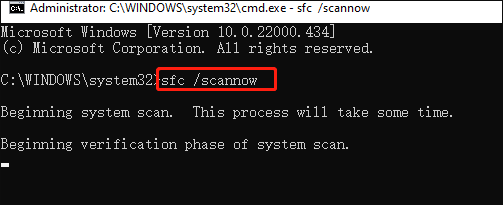
Step 1. To run Command Prompt as an administrator, type cmd in the search box, right-click on Command Prompt in the search results, and select "Run as administrator" from the context menu.
Step 2. Type sfc /scannow.
Fix 5. Update Device Driver
You can also try updating your device drivers as an alternative because outdated drivers can cause this problem. This is a guide for this.
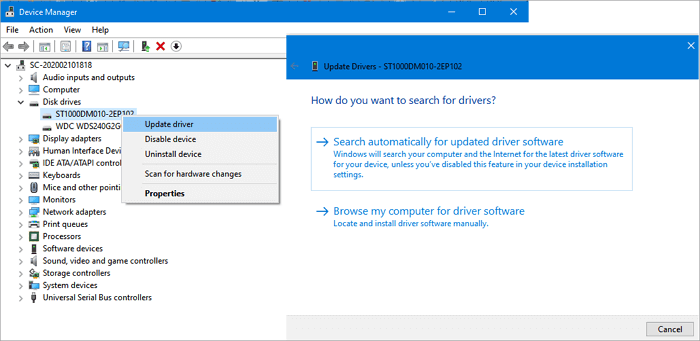
Step 1. To open the Device Manager, simply click the "Start" button on your computer, then type "Device Manager" in the search box.
Step 2. To update a device driver, first double-click on the device category, followed by selecting the specific device whose driver needs to be updated.
Step 3. To update the driver for a targeted device, right-click on it and select the "Update Driver" option from the context menu.
Fix 6. Use Default Windows 10 Theme
To resolve system file errors caused by unsaved themes, set the default Windows 10 theme as active. To do this, open the Settings app, go to Personalization, and select the "Save changes" button. If you're unable to select this button, try clicking on the "Windows 10 theme" option at the top of the window. If this doesn't work, try resetting the theme to its default settings by clicking on the "Reset" button.
Step 1. Right-click on the empty space on the desktop and choose "Personalize."
Step 2. Select Themes from the left of this window.
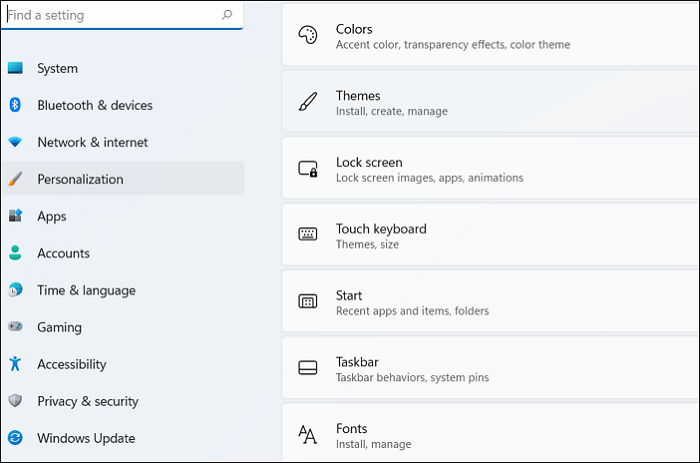
Step 3. Choose a Windows 10 theme.
Step 4. After that, remember to restart your PC.
Fix 7. Check for Windows Update
Follow these steps to try to fix Windows 10 file system error (-2018375670): you can also update the system version to try to resolve this issue.
Step 1. First, click the "Start" button and choose "Settings."
Step 2. Go to "Update and Security" and select "Windows Update."
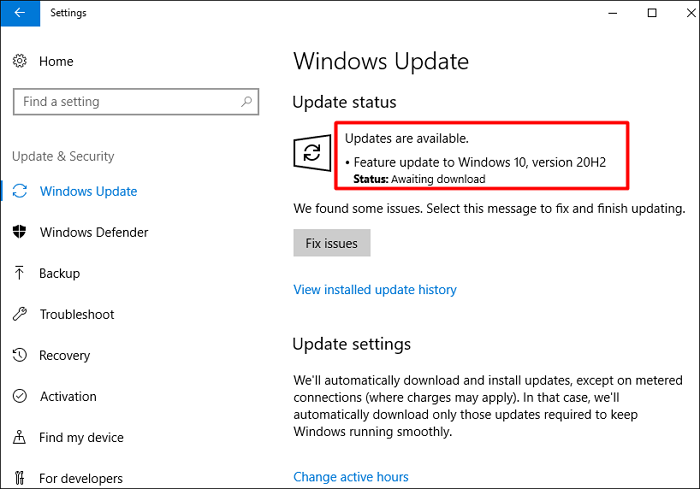
Step 3. If there is a new version available, download and install it.
In order to update your Windows version, you can follow these steps: Click on the Start button, then select the Settings icon, followed by the Update & Security option, and then click on the Windows Update button. Once the update is complete, go back to check if the error has been removed.
Here, we prepare some other links to help you if you meet problems like:
Conclusion
Windows, developed and sold by Microsoft, is one of the most popular operating systems, known for its outstanding features and widespread user base. However, despite its popularity, it is not immune to occasional failures.
File system errors are disk-Windows 10 file system error (-2018375670) can be frustrating to deal with. Fortunately, there are several ways to resolve this issue, including running the built-in Windows Check Disk utility, checking for disk errors, and using a professional disk checker tool like Qiling Partition Master to scan and fix disk errors. Additionally, users can try running a System File Checker, checking for corrupted system files, and updating Windows 10 to the latest version.
FAQs About Windows 10 File System Error (-2018375670)
Do you have any other problems or questions about Windows 10 file system error (-2018375670)? This part may help since there are three questions and answers related to today's topic.
1. How do I fix file system error (-2147219200)?
Here are some methods to fix file system error (-2147219200):
- Check bad sectors and file system errors
- Use Windows Update Troubleshooter
- Run CHKDSK to remove the file system error
- Run an SFC or DISM Scan
- Update device drivers and Windows versions
- Reset your computer
2. What is file system error (-2147163901)?
The file system error (-2147163901) usually occurs when the user opens a photo file. This error may be caused by corrupted system files.
3. What is a file system error (-2018374635)?
The error occurs when trying to run ms setup through the "Run" window or launch the Taskbar, Start menu, or File Explorer, typically due to missing system files or components.
Related Articles
- Easy VHD to Physical Disk Solution
- Fix 'there is not enough space available on the disk to complete this operation'
- How to Format a Bootable USB Drive in Windows 10
- Full Guide to Format 4K Sector Hard Drive Partitions in Windows 11/10
- Professional Software to Partition Hard drive in Windows 7/8/10/11
This tutorial will introduce you the professional partitioning software to help you Partition/Create/Delete/Format/Resize hard drive before installing Windows. - How to Repartition Hard Drive without Losing Data in Windows 10/8/7?
Sometimes. you may need to repartition hard drive to make partition allocation more reasonable. Here we will show you how to repartition hard disk without losing data via different methods in Windows 11/10/8/7.
Products
Articles & Tutorials
- Data Recovery
- Data Backup
- File Recovery
- File Backup
- System Backup and Restore
- Disk and Partition Clone
- Technical articles
- Mobile articles
- Disk Master Help
- Windows Data Recovery Tutorials
- Windows Secure Delete Tutorials
- Windows Partition Management Tutorials
- Windows File Backup and Restore Tutorials
- Windows System Backup and Restore Tutorials
- Windows Disk Backup and Restore Tutorials
- Windows Clone Tutorials