(2 Simple Solutions) How to Re-image a Computer for Windows 11/10/8/7
Do you know how to re-Reimaging a computer in Windows 11/10/8/7 allows you to recover the operating system in case of serious errors, malware, or crashes. This process allows you to restore your system to a previous state, which can be especially helpful if you're experiencing issues that a simple reset can't fix. Unlike a reset, reimaging doesn't erase your personal files and settings, but rather reinstalls the operating system and all installed programs, making it a more comprehensive solution for serious system problems. Whether you're dealing with malware, system crashes, or other serious issues, reimaging your computer can be a lifesaver, and it's an important tool to have in your troubleshooting toolkit.
Reimaging PC vs. Resetting PC: What's the Difference
Reimaging is a process that allows you to recover your system without reinstalling Windows, deleting everything on the drive where the OS is installed, while leaving the OS in factory settings. It resets all settings and removes additional installed software, but retains preinstalled and default software.
Resetting a PC involves reinstalling Windows, which deletes files, settings, and apps, but keeps preinstalled apps by default, and restores custom settings for those apps.
Why Do You Need to Reimage a PC
Reimaging a PC is a good option to erase personal data, remove viruses, improve performance, and solve Microsoft operating system problems, allowing for a fresh start.
What to Do Before Reimaging a Computer
Reimaging a computer is a permanent process that erases all data on the hard drive. To avoid data loss, it's essential to back up your data before reimaging. You can use third-party backup software, like Qiling Backup, to secure your data.
Qiling Backup Home is a Windows backup tool that allows users to create system, disk/partition, and file backups, as well as clone hard drives and migrate Windows to an SSD. It also supports full, incremental, and differential backups, and offers 250GB of free cloud storage to store backups in the cloud, following the 3-2-1 backup rule.
To back up a drive, start by connecting the drive to your computer and ensuring it's properly powered. Next, open the File Explorer on your computer and locate the drive you want to back up.
Step 1. Start with selecting the Disk backup button.

Step 2. The software can be used to back up either an entire disk or a specific partition, allowing users to select the option that best suits their needs.

Step 3. Select the destination where you want to save the backup.

Step 4. For disk/partition backup, you have the option to save the backup to a local drive or to a Network-Attached Storage (NAS) device.

Step 5. After the backup process is completed, your task will be displayed at the left. You can click the "Advanced" button of the task to further manage your backup, including recovering it or creating an incremental backup.

2 Practical Ways to Re-image a Computer
Here are two methods with detailed steps. Please read carefully to understand.
Method 1. Reimage a Computer via System Image Recovery
Step 1. Connect an external hard drive to your computer.
Step 2. To access the Windows 10 backup settings, navigate to Settings, click on the "Update & Security" option, and then select "Backup" from the menu.
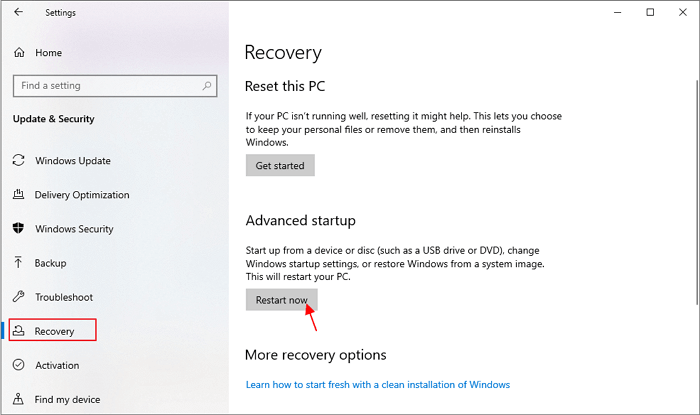
Step 3. To create a system image, click on "Go to Backup and Restore Windows" and then click "Create a system image" in the pop-up windows. The process will scan your external hard drive, and once it's discovered, click "Next" to proceed.
Step 4. Confirm your backup settings and click "Start Backup." Wait a few moments for the backup to be created. When prompted, click "Yes" to create a system repair disc.
Step 5. Go to settings, click "Update & Security," and click "Recovery" from the left menu.
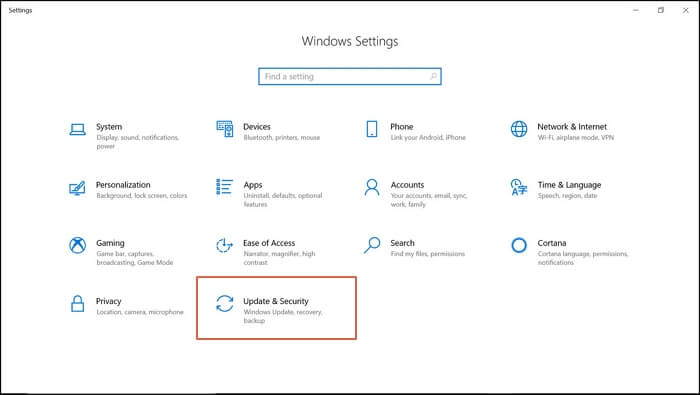
Step 6. After restarting, click "Restart Now". On the computer screen, you'll see four options. Select the "Troubleshoot" option, then choose "Advanced options".
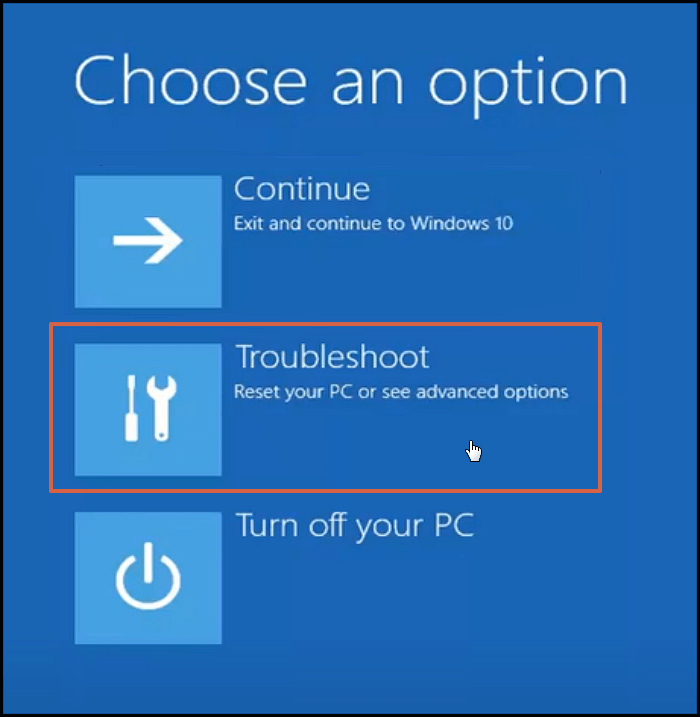
Step 7. Click on "See more recovery options" and then select "System Image Recovery" from the list.
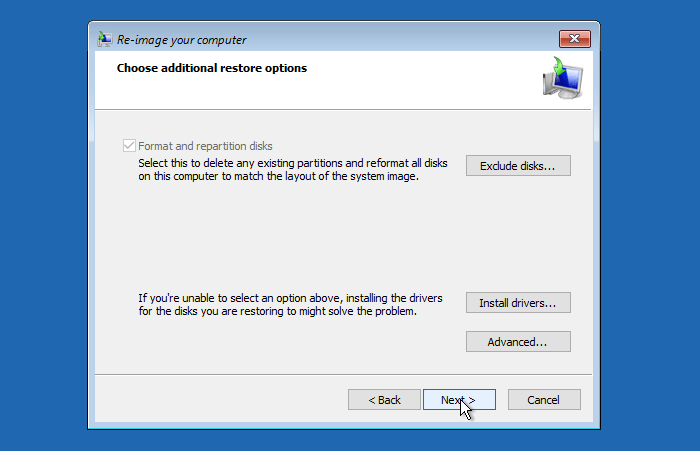
Step 8. To complete the process, you may be asked for your Windows password. Click "Select a system image" and then click "Next."
Step 9. Select "External HD" and click "Next."
Step 10. Select "System Partition," click "Next," and finish the further process.
Method 2. Reimage a PC Using "Reset this PC"
Note: Before starting the process, move your essential data from the C drive to another drive if available, to ensure your important files are safe.
Step 1. To reset your Windows password, go to settings, click "Update & Security," and click "Recovery" from the left menu.
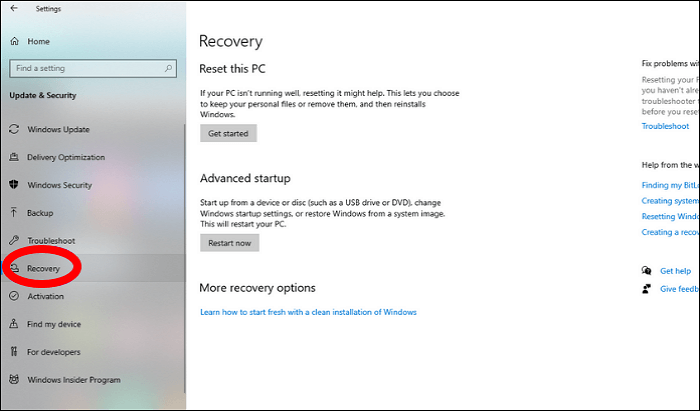
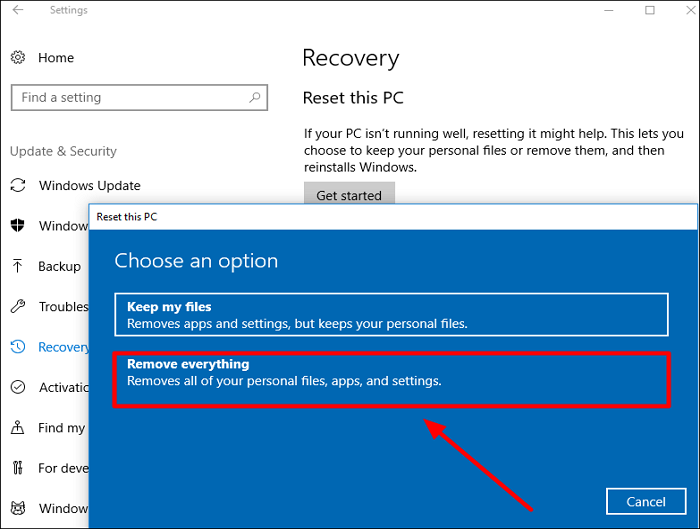
Step 2. Click "Get started," and a pop-up will appear, click "Remove everything," then click "Next" after the further process.
Step 3. Click "Reset" and wait a few minutes while preparing will be completed 100%. Reinstalling windows may take 30-60 minutes, with your computer or laptop restarting several times during this process.
Step 4. To complete the setup, select your region and keyboard, and follow the easy processes required to finish the configuration.
The Bottom Line
Reimaging a computer can be a lifesaver, especially when dealing with viruses. To keep your data safe, you can either follow method 1, which involves using a backup tool like Qiling Backup to create a copy of your files and data, or method 2, which involves transferring all your valuable data from the C drive to another drive before resetting the C drive. This way, you can protect against losing your data, whether you're changing your PC or resetting it. The Qiling Backup tool is particularly useful as it can keep a backup of all your data, giving you peace of mind.
FAQs
1. Will reimaging get rid of a virus?
Your computer will completely get rid of viruses during reimaging because there's no chance or way for a virus to survive re-imaging.
2. Should I reimage my computer?
You can reimage your computer when you face different problems during the operation, or if you want to sell your computer, to delete all your personal data.
3. Does resetting the PC Remove Windows?
This process doesn't delete Windows, but rather resets the operating system to its original state, erasing all installed apps and user data, while preserving the original settings and pre-installed apps.
4. How do I wipe my computer and reinstall Windows?
Method 2 is the best solution to wipe your computer, clean virus and malware, and reinstall Windows, taking around 1-2 hours to complete.
Related Articles
- More Windows Troubleshooting: Fix Freezing After an Update
- [Three Solutions] How to Backup Xbox 360 Hard Drive
- How to Fix the System Cannot Find the File Specified
- Fix and Repair Volume Shadow Copy Service Not Working Error in Windows 10
- What Is ISP? Introduction to Internet Service Provider
An ISP is one of the key aspects of accessing the Internet. In this article, we'll define the key traits of an ISP and talk about some of the examples and the importance of ISP. - What Is Microsoft Defender Advanced Threat Protection and How to Use It
Microsoft Defender Advanced Threat Protection (ATP) is an enterprise security platform that helps identify, investigate, and respond to advanced cyber threats across networks.
Products
Articles & Tutorials
- Data Recovery
- Data Backup
- File Recovery
- File Backup
- System Backup and Restore
- Disk and Partition Clone
- Technical articles
- Mobile articles
- Disk Master Help
- Windows Data Recovery Tutorials
- Windows Secure Delete Tutorials
- Windows Partition Management Tutorials
- Windows File Backup and Restore Tutorials
- Windows System Backup and Restore Tutorials
- Windows Disk Backup and Restore Tutorials
- Windows Clone Tutorials