[Three Solutions] How to Backup Xbox 360 Hard Drive
An Overview of Xbox 360
The Xbox 360 is a well-regarded home video game console developed by Microsoft, with other notable options including Sony's PlayStation and Nintendo's Switch. Despite being an older model, Microsoft still provides hardware and software support for the Xbox 360, offering a reliable gaming experience.
The lifespan of electronic products like Xbox 360 can be unpredictable, and physical damage to the hard drive can cause data loss or sudden system failure. In such cases, users may want to transfer data from Xbox 360 to Xbox One or back up their hard drives for safety, but this process is not as straightforward as backing up and restoring Steam files, and the Xbox 360 hard drive may not be easily recognized by a computer, potentially being encrypted.
We offer three workable plans for backing up your Xbox 360 games and data: backing up to the cloud, using USB drives, or saving to your PC with backup software.
Method 1. Backup Xbox 360 Hard Drive to Cloud
To use Xbox cloud storage, you need to have Xbox Live Gold membership, which comes with a subscription fee, and ensure your Xbox 360 has at least 512 MB of free storage space. Once these requirements are met, you can proceed with the setup process.
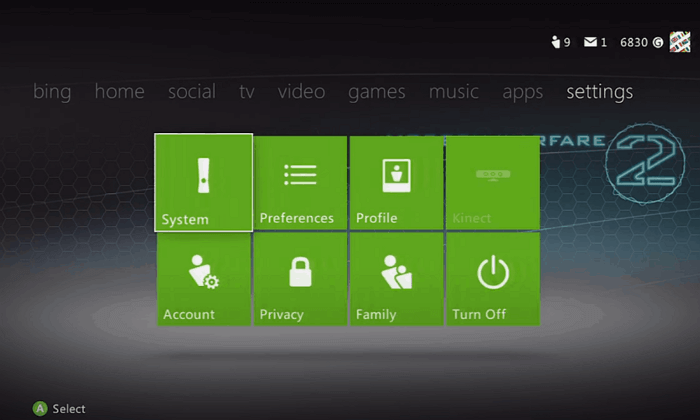
Step 1. Sign into your gamer profile, go to the dashboard, select "Settings", and then select "System".
Step 2. Choose "Hard Drive" in storage.

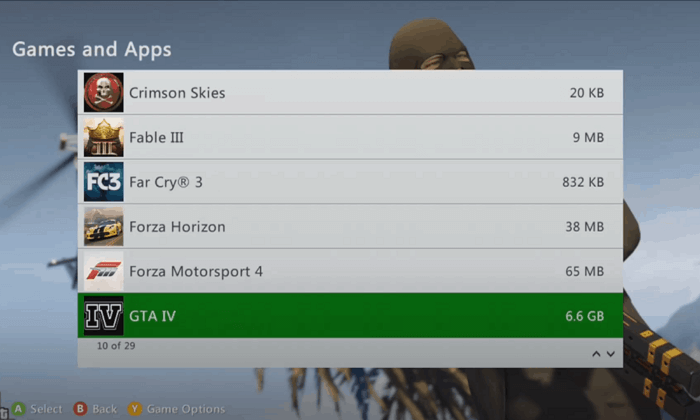
Step 3. Select the games you want to back up.
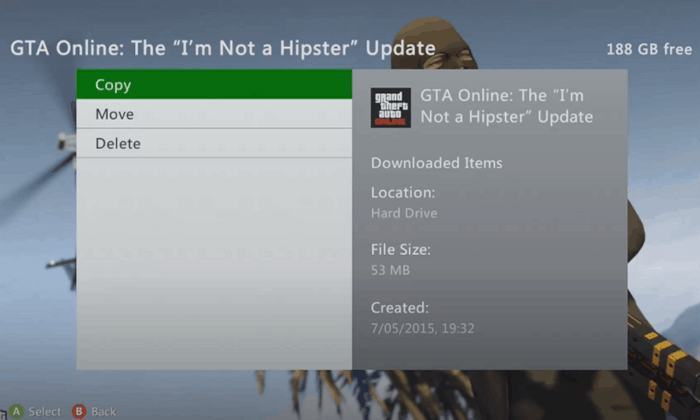
Step 4. Copy the games to the cloud and wait.
Method 2. Backup Xbox 360 Hard Drive to USB
You can back up your Xbox 360 hard drive to a USB drive, but the USB drive must be between 1-16 GB in storage, formatted with FAT32, and completely empty.
We can begin baking up if your USB drive is well prepared.
Step 1. Insert your USB onto Xbox 360.
Step 2. Sign into your gamer profile, go to the dashboard, select "Settings", and then choose "System".
Step 3. Select "USB Storage Device" and configure it, then you'll be taken back to the storage setting.

Step 4. Choose " Hard Drive" this time.
Step 5. Select the games you want to back up.
Step 6. Copy the games to the USB drive and wait.
Method 3. Backup Xbox 360 with Disk Backup Tool
To back up your Xbox 360 hard drive to a PC, you'll need to remove the hard drive from the console using screwdrivers and connect it to your computer. If your PC recognizes and can write to the hard drive, you can use a professional disk backup tool like Qiling Backup Home to back up your Xbox 360 hard drive. This will allow you to safely store a copy of your console's data on your PC.
Qiling Backup is a professional and automatic backup tool that allows users to back up and restore game files and even the whole hard drive with just one click. It also enables quick backup of Xbox 360 hard drives to various devices, including HDD, SSD, NAS, RAID, and network shared locations.
Now the following steps can help you back up Xbox 360 hard drives with Qiling Backup:
Step 1. Start with selecting the Disk backup button.

Step 2. You can back up a whole disk or a certain partition, depending on your needs.

Step 3. Select the destination where you want to save the backup.

Step 4. For disk/partition backup, you can choose to save the backup to a local drive or to a Network-Attached Storage (NAS) device.

Step 5. After the backup process is completed, your task will be displayed at the left. Click the "Advanced" button of the task to further manage your backup, such as recovering it, creating an incremental backup, etc.

Bottom Line
You can back up your Xbox 360 hard drive using Xbox cloud, USB drives, or third-party backup software. The best method for you depends on your specific situation, and it's a good idea to back up your data frequently, especially if your game data changes often.
Qiling Backup supports disks backup, operating systems, and email backup, and can also clone PCs, making it a multifunctional tool for data protection.
Backup Xbox 360 Hard Drive FAQs
Have more questions about backing up Xbox 360 hard drives? You can read more information here:
Can I use a USB for Storage on Xbox 360?
You can use a USB drive formatted with FAT32 to install the operating system. Just make sure your USB drive is formatted with FAT32.
- 1. Insert your USB onto Xbox 360.
- 2. To access your system settings, sign into your gamer profile, navigate to the dashboard, and then select the "Settings" option from the menu, followed by selecting "System".
- 3. Select "USB Storage Device" and configure it, then return to the storage setting after the process is finished.
How do I copy my Xbox 360 games to an external hard drive?
Ensure your external hard drive is formatted with FAT32.
- 1. Select "Settings" in the gamer profile dashboard, then select "System".
- 2. Select the USB storage device and configure it, then return to the storage setting after the process is finished.
- 3. Choose your external hard drive and configure it.
- 4. Get back to storage settings and choose "Hard Drive".
- 5. Select the games you want to back up.
- 6. Copy the games to the external hard drive and wait.
How do I clone my Xbox 360 hard drive to my PC?
Cloning Xbox 360 hard drives to a PC is possible when they are not encrypted and can be recognized, and can be done using Qiling Backup.
- 1. Start the software and click "Tools".
- 2. Click "Clone".
- 3. Choose the Xbox 360 hard drive and click "Next".
- 4. Decide the destination and click "Next" to start.
Related Articles
- Microsoft Word Files with An ASD Extension Cannot Be Opened from This Location [Fixed]
- Which Is Best Hard Drive Format for Mac [Full Comparison]
- Quick Fixes for Windows Stuck on Repairing Disk Error in Windows 10/8/7
- How to Fix Windows 10 Update with Error Code 0x800F0922 Issue
- How to Open PowerShell on Windows 10? [Step by Step]
Are you thinking of how to open PowerShell on Windows 10? Consider this guide that elaborates on the definition of PowerShell and the five absolute ways to open it on your Windows 10 PC. - How to Fix Outlook Rules Not Working [8 Ways Included]
Do you know how to fix Outlook rules not working? This article will describe what Outlook rules are, the causes of rules not working, and how to fix rules not working in Outlook. After reading this post, you can use any way to solve rules in Outlook not working issue.
Products
Articles & Tutorials
- Data Recovery
- Data Backup
- File Recovery
- File Backup
- System Backup and Restore
- Disk and Partition Clone
- Technical articles
- Mobile articles
- Disk Master Help
- Windows Data Recovery Tutorials
- Windows Secure Delete Tutorials
- Windows Partition Management Tutorials
- Windows File Backup and Restore Tutorials
- Windows System Backup and Restore Tutorials
- Windows Disk Backup and Restore Tutorials
- Windows Clone Tutorials