Microsoft Word Files with An ASD Extension Cannot Be Opened from This Location [Fixed]
When your PC crashes while working on a Word document, you might think you've lost all progress, but Microsoft Word actually saves a copy of the file in the .asd format. This saved file can be used to recover the original document, but some users have reported issues opening it, receiving an error message saying "Microsoft Word Files with An ASD Extension Cannot Be Opened from This Location." If you're experiencing this issue, this article explains what ASD files are and provides a solution to open them on a Windows PC without errors.
What Is File With an ASD Extension
An ASD file is a temporary backup created by Microsoft Word to save progress and allow recovery in case of system crashes or other issues, storing a snapshot of the original document in a different file format.
ASD Files, also known as AutoRecovery Files, are used by Microsoft Word to retrieve the original file after a crash. When you open Word after a crash, it uses the auto-saved file stored on your PC to suggest opening it. These files are stored in the system's storage as hidden files with different names, and can be found in a specific directory path. You can open them by double-clicking on the file, or it will automatically suggest an app to open with.
Microsoft Word saves ASD or AutoRecovery Files in the mentioned default directories of Windows:
- Windows 8/8.1/10/11: [user]\AppData\Local\Microsoft\Office\UnsavedFiles
- Windows Vista/7: [user]\AppData\Roaming\Microsoft\Word\
- Windows XP: [user]\Application Data\Microsoft\Word\
Auto-Recovery Files are usually named:
- AutoRecovery save of X.asd (X is the name of the file)
- ~Wra####.asd (#### is the arbitrary number assigned by Windows)
In case you're unable to locate your auto-saved files, check the designated directories and look for files in the .asd format. If you're still having trouble opening them, proceed to the next section for further assistance.
Microsoft Word Files with An ASD Extension Cannot Be Opened from This Location
If you're unable to open .asd files, the issue might be due to missing software or corrupted files. Three possible solutions are: 1) installing the required software, 2) using a file viewer, or 3) converting the file to a different format.
Why Can an ASD File Not Be Opened?
The inability to open ASD files is often due to the unavailability of software that supports ASD documents on the system. This could be because there's no program installed on the Windows PC that can open .asd extension files. To resolve this, ensure that you have an ASD files-supported program installed, such as Microsoft Word, to easily open .asd extension files.
How To Open An ASD File?
There are three methods to open .asd format files on a Windows PC. You can choose any below-mentioned ways to access and open the ASD files on your system. They are:
1. Via Recover Unsaved Documents Option
The first way to open unsaved Word documents: go to the "File" tab, click on "Recent" and then select "Recover Unsaved Documents" from the dropdown menu. This will open a list of recently closed documents that have not been saved, allowing you to recover and open them. If you're unable to find the document you're looking for, you can also try checking the "Recent" list for any unsaved documents.
Step 1. Open Microsoft Word on your Windows PC, select "Open" from the left sidebar, and proceed to the "Recent" section.

Step 2. To recover unsaved documents, click on the "Recover Unsaved Document" option in the bottom bar to view all the unsaved documents, including any ASD documents.
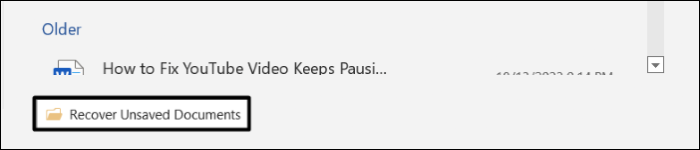
Step 3. Select the .asd file, click "Open" to open it in Microsoft Word, then click "Save as" in the yellow strip to save it as a Word document.

2. Via Manage Document in Word
To open an .asd file using Microsoft Word, follow these steps:
Step 1. To start, open Microsoft Word on your Windows PC, create a new document or open an existing document.
Step 2. Click on the "File" option in the top menu bar and navigate to the "Info" section from the left navigation bar.

Step 3. To recover unsaved documents, click on "Manage Document" in the Info tab and select the "Recover Unsaved Documents" option from the dropdown.
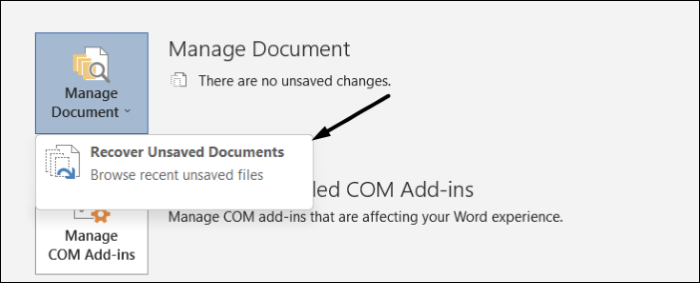
Step 4. Select the unsaved file in the File Explorer window and click on "Open" to open it using Microsoft Word.

To access and open an ASD file on your PC using Windows File Explorer, simply navigate to the location where the file is stored, select the ASD file, right-click on it, and choose the "Open with" option. From the list of available applications, select the one you want to use to open the ASD file, such as Notepad or a specific software application. If the desired application is not listed, you can browse to the application's installation directory and select the executable file to associate it with the ASD file type. Once selected, the ASD file will open with the chosen application.
- Notice:
- For Windows 11 users, the mentioned steps apply, but if you're using Windows 10 or below, you'll need to replace the directory path in Step 2 with your system's default directory path, as the rest of the steps remain the same.
Step 1. Firstly, open the Run program on your Windows 11 PC using the Windows + R keyboard shortcut.
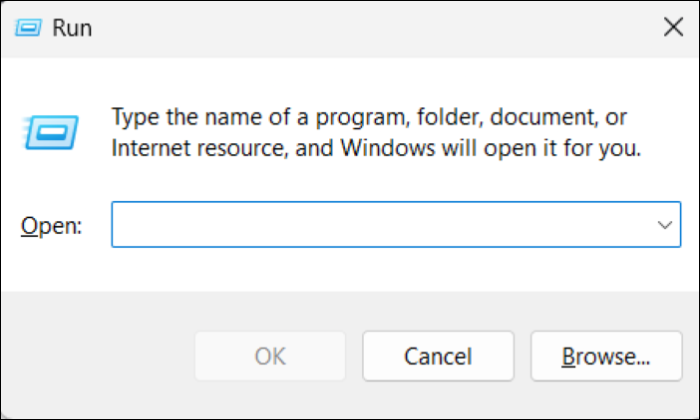
Step 2. Enter the below-mentioned directory location in the Run dialog's search box and press Enter.
%AppData%\Microsoft\Word
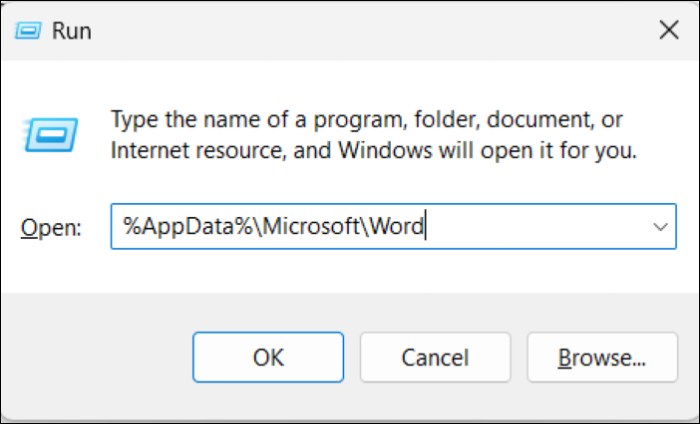
Step 3. To view the saved files, navigate to the directory path you entered, and you'll see all the auto-saved files there.
Step 4. Double-click on the ASD file to open it in Microsoft Word, where you can edit the file.
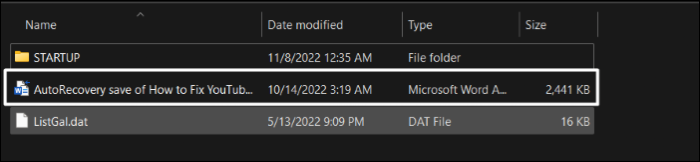
How To Recover Lost ASD File
If an ASD file is missing from the system's default directory, it may have been accidentally deleted. However, there are two methods to retrieve the lost ASD files, which are relatively easy to follow. These methods are explained in detail in this section, providing a solution to the problem.
1. Recover From Unsaved Files Folder
To recover missing ASD files, start by checking the Unsaved Files folder on your system. This folder, accessible through File Explorer, stores all unsaved files, including potentially missing ASD files. By examining the contents of this folder, you may be able to locate and retrieve the missing files.
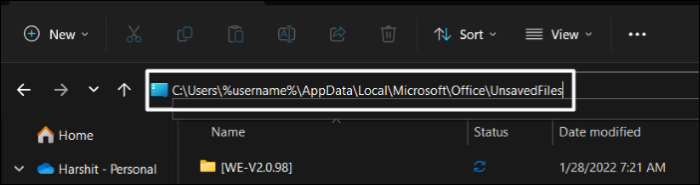
Step 1. To start, open the File Explorer program on your Windows 11 PC and enter the below-mentioned directory path in the File Explorer's search bar.
C:\Users\%username%\AppData\Local\Microsoft\Office\UnsavedFiles
OR
Step 1. To access recent unsaved documents in Microsoft Word, open the app, go to "File", then click on "Open", followed by "Recent", and finally select "Recover Unsaved Documents" to navigate to the UnsavedFiles folder.
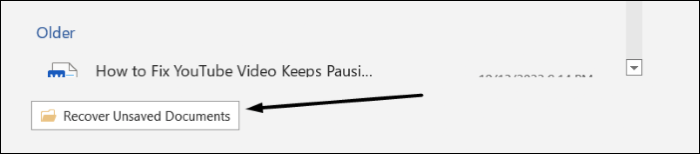
Step 2. To recover an unsaved Word document, locate the UnsavedFiles folder, double-click on the desired file, and then save it using the "Save as" option.
2. Recover Lost ASD or Word Files with Data Recovery Software
If the desired ASD or Word file is not found in the Unsaved Files folder, there is another way to recover lost or deleted ASD files on Windows. You can use a third-party tool called Deep Data Recovery to restore the missing files in a few minutes. This tool is known for its top-notch data recovery features and can help you recover files in various data loss situations, such as lost partition, virus attack, accidental deletion, and more.
You can quickly retrieve deleted files, documents, photos, audio, music, and emails using Deep Data Recovery. This tool can restore files from various devices, including USB flash drives, SD cards, digital cameras, and camcorders. It also supports the recovery of .asd format files. The software has both a free and paid version, with the free version allowing you to recover up to 2 GB of data, and the premium version enabling unlimited data recovery.
Here are the steps to use Deep Data Recovery to restore all kinds of documents, including ASD files:
Step 1. Launch Deep Data Recovery on your Windows computer to recover lost data, and click "Fast Scan" to initiate the recovery process.

Note: You can choose different search modes based on where and why the data was lost.
Step 2. Choose the Word file location
Choose the drive or a specific folder and click the "Scan" button.

Step 3. Locate your Word files
The software will scan the selected drive for lost data, then display the scan results in the left panel. From there, select the "Documents" option and choose "Word" from the category bar, allowing you to preview the recovered files.

Step 4. Recover Word files
After previewing the lost Word files, select the desired Word files and click "Recover". Then, select a folder to store the Word files.
Final Thoughts
Microsoft Word automatically saves files in the .asd format, allowing access anytime the system crashes. As shared in this article, there are three ways to access and open ASD files on a Windows PC, making it easy to open .asd format files on your system using any of these methods.
Related Articles
- Fix Hard Drive Won't Power Up/Turn on Without Data Loss
- A File Error Has Occurred While Saving Word Document
- Delete OS from A Hard Drive
- How to Delete Files Older Than X Days on Windows 11/10 with File Explorer, CMD, PowerShell
- How to Increase Hard Drive Speed on Windows 10 [Step-by-Step Guide]
To increase hard drive speed on Windows 10, consider freeing up space by removing unnecessary files, enabling write caching, or using software that helps manage it, as outlined in our post on how to Increase Hard Drive Speed on Windows 10. - How to Fix Insert Media Some Files Are Missing Windows 10
If you encounter the "insert media some files are missing" Windows 10 error, this post offers 4 methods to fix the problem with simple steps and clear screenshots.
Products
Articles & Tutorials
- Data Recovery
- Data Backup
- File Recovery
- File Backup
- System Backup and Restore
- Disk and Partition Clone
- Technical articles
- Mobile articles
- Disk Master Help
- Windows Data Recovery Tutorials
- Windows Secure Delete Tutorials
- Windows Partition Management Tutorials
- Windows File Backup and Restore Tutorials
- Windows System Backup and Restore Tutorials
- Windows Disk Backup and Restore Tutorials
- Windows Clone Tutorials