How to Fix Outlook Rules Not Working [8 Ways Included]
What Are Outlook Rules
Outlook rules allow users to automate actions on incoming emails based on specified conditions, freeing up time and improving inbox management. This feature enables users to set up rules that perform tasks such as moving emails to specific folders, deleting unwanted emails, or even sending automated responses to certain messages, thereby streamlining their email workflow. By leveraging Outlook rules, users can reduce inbox clutter, increase productivity, and enhance overall email management efficiency.
Outlook rules enable you to automate email management by moving, flagging, replying to messages, and even playing sounds or displaying alerts for new items, all without manual intervention.
Why Are Rules in Outlook Not Working
Several different and unrelated issues can cause Outlook rules to fail to run automatically or even disable them altogether. These issues may include
- The rules exceed the rule quota set for your mailbox.
- Corruption in send/receive settings file.
- Rules set to run on a single computer.
- Corruption using a POP3 or IMAP account.
Setting up rules in your email can help simplify your inbox and increase efficiency. Additionally, troubleshooting common errors can help fix any rules that aren't working, allowing you to maintain a clean inbox.
The instructions in this blog post apply to Outlook 2019, Outlook 2016, Outlook 2013, Outlook 2010, and Outlook for Microsoft 365.
How to Solve Rules in Outlook Not Working Issue
Here are the best ways to get Outlook rules working again:
- Fix 1. Enable Outlook Rules Feature
- Fix 2. Rename or Reset the SRS File
- Fix 3. Update Outlook to Latest Version
- Fix 4. Disable Stop Processing More Rules
- Fix 5. Change Outlook Offline Settings
- Fix 6. Turn On Exchanged Cache Mode
- Fix 7. Delete Old Rules
- Fix 8. Create a New Rule
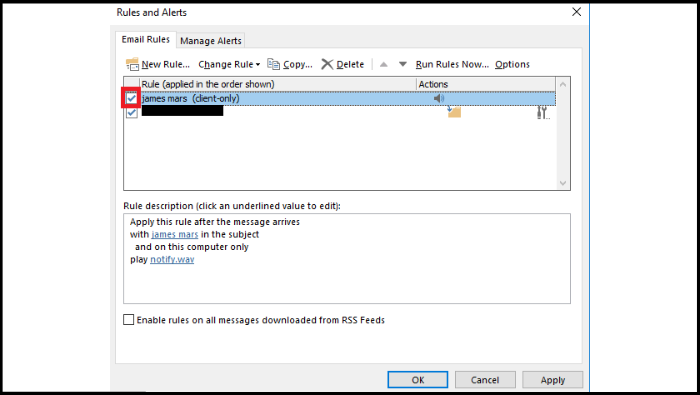
Fix 1. Enable Outlook Rules Feature
To enable Outlook rules, follow these steps:
To disable a rule in Outlook, open Outlook and go to "Files" > "Rules and Alerts". Select the rule you want to disable and click "OK".
Fix 2. Rename or Reset the SRS File
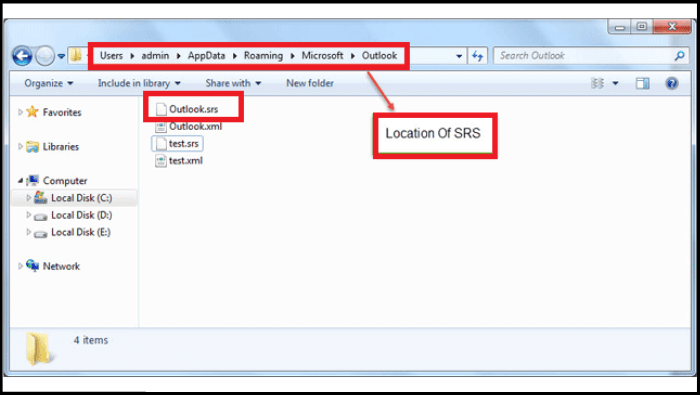
Here are the steps to reset the SRS file in Outlook:
Step 1. Follow the below link. It'll redirect you to the location.
C:\Users\%username%\AppData\Roaming\Microsoft\Outlook
Step 2. To fix the issue with the Outlook .srs file, rename it to Outlook.srs.old and restart Outlook. This will help recreate the SRS file.
Fix 3. Update Outlook to Latest Version
You may need to update your Outlook to ensure it's running smoothly, as outdated versions can cause problems. To resolve any issues, update Outlook now and follow these steps to fix any Outlook rules that may be malfunctioning.
Step 1. To access the Office account settings in Outlook, start by opening the application, then click on the "File" tab at the top left corner of the screen. From the drop-down menu, select "Office account".
Step 2. Click "Update options" and click "Update now."
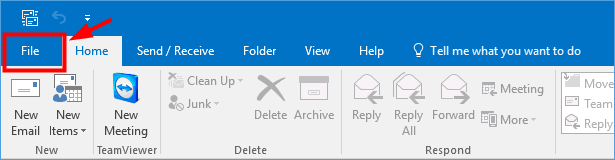
Note: If you don't see the option "Update now" after clicking the "Update options," it means your version is already up-to-date, and you may need to troubleshoot another issue separately.
Fix 4. Disable Stop Processing More Rules
If Outlook rules aren't working for you, try disabling the "Stop processing more rules" option, as rules run from top to bottom. To do this, go to Home > Rules > Manage Rules & Alerts, then select the rule that's not working and click on "Disable Rule" or "Delete Rule" (if you want to remove it permanently). If you're still having issues, you might need to restart Outlook or even your computer.
Steps 1. To access the rules in Outlook, open the application, go to the "Home" tab, click on "Rules" in the "Move" group, and then select "Manage Rules & Alerts" from the dropdown menu. This will open the "Rules and Alerts" window where you can create, edit, or delete rules.
Step 2. The first rule from the list of rules is chosen, then the "Change rule" button is clicked.
Step 3. Click on the dropdown menu, then select "Edit Rule Settings" and click "Next".
Step 4. Ensure that "Stop Processing More Rules" is disabled if it's not. Click the checkbox to uncheck it and click "Next".
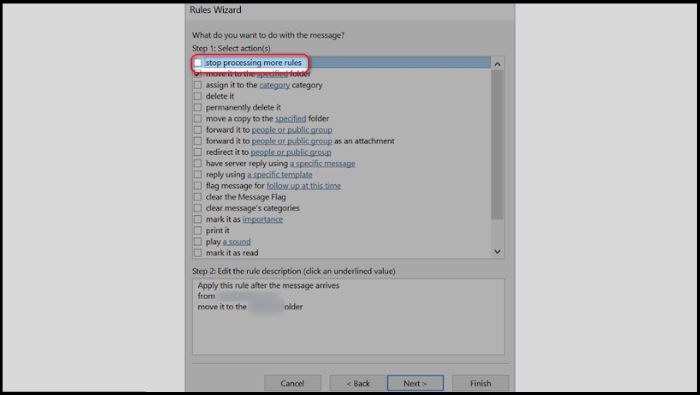
Step 5. Click "Next," and finally, click "Finish."
Fix 5. Change Outlook Offline Settings
To resolve the issue of messages not syncing offline, you can try changing your offline settings. This may be due to your settings preventing messages from syncing offline. You can try following a few simple steps to resolve this issue.
Step 1. To access account settings in Outlook, go to the File tab, click on Account Information, then select Account settings from the dropdown menu, and finally click on Account Settings again.
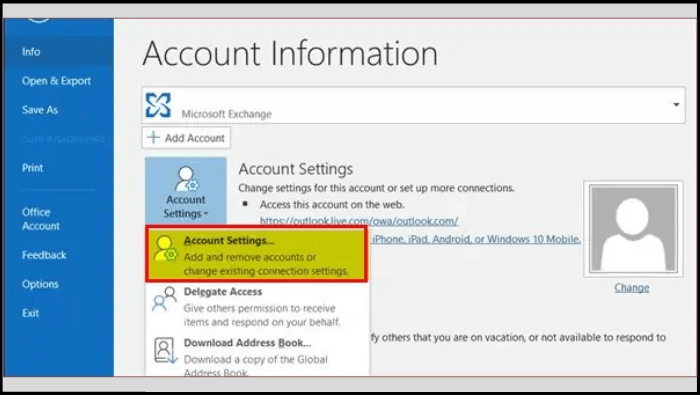
Step 2. Now in the "Email" tab, click "Change."
Step 3. To keep emails offline, go to Offline settings, slide the "Mail to keep offline" slider to the right, click Next, and then OK, before restarting Outlook.
Fix 6. Turn On Exchanged Cache Mode
To resolve the issue, enable "Exchange Cache Mode" on your email account, which saves a copy of your mailbox on your computer for faster access.
Step 1. To access account settings in Outlook, open the Outlook client, then go to File, select Account settings from the dropdown menu, and click on Account settings again.
Step 2. From the "Email" tab, click "Change."
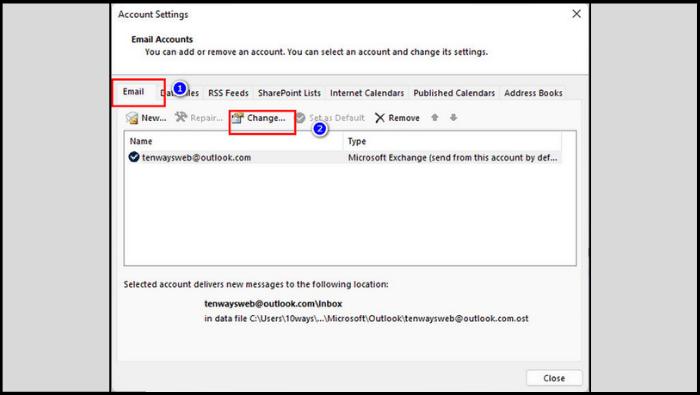
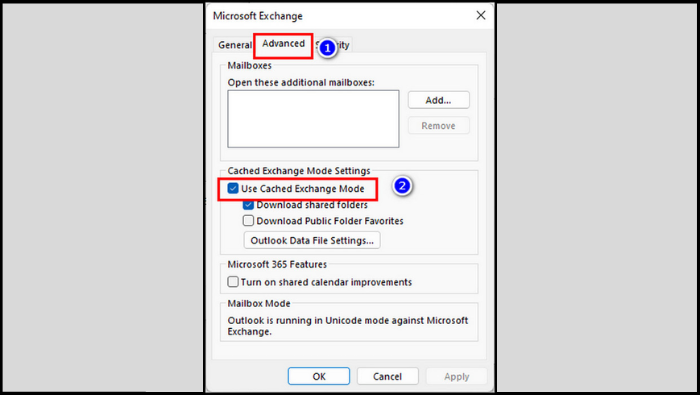
Step 3. To enable cached exchange mode, go to the offline settings section, checkmark "Use Cached Exchange Mode," and restart Outlook.
Fix 7. Delete Old Rules
I removed the "Shortly" part as it's not a valid instruction. If you meant to ask me to shorten the response, I can try to do that)
Step 1. Open Outlook and navigate to File> Rules and Alerts.
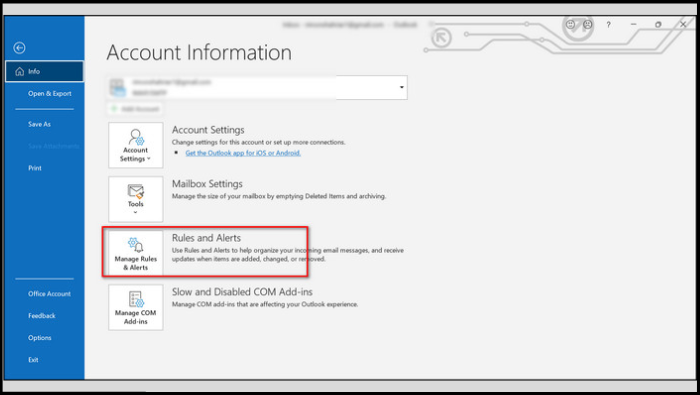
Step 2. To delete a rule, select the rule you want to remove and click the "Delete" button.
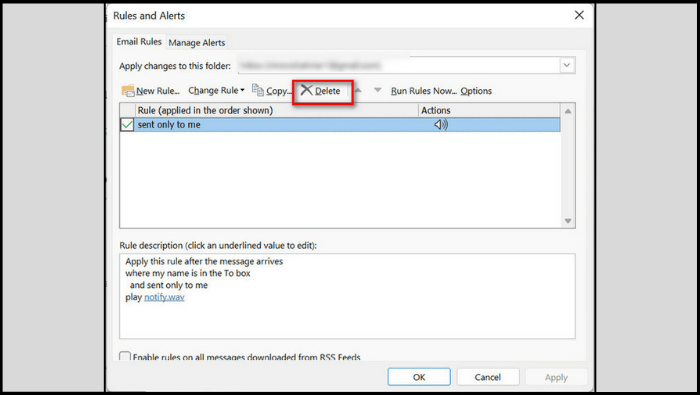
Step 3. Now restart the Outlook app and create a new rule by following method #8 or (Fix 8).
Fix 8. Create a New Rule
If the above-discussed methods don't solve your problem, something else could be wrong. Therefore, you have to create a new rule. Follow the below procedure:
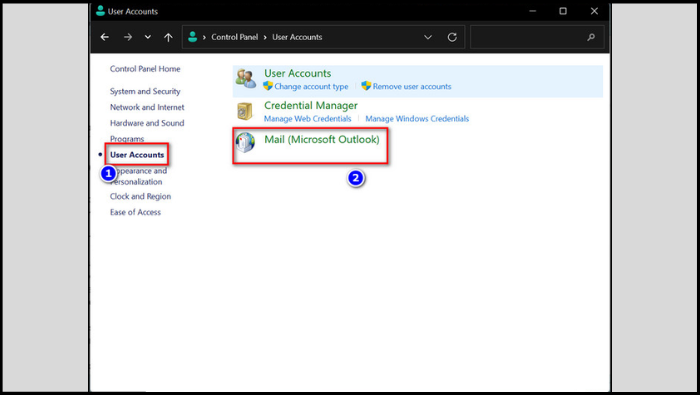
Step 1. To access the Mail settings, open the Control Panel, navigate to User Accounts, then click on Mail, and finally click on Show Profiles.
Step 2. Click "Add" and create a new profile.
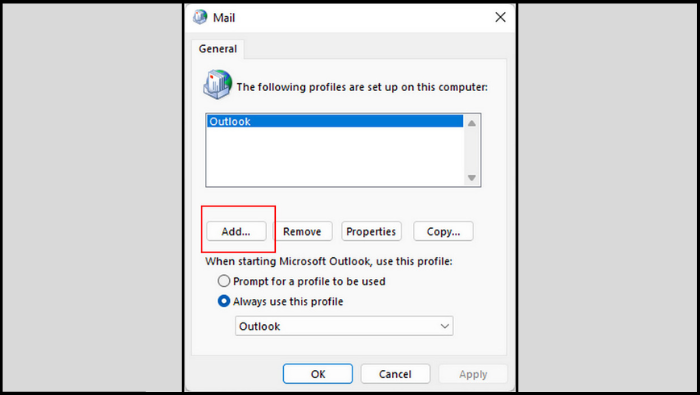
Step 3. After creating a new profile, launch Outlook, choose the newly created profile, and verify that the rules are functioning correctly.
Bonus Tip: How to Backup Outlook Emails
Protecting your crucial Outlook emails is vital, especially against computer viruses, malware attacks, or disasters. To safeguard your data, it's essential to have an email archiving solution and backup software. Qiling Backup Home is a tool that can meet your needs, providing a reliable way to back up your Outlook emails.
Qiling Backup Home is a practical and multi-functional backup tool that supports Windows 11/10/8/7. It allows users to back up files, systems, disks, and even favorite games like Minecraft worlds. Additionally, it can help back up emails from Thunderbird and Gmail to Outlook. The software also offers 250G free cloud storage, enabling users to store backups in different locations, making it a convenient and comprehensive backup solution.
To back up your Outlook emails, follow these steps: first, click on the "File" tab in the top left corner of the Outlook window, then select "Options" from the drop-down menu; next, click on "Save Options" and choose a location to save the file; after that, click on the "Export" button in the "File" tab and select "Export to a file"; choose "Outlook Data File (.pst)" as the file type and select the folders you want to export; finally, choose a location to save the exported file and click "Finish" to complete the backup process.
Step 1. Launch Qiling Backup on your computer, and click File Backup on the home screen.

Step 2. To back up your Microsoft Outlook data, go to the app's settings and select the option to back up your mailbox addresses, including your emails, contacts, and calendars. This will allow you to create a backup of your Outlook data.

Step 3. To save the Outlook backup, click the illustrated area to choose a location.

Step 4. The backup location can be another local drive, external hard drive, network, cloud, or NAS, with external physical drives and cloud storage being recommended for preserving backup files.

Step 5. The customization settings for automatic backup in daily, weekly, monthly, or upon an event are available in the Options button. Upon clicking "Proceed", the Outlook backup process will begin, and the completed task will be displayed on the left side in a card style.

The Bottom Line
If you're experiencing issues with Outlook rules not working, there are several solutions you can try. You can attempt any of these solutions to resolve the problem. In addition, to protect your Outlook emails, you can use Qiling Backup Home to back up your emails in Outlook. This guide provides a detailed explanation of the solutions to help you resolve the issue. We hope it is helpful in resolving the problem.
Qiling Backup Home Qiling Backup Home will help protect data on your computer. It can also enable you to install Windows on a new SSD without USB and back up an SSD to image. So, download it now to enjoy its features.
FAQs
1. Why does Outlook take so long to run rules?
The Outlook email client has a dedicated rule space, and adding too many rules can cause issues, such as hindering email experience and making rules not work correctly.
2. How often do rules run in Outlook?
Messages that meet a rule's criteria will be marked as "available" for other rules to apply to, but will not be subject to those rules unless explicitly defined.
3. What is the difference between quick steps and rules in Outlook?
Quick Steps are basic rules that rely on your input, as opposed to Rules, which work behind the scenes without your input.
Rules in Outlook automatically perform an action on an email, such as moving it to a folder, based on specific conditions, like the sender's email address, reducing manual handling and repetition. Unlike Quick Steps, rules run continuously and don't require user intervention, allowing for streamlined email management. For instance, a rule can move messages from a particular person to a designated folder.
Related Articles
- [SOLVED] The Operation Cannot Be Performed Because the Message Has Been Changed
- Xbox One External Hard Drive Format: NTFS, FAT32, exFAT? [Best Choice]
- Steam Quit Unexpectedly Mac? 6 Methods to Fix it [macOS Ventura/Monterey/Big Sur]
- TF Card vs. SD Card: 10+ Things You Want to Know
- Fix and Repair Volume Shadow Copy Service Not Working Error in Windows 10
Fix Volume Shadow Copy Service not working in Windows 10. Two quick fixes and three reliable methods to repair VSS errors and restore backup functionality. - What Is Vulkan Run Time Libraries and Do I Need or Remove It? [Updated 2023]
Vulkan is one of the key essentials of modern drivers. But, is Vulkan runtime libraries a part of it? In this article, we'll answer this question and analyze the purpose of Vulkan.
Products
Articles & Tutorials
- Data Recovery
- Data Backup
- File Recovery
- File Backup
- System Backup and Restore
- Disk and Partition Clone
- Technical articles
- Mobile articles
- Disk Master Help
- Windows Data Recovery Tutorials
- Windows Secure Delete Tutorials
- Windows Partition Management Tutorials
- Windows File Backup and Restore Tutorials
- Windows System Backup and Restore Tutorials
- Windows Disk Backup and Restore Tutorials
- Windows Clone Tutorials