Steam Quit Unexpectedly Mac? 6 Methods to Fix it [macOS Ventura/Monterey/Big Sur]
The Steam platform is very popular and has millions of daily users, which can sometimes cause its servers to struggle with the high volume of incoming requests.
| Workable Solutions | Step-by-step Troubleshooting |
|---|---|
| Method 1. Restart your Mac | Restarting the Mac may be the easiest method to solve the problem. To continue the Mac, you should...Full steps |
| Method 2. Remove Preferences | It would be best if you thought about removing the Steam preferences because of corrupted preferences...Full steps |
| Method 3. Check the Date and Time | The Steam quit unexpectedly could be caused by incorrect dates and times. To reset it, you can...Full steps |
| Method 4. Accessibility Permissions | For the Steam app to function correctly on your Mac, accessibility permissions are necessary to fix it...Full steps |
| Method 5. Update your Mac | You can update the macOS using the Software Update feature to solve the Steam quit unexpectedly...Full steps |
| Method 6. Relaunch Steam | Restarting the Steam app from scratch can help fix many bugs it may face. You can relaunch it...Full steps |
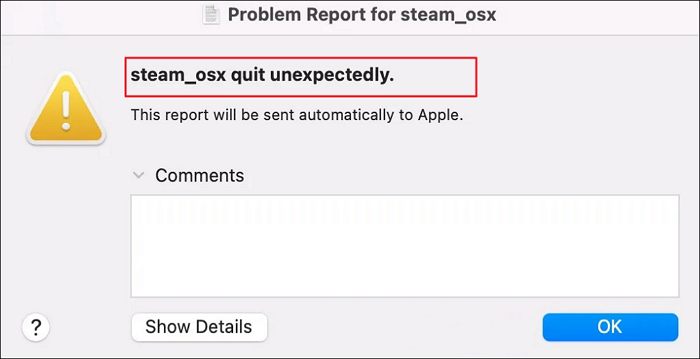
Some Mac users may find it frustrating to use Steam as they encounter the error message "Steam quit unexpectedly on Mac" when launching the game. This error warning appears each time they try to access the Steam app on their Mac, prompting them to wonder how to fix it. Fortunately, this mending guide is here to help, providing a solution to cure the "Steam quit unexpectedly Mac on startup" issue.
3 Reasons: Why Steam Quit Unexpectedly Mac
Many Mac users have reported issues with the Steam client crashing or quitting unexpectedly. There are several potential causes for this, including issues with the client itself, problems with the user's Mac's operating system, or conflicts with other software running on the Mac. Some users have reported that running Steam in compatibility mode or using a different version of the client can help resolve the issue, while others have found that reinstalling the client or updating their Mac's operating system can also be effective.
Reason 1. Wrongly Matched Dates and Times
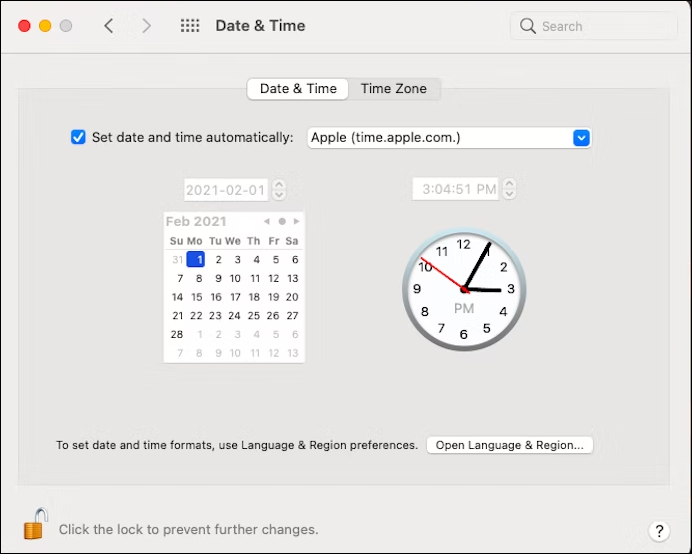
Incorrect or mismatched dates and times may be the cause for an unexpected shutdown of Steam.
If you've recently visited a different time zone or region, your time and date settings might be incorrect, which could stop Steam from launching normally.
Reason 2. Steam Didn't Get Accessibility Permissions
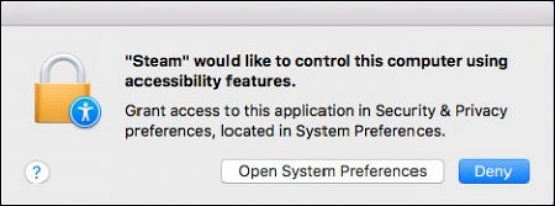
Corrupt application permissions can cause issues with Steam launching, requiring a fix to resolve the problem.
The most common reason for the Steam app not opening or quitting unexpectedly is due to accessibility permissions. If you've opened Steam for the first time, grant all requested permissions. If you've been using Steam for a while, verify the licenses. This should resolve the issue.
Reason 3. Incompatibility Between Steam and the macOS
The current Steam version is not compatible with your macOS, likely due to a software incompatibility or problem between Steam and macOS, which prevents your Mac from accessing Steam unless you've updated to the latest macOS.
6 Methods: How to Fix Steam Quit Unexpectedly on Mac
If you're experiencing the "Steam Quit Unexpectedly" issue on Mac, there are several potential causes beyond the typical reasons of outdated graphics drivers, corrupted game files, and insufficient disk space. Additionally, corrupted Steam files and operating system faults could also be contributing factors. To resolve the issue, you can try the following methods.
Method 1. Restart your Mac to Fix Steam Quits Unexpectedly
To solve the problem, you can simply restart your Mac. To do this, click the Apple logo in the top left corner, select "Restart" from the dropdown menu, and then confirm the restart in the pop-up window. This will shut down your Mac and then turn it back on, which may resolve the issue you're experiencing.
Step 1. You can access the Apple menu on Mac by clicking on the Apple logo in the top left of the navigation bar.
Step 2. Click on Restart now.
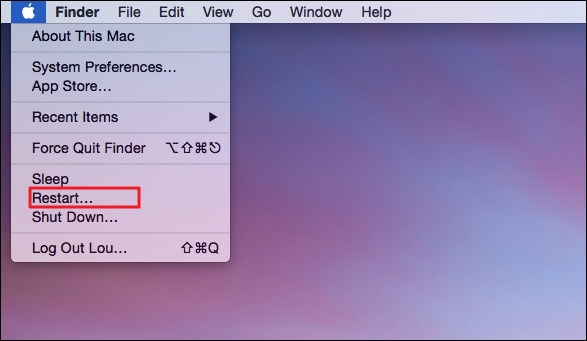
Step 3. To troubleshoot the issue of Steam not launching on a Mac, try launching Steam after the Mac has successfully loaded to see if the problem has been resolved.
Method 2. Remove Steam Preferences to Fix it Quits by Accident
It would be best if you thought about removing the Steam preferences because corrupted preferences can also result in such crashes of the app. To remove Steam Preferences on factory reset macOS, you can navigate to the Terminal and run the command `rm ~/Library/Preferences/com.valvesoftware.
Step 1. To open the Finder box on your Mac, you can either click on the Finder icon on your desktop or press the keyboard shortcut Shift + Command + G. This will open the Finder box, allowing you to navigate and access your files and folders.
Step 2. To access the preferences directory, open the default directory, and then copy and paste the path into the address bar.
Support for Libraries/Applications/Steam. And then press Enter.
Step 3. To remove every .plist file within each directory, navigate to the directory containing the files you want to delete. Use the `find` command to locate all files with the `.
To resolve the Steam app issue, first, close the Steam app and restart your computer. Then, open the Steam app again and check if the problem persists.
Method 3. Check the Date and Time to Fix Steam Quit Unexpectedly
To resolve the Steam quit unexpectedly issue, you can try resetting the Steam app by changing the system date and time to a date in the past, then changing it back to the current date and time. This can help resolve the issue by allowing Steam to update and sync properly. Simply go to your system settings, change the date to a date in the past (such as January 1st, 2022), wait a few seconds, and then change it back to the current date and time.
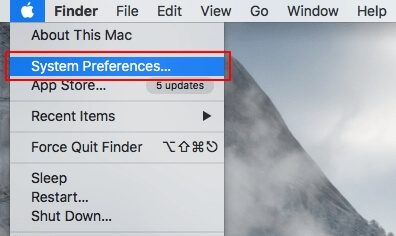
Step 1. To navigate to the Date & Time settings on a Mac, go to the Apple Menu, select System Preferences, and then click on Date & Time.
Step 2. If you notice an issue with the Date & Time setting, click the lock icon to adjust the settings.
Step 3. Relaunch Steam to check if the problem is resolved.
Method 4. Give Accessibility Permissions to Steam on Mac
For the Steam app to function correctly on your Mac, accessibility permissions are necessary. You should get a prompt asking for it if you just installed it. But here's what you need to do if you missed or disregarded it.
Step 1. Open the Apple menu.
Step 2. Select System Preferences - Privacy & Security - Privacy.
Step 3. To make changes from the sidebar's Accessibility menu, click the lock.
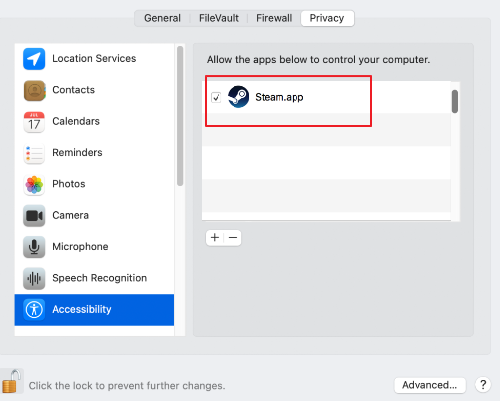
Step 4. To confirm your selection, check the box next to Steam and then click on the "Next" button.
Method 5. Update your Mac to Prevent Steam from Quitting Unexpectedly
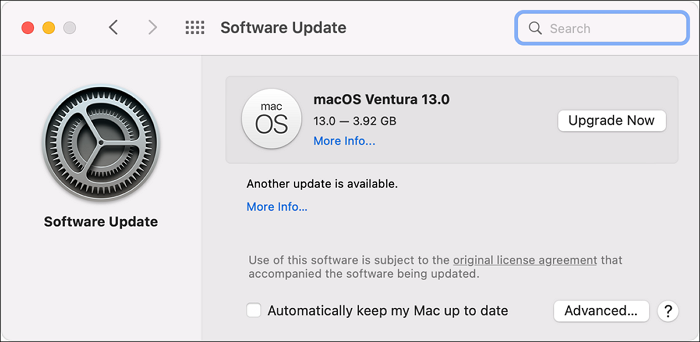
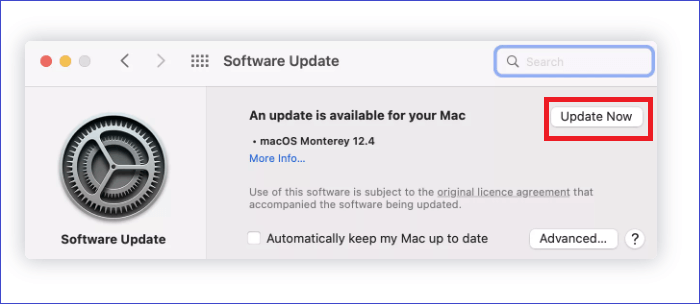
To resolve the Steam quit problem unexpectedly on macOS, you can use the Software Update feature to update your operating system. Before making any changes, it's a good idea to back up your Mac to ensure your data is protected. Once you've done that, you can follow these steps to perform the macOS update.
Step 1. Open System Preferences in the Apple menu.
Step 2. Select Software Update.
Step 3. Then click Update Now.
Method 6. Relaunch Steam via Activity Monitor to Fix it Quits Unexpectedly on Mac
You can restart the Steam app from scratch by relaunching it from the Activity Monitor to fix bugs.
Step 1. Open Finder from the Mac dock.
Step 2. Navigate to Applications - Utilities.
Step 3. Open the Activity Monitor.
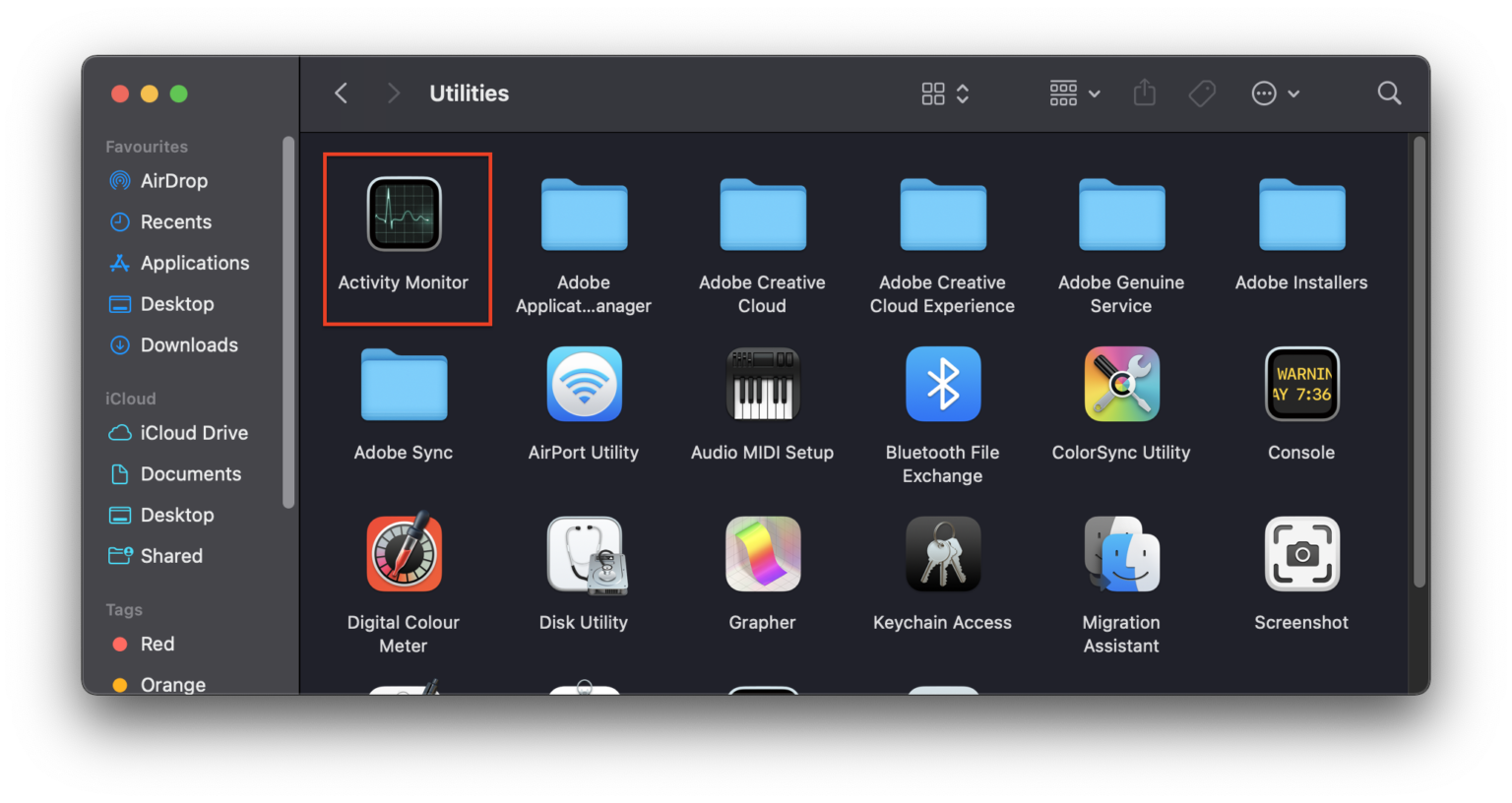
Step 4. When you search for "steam" in the search bar, a list of active Steam processes appears. Select all of them and press the Stop button (cross icon) to terminate them.
By doing this, all Steam-related processes on the computer will be stopped.
To resolve the issue, uninstall Steam, restart your computer, and then reinstall Steam. Launch Steam and check if it can be opened without problems.
Extra Tip: Recover the Data When Your Apps Quit Unexpectedly
Learning data recovery of unsaved files after a forced quit is crucial, especially when dealing with apps like Steam that can lose progress if the software freezes or becomes unresponsive. In such cases, force quitting can result in data loss, making it essential to know how to recover unsaved files and prevent losses.
There is little chance that apps can recover unsaved data, making Time Machine backup the best course of action. Alternatively, online third-party data recovery programs can be used to avoid data loss. If data is lost, dependable Mac data recovery software can be used.
Deep Data Recovery for Mac can recover a wide range of Mac documents in various formats, and also retrieve data from the Trash Bin or unexpected deletions.
Deep Data Recovery for Mac
- Recover or delete files and unsaved data from unexpectedly quit apps effectively by using a reliable data recovery software that can restore lost files and unsaved data. This software can be used to retrieve data from apps that have crashed or quit unexpectedly, helping to prevent data loss and ensure that important information is not lost.
- Recover lost data from various sources: the emptied Trash Bin, closed apps, unsaved Steam files, a dead flash drive, and a digital camera.
- Data recovery services can help recover lost data due to sudden deletion, unexpected system crashes, virus attacks, malware issues, and other unforeseen events that result in data loss.
Here are steps for you to learn how to recover data when your apps quit unexpectedly.
Step 1. Select file types and click "Fast Scan" to start
Launch Deep Data Recovery on your Windows computer. Select the file types you want to recover and click "Fast Scan" to begin the recovery process.

Note: You can choose different search modes based on where and why the data was lost.
Step 2. Select the drive to be scanned
In the main Deep Data Recovery window, select the drive you need to recover lost/deleted files from and click the "Search for lost files" button.

Step 3. Select your lost data/files
Deep Data Recovery for Mac scans the selected disk volume and displays the scanning results, allowing users to sort and find specific files they are looking for.

Step 4. Recover lost/deleted data
Once you have found the desired files, preview them and then click "Recover" to begin the recovery of your deleted or lost Mac files.
Final Thoughts
Try to open the app again and enable Dates and Times reset if Steam unexpectedly quits on macOS. If that doesn't work, go to the Applications folder and delete the Steam folder or reinstall Steam after restarting your Mac. If you're experiencing issues, consider using Deep Data Recovery for Mac to protect your data.
Steam Quit Unexpectedly Mac FAQs
If you want to learn more about Steam quit unexpectedly, look at the questions and answers here to know more!
1. How do you fix an app that quits unexpectedly on a Mac?
If a program quits unexpectedly or is unresponsive, try restarting your Mac or reinstalling the app. Alternatively, you can reboot your Macbook in Mac Safe Mode.
2. How do I fix Steam on my Mac?
To repair Steam, you can:
- Step 1. Go to the Steam menu - Preferences - Downloads.
- Step 2. Pick Steam Library folders,
- Step 3. Right-click your folder, and choose Repair Library Folder.
After selecting these, wait for Steam to finish fixing itself.
3. Why does my game quit unexpectedly, Mac?
If your computer has a virus, the game may crash, show an error, or close during setup or play. Steam's popularity can also cause servers to become overwhelmed, leading to game crashes or errors.
4. How do I restart Steam on Mac?
To restart Steam, double-To access Steam, click on the icon located on your desktop. If the Steam shortcut icon is not visible on your desktop, you can find it in the Applications folder on a macOS 13/12/11 system or in the "Start" menu on a Windows system.
5. How to restore missing downloaded files on Steam?
Here are the effective 3 methods of how to restore missing downloaded files on Steam: You can check the Steam download logs to see if the files were downloaded but not installed, then try to reinstall the game. If the files were not downloaded, you can try to re-download the game from the Steam store.
- Add Installation Folders to Steam and make the game playable.
- Rename the ClientRegistry.blob file to restore missing steam games.
- To recover lost Steam game files, you can use a helpful third-party tool called Deep Data Recovery.
Related Articles
- Will Windows Backup Restore Programs? How to Restore Programs in Windows 10
- [Fixed] Right Click Not Responding or Working on Windows 10
- How to Open PowerShell on Windows 10? [Step by Step]
- Why Is My Camera Telling Me to Format My SD Card [Full Explanation]
- How Do I Fix Word Experienced An Error Trying to Open the File? Here Is the Guide
Fix Word experienced an error trying to open the file with practical methods. Learn why Word files fail to open and how to repair Word, adjust settings, and recover documents safely. - How to Fix Error Message 'Word was Unable to Read Document. It May be Corrupt' Efficiently
The error message - Word was unable to read document. It may be corrupt, which usually happens when you suddenly can't open your word file. In this article, we will focus on why this error message appears and how to fix this problem.
Products
Articles & Tutorials
- Data Recovery
- Data Backup
- File Recovery
- File Backup
- System Backup and Restore
- Disk and Partition Clone
- Technical articles
- Mobile articles
- Disk Master Help
- Windows Data Recovery Tutorials
- Windows Secure Delete Tutorials
- Windows Partition Management Tutorials
- Windows File Backup and Restore Tutorials
- Windows System Backup and Restore Tutorials
- Windows Disk Backup and Restore Tutorials
- Windows Clone Tutorials