How to Use the Apple Menu on Mac? [New Information]
Mac is one of the most well-The Apple menu on a Mac is a drop-down menu that provides access to various options, making it a significant part of the operating system, which is known for its high functionality and impressive working, making it a popular choice globally.
The Apple menu makes it easier for users to navigate the system by providing quick access to various features, such as the App Store and a list of recent items. This menu is a key part of the Mac operating system and plays a significant role in enhancing user experience.
What Is in the Apple Menu on Mac?
The Apple Menu on Mac is the drop-down menu located on the left side of the menu bar. It typically displays the Apple logo, although its role has evolved over time.
The Apple menu, recognizable by its Apple logo, has a consistent design across all Apple devices, including MacBook Pro, MacBook Air, and more.
The Apple Menu contains several items that can be accessed by clicking on it, including the Apple ID sign-in feature, which allows users to access their Apple ID account and manage their Apple devices, as well as other system settings and features.
About This Mac: You can get more information on your system, which includes details such as the processor type, macOS version, memory storage, and more.
- System Preferences: With this feature, users can customize various settings of their Mac and also use it to update the operating system.
- App Store: Clicking on this option will direct you to the App Store, where you can browse and download various apps.
- Location: This feature allows users with multiple network locations to select their preferred location. It appears only when such users exist.
- Recent items: The apps you use record files, folders, and networks for future reference, and you can access a recent items option to quickly work on them, which can also be listed.
- Force Quit Finder: If you're unable to open Finder, you can resolve the issue by pressing the force quit finder option. This will cause Mac to restart Finder, and the window will disappear and then reappear, allowing you to access your files and folders again.
- Sleep: This feature allows you to put your Mac to sleep, reducing screen brightness and power consumption, providing a power-saving option without turning it off.
- Restart: If an app is malfunctioning, try restarting the system to resolve the issue. This will shut down the system and automatically turn it on again.
- Shut Down: 1. You can shut down the system completely with this option.
- Log Out Guest User: To avoid unauthorized access, log out of the Guest User account on your Mac once you've completed your work, as it allows others to access your device without a password.
The menu bar is a horizontal bar at the top of the screen that contains menus for applications, while the Apple Menu is a small menu that appears when you click on the Apple logo in the top-left corner of the screen, and it contains options such as Restart, Shut Down, and Log Out.
| Menu Bar | Apple Menu |
|---|---|
| The menu bar is the thin, horizontal bar present on the top part of the screen. | The Apple menu is a menu located on the top left corner of the Mac screen, containing various system-related options and features. |
| The menu bar features various menus including Apple, File, Edit, View, History, Bookmarks, Desktop, Windows, Help, and Status menus, as well as options to Open Spotlight, Control Centre, and Notification Centre. | The Apple menu offers several options, including About This Mac, System Preferences, App Store, Location, Recent items, Force Quit Finder, Sleep, Restart, Shut Down, and Log Out Guest User. |
How to Use the Apple Menu on Mac?
There are various issues users can encounter while using the Apple Menu on Mac. For instance, you might want to add or remove items from the menu bar. In that case, you need to follow the steps given below.
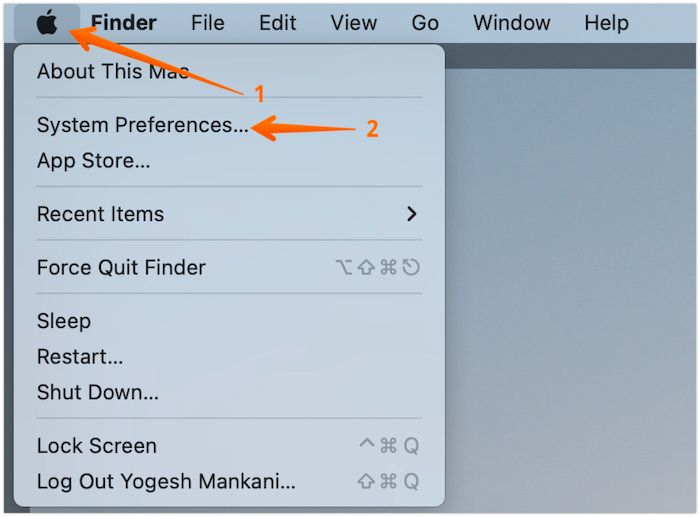
Step 1: Go to the Apple Menu, located in the top-left corner of the screen, and select "System Preferences".
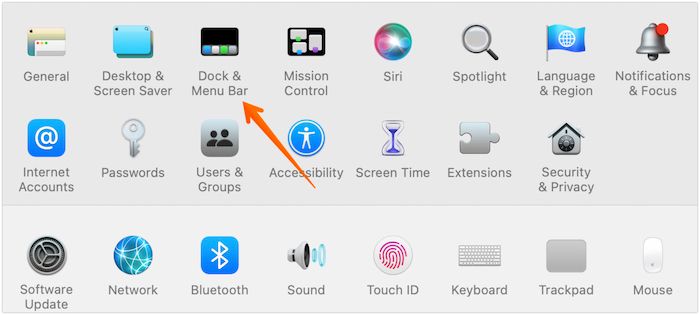
Step 2: Click on the "Dock & Menu Bar".
Step 3: The left part of the pane will display various items.
To add an item to the menu bar, check the box next to Show on the Menu Bar in the settings on the right-hand side.
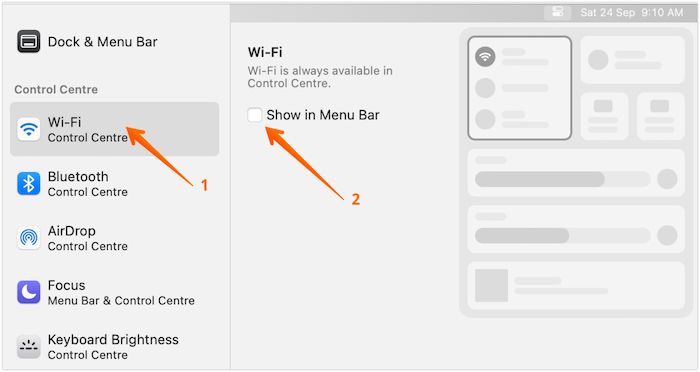
If you want to remove a specific item, uncheck it. Do you want to change the clock item in the menu bar?
For that, you must adopt the below-mentioned steps:
Step 1: To change the clock settings, go to System Preferences, click on "Dock & Menu Bar", and select the "Clock" option from the left-side pane.
Step 2: You will get two options for the date: Show the day of the week and the date. Choose the one you want. You can choose both too. Please select one of the following options:
Step 3: The digital and analog options allow you to choose between a digital display and an analog clock face, giving you a more traditional time-telling method. The Show AM/Pm option lets you switch between displaying the time with AM and PM or using a 24-hour clock. You can also choose to Flash the time separators, which means the seconds, minutes, and hours will blink to help draw attention to the time. Additionally, you can opt to Display the time in seconds, which shows the time in a more precise format.
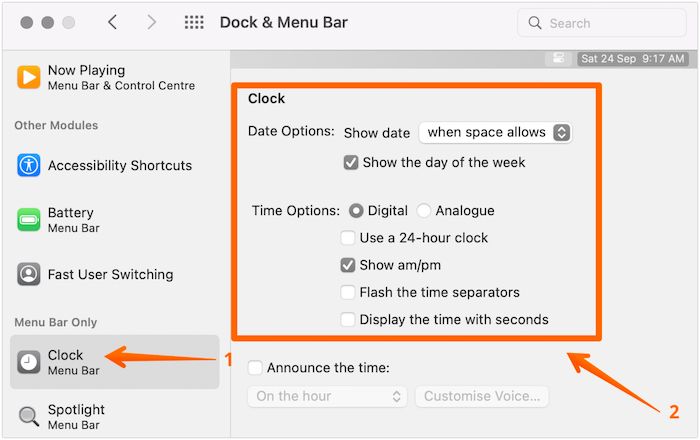
Step 4: You can also opt for the "Announce the time" option, which allows you to choose the voice and schedule when you want the time to be announced.
Final words
The Apple Menu, recognizable by the Apple logo on the top-left screen, plays a significant role in Mac. It offers various options, including System Preferences, App Store, Shut down, and more, making it a quick and convenient access point for users.
The Apple menu is user-friendly, and you can also make adjustments if needed. For example, you can add an item to the Menu bar or customize the date or time style if you encounter any issues.
FAQs
The Apple Menu is an essential part of the Mac, but to use it effectively, it's crucial to have a good understanding of its features and functions. By exploring the questions and answers listed here, you can gain a deeper knowledge of the Apple Menu and use it with ease. This will enable you to navigate your Mac with confidence and make the most of its capabilities.
1. How do you get to the Mac menu without a mouse's Apple menu?
To access the Apple menu on a Mac without using a mouse, press the keyboard shortcut CNTL+ FN+F2 to highlight the Apple logo. Then, use the down arrow to expand the menu and select the desired function, followed by pressing Enter.
2. Where are Apple menu preferences?
To access Apple menu preferences, go to the top-left part of the Mac screen and select the Apple menu. From there, choose System Preferences.
3. How do I manage the menu bar on a Mac?
To manage the menu bar on a Mac, go to System Preferences and select Dock & Menu Bar, where you can easily add or remove items.
Related Articles
- 3 Best Ways on How to Backup Registry From Command Line
- Fix Windows (11/10/8/7) Won't Boot From USB Error
- Command R Not Working? 6 Ways to Fix It on macOS Ventura/Monterey/Big Sur
- [New Tutorial] Backup Game Saves on PS4 in Three Methods
- How to Turn off The Firewall in Windows 10 [A Complete Guide]
Although it's recommended that the firewall always be active, there are times when turning it off is necessary, such as testing an app connection or using a different firewall solution. If you need to turn off the firewall on Windows 10, there are methods to do so, which can be found here. - How to Turn on Bluetooth on Windows 10
Using the Bluetooth connection is the easiest without requiring an additional accessory for the transfer to be successful. Learn how to turn on Bluetooth on Windows 10 using your keyboard, Action Center, or through Settings.
Products
Articles & Tutorials
- Data Recovery
- Data Backup
- File Recovery
- File Backup
- System Backup and Restore
- Disk and Partition Clone
- Technical articles
- Mobile articles
- Disk Master Help
- Windows Data Recovery Tutorials
- Windows Secure Delete Tutorials
- Windows Partition Management Tutorials
- Windows File Backup and Restore Tutorials
- Windows System Backup and Restore Tutorials
- Windows Disk Backup and Restore Tutorials
- Windows Clone Tutorials