[New Tutorial] Backup Game Saves on PS4 in Three Methods
The PS4, short for PlayStation 4, is a popular home video game console supported by Sony. It is one of the leading consoles in the market, alongside Microsoft's Xbox and Nintendo's Switch. Although Sony has since released the PlayStation 5, many users continue to play games on the PS4 and PS5 consoles.
Game players have found that the PS4 has more issues compared to the PS5, with problems such as being unable to access system storage, experiencing corrupted data errors, and requiring a factory reset.
To avoid losing your game saves on PS4, it's essential to back them up in advance, especially since it's too late to do so when your PS4 can't boot anymore. We recommend backing up your game saves to the cloud, a USB flash drive, or a PC using backup software, and we offer three tutorials to guide you through the process.
Backup Game Saves on PS4 to Cloud
The PS4 has a cloud storage option, but it's only available to PS Plus members, who pay a subscription fee. This allows them to back up their games to the cloud, a feature that's common among home video game consoles.
How to Backup Game Saves on PS4 to Cloud Step by Step
If you are a PS Plus member, let us start backing up now.
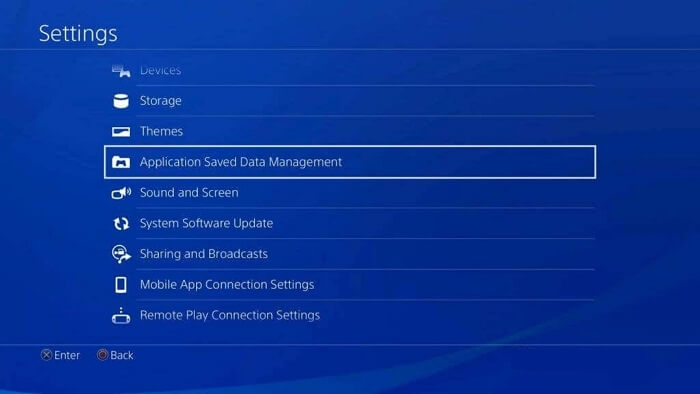
Step 1. To access the saved data management feature on your PS4, navigate to the settings interface and select "Application Saved Data Management" from the options.
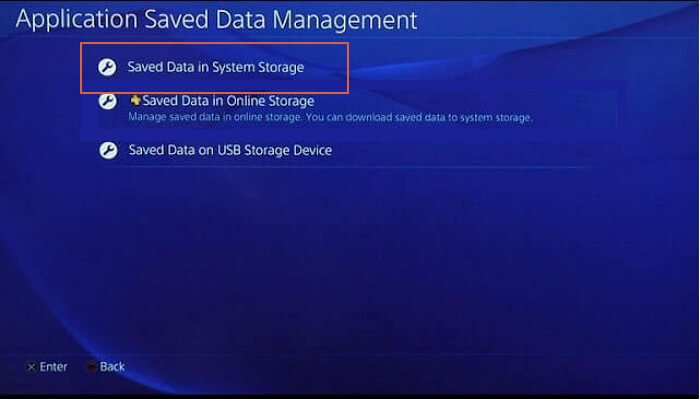
Step 2. Choose "Saved Data in System Storage".
Step 3. Click "Upload to Online Storage".

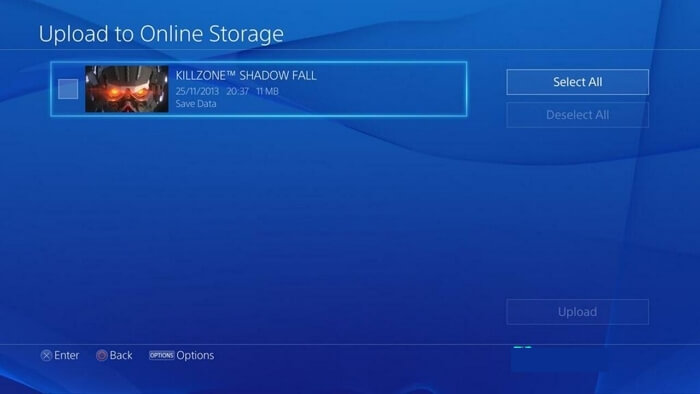
Step 4. Select PS4 games and click "Upload".
Backup Game Saves on PS4 [With USB]
The PS4 has multiple USB ports, allowing users to back up data and games using a USB flash drive.
Your USB should be well prepared with the following conditions:
- Should be formatted with FAT32 or exFAT.
- Prepare enough space (double the storage size of your backup files).
- Match with PS4's USB ports.
How to Backup Game Saves on PS4 to USB Step by Step
We can start backing up if you have done with the USB preparations. It is as simple as the first method.
Step 1. To access the PS4 settings interface, enter it and click on "Application Saved Data Management".
Step 2. Choose "Saved Data in System Storage".
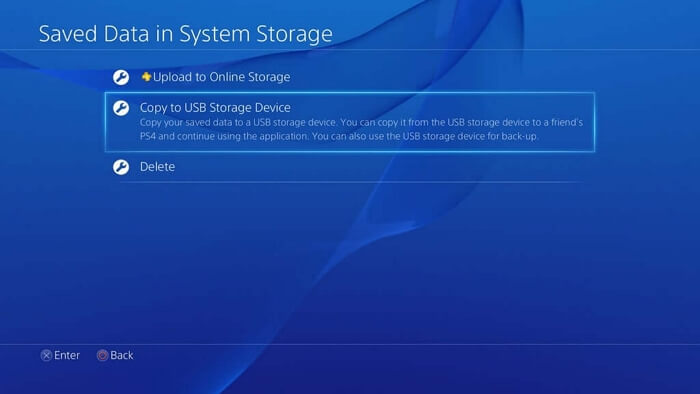
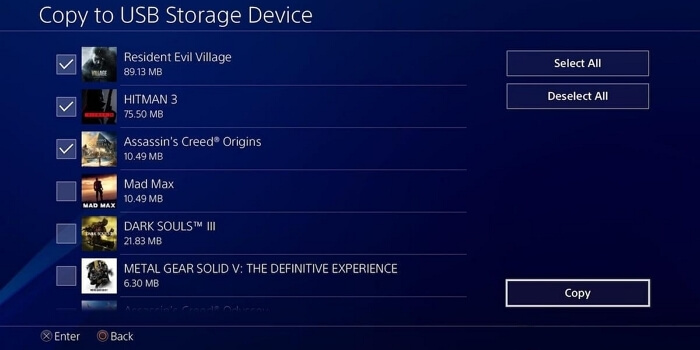
Step 3. Click "Copy to USB Storage Device".
Step 4. Select PS4 games and click "Copy".
Backup Game Saves on PS4 to PC [With Backup Software]
You have learned two ways of backing up game files on PS4, but if you're wondering about backing up PS4 data directly to your PC, you'll need a reliable backup tool like Qiling Backup Home.
The professional backup software can help you safely back up games, screenshots, and files to your local storage. It can also assist in backing up your PS4 to external hard drives or NAS, and even to popular cloud platforms like Dropbox, Google Drive, and OneDrive.
Before backing up your PS4, there are a few things to keep in mind. Firstly, make sure you have enough storage space on your external hard drive to accommodate the size of your PS4 data.
- To replace the PS4's hard drive, you'll need to remove it and be prepared with some tools.
- Make sure your PC can recognize the hard drive.
- To ensure the files are not encrypted, it is crucial to keep them in a format that can be easily backed up and recovered. This means avoiding encryption, which can make it difficult to access and restore the data in case of a loss. By keeping files unencrypted, you can maintain a high level of data security and integrity.
How to Backup Game Saves on PS4 to PC Step by Step
If you are well prepared, connect your USB to the PC, and we can begin.
Step 1. Start Open Qiling Backup, choose "Disk Backup" on the home page, and begin the backup process.

Step 2. Qiling Backup allows you to choose the scope of your backup, giving you the flexibility to back up an entire disk or a specific partition, depending on your needs.

Step 3. You can save the disk to a local drive or to NAS, choosing the destination where you want to save the backup.

Step 4. After the backup process is completed, you can click "Proceed" and then click the "Advanced" button of the task to further manage your backup, such as recovering it, creating an incremental backup, and so on.

Summary
There are three tutorials on this page, including one on how to back up game saves on PS4, and another on how to back up Xbox 360 hard drive.
Qiling Backup is a program that backs up disks, files, and operating systems, allowing for automatic backup of everything.
Backup Game Saves on PS4 FAQs
Still got some questions to ask? Find the answers here:
Can I copy PS4 games to external hard drives?
Backing up PS4 games to external hard drives is a simple process that can be done by following a few steps. You can use a USB external hard drive to backup your PS4 games, and the process typically involves connecting the external hard drive to your PS4, going to the system settings, and selecting the option to back up your saved data and games.
- 1. To access the PS4 settings interface, enter the settings menu and click on "Application Saved Data Management".
- 2. Choose "Saved Data in System Storage".
- 3. Click "Copy to USB Storage Device".
- 4. Select PS4 games and click "Copy".
How do I get back deleted games?
You can recover deleted games with Deep Data Recovery software without much hassle.
- 1. Start Deep Data Recovery.
- 2. Select your PS4 hard drive and click "Scan".
- 3. Use "Filter" or "Search" to find the lost game files.
- 4. Select all the game files you want and click "Recover". Then, browse another secure location to save them.
Can you use 2 external hard drives on PS4?
You can connect two external hard drives to your PS4, as it has two USB ports for input and output, and the PS4 Pro has three USB ports. This allows for expanded storage capacity and flexibility in managing your game library.
Related Articles
- How to Fix File System Error (-2147219200) [7 Efficient Fixes]
- How to View and Clear Clipboard History to Windows
- How to Fix Mac Flashes Folder with Question Mark on Startup? [macOS 13/12/11 Applicable]
- How to Create macOS Ventura Bootable USB Installer [macOS Ventura Tips]
- QILING Fast Cache Tutorials
Read this guide to learn QILING Fast Cache Tutorials with clear steps, practical tips, and safer troubleshooting methods. - How to Install DirectPlay in Windows 11/10 [Full Guide]
DirectPlay is a feature in Windows that allows users to play multiplayer games without the need for a separate download. To use it, users must enable the feature in their OS, giving games access to join multiplayer games.
Products
Articles & Tutorials
- Data Recovery
- Data Backup
- File Recovery
- File Backup
- System Backup and Restore
- Disk and Partition Clone
- Technical articles
- Mobile articles
- Disk Master Help
- Windows Data Recovery Tutorials
- Windows Secure Delete Tutorials
- Windows Partition Management Tutorials
- Windows File Backup and Restore Tutorials
- Windows System Backup and Restore Tutorials
- Windows Disk Backup and Restore Tutorials
- Windows Clone Tutorials