How to Fix Mac Flashes Folder with Question Mark on Startup? [macOS 13/12/11 Applicable]
If your Mac's startup disk is not recognized, it will display a folder with a question mark icon, indicating that the Mac cannot locate the startup disk and boot the macOS. To resolve this issue, you can try the following 6 fixes below.
| Workable Solutions | Step-by-step Troubleshooting |
|---|---|
| Fix 1. Check System Preferences | You can manually choose the proper startup disk from System Preference if your Mac can't boot...Full steps |
| Fix 2. Reset NVRAM | Resetting the NVRAM/PRAM is essential as a remedy if the Mac startup disk has gotten corrupted...Full steps |
| Fix 3. Boot Mac in Recovery Mode | You cannot boot your Mac in a regular way. Instead, you can enter macOS in its Recovery Mode...Full steps |
| Fix 4. Repair with Disk Utility | Disk Utility can scan the connected disk and repair problems when it detects them...Full steps |
| Fix 5. Reformat Mac Startup Disk | If Disk Utility can't fix the issue with the startup disk, you might need to reformat it...Full steps |
| Fix 6. Reinstall macOS | If the Mac startup disk still cannot respond after repair, you can try to reinstall macOS to solve it...Full steps |
A Mac folder with a question mark flashing on startup indicates that the Mac is unable to recognize its starting disk or has no startup disk, preventing it from booting. This can occur if the hard drive fails or if the Mac is started from an external disk and then unpluged.
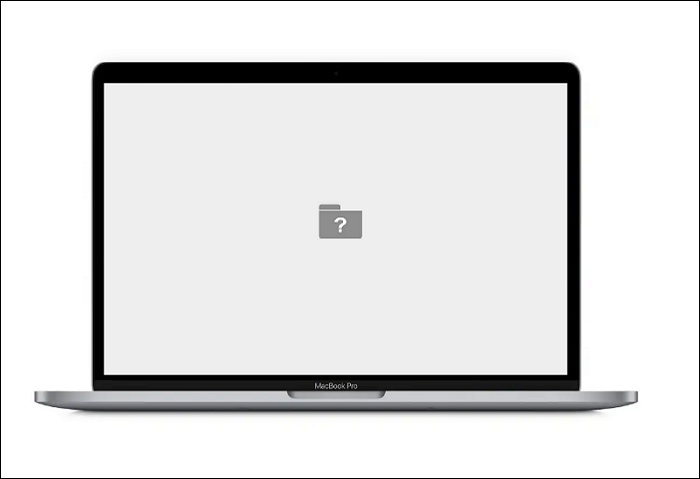
Possible Causes for Mac Folder with Question Mark Flashing
The Mac question mark folder issue is caused by the operating system's inability to identify its boot directory, which can occur due to various reasons. This error can manifest when the Mac is unable to locate its boot directory, leading to a question mark folder appearing on the desktop. The issue may be triggered by software or hardware problems, including corrupted system files, outdated operating system, or faulty storage devices. In some cases, the question mark folder may appear due to user error, such as deleting system files or modifying boot configuration settings.
- The hard drive/disk has failed
- The macOS has corrupted
- The file system has been damaged
The Mac question mark folder issue can be caused by various elements, which can be categorized into hardware- and software-related issues. The fix for these elements can range from simple to complex, depending on the root cause of the problem.
Recover Data from Unbootable Mac with Question Folder
When a MacBook displays a question mark folder on its screen or experiences other macOS boot issues, there's a risk of losing or corrupting data. Forcing the device to reboot could result in lost files and data.
When a Mac can't boot normally, the first priority is data recovery to prevent permanent data loss during repair. You can use data recovery software like Deep Data Recovery Bootable Media to create a bootable disk and restore data after rebooting.
Deep Data Recovery for Mac
- Recover formatted hard drive on Mac, allows you to recover data from Mac hard drive if your Mac hard drive has failed, and retrieve your lost files, documents, photos, and videos. You can recover formatted hard drive on Mac by using a reliable data recovery software, which can scan the formatted hard drive and recover your lost data.
- Make a bootable USB for Mac; recover data from the Mac won't boot or restart after reinstallation.
- This software recovers data from failed Mac Recovery Mode, corrupted macOS, and unmountable startup disk and file system, allowing users to recover lost data even in critical situations.
To create a bootable disk using Qiling Data Recovery for Mac and restore your data, follow these steps. First, download and install Qiling Data Recovery for Mac.
How to Create a USB Bootable Media
Step 1. To create a bootable USB drive for Deep Data Recovery on a Mac, you can install the software on another Mac, go to File > Create Bootable USB, and select a USB drive to create the bootable disc.
- Warning
- The creator will prompt to erase the drive to reallocate the space, then write bootable files to it, so back up all USB files before processing "Eraser".
Step 2. The program creates a 2GB space on the USB and saves the boot files there, leaving the rest of the space available for storage.
Step 3. To recover from a corrupted Mac, create a bootable disc using a Mac-specific operating system like macOS Recovery. Once it's created, boot the Mac from the disc, and follow the on-screen instructions to start the recovery process. It's recommended to restore data to an external hard drive to ensure its safety.
How to Recover Data from Mac Hard Disk
Step 1. Select the disk location where you lost data and click on the "Search for lost files" button.
Step 2. Deep Data Recovery for Mac will immediately scan your selected disk volume and display the scanning results on the left pane.
Step 3. Select the desired file(s) from the scan results and click the "Recover" button to restore the data from your Mac.
6 Fixes to Apple Folder with Question Mark Flashes on Startup
The macOS might fail to find the startup disk, resulting in a flashing folder with a question mark appearing on the Mac screen. Despite a restart, the Mac question mark folder icon can persist, causing startup problems. To resolve this issue, we will explore six ways to fix the mac startup problems.
Fix 1. Check System Preferences to Reselet Mac Startup Disk
If your MacBook won't turn on and shows a folder with a flashing question mark, you can manually select the correct startup disk from System Preferences.
Step 1. Select Startup Disk under System Preferences in the Apple menu.
Step 2. To select the Startup Disk, choose the Startup Disk icon, which is typically called "Macintosh HD".
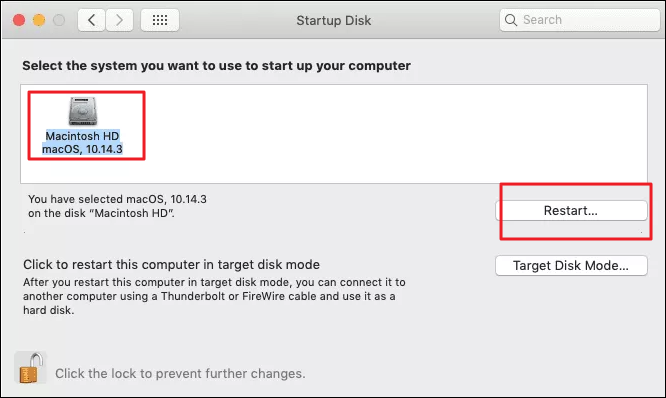
Step 3. To resolve the issue, click the Restart button to restart your Mac. This will check if the flashing question mark folder is no longer visible on your Mac.
Fix 2. Reset NVRAM
Resetting the NVRAM/PRAM is essential as a remedy if the Mac startup disk has gotten corrupted. You can try these steps:
Step 1. Shut down the MacBook completely, wait for at least 20 seconds to allow any residual power to drain, and then proceed with the steps to reset the SMC. This will ensure a clean start and help resolve any potential issues.
Step 2. Press the power button and simultaneously hold the option keys: Command + option + P + R.
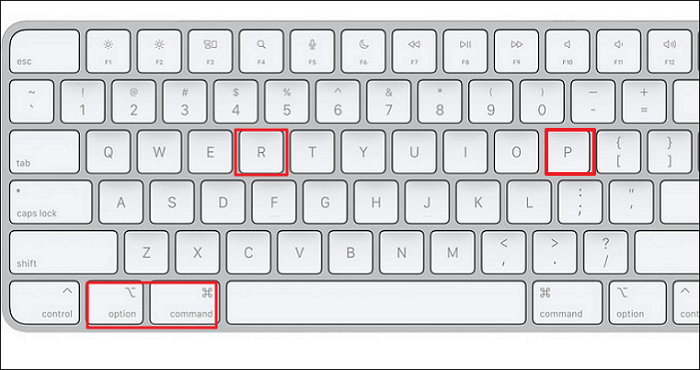
Step 3. When you see the Apple Logo again, release the keys.
Step 4. After the Mac finishes starting up, you have completed the NVRAM reset.
Fix 3. Reboot Mac in Recovery Mode
Since your startup disk has failed, you can't boot your Mac normally. To fix this, you can enter macOS in its Recovery Mode, where you can run diagnostic tests and potentially repair or reinstall the operating system.
Step 1. You can boot Mac Recovery mode using various keys depending on whether your Mac is based on Apple silicon or an Intel CPU.
- Apple silicon: To start your Mac, press and hold the power button until the startup options menu appears, then select "Continue" from the options menu.
- Intel processor: To boot your Mac in recovery mode, press and hold the Command + R keys immediately after turning it on, until an Apple logo or other image appears.
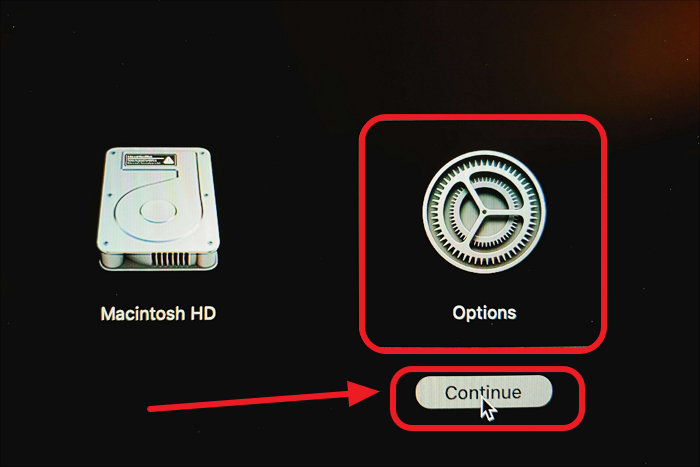
Step 2. 1. Enter a password to continue. 2.
If you successfully boot the Mac into Recovery Mode, choose Disk Utility on the window to repair the Startup disk. Continue reading to learn about the detailed instruction in Fix 4.
Fix 4. Repair Your Mac Hard Drive with Disk Utility
To repair the Mac startup disk using Disk Utility, follow these steps: First, restart your Mac in Recovery Mode. Next, open the Disk Utility app from the Utilities window. Then, select the startup disk from the list on the left and click the "First Aid" button at the top.
Step 1. Turn off the Mac and disconnect all peripherals.
Step 2. Choose Disk Utility in Mac Recovery Mode's macOS Utilities window.
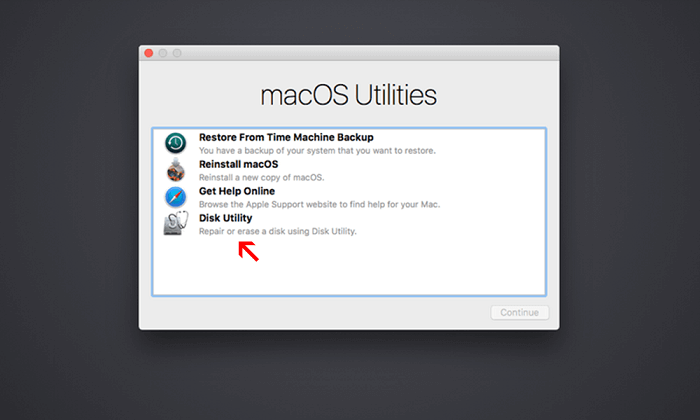
Step 3. Run the Disk Utility to scan and repair the Mac startup disk.
Fix 5. Reformat Mac Startup Disk
If Disk Utility can't fix the issue with the startup disk, you may need to reformat it, which will erase all data on the disk, so be sure to back up any important files first.
To start the reformation, boot your Mac in Recovery Mode and enter Disk Utility, then select your startup disk and click "Erase" to start the process. This will erase the startup disk and allow you to reinstall macOS.
Step 1. Select Macintosh HD in Disk Utility and select Erase.
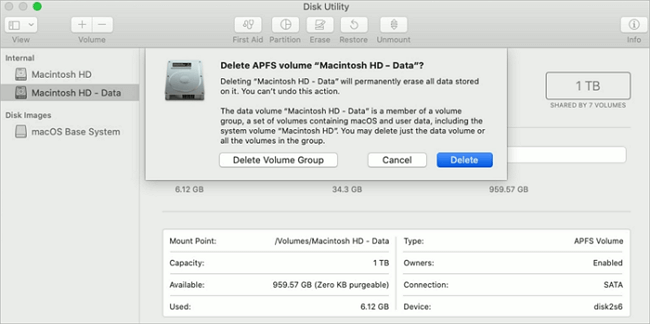
Step 2. You'll see an option to change the disk name and format in the pop-up window.
Step 3. Pressing the Erase Volume Group button, which completely removes all data from your hard drive, effectively wiping it clean.
When the process is finished, shut down the Disk Utility. You should see a new SSD on your desktop.
Fix 6. Reinstall macOS from USB Drives
If the Mac startup disk still can't respond after repair, try reinstalling macOS to fix the issue with a question mark folder on startup.
Since your Mac won't boot normally, you'll need to install macOS from a USB drive. You can download the installation files from another device and then run the reinstallation process from the USB drive.
Step 1. Here's how you can format an external USB drive to store the macOS installer: To format an external USB drive for storing the macOS installer, you can use the built-in Disk Utility app on a Mac. First, connect the external drive to the Mac and launch Disk Utility.
Step 2. Download the macOS installer from another Mac or Apple's website.
Step 3. To create a bootable USB disk using Terminal, you can use the `dd` command. Here's how to do it in one paragraph:
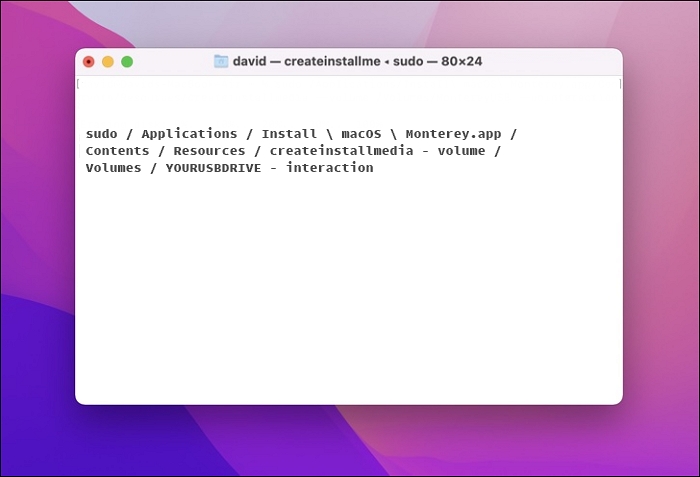
To fix the "folder with a question mark" issue on your Mac, start by booting your Mac from a USB drive. Once booted, reinstall macOS from the USB drive, and once the installation is complete, check if the issue has been resolved. If the problem persists, you may need to troubleshoot further.
To Sum Up
After applying the modifications to fix the Mac startup issue, you can resolve the problem without losing your data. It's essential to back up your data or restore it as soon as possible. A tool like Deep Data Recovery for Mac can be helpful in this process.
Mac Flashes Folder with Question Mark FAQs
Here are 4 questions about the Mac flashes folder with a question mark. Check here for the answers.
1. What is a folder with a question mark on Mac?
When you turn on a Mac, the screen displays a flashing question mark instead of the Apple logo, indicating the startup disk is damaged, affecting MacBook, MacBook Pro, and MacBook Air models.
2. Why do I see a flashing folder with a question mark after replacing the hard drive?
The Mac "no startup disk" error occurs when your Mac cannot load the macOS from the hard drive into memory to launch the operating system, resulting in a question mark folder appearing on the screen, indicating that the system is unable to locate a startup disk.
- Hardware-related problems with your startup hard disk or logic board
- The issue lies in the fact that the startup disk doesn't have a functional copy of macOS, which is causing problems with the software.
3. How do I fix it if my Mac starts up to a question mark?
To resolve the issue, try the fixes and follow the detailed guideline above.
- Repair startup disk in macOS Recovery
- Make the startup disk appear in the disk utility
- Reset NVRAM on your Mac
- Restall the macOS
Related Articles
- [2023 Tips] Update Not Found - The Requested Version of macOS Is Not Available
- How to Sync Two External Hard Drives in Windows 10 [Two Nice Tips]
- [2023 Fixes] How to Fix Your Computer Was Unable to Start
- 3 Proven Ways to Download & Install macOS 12 Monterey for Free [2023 Tips]
- RAM vs. ROM: 8 Differences between RAM and ROM
Learn the 8 key differences between RAM and ROM. RAM is volatile, fast, and writable, while ROM is non-volatile, permanent, and read-only. Discover how these two memory types work together in your computer. - Ransomware: The PC Viruses You Must Fight Against! [Full Guide]
Are you scared of your PC detecting a malware attack but are unaware of overcoming this situation? Today, we will explain Ransomware, the PC viruses you must fight against!
Products
Articles & Tutorials
- Data Recovery
- Data Backup
- File Recovery
- File Backup
- System Backup and Restore
- Disk and Partition Clone
- Technical articles
- Mobile articles
- Disk Master Help
- Windows Data Recovery Tutorials
- Windows Secure Delete Tutorials
- Windows Partition Management Tutorials
- Windows File Backup and Restore Tutorials
- Windows System Backup and Restore Tutorials
- Windows Disk Backup and Restore Tutorials
- Windows Clone Tutorials